Ready to Invoice
Ready to Invoice is BillingBot's main screen (route /readytoinvoice) for preparing monthly billing. Here you import charges from your distributor (Pax8, Twilio, Ingram CloudBlue, ITCloud, or a CSV file), review and correct each line (com...
Last updated 21 days ago
Ready to Invoice is BillingBot's main screen (route /readytoinvoice) for preparing monthly billing. Here you import charges from your distributor (Pax8, Twilio, Ingram CloudBlue, ITCloud, or a CSV file), review and correct each line (company, product, price), and finally send them to HaloPSA as invoices or recurring invoice lines. It's the starting point for almost the entire billing workflow: most of the module's other dialogs are opened from here (company mapping, line editing, invoice assignment, etc.).
When to Use This Screen
- At the start of each billing cycle, to pull the month's charges from your integration (Pax8, Twilio, Ingram CloudBlue, ITCloud, or CSV).
- When you need to review which companies or products are not yet mapped to HaloPSA before invoicing.
- To correct prices, costs, quantities, or exclusions on a line before sending it.
- To send (queue) already-validated charges to HaloPSA as new invoices, an existing working invoice, or a recurring invoice.
- To remove charges imported by mistake or reimport the charges for a single company.
What It Shows
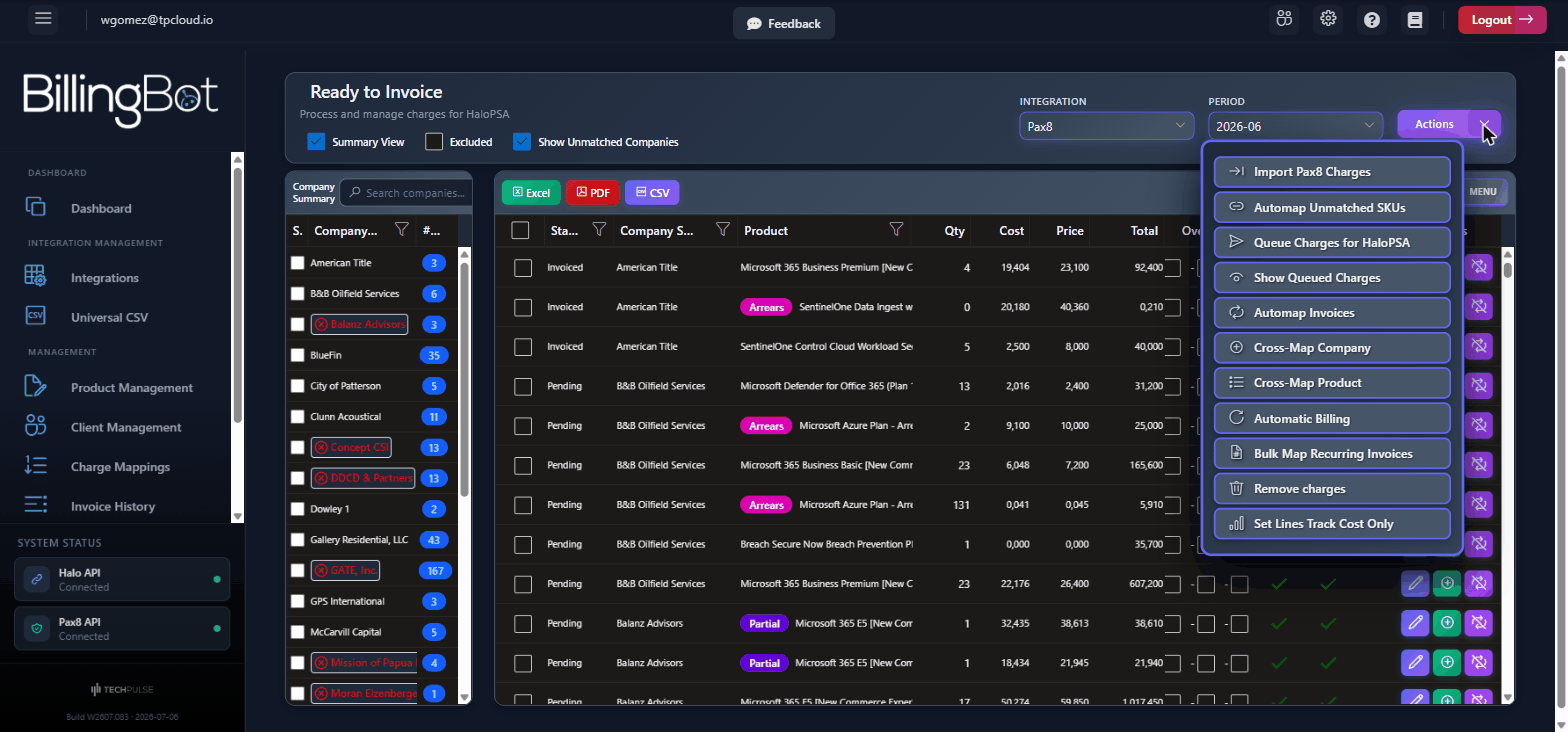
The screen has a control header and two grids side by side: Company Summary and the charge lines grid.
Header Controls
"Company Summary" Grid (left)
Summarizes charges grouped by source company.
Charge Lines Grid (right)
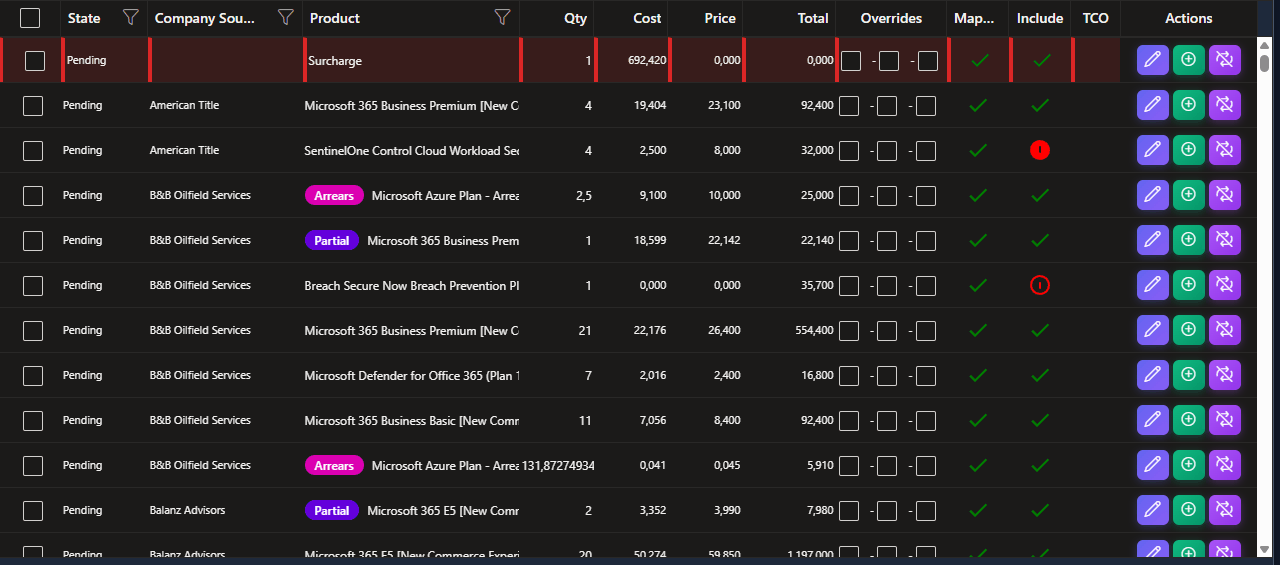
Shows the detail of each charge imported for the selected period.
Below the grid, a notice may appear: "Warning: Some lines show $0.00 total despite having cost > $0..." when there are lines with quantity and cost greater than zero but price and total at zero (a sign of incomplete Pax8 data).
Search and Filters
- Each grid has its own search box (Search companies... / Search processed lines...).
- The lines grid supports exporting to Excel and CSV with dedicated buttons in the top toolbar.
Available Actions
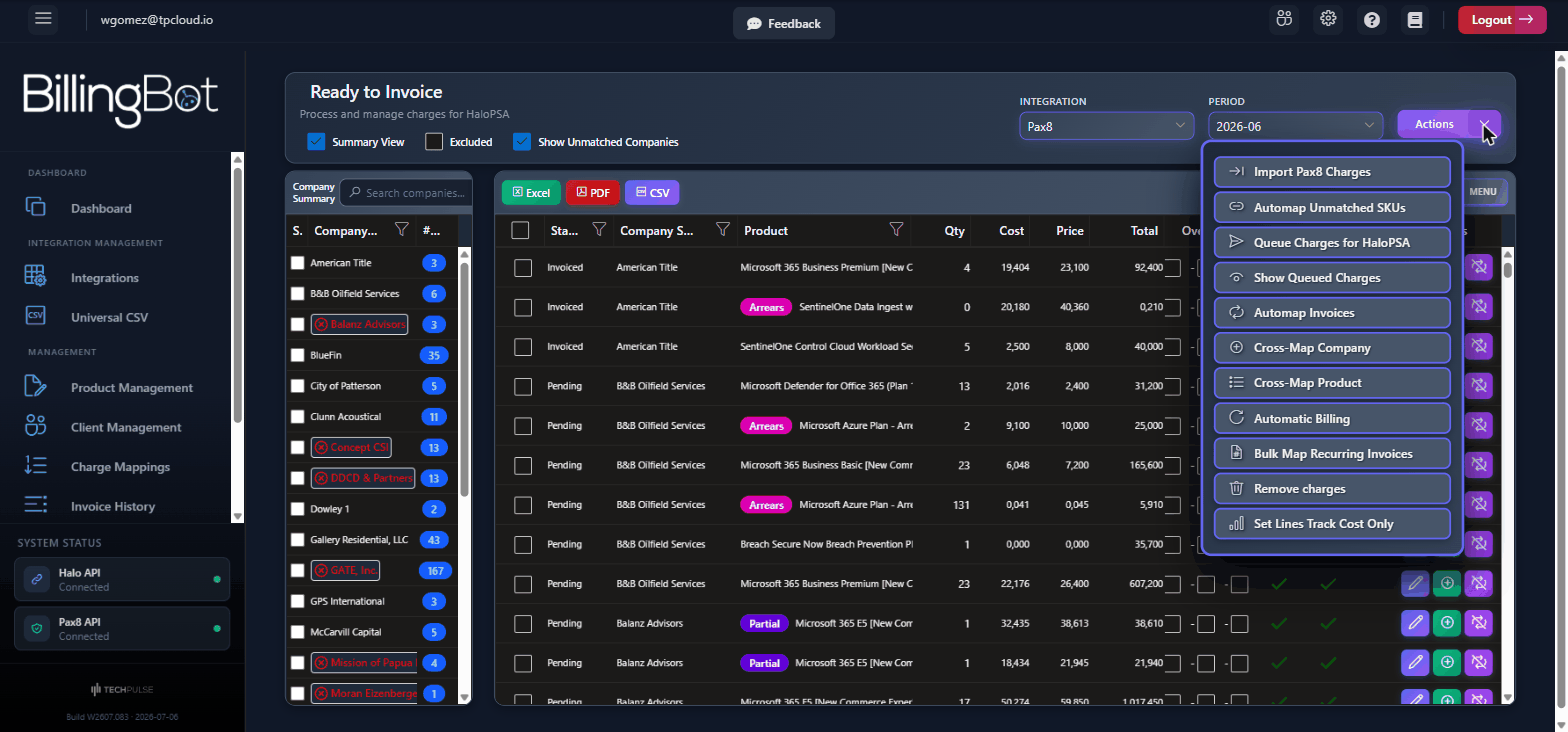
All import and sending actions are grouped under the Actions button (purple dropdown menu). The visible options change depending on the selected integration.
- Import Pax8 Charges / Import Twilio Charges / Import Ingram Cloud Blue Charges / Import ITCloud Charges: first downloads the product catalog, then the charges for the selected period from the integration. Shows a two-step progress screen (Sync Products, Import Charges). If the charge import fails, you're asked whether you want to retry (the process can continue from where it left off). Only one Pax8 import runs at a time per account: if one is still running (for example after the connection dropped), a second one is refused with "A Pax8 import is already running for this account…" — wait a moment and reload, so the same charges are never imported twice. If the import finished but something needs your attention, an Import Notice says so: for example "Import completed with N failed invoice(s)…" (some Pax8 invoices could not be read, so the month is incomplete — import again before sending) or products that could not be resolved in your catalogue. Two notices need special care:
- "N charge(s) could not be imported because Pax8 sent data BillingBot could not read (Pax8 line id: …). They are NOT in this month's charges and will not be billed…" — those charges are missing from the month. Run the import again, and contact support with the line ids if they keep failing. Like a failed invoice, this makes the import partial.
- "N product(s) could not be resolved in your product catalogue…" — their charges were imported without a Halo product. If you send them as they are, they go to HaloPSA under the integration's Default Item Code; map them first with Automap Unmatched SKUs if that is not what you want.
- Review Recurring Invoices (Beta): use it right after importing the month's charges. Lists the HaloPSA recurring invoices whose old lines would keep being billed this month (clients without charges, and products that stopped arriving) and lets you clean them one client at a time, with a backup you can restore. See Review Recurring Invoices.
- Automap Unmatched SKUs (Pax8 only; appears as "Assign unassigned skus Pax8" in the code): opens the dialog to bulk-assign lines whose product doesn't yet have a Halo SKU assigned. If all products already have a SKU, the message "All products have an assigned SKU." is shown.
- Queue Charges for HaloPSA: takes the lines selected in the charges grid and sends them to HaloPSA (creates or updates invoices). Before sending, it validates that at least one line is selected, that all are in pending status (charges excluded when an earlier package was sent can be brought back from here, see Bringing back charges excluded in a sent package), that they have a company assigned, and that they have a Halo SKU/product assigned. When finished, it takes you to the sending result screen. Only one queueing runs at a time per account: if another tab, another user or Automatic Billing is already assigning charges, you get "Charges are already being assigned to HaloPSA for this account…" — wait a few seconds, reload the screen and try again (the charges the other run queued show as In Queue). Warning: this action creates real charges in HaloPSA.
- Show Queued Charges: navigates to the screen showing charges already sent/queued to HaloPSA.
- Automap Invoices: for the companies selected in the summary, automatically assigns the most recent open working invoice in HaloPSA as the target for the charges.
- Cross-Map Product (Pax8 only): uses the lines selected in the charges grid to open the bulk assignment dialog. Despite the name, it does not change the product — it sends that product's charges, from that source company, to a different client. See Reassign Charges to Another Company.
- Automatic Billing (Pax8 only): runs Pax8's automatic billing process and takes you to the screen for reviewing the generated invoices. If its import was partial — some Pax8 invoices could not be read, or some charges could not be imported — it stops before sending anything to HaloPSA and tells you which ones. It also shows the import's other notices (for example, products without a Halo product). It queues only the pending charges of the period and sends only the package it has just created — packages you or another user left in the queue are not sent. Invoices with ambiguous charges you have not resolved are not sent either (the same rule as a manual send); they stay in the queue with the reason.
- Bulk Map Recurring Invoices: opens the dialog to bulk-assign a Halo recurring invoice to several summary companies at once.
- Remove charges: Warning: deletes pending charges. If you have lines selected, it deletes only those (all must be in "In Progress"/pending status, otherwise the action is blocked). If you don't select any line, you're offered the option to delete all pending charges for the current period and integration, after explicit confirmation. Only charges that are still pending at that moment are deleted: a charge queued meanwhile (in another tab or by another user) is left alone. This action cannot be undone.
- Set Lines Track Cost Only: opens a dialog to bulk enable or disable "Cost Tracking Only" for the selected lines (the line is sent to Halo at $0 price and marked as grouped, for profitability tracking only, without being charged to the customer). For each line it does the same two things the single-line dialog does: marks that line as decided by hand for this period, and stores the answer for that client and product so it holds next month too. Each line is changed first, and the answer for next month is stored only for lines that were actually changed. If storing it fails for some of them, you see "N line(s) were changed for this month, but the rule for the next months could not be saved for them."
"Cross-Map Company" is no longer in this menu. To bill a distributor company to a different PSA client, or to bill two distributor companies to the same PSA client, use Map Halo Company on the company's row (see Map Halo Company) or Assign Company in Client Management. A PSA client can hold several client records, one per distributor company, and giving them the same recurring invoice bills them together.
Other actions available directly in the grids (without going through the Actions menu):
- Edit Company (icon in the summary): opens the company editing dialog. Requires the company to already be mapped to HaloPSA.
- Assign Invoice (icon in the summary): opens the dialog to assign a HaloPSA working invoice or recurring invoice to the company. Requires the company to already be mapped.
- Map Halo Company (icon in the summary): opens the dialog to link the source company with a HaloPSA company. If the company was already mapped and has processed charges, reassignment is blocked; if all charges are pending, it asks for confirmation before changing the mapping.
- Exclude-Include Company (icon in the summary): toggles exclusion of the entire company from billing (asks for confirmation in both directions). It sets the Do Not Invoice checkbox on the company's client record, so it requires the company to already be mapped to a HaloPSA client. A company that is not mapped is never billed anyway; if you try, the screen tells you so and asks you to map it first.
- Reimport Company Charges (icon in the summary, Pax8 only): Warning: deletes and re-fetches that company's charges from Pax8 for the current period. Only works if all of the company's charges are in pending status; asks for confirmation before running. Everything is read from Pax8 before the company's charges are removed, so if Pax8 fails, the existing charges stay as they were. If the reimport fails after removing them, the message says so: run Reimport Company Charges again to bring them back. If some of the company's charges were queued or changed while Pax8 was being read (in another tab or by another user), nothing is removed or reimported. It does not appear for CSV, Twilio, ITCloud or Ingram: for those, remove the charges and import the file or the source again.
- Edit (icon in the lines grid): opens the dialog to edit a charge line. Requires the line to already have a Halo product assigned.
- Assign Halo Product (icon in the lines grid): opens the dialog to link that line's product with a HaloPSA product/item.
- Exclude/Include Line (icon in the lines grid): excludes this product from billing for this client, or brings it back. Despite the name it is not a one-off change to that single line: the decision is stored for the client and product and applies from now on. The line is changed first, and the decision for next months is stored only if that worked. See the section below. On a charge that shows Not Invoiced because it was excluded when its package was sent, the same button asks whether to return it to Pending and include it (see Bringing back charges excluded in a sent package).
Bringing back charges excluded in a sent package
When a package is generated, excluded charges are not sent to HaloPSA: they stay as Not Invoiced / Excluded. If you later realize they should have been billed, you don't need to contact support:
- Select those charges (along with any pending ones you also want to send) and use Queue Charges for HaloPSA. BillingBot tells you how many were excluded when an earlier package was sent and never reached HaloPSA, and asks whether to include them and queue them now. Answer Yes and they go back to Pending, included, and are queued with the rest.
- For a single charge, use Exclude/Include Line on its row. It asks whether to return the charge to Pending and include it, so you can queue it afterwards.
Including them also stores the decision for the client and product, as Exclude/Include Line always does: future months for this client and product will be included too.
This only works for charges that never reached HaloPSA. Some charges show Not Invoiced even though their amount is in HaloPSA: for example, the other charges of a collapsed Azure group, where one line carries the total. Those can't be brought back, because sending them again would bill them twice. Charges excluded by the Drop Zero Dollar Lines or Drop Favorable Prorata settings do come back, but those settings exclude them again when they are queued.
How exclusion and Track Cost Only are decided
These two settings exist at more than one level, and the charges grid is where the client level is set. Knowing which level you are looking at is the difference between a change that lasts and one that comes back on the next import.
Two things follow from that:
- The client level can say no, not just yes. On a product excluded for everybody, using Exclude/Include Line to include one client is stored as a deliberate "bill this to this client" and it survives future imports. The product stays excluded for everyone else. The same applies in reverse, and to Track Cost Only.
- What you set here is remembered. You are not fixing this month's line, you are answering for this client and product from now on. The Include column's filled/hollow circle is how you tell the two levels apart at a glance, and Charge Mappings lists every client-level answer that exists.
Charges moved with Cross-Map Product keep their rules with the company they came from. If you exclude a cross-mapped charge, or set it to Track Cost Only, the rule is stored for the original distributor company. That way it applies again next month, and it does not affect the destination client's own charges of that product.
The one exception is Track Cost Only on a single line, set from Edit Invoice Line. That is the only way to treat one line differently when a client has several lines of the same product, and it applies to the current period only.
To change a setting for every client, go to Product Management instead. Doing it there also brings the current period pending charges into line, leaving the client-level exceptions untouched and telling you how many it left alone.
Step-by-Step Flow
- Select the Integration you want to process (Pax8, Twilio, Ingram CloudBlue, ITCloud, or CSV).
- Confirm with Load Data (or Cancel if you picked the wrong integration).
- Select the Period (month-year) you're going to invoice.
- Open the Actions menu and choose the corresponding import option (for example Import Pax8 Charges). Wait for the two-step progress bar to finish (syncing products and importing charges).
- Review the Company Summary grid: identify companies marked in red (unmapped) and use Map Halo Company to link them to their client in HaloPSA.
- If a product has no SKU assigned, use Automap Unmatched SKUs from the Actions menu, or the Assign Halo Product icon on a specific line.
- Review the charge lines grid: correct prices, exclude lines that don't belong, and confirm that the Mapped column shows the green icon on every line you're going to invoice.
- Select the lines ready to invoice and use Queue Charges for HaloPSA in the Actions menu.
- Verify the sending result on the screen that opens automatically.
Tip: right after step 4, use Review Recurring Invoices (Beta) to find clients whose recurring invoice will not change this month and clean the old lines. See Review Recurring Invoices.
Common Errors and How to Resolve Them
- "Select Integration": you tried to load lines without choosing an integration. Select one from the Integration dropdown.
- "No Period selected": you need to choose the month-year in the Period dropdown before importing, sending, or deleting charges.
- "No records selected" / "No companies selected!" / "No company records selected": the action requires you to check at least one row (line or company) before running it.
- "!Error. Some selected records do not have a company assigned": there are selected lines whose source company isn't mapped to HaloPSA yet. Map the company with Map Halo Company before sending to Halo.
- "!Error. Some selected records do not have a SKU-product assigned": there are lines without a Halo product assigned. Use Assign Halo Product or Automap Unmatched SKUs.
- "... doesn't have a recurring invoice assigned, but is set to target Recurring Invoice...": the company is configured to bill against a recurring invoice but doesn't have one assigned. Go to the client administration screen and assign the recurring invoice.
- "Map the client before attempting to edit." / "Map the client before attempting to assign a working invoice.": you tried to edit the company or assign an invoice to it without mapping it to HaloPSA first.
- "Cannot change company assignment. This company has ... charge(s) that have already been processed...": you can't remap a company that already has processed charges; this is only allowed if all charges are still pending.
- "Cannot remove processed charges. Only pending charges (In Progress) can be removed...": you tried to delete lines that were already sent or processed in Halo. Only pending charges can be deleted.
- "Cannot reimport charges for '...'. ... charge(s) are not in 'Pending' state": you can't reimport a company's charges if any of them have already been processed.
- "Nothing was reimported: some of this company's charges were queued or changed while Pax8 was being read (another tab or user)…": someone queued or edited this company's charges during the reimport, so nothing was removed. Reload Ready to Invoice and reimport again if it still applies.
- "…The company's charges were removed before the reimport failed: run "Reimport Company Charges" again to bring them back.": the reimport removed the charges and then failed. Run it again; until you do, that company has no charges for the month.
- "Charges are already being assigned to HaloPSA for this account (another tab, another user or Automatic Billing)…": another queueing is running. Wait a few seconds, reload the screen and try again.
- "The charge could not be updated. Reload the screen and try again.": after Exclude/Include Line, the line could not be changed (for example, it was queued meanwhile). Nothing was stored for the next months either.
- "... charge(s) could not be returned to Pending: they were changed meanwhile or are already linked to a Halo package…": some of the selected Not Invoiced charges are in HaloPSA, or someone queued them meanwhile, so nothing was queued. The charges the message reports as now Pending can be queued: reload the screen and select them again.
- "The charges were included for this month, but the rule for the next months could not be saved for: …": the charges came back, but the decision for future months wasn't stored for those client/product pairs. Use Exclude/Include Line on one of their lines next month, or contact support.
- "The charge was changed for this month, but the rule for the next months could not be saved, so they will not follow it…": the line was changed, but the decision for future months was not stored. The reason follows in the message; if it keeps happening, contact support with the company and product.
- "All products have an assigned SKU.": appeared when trying to use the unassigned SKUs wizard; it means there's nothing left pending to map.
- "There was a problem with your Halo API credentials...": BillingBot couldn't connect to HaloPSA. You're redirected to the integrations screen to update the Halo API credentials.
- Permissions notice (403 error) when loading Halo companies: the
clients:readpermission (or theallscope) needs to be enabled on the HaloPSA API application. Contact your Halo administrator. - Import Issue / import retry: if the charge import fails, you're asked whether you want to retry; the process continues from where it stopped.
- "... charge(s) could not be imported because Pax8 sent data BillingBot could not read…": those charges are not in the month and will not be billed. Import again; if the same Pax8 line ids keep failing, contact support with them.
- Partially Completed notice when deleting all pending charges: some charges couldn't be deleted because they were no longer in pending status (for example, already queued or invoiced); they require manual review.
- $0.00 price notice: the message under the lines grid indicates there are charges with quantity and cost greater than zero but price and total at zero, typical of incomplete Pax8 data; correct the price manually (override) before sending to Halo.
Related Screens
Was this helpful?
Still need help? Ask the team