Product Management
This screen is the central catalog of all the products BillingBot imported from your distributor (Pax8, Ingram, ITCloud, Twilio, or CSV), and the place where you define which HaloPSA or AutoTask product each one corresponds to. Without t...
Last updated 21 days ago
This screen is the central catalog of all the products BillingBot imported from your distributor (Pax8, Ingram, ITCloud, Twilio, or CSV), and the place where you define which HaloPSA or AutoTask product each one corresponds to. Without this mapping, BillingBot does not know which invoice line to create when a charge arrives from the distributor.
Excluding a product, and marking it cost only, happen at two levels
Two of the settings on this screen — excluding a product from billing and marking it Track Cost Only — exist at two levels, and this screen is only the first of them.
The client level is the more specific of the two, so it wins, and it can say either yes or no. That second part is what changed: a client-level decision is no longer only able to add an exclusion, it can also lift one.
- A product billed normally to everyone, excluded for one client → exclude it on that client's line.
- A product excluded for everyone, billed to one client anyway → include it on that client's line. The exclusion stays in place for all the other clients.
Both are remembered, so they survive the next distributor import. You do not have to redo them every month.
There is no third level for exclusion: it is decided per product and per client, never per individual line. Track Cost Only does have a third level — one line, for one month only — set from Edit Invoice Line.
When to use this screen
- When you connect a new integration and need to import and map its products for the first time.
- When the distributor adds a new product or SKU and it shows up unmapped.
- When you want to review or correct a product's price, cost, sales account, or tax category.
- When a product should not be billed to anybody (for example, a charge already covered by a bundle), or should be billed again after being excluded. If it concerns one client only, do it from the charges grid instead — see the table above.
- When you want to mark products as "cost tracking only" for every client (not billed to the client, but still recorded to calculate profitability).
- When you need to assign a Sales Account to several Halo products at once.
What it shows
The table lists, for each product imported from the distributor:
- Distributor Name and Distributor SKU: the product's name and code as reported by the distributor.
- Status and Billing Date: the status and billing start date reported by the distributor.
- Depending on your configured billing destination:
- If you use HaloPSA: columns Halo ID, Halo Item, Halo SKU, and Sales Acct (sales account assigned in Halo).
- If you use AutoTask: columns AutoTask ID, AutoTask Product, AutoTask SKU, Billing Code, and Tax Category.
- Price and Cost: the product's base price and cost.
- Override: three columns (Price, Cost, Margin) indicating whether that product has a manual value that replaces the automatic calculation.
- Include: a tick box, shown for information only and not clickable — ticked when the product is billed, cleared when it is excluded. It reflects the product level only: a client excluded, or re-included, on its own is not visible here. To see that, open the charges grid in Prepare Billing, whose Include column distinguishes the two.
- TCO: a green tick means the product is marked Track Cost Only for every client. As with Include, a client-level decision does not show here.
- Actions: buttons to edit, map, delete the mapping, or exclude/include the product.
At the top you can choose the Integration (distributor) and the Period (month) you want to view.
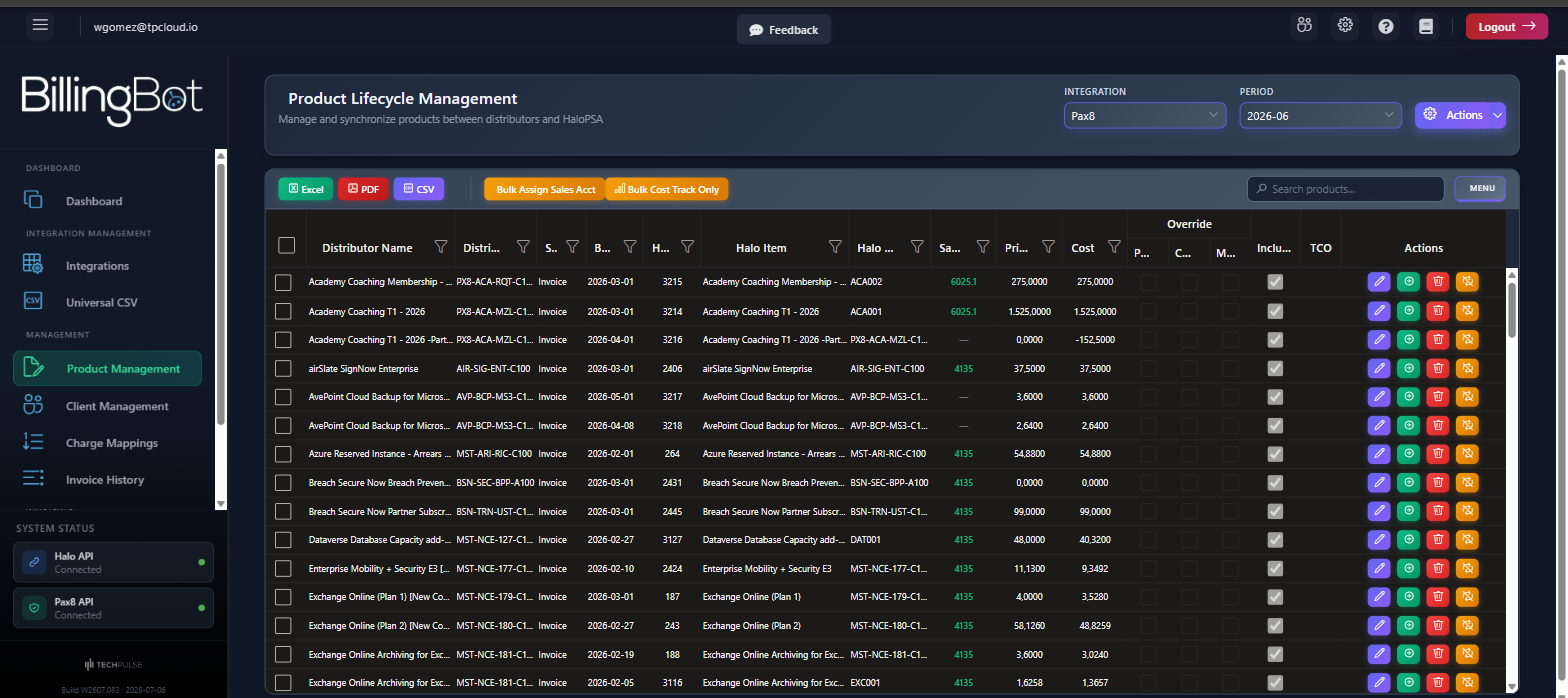
Available actions
- Integration selector: changes the distributor whose catalog you are viewing. Reloads the entire table.
- Period selector: changes the reference month. It matters more than it looks: it is the period whose already-imported charges are updated when you exclude or include a product (see the Exclude Product / Include Product button below).
- Actions button (dropdown menu):
- "Manage Item Groups" (Halo only): opens the window to manage the Halo item groups used by BillingBot.
- "Import and Map Products": fetches the distributor's full catalog again and runs automatic mapping to Halo/AutoTask. It can take several minutes. ⚠️ Replaces the product data with the distributor's latest version.
- Excel / CSV: exports the visible table to the chosen format.
- "Bulk Assign Sales Acct" (Halo only): with products selected (using the checkboxes), assigns the same sales account to all of them at once. With QuickBooks Online connected to Halo, the list shows your QuickBooks income accounts.
- "Bulk Cost Track Only": with products selected, turns Track Cost Only on or off in bulk at the product level — that is, for every client. When it is on, the charge is sent to Halo/AutoTask at a price of zero and marked as a bundled line, so it does not appear as a charge on the client's invoice while its cost is still recorded. To do this for a single client, use Set Lines Track Cost Only in the charges grid instead.
- Search box ("Search products..."): filters the table by name, SKU, status, override values, include/exclude, etc.
- Pencil button on each row (tooltip Edit Product): opens the product edit window (see Edit Product Mapping) with price, cost, override, tax category, and the Track Cost Only settings.
- Circle + button on each row (tooltip Map to Halo Product or Map to AutoTask Product): opens the window to link the product to a Halo item or an AutoTask product (AsignProductHalo / AsignProductAutoTask). When you assign a Halo item, the charges already imported for the Period selected at the top that are still pending pick up the new Halo product and SKU right away, without a re-import.
Saving a product only changes the product on its charges. When this screen or Edit Product Mapping updates pending charges, it changes only the product fields: the Halo or AutoTask product, its name and SKU, and the pricing settings (and the amounts only when a Price, Cost or Margin Override or Use Halo Price recalculated them). Anything else done meanwhile on those charges in Prepare Billing — a Cross-Map to another client, an exclusion, a price typed on the line, unless this save recalculated the amounts — is kept, even if this screen was opened before that change.
Trash can button on each row (tooltip Delete Mapping): ⚠️ removes the link to Halo or AutoTask (deletes the assigned ID, name, SKU, and description). The product remains unmapped until you assign it again.
Toggle button on each row (tooltip Exclude Product, or Include Product when the product is already excluded): excludes the product from billing for every client, or brings it back, after a confirmation. Two things happen at once:
- The product setting is saved, so every future import honours it.
- The charges already imported for the period selected at the top are brought into line, without asking again. Only charges still pending are touched; anything already sent to Halo or AutoTask is left alone.
That second step respects the client level. A client you had deliberately excluded, or deliberately re-included on a product excluded for everyone, keeps its own answer — its charges are left as they are. When that happens the screen tells you, for example "12 pending charge(s) updated. 3 left as they are because a client-level rule decides them." Those three are not failures; they are the exceptions doing their job. To change them you have to change them per client, from the charges grid.
If the product itself fails to save, nothing is propagated and the button reports the error instead.
Step-by-step flow
- Select the Integration (distributor) you want to review.
- If it is the first time, use the Actions > Import and Map Products menu to fetch the catalog and let BillingBot try to automatically map the products to Halo/AutoTask. A product is linked automatically only to an item that is that product (same SKU or same name); a similar-looking item is never linked on a guess. Products with no such item are created, given the default item, or left unmapped, depending on the product options of the integration (see Settings Integration). A mapping you made by hand is never replaced by a later sync; a product still unmapped is handled by the same rule on every sync, so it is created once "Create items...automatically..." is turned on.
- Review the table: products that show up without a Halo Item or AutoTask Product are pending mapping.
- For each unmapped product, use the Map button and choose the corresponding item/product in Halo or AutoTask.
- If you need to adjust a product's price, cost, or tax category, use the Edit button.
- If a product should not be billed to anyone, check that the Period at the top is the one you intend to affect, then use the Exclude Product / Include Product button. If it should not be billed to one client only, leave this screen alone and do it from the charges grid in Prepare Billing.
- If several products share a sales account or should be cost only for everyone, select them with the checkboxes and use Bulk Assign Sales Acct or Bulk Cost Track Only.
- Export the table if you need to share it or review it outside BillingBot.
Common errors and how to fix them
- "Select Integration": you tried to load processed charges without first choosing an integration in the selector at the top. Select an integration and try again.
- "Please select at least one product to assign a sales account.": you tried to use "Bulk Assign Sales Acct" without checking any product in the table's checkboxes. Select at least one product.
- "Please select at least one product to update Cost Tracking Only.": same as above, but for "Bulk Cost Track Only". Check at least one product first.
- "Please select a sales account.": in the bulk assignment window, you confirmed without choosing a sales account from the dropdown. Select an account before confirming.
- "Partially completed: ... succeeded, ... failed.": when assigning a sales account or changing "Track Cost Only" in bulk, some products were updated and others were not. Review those products individually and try again.
- "Failed to assign sales account to the selected products." / "Failed to update Cost Tracking Only for the selected products.": none of the selected products could be updated. Check your connection or try again; if it persists, contact support.
- "Warning: The assigned Halo product (ID: ..., Name: ...) could not be found in HaloPSA. It may have been deleted." (or the equivalent for AutoTask): the product you had mapped no longer exists in Halo/AutoTask, likely because someone deleted it there. You must remap that product using the Map button to avoid issues when generating invoices or contracts.
- A product you excluded is being billed to one client anyway (or the reverse): that is a client-level decision overriding this screen, and it is working as intended. Open the charges grid in Prepare Billing and look at the Include column on that client's line — its shape and its tooltip say which level decided it.
- Generic error messages when loading products or saving changes: BillingBot automatically logs the technical detail; if the message persists, contact support and indicate the screen and the action you were trying to perform.
Related screens
- Assign Product to Halo
- Assign Product to AutoTask
- Edit Product Mapping
- Halo Product Groups
- Pax8 to Halo Products
- Integrations
- Prepare Billing — where the client level of exclusion and Track Cost Only is set.
- Charge Mappings — the list of every client-level rule that exists.
Was this helpful?
Still need help? Ask the team