Edit an Invoice Line
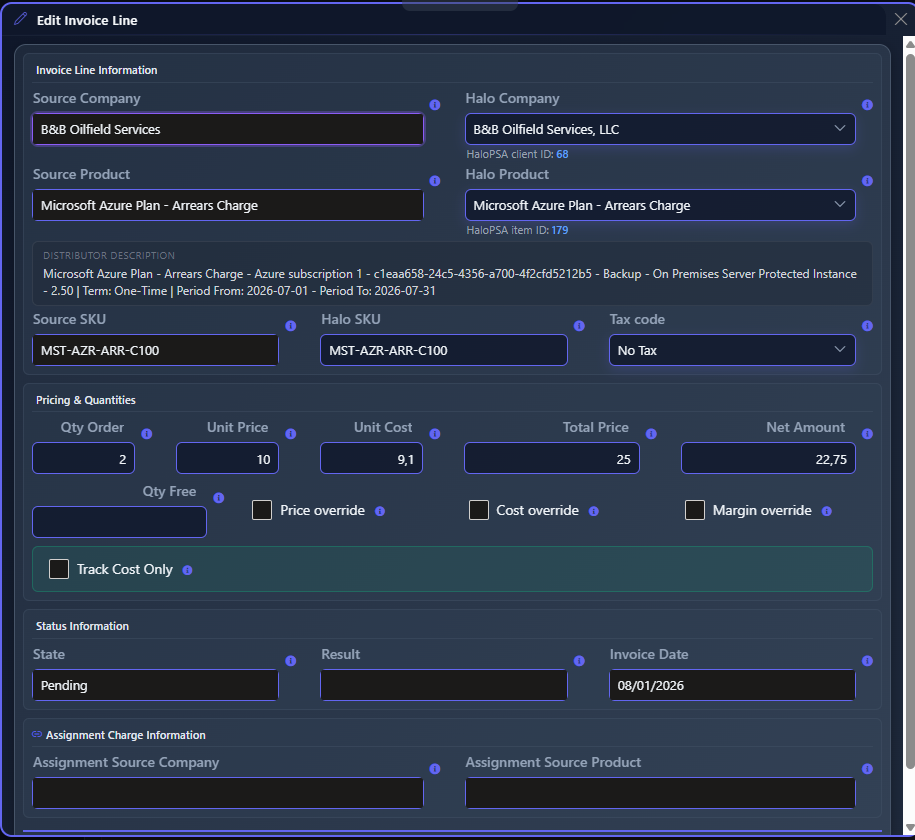
This popup window lets you review and manually correct the details of an individual charge before sending it to HaloPSA. It is used when a line coming from Pax8 (or another distributor) needs adjustments to price, quantity, product, assi...
Last updated 24 days ago
This popup window lets you review and manually correct the details of an individual charge before sending it to HaloPSA. It is used when a line coming from Pax8 (or another distributor) needs adjustments to price, quantity, product, assigned company, or billing configuration before it becomes an invoice or a recurring invoice.
When to use this screen
- When the product or company automatically detected by the system is incorrect and you need to correct it manually.
- When the price, cost, or quantity that came from the distributor needs to be adjusted before billing the customer.
- When you want to "freeze" (override) a price, cost, or margin value so it isn't overwritten during the next distributor import.
- When you need to mark a line as Track Cost Only, meaning a charge that is only used to track cost and profitability internally, without showing on the customer's final invoice.
- When you want to review the status and result of the last processing of that line, or where it comes from if it was created by a charge assignment rule.
- When you need to check the HaloPSA client ID and HaloPSA item ID behind the client and item names, to confirm a mapping against HaloPSA — or to find out why a line is not being sent.
- When a product name is too vague to tell what the charge is, and you need to read the distributor's own description of it.
What it shows
The window is organized into sections:
Invoice Line Information
Prices and Quantities
Status Information
Assigned Charge Information (only if applicable)
This section only appears if the line was generated by a charge assignment rule (for example, a split or redistribution of charges between companies). It shows, read-only:
- Assignment Source Company: the original company the charge was assigned from.
- Assignment Source Product: the original product the charge was assigned from.
What Track Cost Only does when you change it here
Track Cost Only is decided at three levels, most specific first. This dialog is the only place that reaches the first one.
When you tick or untick the box here and save, BillingBot does both of the first two at once:
- It marks this line as decided by hand, so the next import for the current period will not overwrite it. This is the only level that can single out one line when a client has several lines of the same product.
- It stores the answer for this client and this product, so it holds for future months too — including a deliberate no. Turning it off is a real "do not bundle this for this client", so it also survives on a product that is bundled for everyone else. It used to be stored only as a deletion, which meant the "off" was lost on the next import.
The line is saved first. The answer for this client and product is stored only if the line was saved: if saving the line fails, nothing is stored for the next months either.
If the charge was moved to this client with Cross-Map Product, the client-level answer is stored for the distributor company the charge originally came from, so it keeps working next month and does not affect this client's own charges of the same product.
If the answer you save is the same as the product's global setting, no client rule is kept — there is nothing to remember. That is why you will not always see a new entry in Charge Mappings after saving.
Available Actions
- "Update Invoice Line": saves the changes made to the line. Sends the updated information to the server and closes the window. If you enabled or disabled Track Cost Only, the two things described in the section above also happen. After saving, the line is reloaded on the previous screen with the updated values.
- "Cancel": closes the window without saving any changes.
- Close icon (X) in the top corner: has the same effect as "Cancel"; closes without saving.
None of these actions are irreversible by themselves within this screen: changes are only applied when you press "Update Invoice Line", and this screen does not send the invoice to HaloPSA or delete distributor information.
Step-by-Step Flow
- From the screen of invoices ready to send, select the line you want to correct and open the edit option (Edit).
- Review the source data (Source Company, Source Product, Source SKU) to confirm which distributor charge you are adjusting.
- If the HaloPSA company or product is incorrect, select the correct values in Halo Company and Halo Product.
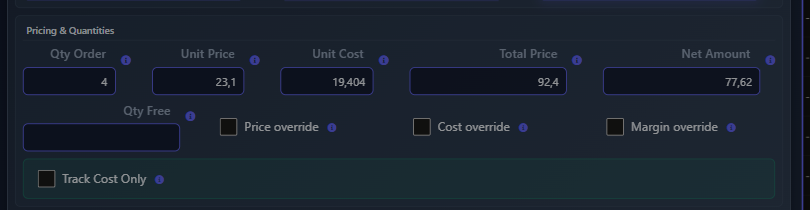
- Adjust Qty Order, Unit Price, Unit Cost, or Qty Free as needed. When you change the unit price, Total Price and Net Amount are recalculated automatically.
- A price or cost you type here is kept when new charges are imported. It is replaced if the product is saved in Edit Map Product with an override (or Use Halo Price) enabled, or if this company's charges are reimported. To fix a price for every month, set it on the product instead.
- If the charge should only be used for internal cost tracking and should not appear on the customer's invoice, enable Track Cost Only.
- Click "Update Invoice Line" to save the changes, or "Cancel" to discard them.
Common Errors and How to Resolve Them
- Error message when saving the line: if an error message appears when you click "Update Invoice Line", it comes directly from the server's response and indicates why the line could not be updated (for example, invalid data or a connection issue). Check the required fields (quantity, price) and try again.
- "An error was encountered - this has been logged to support.": appears when an unexpected problem occurs while saving the line or loading the assigned charge information. The incident is logged automatically; if the message persists, contact support with the affected company and product.
- Error when enabling/disabling Track Cost Only: if storing the client-level answer fails, you will see an error message, but the line itself is still updated with the rest of your changes. The line will then show what you asked for while the setting is not remembered for next month. Saving the line again without changing the box does not retry it (the answer is only stored when the box changes), so check Charge Mappings and contact support if the rule is missing. If instead the line itself could not be saved, the client-level answer is not stored at all, so the line and next month stay as they were.
- "Halo product is not assigned!": you tried to open Edit on a line with no HaloPSA item. This dialog cannot be used to give it one — use Assign Halo Product on that line in the charges grid, then come back. The Mapped column in the grid shows which lines are in this state.
- The line is not being sent to HaloPSA: the usual cause is exactly the above, no HaloPSA item. Check the Mapped column in the charges grid, and the HaloPSA item ID here if the dialog does open.
- "'...' is not a per-client billing rule.": an internal validation message; it means the screen asked the server to store a rule type that is not one of the per-client billing decisions. It is not something you can cause from normal use — report it to support with the company and product involved.
- Numeric field validations: if you leave the quantity or price fields empty or with invalid values, the form will show validation messages below the field and won't allow saving until they are corrected.
Related Screens
- Invoices Ready to Send
- View Invoice in Halo
- Assignment Charges
- Assign Product Without SKU
- Edit Product Mapping — the global level of Track Cost Only.
- Charge Mappings — the list of every client-level rule that exists.
Was this helpful?
Still need help? Ask the team