Send Charges to HaloPSA
This screen is the final preparation step before invoicing: here you review, group, and confirm the charges that will be sent to HaloPSA as recurring invoice lines. You reach it after processing charges from the "Ready to Invoice" screen...
Last updated 21 days ago
This screen is the final preparation step before invoicing: here you review, group, and confirm the charges that will be sent to HaloPSA as recurring invoice lines. You reach it after processing charges from the "Ready to Invoice" screen, and it serves as the last opportunity to catch pricing errors, resolve mapping ambiguities, and organize lines before they hit the client's actual billing in Halo.
When to use this screen
Use it every billing cycle, after processing Pax8 charges and before confirming the send to Halo. It's the checkpoint where you verify that quantities, prices, and target clients are correct, and where you resolve any warnings before the information reaches your clients' recurring invoices.
What it shows
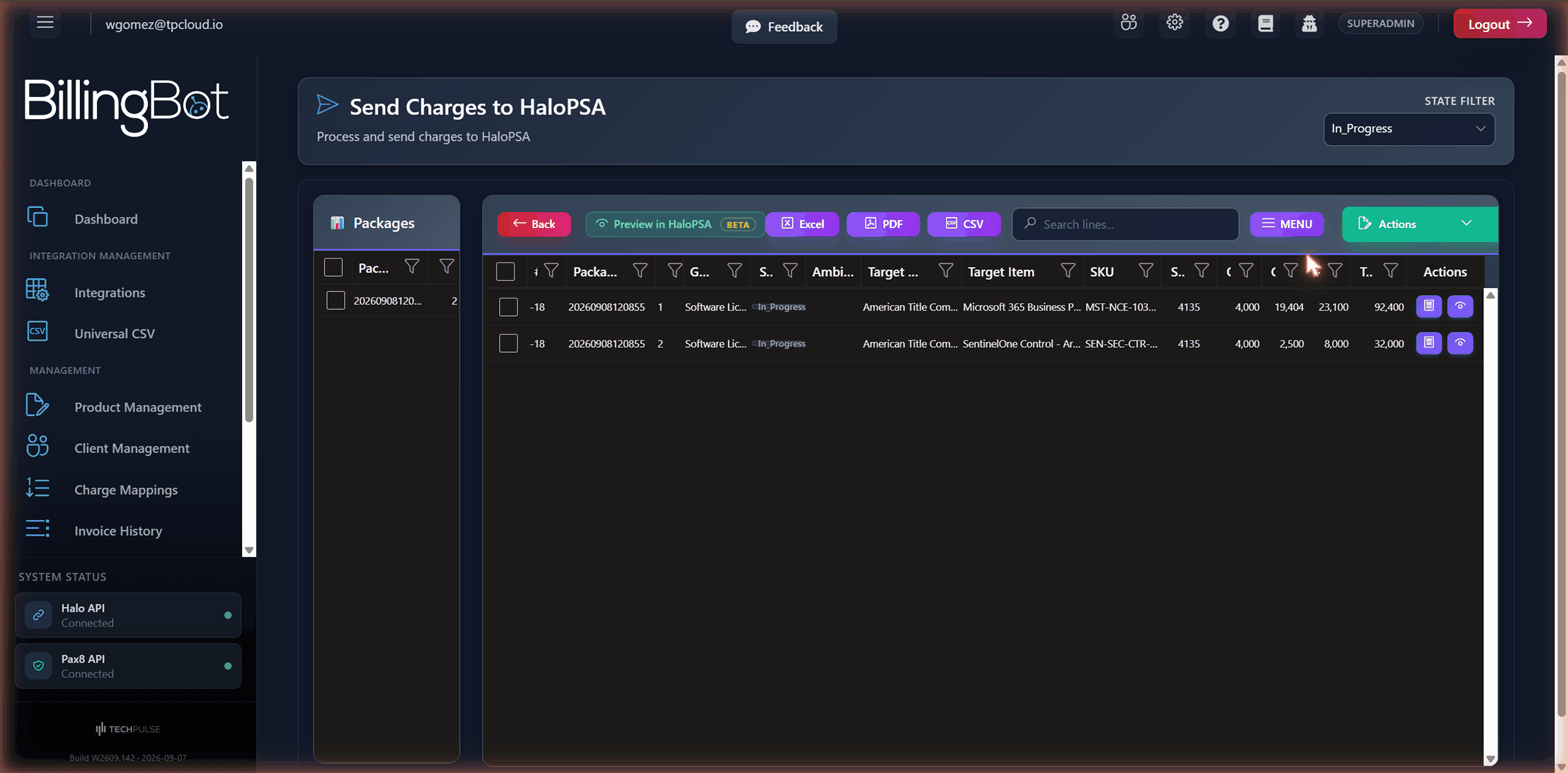
The screen has two main panels:
Left panel: Packages
A summary of the available packages (charge groups), with the number of lines each one contains. You must select one or more packages here for their lines to appear in the grid on the right.
Right panel: invoice lines
Shows the detail of each charge that will be sent to Halo.
There's also a status filter at the top ("State Filter") with the options In Progress, Send Halo, Not Send Halo, and All Records, which determines which lines are loaded into the grid.
Above the grid, a red warning notice may appear if lines are detected with a cost greater than $0 but price and total at $0 — this usually indicates a pricing data issue coming from Pax8.
Each line has two action icons:
- View source details (print icon): opens the detail of the original Pax8 charge that generated this line.
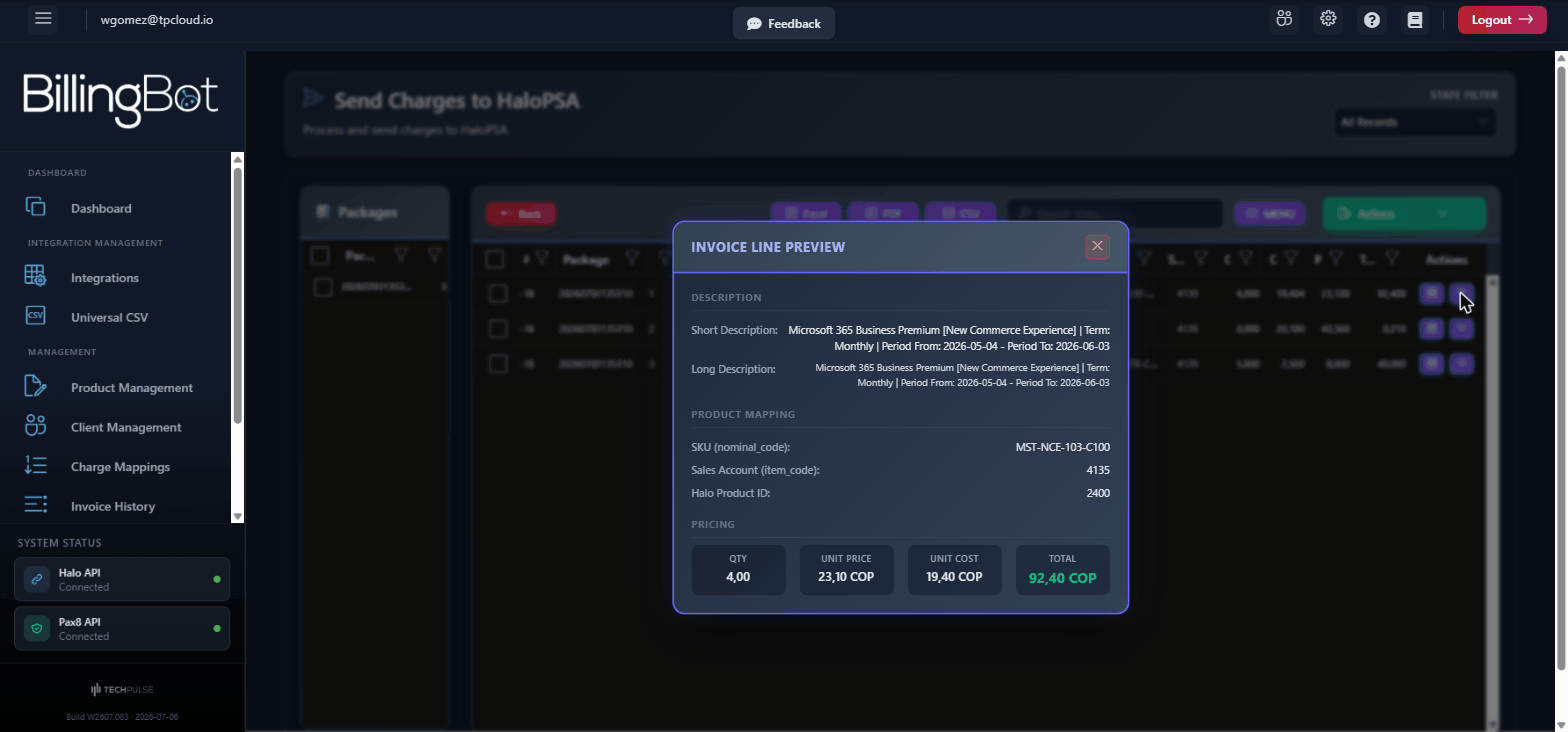
- Preview (eye icon): opens a popup card with the short and long description, the product mapping (SKU, sales account, Halo product ID), and the price breakdown (quantity, unit price, unit cost, and total). If the line is marked "Track Cost Only", it indicates that the price will appear as $0.00 on the invoice.
Available actions
Back: returns to the "Ready to Invoice" screen without sending anything to Halo.
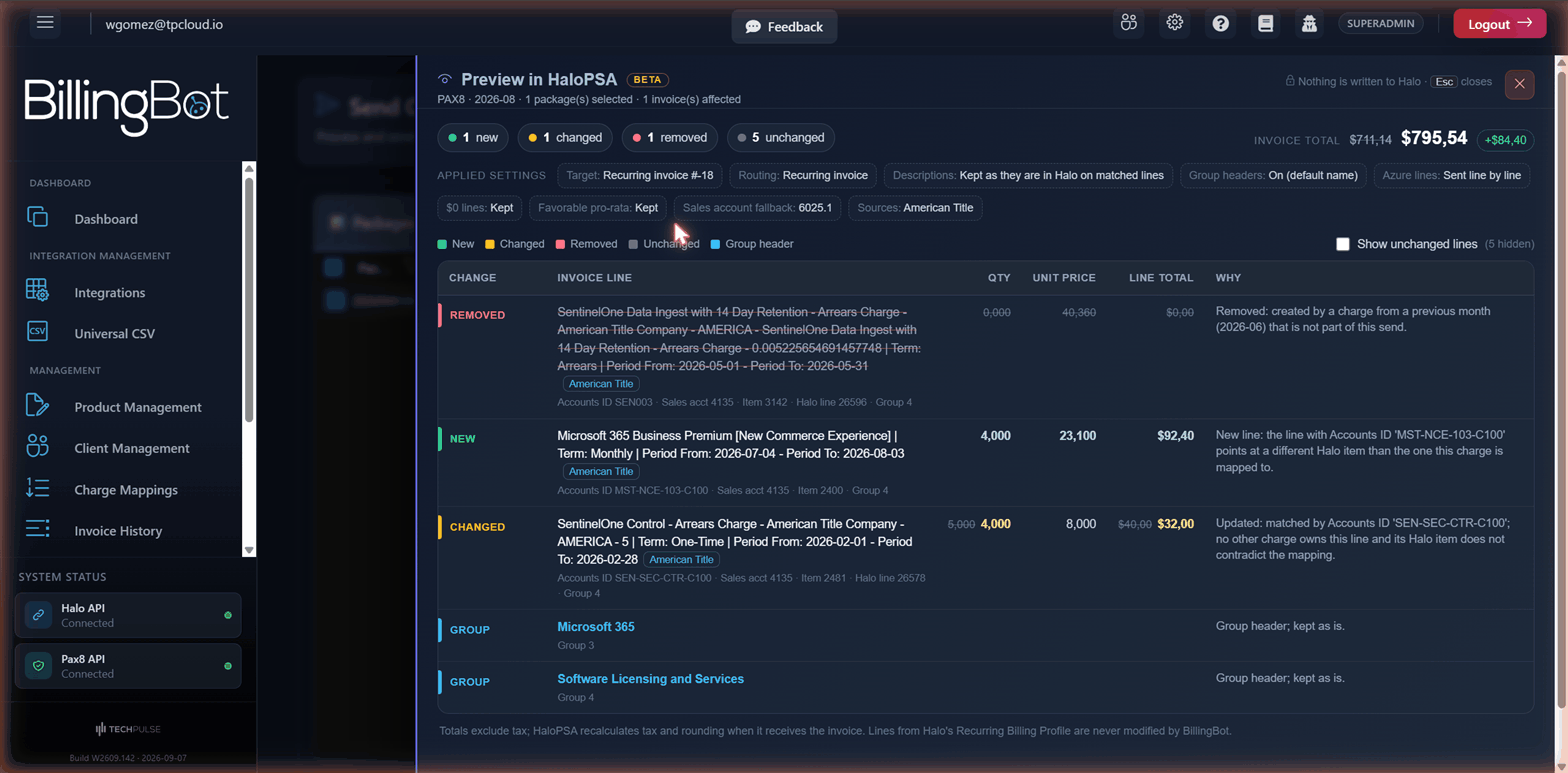
Preview in HaloPSA (eye icon, marked Beta): opens a side panel that shows, for every Halo invoice the selected packages would touch, how the invoice looks today and how it would look after the send — line by line, without sending anything. It reads the invoices from Halo with the same rules the send uses and never writes to Halo or to BillingBot. In the panel you see:
- One tab per affected invoice (when there is more than one), with the Halo client name.
- A summary: how many lines would be new, changed, removed or unchanged, and the invoice total before → after (excluding tax; Halo recalculates tax on receipt).
- The applied settings that shaped the result (target invoice, routing, description refresh, group headers, Azure/$0/pro-rata handling) and where each one comes from (client card, integration or tenant).
- A single table with each line, colour-coded: New (green), Changed (amber, with old → new quantity, price and total), Removed (red; typically a line created by a charge from a previous month), Unchanged (grey, hidden by default — use Show unchanged lines) and Group header (blue).
- A Why column that explains each line in one sentence: matched by the line the same charge created before, matched by Accounts ID, pinned when resolving an ambiguity, new because it is a prorated (Partial) charge (a prorated charge reuses a line only when an identical one, same Accounts ID, product and period, was left by an earlier send whose record no longer exists and no other client record has charges on that invoice, so the prorate is not added twice), new because the existing line belongs to another company, removed because it came from a previous month, kept because it is a Halo billing-profile line, or price $0 because the charge is Track Cost Only.
- Warnings when the send would skip or fail an invoice (for example, Halo did not return it, or the client's routing does not match the assigned invoice), and when queued lines would be skipped (already sent, excluded, missing).
- Invoices the send would block: an invoice with unresolved ambiguous lines, or (accounts with QuickBooks Online) one with a product whose Accounts ID is not a number, is marked as blocked with the same message the send would record, so the preview does not show changes for an invoice the send would then skip.
- When two clients share the same one-time invoice, the second client's lines are previewed on top of the first one's, as the send would write them.
Close it with the ×, Esc or by clicking outside; nothing changes. The panel is display only: it has no send button and is not part of the send. What you preview is what the send would do, because both use the same rules.
Preview in HaloPSA: summary, applied settings and the before/after table with the reason for each line Resolve Ambiguities (only visible if there are unresolved ambiguous lines): opens a wizard to manually indicate which existing line on the Halo recurring invoice each ambiguous charge should be associated with. The system attempts to automatically suggest a match before showing you the wizard.
Override Ambiguity Detection (only visible if there are unresolved ambiguous lines): skips manual resolution and marks all ambiguous lines to be created as new lines on the Halo invoice, instead of attempting to match them with an existing one. ⚠️ Asks for confirmation before applying and affects all visible ambiguous lines at once; once applied it cannot be undone with a single click (the line would need to be corrected manually afterward).
Excel / CSV: exports the current contents of the line grid to the chosen format, useful for external review before sending.
Search lines ("Search lines..." field): filters the grid by client, product, SKU, package, or group; applied when you press Enter.
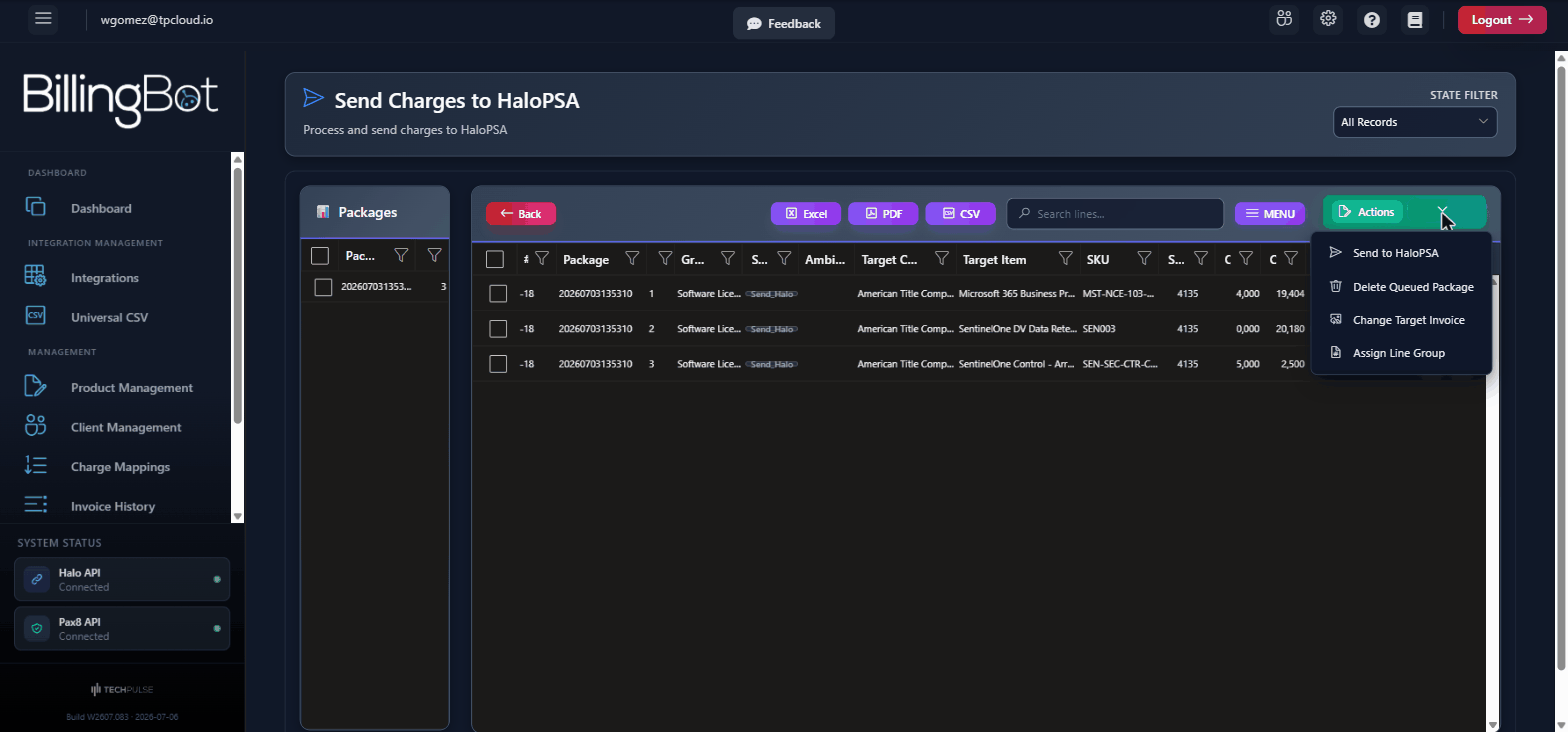
Actions (dropdown menu with several options):
- Send to HaloPSA: validates the selection (subscription, at least one package, no unresolved ambiguities) and sends the queued lines of the selected packages to Halo right away, showing the "Sending Charges to HaloPSA" progress bar. The send runs on the server: the screen only waits for its result, so a long send or a dropped connection does not stop it. ⚠️ This directly affects the actual recurring invoices in Halo. Before writing, BillingBot saves a backup of the invoice's previous state and, once Halo accepts the invoice, records the exact list of changes next to that backup (shown later in Invoice History as What the last send changed). If you need to undo the send, restore the backup from Backups & Reversal.
- Delete Queued Package: removes the selected package(s) from the left panel from the send queue. Only the lines that have not been sent yet are removed, and their charges go back to Pending so you can queue them again. Lines of the package that were already sent to Halo are kept, together with their backups: deleting them would not undo them in Halo, and sending them again would duplicate them. If some lines were kept, a message tells you how many. Ingram Micro order lines of the package also go back to Pending. If an earlier send of these lines failed, BillingBot first checks in HaloPSA whether Halo stored them anyway, and refuses to delete the package if it did (see When a send failed).
- Change Target Invoice: opens a form to reassign the selected lines to another Halo recurring invoice. Only allows selecting lines from a single client at a time. If the chosen invoice is not the client's own recurring invoice, it asks for confirmation first (see Change Recurring Invoice). Like Delete Queued Package, it is refused when HaloPSA already holds lines of an earlier failed send.
- Assign Line Group: lets you group the selected lines under the same description group within the Halo invoice (for example, so they appear grouped visually on the client's invoice).
Step-by-step flow
- When you enter the screen, lines in "In Progress" state are loaded automatically.
- In the left panel, check the box for one or more packages ("Packages") you want to review; the line grid on the right updates to show only those charges.
- Review each line: target client, mapped product, quantity, price, and status. Use the preview icon if you need to see the full detail of a line, or the print icon to see the original Pax8 charge.
- If you see the $0.00 pricing notice, fix the product mapping or the price override before continuing (check the corresponding product assignment screen).
- If the Resolve Ambiguities button appears, click it to manually resolve the ambiguous lines, or use Override Ambiguity Detection if you'd rather have them all created as new lines.
- If you need to reorganize charges, use Assign Line Group or Change Target Invoice from the Actions menu.
- Select the lines you want to send in the line grid (or leave the whole package selected).
- Optionally, click Preview in HaloPSA to explore what the send would change on each Halo invoice (new, changed and removed lines, totals before and after, and the reason for each line) without any commitment; close it when you are done.
- Open the Actions menu and choose Send to HaloPSA. The send starts immediately on the server.
- Wait for the "Sending Charges to HaloPSA" progress bar to finish. The message under the bar advances one invoice at a time ("Invoice 5 of 23 · client · written to HaloPSA (4 written, 1 failed)"): each invoice is read from Halo, written, and only then counted, so the bar moves as Halo answers. A large batch against a slow Halo can take several minutes; that is normal. If the connection to the server drops for a while, no error is shown: the message changes to "The connection to the server was interrupted. The send continues on the server; waiting for it to finish..." and the screen keeps waiting for the result.
- If the send completes without errors, you are automatically redirected to Invoice History, where a banner names the package just sent and See what changed shows the recorded result. If the send came back with a notice (for example lines left out because they were no longer queued, or recurring invoices to check, see Common errors below), the notice is shown first and you go to Invoice History after closing it. If there were errors, their detail is shown in a separate window.
When only part of a package was sent
A package is sent invoice by invoice. If Halo rejects some invoices (for example 8 of 10 lines are written and 2 fail), the 8 lines are marked as sent and the 2 failed lines stay in the package, so the package still appears in the queue. What to do with those lines depends on where the problem is:
Why the difference: when charges are queued, BillingBot keeps a copy of each line in the package (target invoice, Halo product, Accounts ID, price and quantity), and the send uses that copy. A change you make in BillingBot after queuing is not picked up by the queued copy, so the line must be queued again. A change made in Halo is picked up by the next send.
Delete Queued Package only removes the lines that have not been sent: their charges go back to Pending so you can queue them again. The lines already sent to Halo stay sent, together with their backups, and are not sent again.
When a send failed (Halo may have stored it anyway)
A send can fail after Halo already saved the invoice (for example, the connection was cut right after Halo stored it). BillingBot marks every line it writes, so it can recognise those lines later:
- Sending the package again is the safe option: lines Halo already holds are recognised and not written twice. If the failed send was creating a new one-time invoice and Halo stored it, the next send finds that invoice and uses it instead of creating another one.
- Delete Queued Package and Change Target Invoice first check HaloPSA for the lines whose last send failed. If Halo already holds any of them, the action is refused and you are asked to send the package again instead: deleting and re-queuing them, or moving them to another invoice, would bill them a second time. If HaloPSA cannot be read at that moment, the action is also refused and you are asked to try again in a few minutes.
Common errors and how to resolve them
- "Your subscription is not active. Please visit the Subscription page to reactivate.": your BillingBot subscription is not active. You must go to the subscription screen and reactivate it before you can send charges to Halo.
- "No records selected in Summary": you tried to send or delete a package without checking any in the Packages panel. Select at least one package using its checkbox.
- "Select at least one package in the Packages list to preview it." / "The selected package(s) have no queued lines left to send.": the preview works on the queued ("In Queue") lines of the packages checked in the Packages panel. Check a package that still has lines to send.
- Preview panel shows "The send would not update this invoice": the real send would skip that invoice and log an error, for the reason shown: Halo did not return the invoice or the client, the client's invoice routing does not match the assigned invoice id, the invoice has unresolved ambiguous lines, or (QuickBooks Online) a product's Accounts ID is not a number. Fix the cause (the client's invoice assignment on the Client Management screen, Resolve Ambiguities, or the Accounts ID, see the QuickBooks messages below) and preview again.
- "No records selected": you tried to use "Change Target Invoice" or "Assign Line Group" without selecting any line in the right-hand grid. Check at least one line.
- "Selected records must be from the same company": when using "Change Target Invoice" you selected lines from more than one client. Repeat the action selecting lines from a single client at a time.
- "Cannot send to HaloPSA. There are X ambiguous line(s) that must be resolved first...": there are lines marked as ambiguous within the selection. Use Resolve Ambiguities or Override Ambiguity Detection before retrying the send.
- "No ambiguous lines found to resolve." / "No ambiguous lines found to override.": there are no ambiguous lines pending at this time; they were probably already resolved, or the current filter isn't showing them.
- "No lines selected": when confirming the group assignment, no lines were selected in the grid; select them again before assigning the group.
- "Could not load Halo invoice lines for ambiguity resolution." (with error detail): the system could not retrieve from Halo the lines needed to resolve the ambiguity, for example because the invoice doesn't exist yet, has no lines, or the invoice ID is invalid. Check that the client's recurring invoice exists in Halo before retrying.
- "The connection to the server was interrupted. The send continues on the server; waiting for it to finish..." (under the progress bar): not an error. The screen lost contact with the server for a moment; the send goes on, and the screen shows its result when it finishes.
- "The connection to the server was lost while sending to HaloPSA. The send may still be running on the server...": your browser or network dropped the connection while the send was starting. The server finishes the send on its own and marks each invoice as it goes. Wait a minute, then reload the screen; the lines already sent show as Sent, and only the pending ones can be sent again (already-sent lines are never sent twice).
- "The send ended with N line(s) still pending and N invoice error(s). Reload this screen..." / "The send has been running for more than an hour...": the screen could not get the full result of the send. Reload the screen (later, for a long send): the lines already sent show as Sent and only the pending ones can be sent again.
- "A send to HaloPSA is running for this account. Wait for it to finish, then reload this screen..." (when you open the screen): a send of your account is still running on the server, started from another tab, by another user, or before you left the screen. Wait for it to finish and reload; the lines it sends will show as Sent.
- "A send to HaloPSA is already running for this account...": a previous send of your account is still in progress. Nothing was sent now. Wait for it to finish, reload the screen and send only what is still pending.
- "Not deleted: HaloPSA already holds N of these line(s) (...)" / "Not moved: HaloPSA already holds N of these line(s) (...)": an earlier send of these lines failed, but Halo stored them anyway (the message names the invoices). Do not delete or move them: send the package again, which recognises those lines and does not write them twice (see When a send failed).
- "Not deleted: an earlier send of these lines failed, and HaloPSA could not be checked..." / "Not moved: ...": BillingBot could not read HaloPSA to know whether the failed send was stored. Nothing changed; try again in a few minutes.
- "HaloPSA stored this invoice (invoice N), but BillingBot could not record it, so its lines still show as pending..." (in the error dialog): Halo accepted the invoice but BillingBot could not save the result. Check the named invoice in HaloPSA before sending the package again.
- "Check these recurring invoices: they may still hold lines BillingBot sent in an earlier month..." (after a send): in one of the last 3 months this client's charges went to a different recurring invoice, and the lines sent there were not removed by any later send or clean. If they are still on that invoice, they bill every month on top of the new ones. The message lists the client, the invoice and the month. Remove them with Review Recurring Invoices or in HaloPSA; BillingBot does not remove them on its own.
- Error dialog after a send: it lists only the invoices of the packages you just sent that Halo rejected, newest first, each with its reason. Those lines stay pending. Fix the cause and then either send the package again or delete the package and queue the charges again, depending on where the problem was (see When only part of a package was sent).
- "Not sent, to protect your QuickBooks sync: N product(s) on this invoice have an Accounts ID that is not a number..." (accounts with QuickBooks Online): Halo passes each line's Accounts ID to QuickBooks, which only accepts a number. BillingBot first tries to take the correct Accounts ID from the Halo item on its own; when the item has no valid number either, that client's invoice is skipped (its lines stay queued) and the other invoices of the send go through. The message names the products. Fix it in HaloPSA (open the item and set a numeric Accounts ID; BillingBot picks it up on the next send) or in BillingBot (Map Products → edit the product → type the number in Override Halo SKU), then send the package again.
- "Not sent, to protect your QuickBooks sync: N line(s) on this invoice have no Halo product assigned..." (accounts with QuickBooks Online): one of the charges on that invoice was queued without a Halo product, typically a prorated -Partial charge whose full product is mapped but whose partial variant is not. There is no Accounts ID to send, so that client's invoice is skipped and its lines stay queued. The message names the charge. Assign the Halo product to it (Assign Halo Product on the line in Ready to Invoice, or Map Products) and send the package again. The same situation is announced when you queue the charges, so it can be fixed before sending.
- $0.00 pricing notice: appears when a line has quantity and cost greater than $0 but price and total ended up at $0, which normally indicates incomplete data received from Pax8. Fix the line's price before sending it to Halo.
- If the send to Halo finishes with errors, the screen automatically takes you to a per-line error detail window, so you can identify which charges could not be sent and why.
Related screens
Was this helpful?
Still need help? Ask the team