Halo Invoice Backups and Restore
Every time BillingBot updates a recurring invoice in HaloPSA, it automatically saves a copy of that invoice's previous state. This screen lets you review those backups and, if needed, restore the invoice in Halo to the state it had befor...
Last updated 21 days ago
Every time BillingBot updates a recurring invoice in HaloPSA, it automatically saves a copy of that invoice's previous state. This screen lets you review those backups and, if needed, restore the invoice in Halo to the state it had before the last update.
When to use this screen
Open it from Invoice History when you want to:
- Review how a recurring invoice looked before BillingBot last updated it.
- Undo a recent update in Halo because the result is not what you expected (for example, duplicate lines, incorrect quantities, or wrong prices).
- Compare the line-level detail of a previous backup with the current invoice.
- See what BillingBot changed on the invoice in a given send: which lines it added, updated or removed, with the before/after amounts and the reason for each one (View Changes).
What it shows
The dialog is divided into three parts:
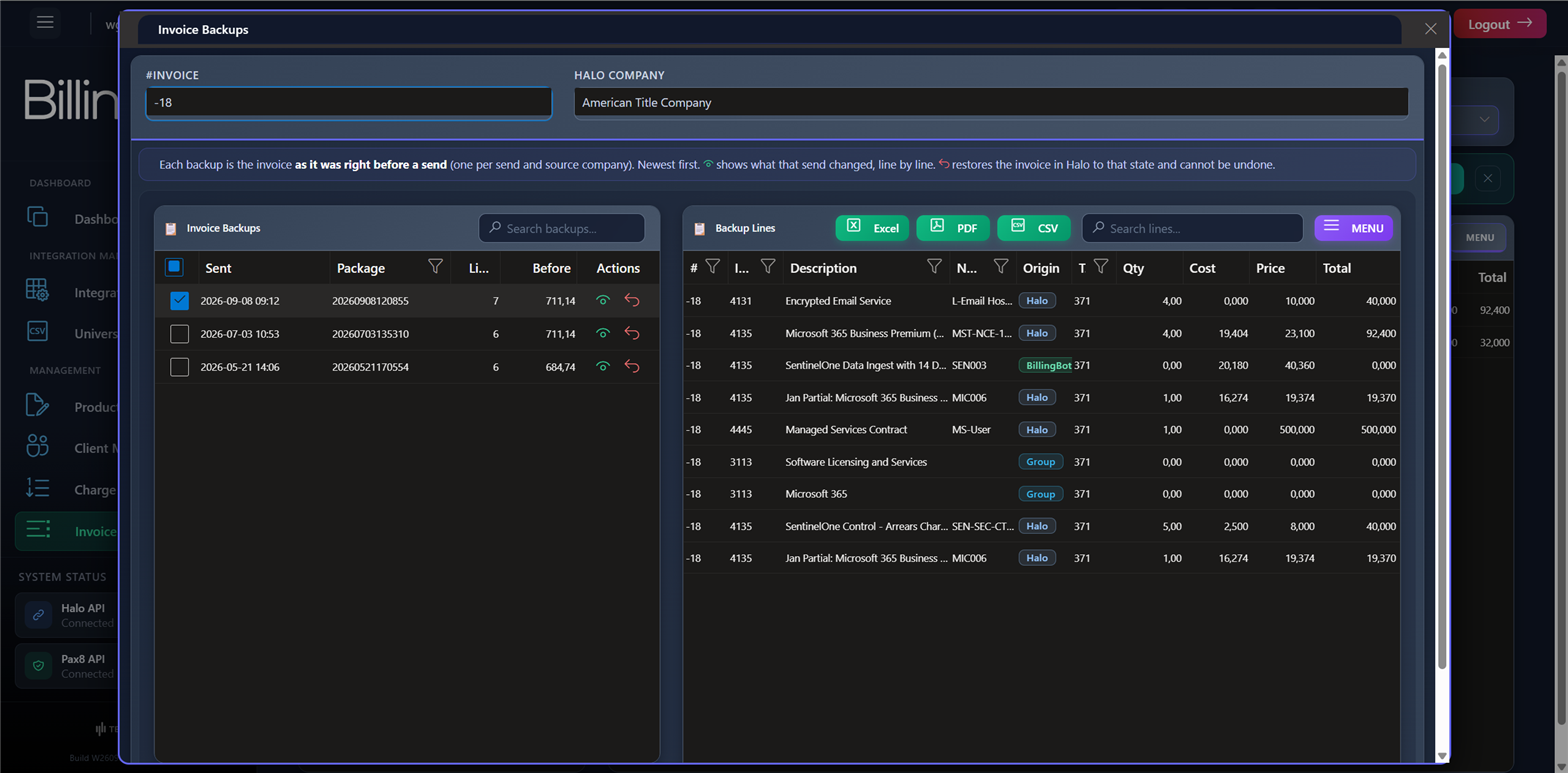
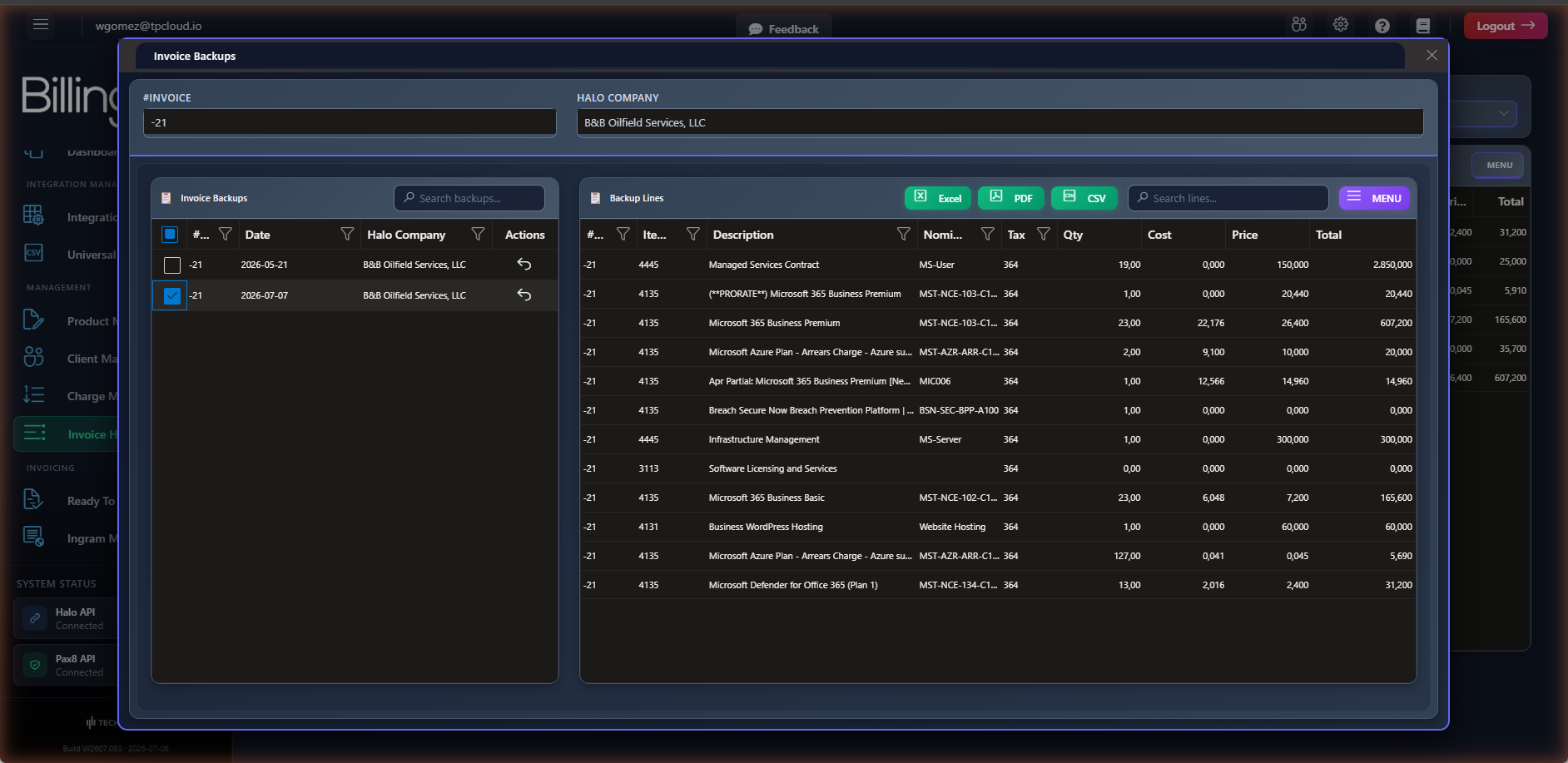
- Invoice header: the invoice number (#Invoice) and the company name in Halo (Halo Company) that the backups belong to. These fields are read-only.
- Hint line: reminds you that each backup is the invoice as it was right before a send (one per send and source company), that the eye shows what that send changed and that the undo restores the invoice and cannot be undone.
- Invoice Backups grid (left column): the list of backups for that invoice, newest first, with the moment the backup was taken (Sent), the Package of the send, the number of Lines the invoice had and its total before the send (Before, excluding tax). The Restorable column says which backup Restore can put back (Yes on exactly one row, see below). The newest backup is selected automatically when the dialog opens. Each row has two action buttons: the green eye (View Changes) and the red undo (Restore Backup).
- Backup Lines grid (right column): the lines the invoice had at that point in time: item code, description, Origin (BillingBot, Halo or Group), nominal code, tax code, quantity, cost, unit price, and total. A footer under the grid sums up the lines (how many from BillingBot and from Halo) and the total before the send.
If the invoice has no saved backups, the header will show "N/A" and "No backups available".
Available actions
- Search in Invoice Backups ("Search backups..." field): filters the list of backups by company name, invoice number, package, or date.
- Select a backup (click a row in the left grid): loads its lines into the "Backup Lines" grid on the right.
- View Changes (eye icon in the "Actions" column of each backup): opens a read-only panel titled What BillingBot changed with the invoice as it was in that backup and as it ended up after the send the backup was taken for. Each line is colour-coded (new, changed, removed, unchanged, group header), changed lines show the old → new quantity, price and total, and a Why column explains each decision (matched by charge id or Accounts ID, prorated charge, previous-month line removed, Halo billing-profile line kept, Track Cost Only). The invoice total before → after is shown excluding tax. Nothing is written and Halo is not called. For sends made from September 2026 on, the panel shows the exact summary the send recorded right after Halo accepted the invoice; for older backups the result is rebuilt from the backup and the charges of that package with the same rules the send applies, using today's client and integration settings. When two source companies bill onto the same invoice, each backup covers one company's pass. Backups taken before July 2026 do not carry the full snapshot and cannot be rebuilt.
- Restore backup (undo icon in the "Actions" column of each backup): replaces the current invoice in Halo with the contents of that backup. ⚠️ This action overwrites the invoice in Halo and cannot be undone. Only the backup marked Yes in the Restorable column can be restored: the one of the most recent send (or clean) to this invoice. "Most recent" means the backup that was taken last, not the package that was queued last: if you queue a package, clean the invoice with Review Recurring Invoices and then send the package, the send's backup is the restorable one, not the clean's. Restoring an older backup would also remove from Halo everything sent to the invoice afterwards (a later month, another source such as a CSV) while BillingBot keeps those sends as sent, so BillingBot refuses it and explains why. When two companies share the invoice, the most recent package has one backup per company: only its first backup holds the invoice as it was before that package. A restore is also refused while a send to HaloPSA is running for your account.
- Search in Backup Lines ("Search lines..." field): filters the lines of the selected backup by item code, description, nominal code, tax code, or invoice number.
- Excel / CSV (buttons above the "Backup Lines" grid): export the lines of the selected backup in the chosen format.
- Close the dialog (close icon in the top corner): closes the window without making changes.
Step-by-step flow
- From Invoice History, open the backups for the recurring invoice you're interested in.
- In the "Invoice Backups" grid, locate the backup you want to review (use the search box if there are many).
- Click the backup row to see its line detail in the "Backup Lines" grid.
- Review the lines: quantities, prices, and totals the invoice had at that point in time.
- To understand what that send did, click View Changes (eye icon) on the row: the panel lists the lines BillingBot added, updated and removed, with the reason for each. Close it with the ×, Esc or by clicking outside.
- If you decide that is the correct state and want to return to it, click the restore button (undo icon) on that same row. It works on the row marked Yes in the Restorable column; on any other row you'll see why it cannot be restored.
- Before asking you to confirm, BillingBot reads the invoice as it is now in HaloPSA and compares it with the backup. The warning ("Restore this backup?") says what the restore will undo:
- What that send did (the lines it added are removed, the lines it updated get their old values, the earlier-month lines it removed come back). This is the point of restoring.
- Changes made in HaloPSA after the send, by name: lines someone added (they will be removed), lines whose quantity or price was changed (they go back to the backup's values, both amounts are shown) and lines that were deleted (they come back). ⚠️ Those changes are lost. If you want to keep them, cancel and note them before restoring, or re-enter them in HaloPSA afterwards.
- BillingBot lines the send did not remove: a line BillingBot wrote that is no longer on the invoice, but that this send did not take off (someone removed it by hand in HaloPSA, or another company's send removed it from a shared invoice). It is listed as "a BillingBot line this send did not remove (removed by hand, or by another company's send); it will come back and be billed". If that line should not be billed, cancel, or remove it again in HaloPSA after restoring.
- If HaloPSA could not be read, the warning says so: anything changed there after the send will be lost.
- Confirm. In a single step BillingBot restores the invoice in HaloPSA and puts the charges of this invoice back to Pending so you can send them again; the other invoices of the same package are not affected. The message tells you how many charges are pending again and the dialog closes. The restored backup (with any other backup of that same send for this invoice) is removed from the list, so the same restore cannot be applied twice. Every restore is recorded (who, when, which invoice and backup, what was overwritten and how it ended). The Undo button of Review Recurring Invoices goes through this same restore, with the same rules and the same record.
Common errors and how to resolve them
- Error message when restoring a backup: if the operation in Halo fails, the system shows the error message returned by Halo directly on screen. Verify that the invoice is not locked or in a state that prevents modifying it in Halo, then try again. If the error persists, contact support with the invoice number shown in #Invoice.
- "This backup cannot be restored: invoice #… received a later send (package …)": a newer send changed the invoice after this backup. Restore the backup marked Yes in the Restorable column first; after that, the previous one becomes restorable. You also get this message from Undo in Review Recurring Invoices when the invoice was sent after the clean: undoing the clean would erase that send from HaloPSA.
- "This backup cannot be restored: package … wrote to invoice #… more than once": two companies share this invoice and this is the second backup of the package (it already contains the first company's lines). Restore the first backup of that package.
- "A send to HaloPSA is already running for this account…": wait for the send to finish, reload the screen and try again.
- "The invoice was restored in HaloPSA, but BillingBot could not finish marking its charges as pending…": HaloPSA already has the backup, but the charges still look sent, so they would not be billed. Restore the same backup again: it puts back the same invoice and finishes the job. Until you do, the Billing integrity panel lists it as "Backup restores that did not finish".
- No lines appear when selecting a backup: if the "Backup Lines" grid stays empty, confirm that you actually clicked the backup row (not just hovered over it). If you deselect the row, the lines grid clears until you choose another one.
- "No backups available": this means this recurring invoice does not yet have saved backups, usually because BillingBot has not updated it in Halo yet. There is nothing to restore in this case.
- "This backup predates the full recurring-invoice snapshot (July 2026)..." (in View Changes): older backups only kept a reduced copy of the lines, not enough to rebuild the changes. The lines grid still shows what the invoice contained.
- "No charges of this package point at this invoice any more..." (in View Changes): the charges of that package were deleted or reversed, so there is nothing to replay against the backup.
Related screens
Was this helpful?
Still need help? Ask the team