View invoice detail in Halo
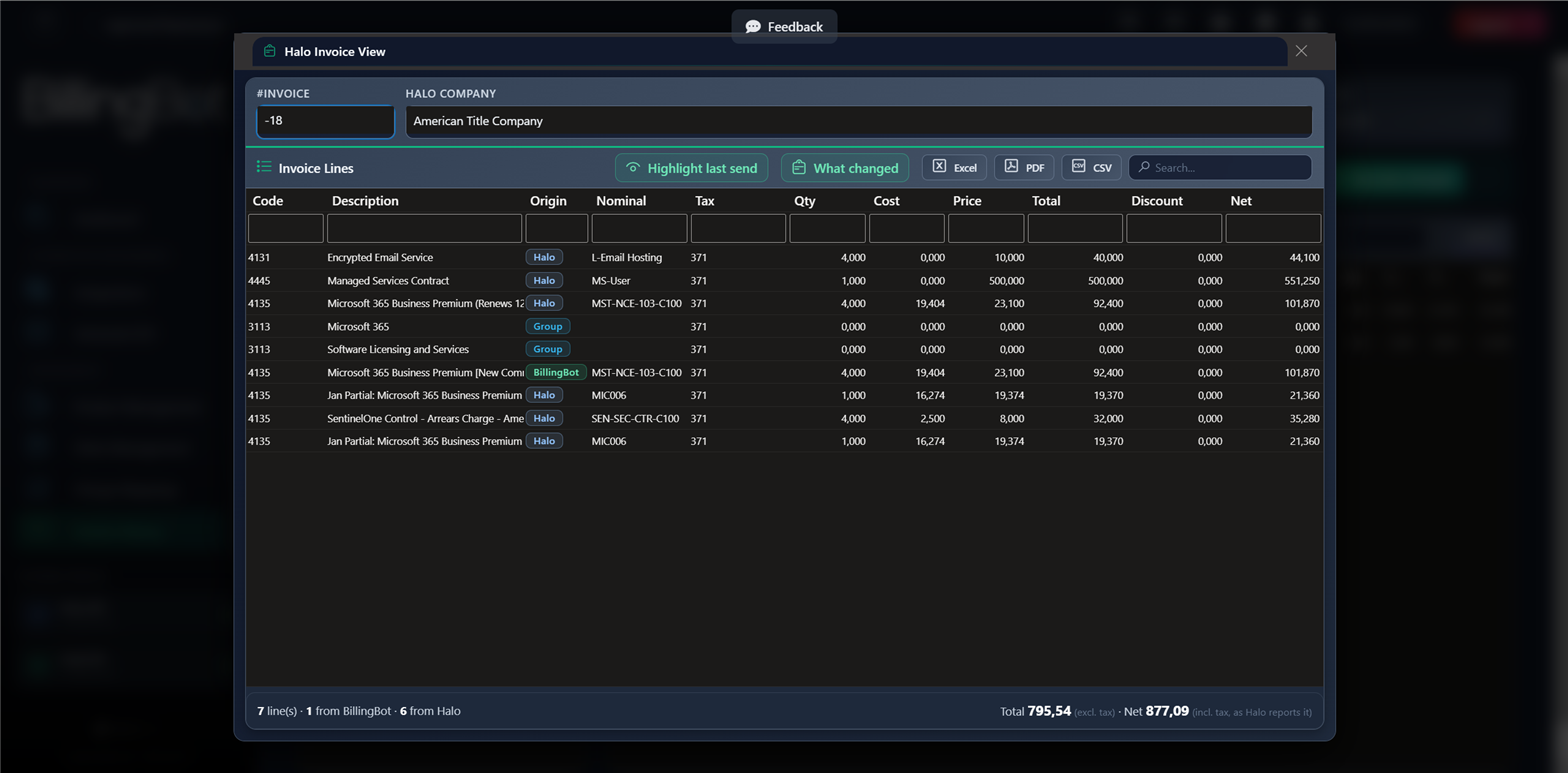
This screen shows you, in a popup window, the complete content of an invoice that has already been processed and sent to Halo. It lets you quickly review which lines, quantities, and amounts were recorded on that invoice, without leaving...
Last updated 21 days ago
This screen shows you, in a popup window, the complete content of an invoice that has already been processed and sent to Halo. It lets you quickly review which lines, quantities, and amounts were recorded on that invoice, without leaving the invoice history.
When to use this screen
Use this window when you want to confirm the exact detail of a specific invoice within Halo: for example, if a customer asks about a specific charge, if you need to verify that a line was invoiced at the correct price, or if you want to export the invoice detail to share it outside the system. It opens from the Invoice History screen when you select a Halo invoice.
What it shows
- #Invoice: the invoice identification number in Halo (read-only).
- Halo Company: the name of the company/customer in Halo that the invoice belongs to (read-only).
- Invoice Lines: a table with all the invoice lines, including:
- Code (item code)
- Description (short item description; hover to read the full long description)
- Origin: BillingBot when the line was created from a charge, Halo when it was not (typically a Recurring Billing Profile line; a send can still update its quantity and price when its Accounts ID matches a charge), Group for group headers
- Nominal (accounting nominal code)
- Tax (tax code)
- Qty (quantity)
- Cost (unit cost)
- Price (unit price)
- Total (line total)
- Discount (total discount)
- Net (net total)
- Totals footer (under the table): number of lines, how many come from BillingBot and how many from Halo, the invoice Total (excluding tax) and the Net as Halo reports it (including tax). Group headers are not counted.
Available actions
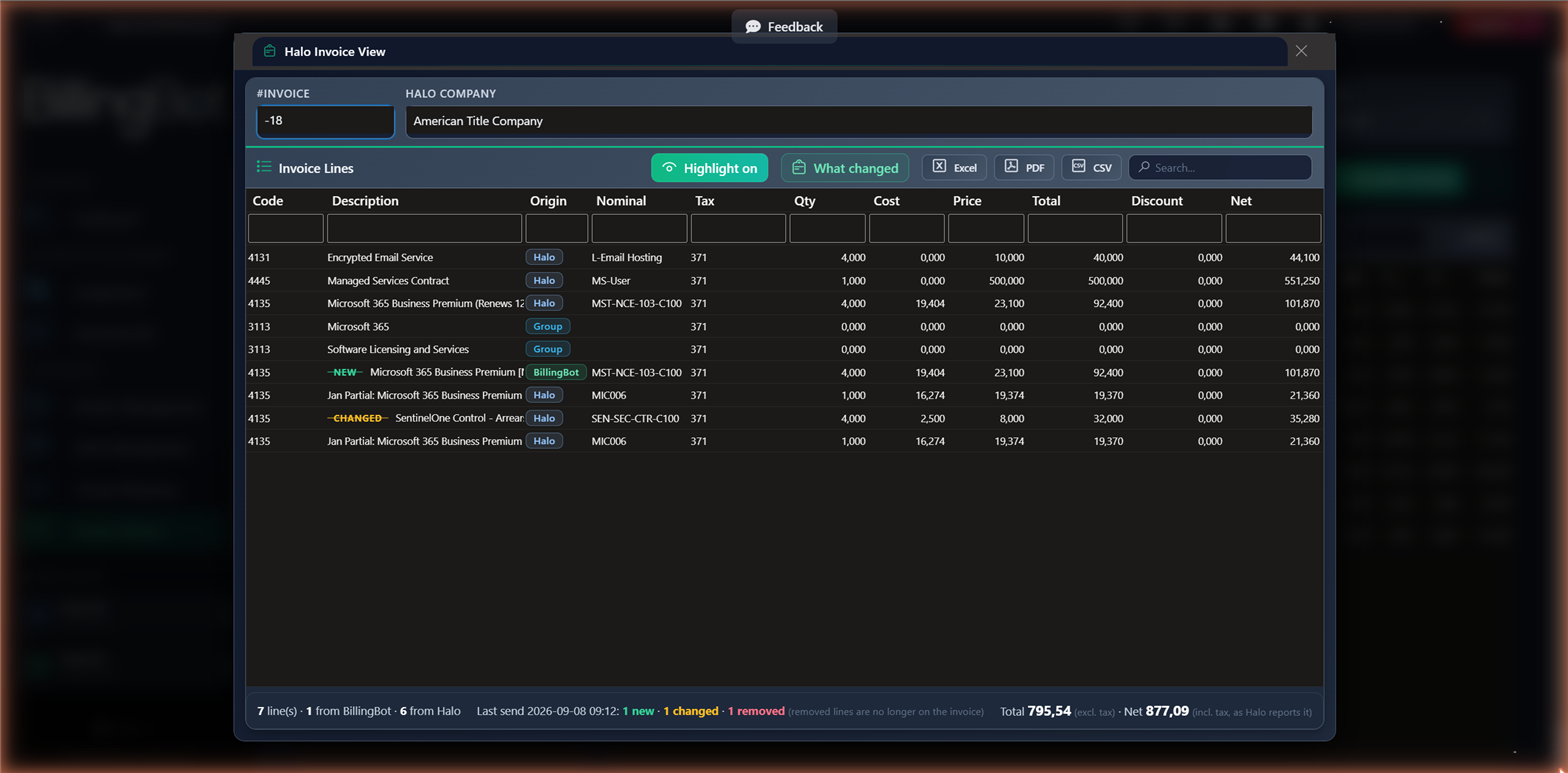
- Highlight last send: colours the lines the latest send added (green, tagged NEW) or changed (amber, tagged CHANGED) and adds to the footer how many lines that send removed (they are no longer on the invoice). Click again to turn it off. The information is rebuilt from the backup taken before that send and the charges of its package.
- What changed: opens the full before/after panel of the latest send, line by line, with old → new quantity, price and total and the reason for each line. Same panel as Preview in HaloPSA, read-only, exportable to CSV.
- Excel: downloads the invoice line detail as an Excel file.
- CSV: downloads the invoice line detail as a CSV file.
- Search...: filters the table rows in real time based on the text you type.
- Column headers: you can click to sort the table, or use each column's filter to search for specific values.
- Close (X icon): closes the window and returns to the Invoice History. This action does not modify or delete any information.
This screen is view-only: it does not let you edit, add, or delete lines from an invoice already processed in Halo.
Step-by-step flow
- From the Invoice History, locate the Halo invoice you want to review.
- Click to open the detail; the "Halo Invoice View" window opens.
- Review the invoice number and the company name at the top.
- Use the search box or the column filters to find a specific line if the invoice has many items.
- If you need the detail outside the system, use the "Excel" or "CSV" buttons to download it.
- Close the window with the close icon when you're done.
Common errors and how to resolve them
This screen does not show its own error messages, since it only presents information that was already loaded previously from the Invoice History. If the table appears empty or the data does not match what you expected, first check the corresponding invoice in the Invoice History, since the issue would be related to that initial load and not to this detail window.
Related screens
Was this helpful?
Still need help? Ask the team