Invoice History Sent to Halo
This screen is the record of everything BillingBot has already sent to HaloPSA as invoices or billing lines. Here you can review what was billed, to which company, in which period, and in what detail, without reprocessing anything. It is...
Last updated 21 days ago
This screen is the record of everything BillingBot has already sent to HaloPSA as invoices or billing lines. Here you can review what was billed, to which company, in which period, and in what detail, without reprocessing anything. It is also the place where you can view a copy of the invoice exactly as it ended up in Halo and, if something went wrong, restore a previous version saved as a backup.
When to use this screen
- When you want to confirm that a customer's invoice was actually sent to Halo and see its exact content.
- When you need to audit which lines (products, quantities, prices) were billed in a given period.
- When a customer reports a discrepancy on their invoice and you want to compare it against what BillingBot processed.
- When you need to undo an incorrect submission by restoring a backup copy of the invoice.
- When you want to export the billing detail to Excel or CSV for accounting or internal reports.
What it shows
The screen is organized into two main areas, controlled by the Integration (source integration: Pax8, Twilio, etc.) and Period (processed month and year) selectors at the top:
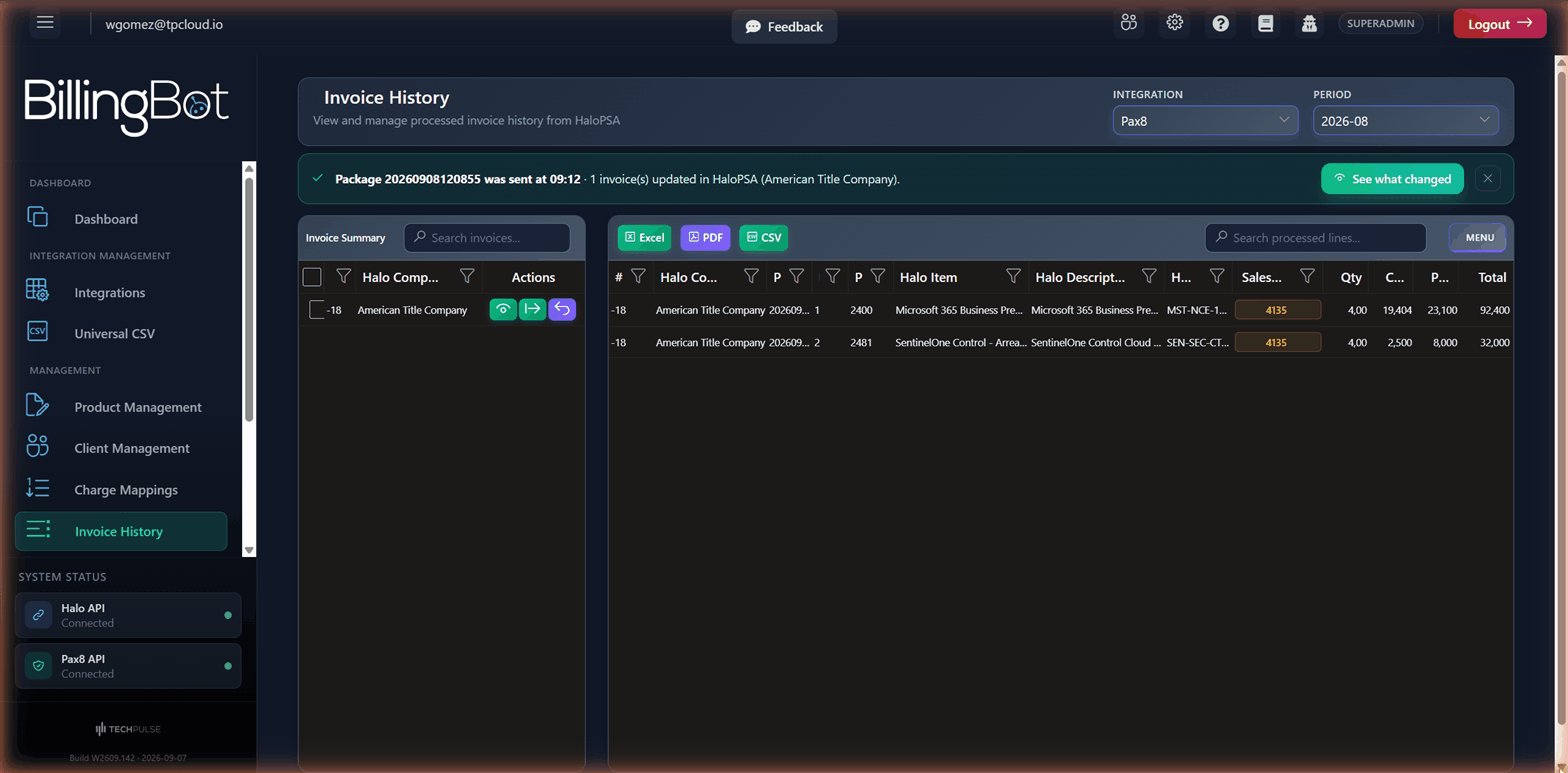
- Invoice Summary (left column): a summarized list of invoices sent to Halo, one row per invoice, with the invoice number (# Inv) and the company in Halo (Halo Company). From here you select an invoice to view its detail in the grid on the right, or use the action buttons to open the full view or the backups.
- Processed lines grid (right column): the line-by-line detail of the invoices for the selected period and integration. It includes invoice number, company, line, Halo item, description, SKU, sales account (highlighted in yellow if it differs from the integration's default account), quantity, unit cost, unit price, and total. The package and the Halo product id are not shown on screen (the package is in the banner above) but are included in the Excel and CSV exports.
- If you select one or more invoices in the summary (left column), the lines grid automatically filters to show only the lines for those invoices. If you don't select any, all the lines for the period are shown.
Available actions
- Integration selector: choose which integration (Pax8, Twilio, etc.) you want to view the invoice history for.
- Period selector: choose the month and year of the already processed invoices you want to view.
- Search invoices... search box (above the summary): filters invoices by company or invoice number.
- Search processed lines... search box (above the lines grid): filters lines by company, product, description, SKU, invoice number, or package.
- Selection checkbox in the summary (Sel column): check one or more invoices to see only their lines in the grid on the right.
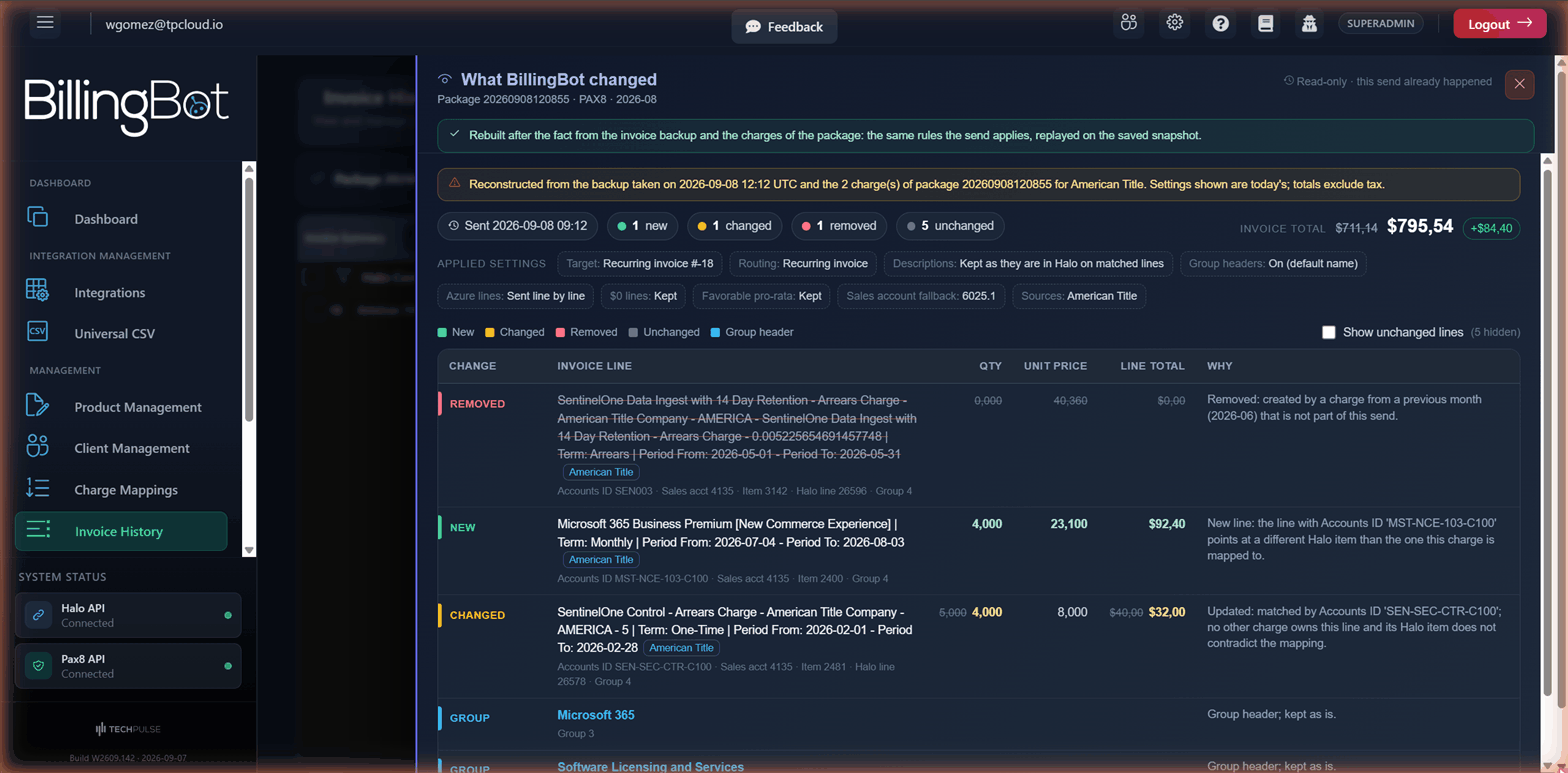
- What the last send changed button (eye icon, Actions column of the summary): opens a read-only side panel with what BillingBot did to that invoice in its latest send: every line marked New, Changed (old → new quantity, price and total), Removed or Unchanged, the invoice total before → after, and a Why column with the reason for each line. When two source companies bill onto the same invoice, the panel shows one tab per company pass. The panel can be exported to CSV. For sends made from September 2026 on, the panel shows the summary the send itself recorded right after Halo accepted the invoice (the banner says Recorded by the send itself); for older sends it is rebuilt from the backup taken before the send and the charges of the package, with today's settings.
- Invoice in Halo now button (export icon, Actions column of the summary): opens the Invoice View in Halo dialog with the full detail of that invoice as it stands in Halo right now.
- Backups & undo button (undo icon, Actions column of the summary): opens the Halo Invoice Backups dialog with the saved previous versions of that invoice. Only the backup of the most recent send (or clean in Review Recurring Invoices) to the invoice can be restored. If the invoice has no backups, the screen notifies you and does not open the dialog.
- "Package … was sent at …" banner (above the grids): appears when a send was made in the last hours for the period on screen. It names the package, the time and the clients updated, and its See what changed button opens the panel with every invoice of that send, one tab each. Dismiss it with the ×.
- Excel / CSV buttons (above the lines grid): export the currently visible line detail to the chosen format.
Step-by-step flow
- Go to Invoice History from the menu.
- Choose the Integration you want to review (for example, Pax8).
- Choose the Period (month-year) of the invoices you want to view.
- The Invoice Summary grid fills with the invoices for that period and integration.
- Select an invoice in the summary (check its checkbox) to see only its lines in the grid on the right, or leave everything unchecked to see all the lines for the period.
- If you just sent charges, use the See what changed button of the banner at the top, or the eye icon on the invoice row, to see exactly what the send did line by line.
- To view the exact content of an invoice in Halo right now, click the "Invoice in Halo now" button for that row.
- To review or restore a previous version of the invoice, click "Backups & undo".
- Use the Excel or CSV buttons if you need to export the detail for an external report.
Common errors and how to resolve them
- "Select Integration": you tried to load the history without choosing an integration. Select an option in the Integration dropdown.
- "No Period selected": no period (month-year) has been chosen. Select one in the Period dropdown.
- "No backups available for this invoice": you clicked "Backups & undo" but that invoice has no saved previous versions; there is nothing to restore in this case.
- "This invoice has no backups yet, so there is no send to show" (in the changes panel): BillingBot has not updated that invoice in Halo yet, so there is no send to rebuild.
- If you see a general error message when loading the screen or the invoices, it usually indicates a communication problem with the server; try again by changing the period or the integration, and if it persists, contact support.
Related screens
Was this helpful?
Still need help? Ask the team