Integrations
This is the central screen for connecting BillingBot to your cloud distributors and to your PSA (HaloPSA or Autotask). From here you can see at a glance which services are connected, which ones still need to be configured, and you can ad...
Last updated 24 days ago
This is the central screen for connecting BillingBot to your cloud distributors and to your PSA (HaloPSA or Autotask). From here you can see at a glance which services are connected, which ones still need to be configured, and you can add, edit, or remove a connection.
When to use this screen
- When you are setting up BillingBot for the first time and need to connect your distributors (Pax8, Ingram, ITCloud, Twilio, CSV, etc.) and your PSA.
- When the credentials for a distributor or your PSA change (for example, you renewed an API key or a Client Secret).
- When you need to check whether an integration is still active or has stopped working.
- When you want to remove an integration you no longer use.
What it shows
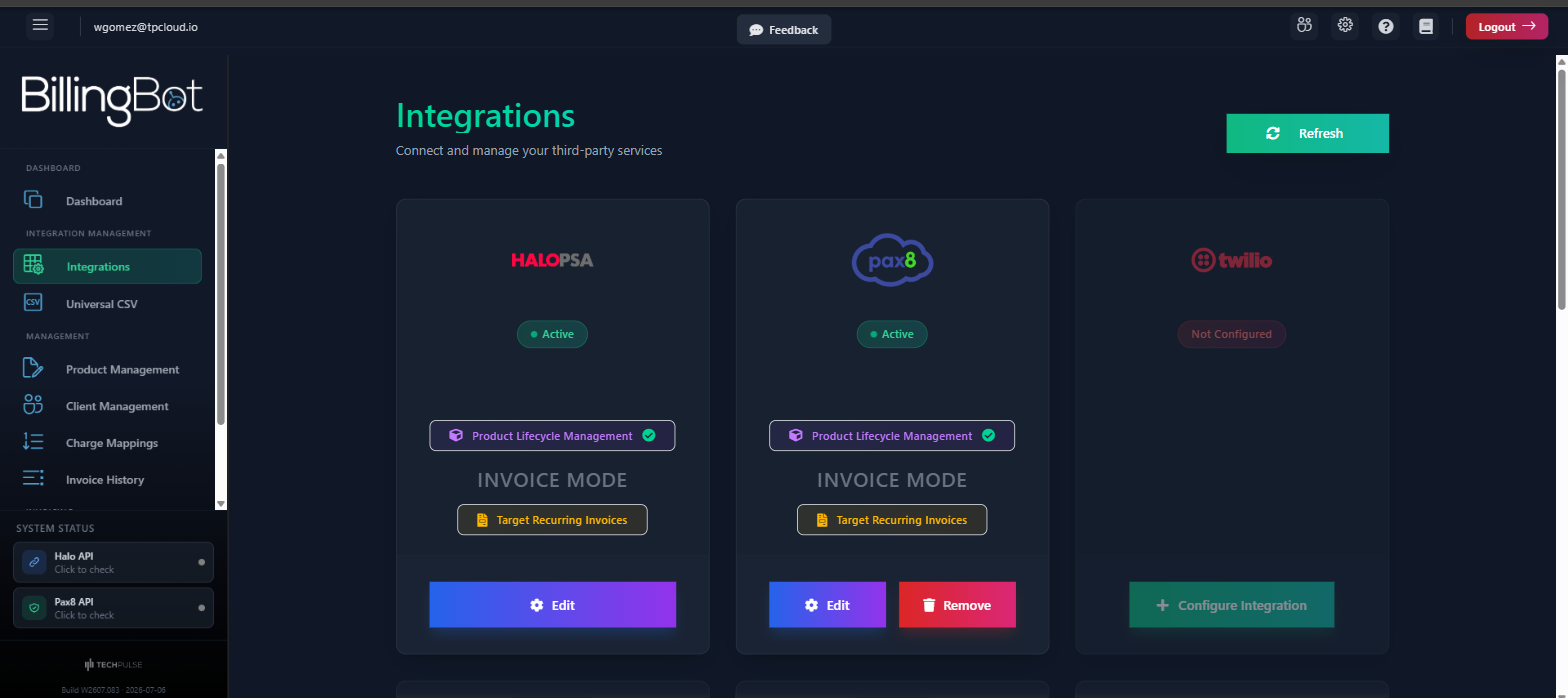
- One card for each available integration (Pax8, HaloPSA or Autotask depending on your PSA, Twilio, Ingram Micro, Ingram CloudBlue, Datto, D&H, Egnyte, CSV, among others).
- Each service's logo and a "Hardware" or "Software" label to tell the two Ingram integrations apart.
- A status with a colored bubble:
- Active (green, with a pulsing dot): the integration is configured and ready.
- Not Configured (red): it has not been connected yet.
- If the integration is active, it may also show:
- A Product Lifecycle Management indicator when BillingBot automatically manages the product lifecycle.
- An Invoice Mode indicator that states how charges are added to invoices: "Append to Existing Invoices" (added to invoices already issued), "Create New Invoices" (new invoices are generated), or "Target Recurring Invoices" (applied to recurring invoices).
- Integrations not yet available on your plan show "Coming Soon" instead of a configuration button.
- HaloPSA and Autotask always appear as configured automatically because they are your primary PSA; you can never remove them from here (only edit them).
Available actions
- Refresh: re-checks the status of all integrations. Useful after making a change on the distributor's side or if you suspect the status shown is outdated.
- Configure Integration: appears on cards that are not yet configured. Opens the configuration dialog (SettingsIntegration) to enter the service credentials. If the integration is Pax8 and your tenant has OAuth2 login enabled, this button opens a new tab to authorize the connection with your Pax8 account.
- Edit: opens the configuration dialog with the current data so you can modify credentials or preferences for an already connected integration.
- Remove: ⚠️ removes the configured integration (not available for HaloPSA or Autotask). It asks for confirmation before proceeding because the action cannot be undone; once removed, you will need to configure it again from scratch with its credentials. An integration that still has charges to bill (pending or in queue) cannot be removed: BillingBot tells you how many and from which periods, so you can send or remove them first. Removing it with those charges would leave that month impossible to bill.
Step-by-step flow
- Go to Integrations from the main menu.
- Wait for the list to load (you will see a "Fetching your integration data..." indicator).
- Look for the card of the service you want to connect.
- If it says Not Configured, click "Configure Integration".
- Fill in the requested information in the dialog (API credentials, billing preferences, etc.) and save.
- The card will change to the Active status and will show the "Edit" option and, if applicable, "Remove".
- If you need to update information later, use "Edit" on the same card.
- Use "Refresh" at any time to confirm that the status shown is the most recent one.
Common errors and how to resolve them
- "Integration has already been configured!": you tried to use "Configure Integration" on a service that is already active. Use "Edit" instead.
- "Integration not configured!": you tried to edit or remove an integration that has not been connected yet. First configure it with "Configure Integration".
- Extended notice "CRITICAL: HALO API PERMISSION ERROR": while editing HaloPSA, BillingBot could not read the configuration because the API application in Halo does not have the necessary permissions. The message states two required steps:
- In Halo PSA, go to Configuration → Integrations → API Applications, edit the BillingBot application, enable the items, clients, and invoices permissions (or the "all" scope), and generate a new Client Secret.
- Paste that new Client Secret into the "Client Secret" field of the BillingBot dialog, save the changes, and use "Refresh Connection" to verify it now works.
- "Error loading QuickBooks details from Halo", "Error loading Xero details from Halo", "Error loading Accounts Codes from Halo", "Error loading Tax Codes from Halo": BillingBot could not retrieve that specific information from Halo. This is usually due to insufficient API permissions in Halo; check the error code shown in parentheses and contact your Halo administrator if it persists.
- "Error loading Items from Halo: ..." with a 403/Forbidden code: the Halo API application does not have permissions over products ("items"). The message details going to Configuration → Integrations → API Applications to enable items permissions, and to Configuration → Items and Stock Control to disable "Item names must be unique per supplier".
- Dialog "There's a problem connecting to Halo PSA." after a Halo connection error: if loading data fails and it is not a clear permissions issue, BillingBot offers three options: "Refresh Connection" (retries the connection), "Modify Credentials" (opens the dialog to update the username/password or Client Secret), or "Cancel" (you stay on the screen with no changes).
- "Unable to refresh connection. Please modify your credentials.": the automatic reconnection attempt with Halo failed; BillingBot opens the edit dialog directly so you can update the credentials.
- "Could not load tenant data...": your organization's information could not be loaded. Try logging out and back in; if it continues, contact support.
- "User data not loaded. Please refresh the page.": the session did not load the user data correctly; reload the page.
- "Integration removed!": confirmation message (not an error) that appears after successfully removing an integration.
Related screens
Was this helpful?
Still need help? Ask the team