Moments and alerts
What the achievement-style Moment cards of the browser extension say and do, where and how long they appear, and how to turn on desktop alerts and alerts on every site.
Last updated 19 days ago
A Moment is a short card that drops in at the top center of the page you are looking at when something needs you: a new bounty to claim, a quest, a Q-Notify message from a dispatcher, a reward. It carries up to three buttons, so you can act on it without leaving what you were doing. This page is for anyone who works in HaloPSA with the QuantumOps browser extension.
Before you start. The Q-Missions module must be on for your organization, the extension (version 0.21 or later) must be installed and signed in, and your login must be linked to your HaloPSA agent; without the link, QuantumOps has no Moments to send you. Setting up the extension covers the install and the link. Cards appear on HaloPSA and QuantumOps pages with no setting at all, with the side panel open or closed. Two optional switches in the extension's Options reach further; they are explained under Turn on desktop alerts and alerts on every site.
What a card looks like
A card has a round icon, a title, usually a line of text under it, up to three buttons and a close button (×) in the corner. The first button is the main one. The color follows the news and sets the icon's ring, its pulse and the bar under the card. Green is good news and your own progress, such as You claimed, New quest, Your reward was approved, Autopilot has a plan ready or a Q-Notify reply that reads Name acknowledged. Amber is for bounties, warnings and finished work, such as Claim released, Sent back, +150 points, Your reward was delivered or a Q-Notify reply that reads Name is busy. Red is for a Critical bounty, Time is almost up, a Q-Notice at Alert or Critical severity and a reward order that failed, was rejected or was canceled. Gray is plain information, such as Your reward return was processed. A Q-Notify that asks you to pick up or says a customer is waiting is amber. The card itself is light or dark as the extension's Appearance setting says. Everything on a card is plain text.
The card drops in with a short animation and the icon pulses. A thin bar along the bottom shrinks while the card waits to hide itself (a card that stays has no bar). The page underneath stays usable: only the card itself takes clicks.
The kinds of Moment
QuantumOps sends the kinds below. The words in italics are what the card says; where a row says and the title, the name of the bounty, quest or mission follows the phrase.
Bounties and claims
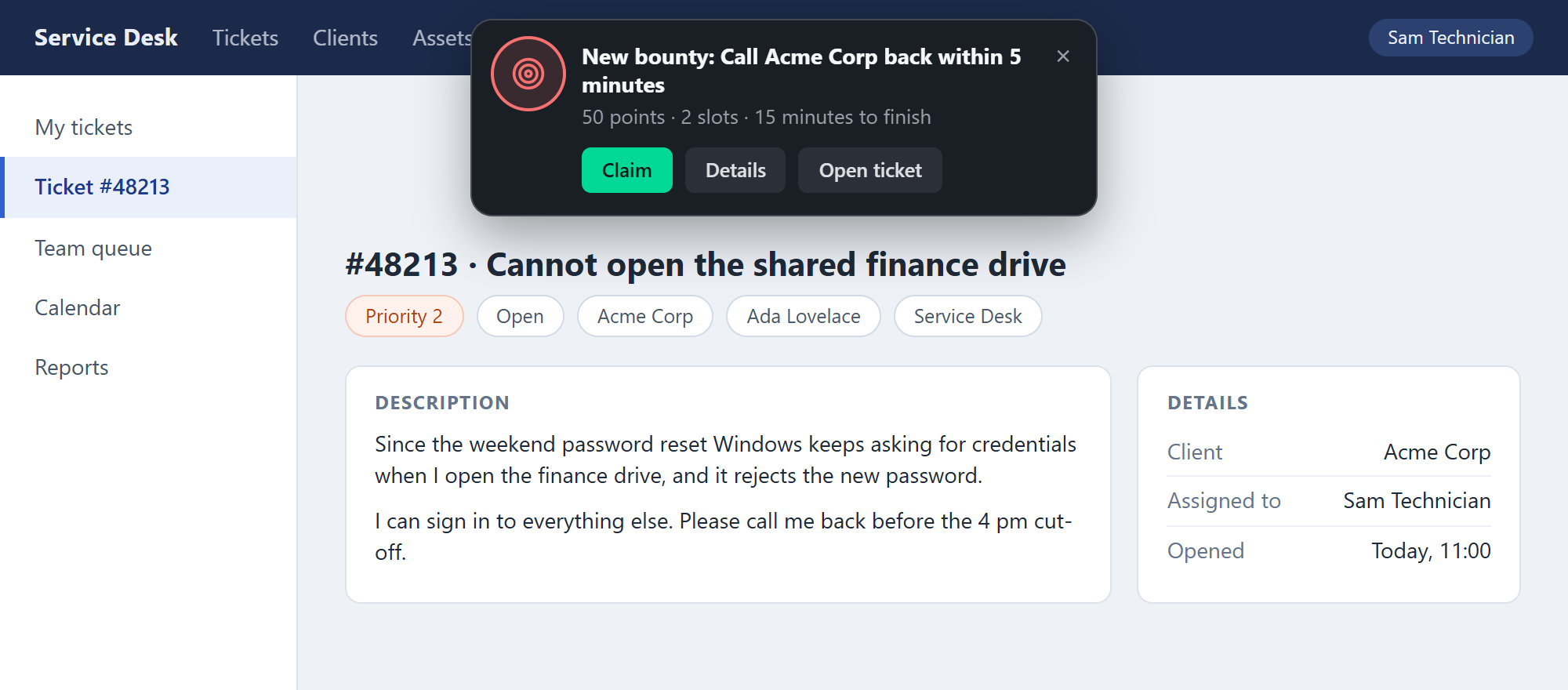
Quests, missions and rewards
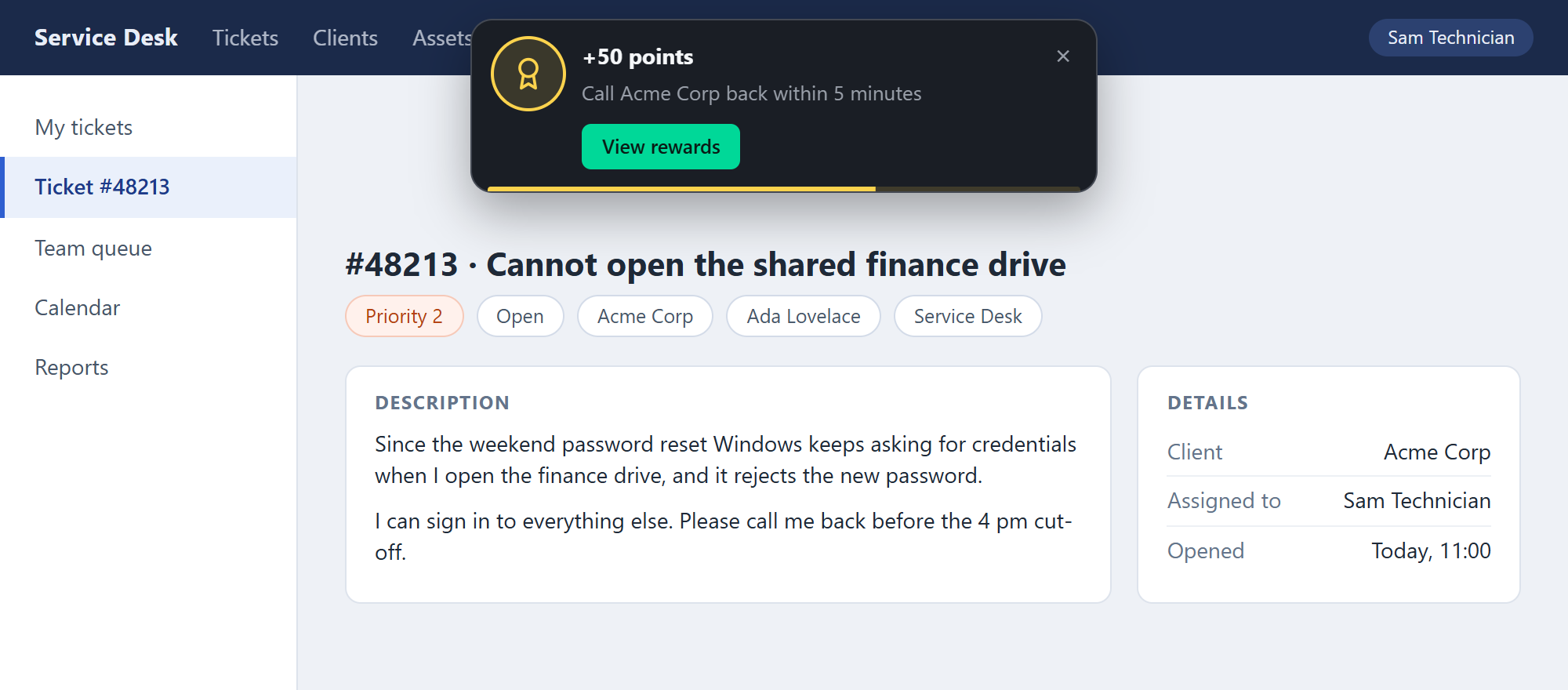
If you are a Rewards Admin, cards about reward orders that need approval or attention reach you the same way, and carry no buttons.
Q-Notify messages
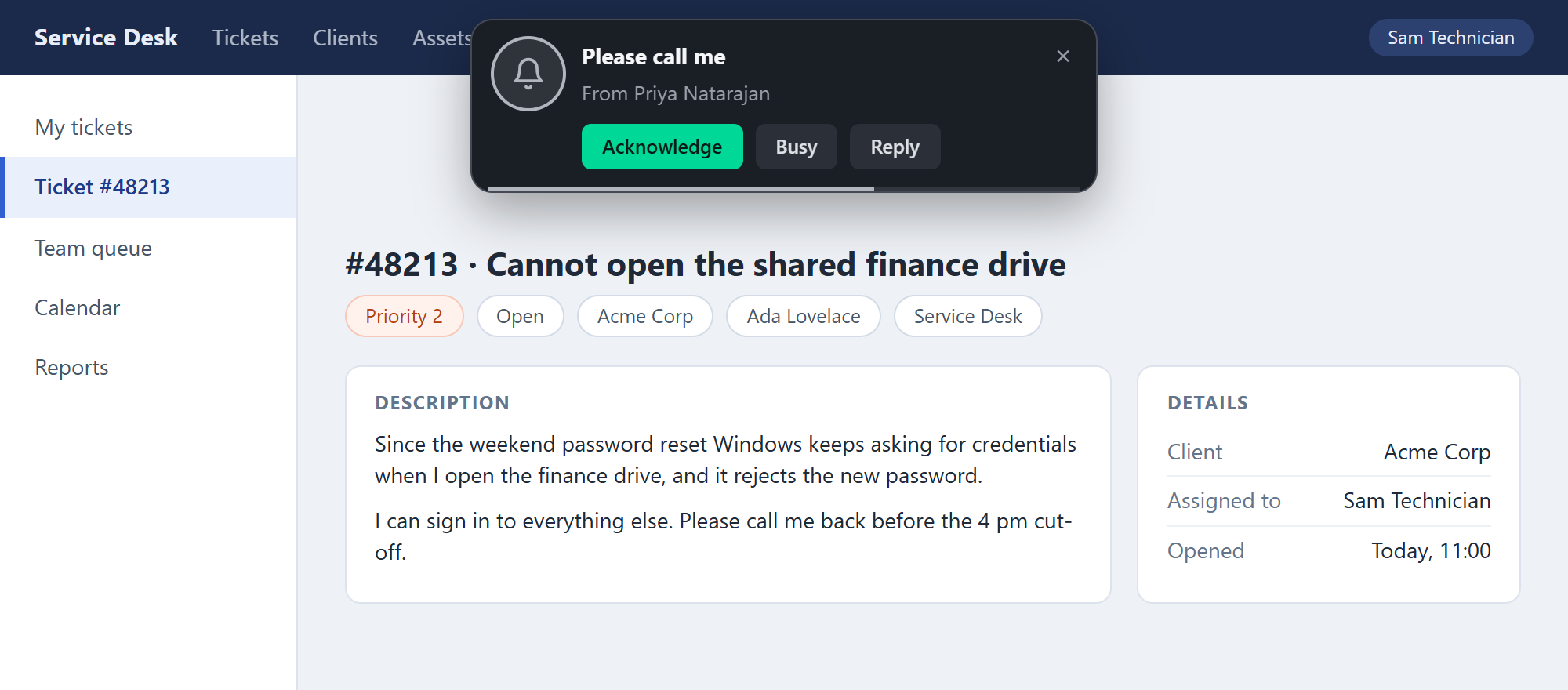
A card the extension makes itself, for the test described below, says This is a test Moment.
My missions and Bounties explain the work the cards are about; Direct Q-Notify messages explains the messages.
What the buttons do
- Claim, Claim it, Acknowledge and Busy do the thing straight away, as you. When it works, the card closes. When it does not, the card stays and says why, in the words QuantumOps sent back (for example that every slot is taken, or that someone else got there first). Other messages you may see on a card are Sign in to QuantumOps, then try again., Could not reach QuantumOps. Check your connection and try again. and This alert is no longer available. Open QuantumOps to see where things stand.
- Details, Reply, View rewards, View and Review plan open the side panel. Details, Reply, View rewards and the View on a bounty land on the Missions tab. View on a Q-Notice opens the Ticket, Client or User tab, and Review plan opens the Assist tab.
- Open ticket and the Open # button open the HaloPSA ticket, in a new browser tab, or bring forward the tab that already shows it. If QuantumOps does not yet know your HaloPSA address, the card says QuantumOps does not know your Halo address yet. Open Halo once, then try again.
- The × button closes the card, and so does the Esc key.
Where a card appears
A card appears on the page in front of you, in the browser window you are using. That means:
- HaloPSA pages always. This covers halopsa.com, haloitsm.com and haloservicedesk.com, and a custom HaloPSA domain once you have allowed it; see Setting up the extension.
- QuantumOps pages always. This covers your instance's address and the standard QuantumOps domains.
- Any other website. Only when Show alerts on every site is on, and only https pages.
- Never on the extension's own pages, such as Options, the welcome page and the dispatch board, and never on a page the browser keeps closed to extensions (the browser's own settings pages, for example). It also appears only on the top level of a page, not inside frames.
- Only while the browser is the window you are using. If you are working in another application, no card is drawn on a page; the alert goes the way described under How alerts reach you.
One card shows at a time. The ones behind it wait, and a small +N more label under the card counts them. At most 20 wait; when more arrive, the oldest ordinary one is dropped. A Critical bounty is placed ahead of the ordinary ones that are waiting.
How long a card stays
- Seven seconds, then it fades. Hovering over the card, or moving the keyboard focus onto it, pauses the clock, and it carries on from where it stopped when you move away.
- A Critical bounty stays until you act on it or close it.
- A card whose button failed stays too, with the reason in red under the buttons, so you can read it, try again or close it.
- Esc closes the card that is showing.
- Reduced motion. If your system asks for reduced motion, the card only fades in and out: no animation, no pulse and no shrinking bar.
A card that hides by itself is gone, but what it was about stays in the Missions tab: the bounty under Bounties, the quest under My quests, the message under Q-Notify and the reward under Rewards.
Cards when you open a ticket
When you open a HaloPSA ticket, the extension asks QuantumOps whether anything about that ticket deserves a card. Up to three kinds can come back:
Each of these shows once for each ticket in a browser session: the memory is cleared when the browser closes or you sign out. They appear only on the tab that follows the ticket, never as a desktop alert, and if that tab is in the background, the card appears when you switch to it.
How alerts reach you
QuantumOps keeps a queue of Moments for you. Two things move them to your browser:
- The side panel is open. QuantumOps sends a new Moment over the live connection, and the extension shows it at once.
- The side panel is closed. The extension asks QuantumOps for new Moments about every 30 seconds (once a minute on Firefox, and on Chrome and Edge before version 120). It also asks when you sign in, when the browser starts, after an update, and when you turn on either of the two switches described below.
This needs you to be signed in to the extension. After a browser restart the extension signs you in again by itself while your organization's sign-in session is still open; if it cannot, you get no alerts until you select Sign in to QuantumOps.
Each Moment goes to the first of these places that works:
- A card on the page in front of you, when the browser is the window you are using and the page is one that can show cards.
- A desktop alert, when you have turned on Desktop alerts. Cards about a ticket never go here.
- The Waiting for you list at the top of the Missions tab. A card kept here is drawn on a page as soon as you come back to one that can show it, and then it leaves the list.
A Moment you have already seen is not shown again, even if it arrives by both routes. The Waiting for you list keeps up to 20 Moments, lives only in the browser's memory, and is cleared when you close the browser or sign out. The bounties, quests and messages themselves are still in the tab. Each item in the list has its buttons and a Dismiss button.
When the browser is closed or you are away
Moments wait for you on the QuantumOps side and arrive when the extension next asks, so a card that is still current shows up shortly after the browser starts and you are signed in. Each kind has its own life: a new bounty stays until the bounty closes, a claim warning for two minutes, a Q-Notify message for 30 minutes, the reply to a message you sent for two hours, a new quest for three days, and a reward, a finished quest or mission or a released claim for a day. A Moment past its life is not shown. The extension collects 20 at a time, oldest first.
If the extension has been silent for about ten minutes when a bounty is posted, or a Q-Notify message has not arrived within about a minute, and QuantumOps knows your Slack or Teams account, you may get a direct chat message instead of, or as well as, the card. Direct Q-Notify messages has the details for Q-Notify.
Turn on desktop alerts and alerts on every site
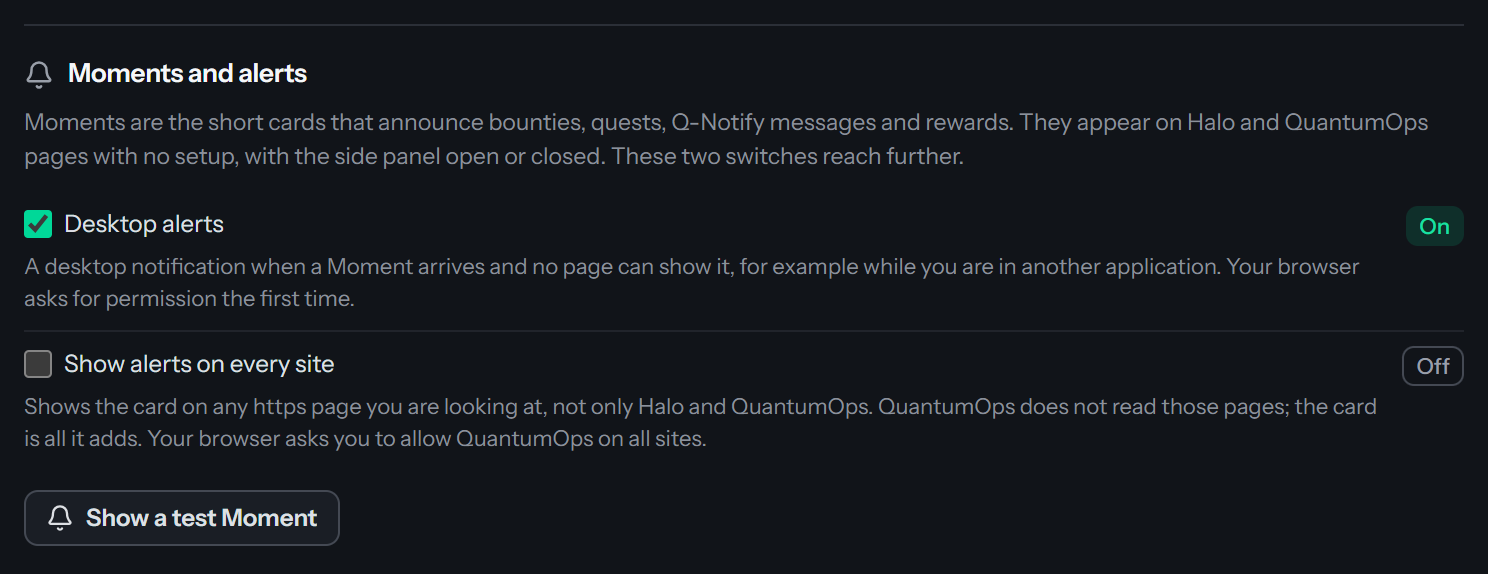
Open the extension's Options (the gear in the panel's status bar). The section Moments and alerts, between Appearance and Account, says: Moments are the short cards that announce bounties, quests, Q-Notify messages and rewards. They appear on Halo and QuantumOps pages with no setup, with the side panel open or closed. These two switches reach further. It has two checkboxes, each with an On or Off mark, and a button, Show a test Moment. The marks show what the browser says now, so they also follow a change you make in the browser's own extension settings.
Both switches ask the browser for an optional permission, and only when you check the box. Neither is asked for when you install or update the extension, and the 0.21 update adds no new required permission, so it does not disable the extension or ask you to approve anything again.
Desktop alerts
The box is labeled Desktop alerts, with the help text A desktop notification when a Moment arrives and no page can show it, for example while you are in another application. Your browser asks for permission the first time.
- The permission. The browser's notifications permission for the extension. It lets the extension show desktop notifications. It gives the extension no other access, and nothing is shown while it is off.
- What you get. A notification with the card's title and text. In Chrome and Edge it carries the card's first two buttons: for a bounty Claim and Details, for a Q-Notify message Acknowledge and Busy. A Critical bounty stays until you deal with it. Selecting the notification opens the side panel, and also opens the ticket when the Moment is about one. Closing it counts as dismissing the Moment. If a button fails, the notification's text changes to the reason.
- If you refuse. The box stays off and Options says The browser did not allow desktop alerts. You can allow notifications for this extension in the browser's extension settings, then try again. Cards on pages and the Waiting for you list still work. Your operating system or browser can also hold notifications back, for example in a do-not-disturb mode, so check their settings when none appear.
- To turn it off. Clear the box. If Options says The browser did not let this switch be turned off. If your administrator manages it, ask them., an administrator controls it.
Show alerts on every site
The box is labeled Show alerts on every site, with the help text Shows the card on any https page you are looking at, not only Halo and QuantumOps. QuantumOps does not read those pages; the card is all it adds. Your browser asks you to allow QuantumOps on all sites.
- The permission. Access to all https websites. It is the same optional permission the extension uses when you add one custom HaloPSA domain, but for every site. While it is on, the browser lists the extension as allowed on all sites, and Granted origins under Diagnostics shows it.
- What it lets the extension do. Draw a card on any https page. To decide whether it can show a card there, the extension looks at the address of the page in front of you; it does not store or send that address. The card is drawn by a small script that holds no sign-in token, does not call QuantumOps, reads nothing from the page and sends back only which button you pressed. The page's own scripts cannot read the card or press its buttons.
- What it does not do. It gives the extension no permission to read your cookies, history or web traffic, and nothing from the pages you visit is sent anywhere.
- If you refuse. The box stays off and Options says The browser did not allow QuantumOps on all sites, so alerts stay on Halo and QuantumOps pages.
- To turn it off. Clear the box. In some browsers this also takes back access to custom addresses you added earlier. If it does, Options says so, names the addresses and says where to add each one again: a HaloPSA address under Halo URLs, and your instance address under QuantumOps instance with Use this URL. If Options says The browser did not let this switch be turned off. If your administrator manages it, ask them., an administrator controls it.
Try it with a test Moment
Select Show a test Moment. Options says Switch to the page you want to try it on. The test Moment appears in a few seconds. After about five seconds the extension makes a card that says This is a test Moment, with the text Moments announce bounties, quests, Q-Notify messages and rewards. You can close this one. and two buttons, Open the panel (it opens the Missions tab) and Close. The test is made in your browser and QuantumOps is not asked, so nothing is recorded.
Options then tells you where it went:
In Firefox
Firefox follows the same rules with three differences. The extension asks for new Moments about once a minute when the panel is closed. A desktop alert has only the title and the text, with no buttons, and does not stay on screen until you deal with it; selecting it opens the sidebar, and also the ticket when the Moment is about one. And Firefox shows its own permission prompt for each switch.
Call offers use a card of their own
When a dispatcher sends you a call, the card that reaches you is not a Moment. It sits at the top right of the page, rings and counts down, and has Accept, Decline and Chat buttons; Call offers from dispatch describes it. It follows the same rules for where it can show: HaloPSA and QuantumOps pages always, other https pages when Show alerts on every site is on, and a desktop alert when Desktop alerts is on and no page can show it.
For administrators
The 0.21 update asks for no new required permission, so browsers keep the extension enabled and ask nobody to re-approve it. It adds one optional permission, notifications, and a second use of the optional all-sites permission it already had. Because both are optional, neither switch is on after an install by policy: each person checks the boxes in Options. Rolling out the extension to technicians has the details, and What each part of the extension needs lists the permissions.
If no card shows up
Troubleshooting the extension lists the usual reasons: a page that cannot show cards, a switch that is off, a browser that is not the window in front, and a login that is not linked to a HaloPSA agent.
Related pages
- Missions tab: bounties, quests, the Q-Notify inbox and rewards in the side panel.
- My missions: the same work in the QuantumOps web app.
- Finding your way around the side panel: the tabs and the status bar.
- What each part of the extension needs: roles, switches and browser permissions.
Was this helpful?
Still need help? Ask the team