My missions
Where an agent sees the quests given to them, claims bounties, finishes or releases a claim, and sees what they have earned.
Last updated 21 days ago
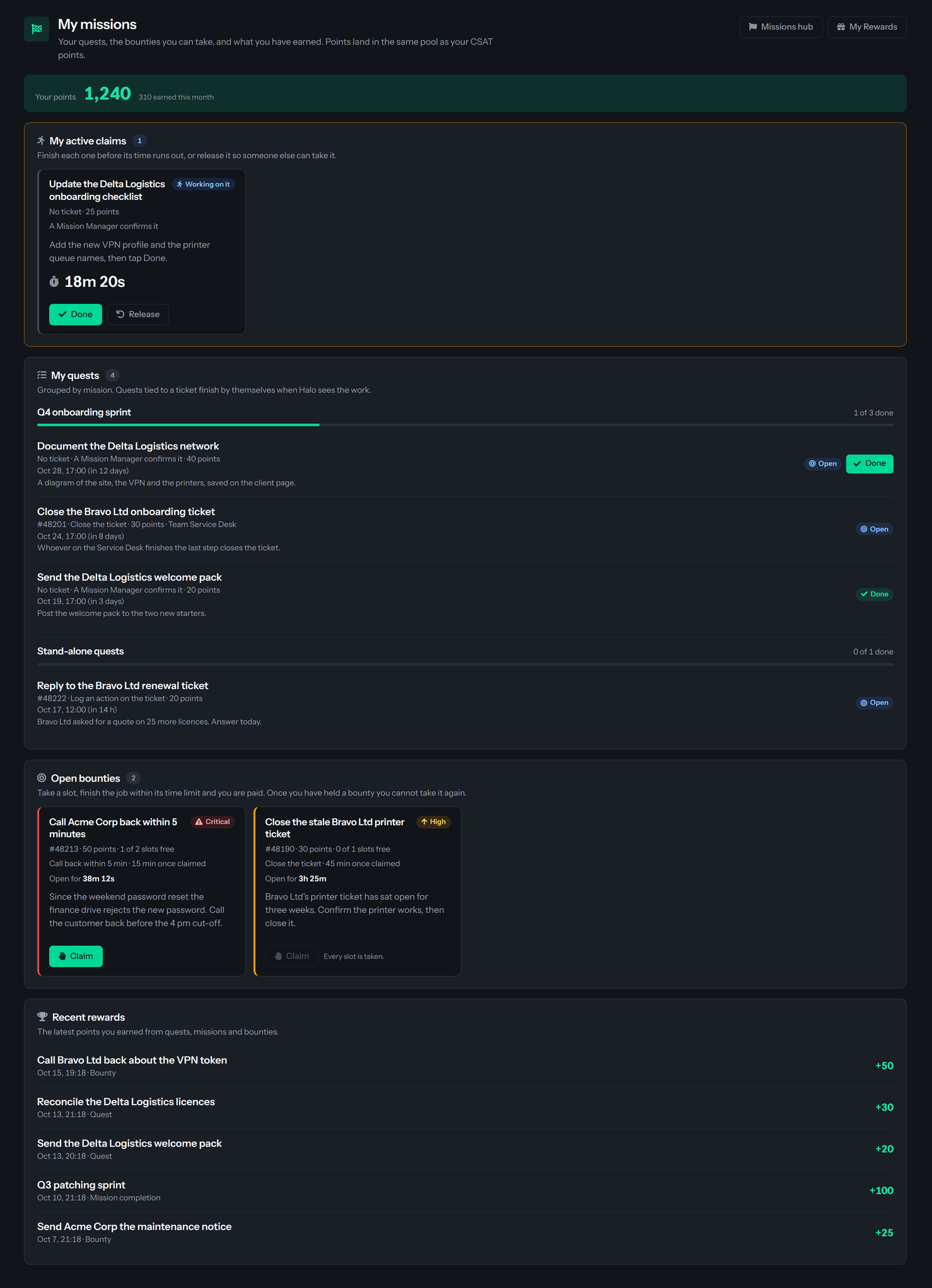
My missions shows your own work: the quests you have been given, the bounties you can take and the points you have earned from them. It is open to everyone who is signed in, and it only ever shows the HaloPSA agent your sign-in is linked to.
Before you start. The Q-Missions module must be on for your organization. Quests and bounties are given to HaloPSA agents, so if your sign-in is not linked to an agent the page says so and nothing else shows. Ask an administrator to link your login to your agent in Team Management.
To open the page, select Missions in the sidebar. A Mission Manager's Missions entry opens the hub instead; from there, select My missions. For how bounties, quests and missions fit together see Q-Missions overview.
The page refreshes itself every 30 seconds, and the countdowns tick every second. Dates are shown in your organization's Display Time Zone, set in Tenant settings, which is Eastern Standard Time until someone chooses one.
The top of the page
Two buttons sit in the header: My Rewards, which opens your rewards, and, for Mission Managers only, Missions hub.
The strip under it shows Your points: your balance, and what you have earned this month, or "Complete a quest or a bounty to earn points" when you have earned nothing this month. Points from quests, missions and bounties land in the same pool as your CSAT points. Spend them from My Rewards (My rewards).
Open bounties
Open bounties lists the bounties open to you. Each card shows the title, the reward, how many slots are free, how it is completed, the time you get once you claim it, and how long the bounty stays open. A High or Critical bounty is marked as such.
Select Claim to take a slot. You see "Claimed. You have 30 minutes." (or whatever the time limit is) and the clock starts. The bounty moves to My active claims.
If Claim is grayed out, the line under it says why. The usual reason on this page is "You already have, or had, a claim on this bounty." You can hold a bounty only once, even if you release it, let it run out or a Mission Manager turns your work down. Other reasons are listed in Bounties. If the list says "No open bounties for you right now.", nothing is open to your teams.
My active claims
This section appears only while you hold a bounty. Each card shows its status, Working on it or Waiting for confirmation, the ticket, the reward, how it is completed and a countdown to your deadline. The countdown turns amber in the last minute, or in the last fifth of the time limit when that is shorter. About a minute before the deadline you also get an alert.
- If Halo can see the work on the ticket, it notices by itself and pays you. The card says "Halo notices the work on the ticket by itself. Nothing to tap." See How Halo completes bounties and quests for what counts.
- If a Mission Manager confirms the bounty, select Done when you have finished. In the dialog Mark it as done, add an optional note of up to 500 characters, then select Mark as done. The card then says "You said it is done. A Mission Manager will check it and confirm." and the claim cannot run out while it waits. Select Not yet to go back.
- Select Release to give the bounty back. In the dialog Release this bounty? select Release it. It returns to the pool for someone else and you cannot claim it again. Keep it goes back.
If the countdown reaches zero the claim lapses and the slot goes back to the pool. You get an alert saying so. A Mission Manager may reject your work; you get an alert with their reason, and the slot goes back.
My quests
My quests groups your quests by mission, with how many you have done out of how many you have. Each stand-alone quest, which belongs to no mission, is listed under its own Stand-alone quests heading. Each quest shows its ticket, how it is completed, its reward, the team for a quest given to a team, its due date and a status: Open, Waiting for confirmation, Done or Missed.
- A quest tied to a ticket finishes by itself when Halo sees the work.
- A quest that a Mission Manager confirms shows Done. Select it, add an optional note in Mark it as done, and the quest says Waiting for confirmation until a Mission Manager decides. The button appears only while the quest is open and its mission has started. If the manager sends it back you get an alert "Sent back:" with their reason, and the quest is open again.
- A quest given to your team to do once is finished by whoever does it first; the reward goes to that person.
- A quest that passes its due date is Missed and pays nothing unless a Mission Manager extends the date. See Quests and missions.
A finished quest stays on the page for two weeks, or for as long as its mission is still running. If you have none, the page says "No quests for you right now. When a Mission Manager gives you one it shows up here and in the side panel."
Recent rewards
Recent rewards lists your eight latest points from quests, missions and bounties, with the date, what it was for, whether it was a quest, a bounty or a mission completion, and the points. It says "Nothing earned from missions yet." until the first one. A Zinc product reward is an order rather than points; follow it in My rewards.
If the page shows a notice
You can do the same from the extension: see the Missions tab and Moments and alerts.
Was this helpful?
Still need help? Ask the team