My Rewards
See your points and where they came from, redeem them for a reward, choose its size or color, choose where physical rewards are delivered and follow your orders.
Last updated 21 days ago
My Rewards is your own page. It shows the points you have earned from customer ratings, badges, missions, quests and bounties, lets you spend them on a reward, and tracks the rewards that are mailed to you.
Before you start.
- Any signed-in user can open the page, and it shows only the rewards profile of the HaloPSA agent your sign-in is linked to, never another agent's. If your sign-in is not linked to an agent, the page says Your sign-in is not linked to a HaloPSA agent, so there is no rewards profile to show. Ask an administrator to link your login to your agent in Team Management.
- Select My Rewards in the left menu, below Leaderboard under Dashboards. It shows when the CSAT & Surveys module is on. The browser extension's Missions tab also has a Rewards section with your balance and a link here, see Missions tab.
- The cards Recent earnings, Delivery and My orders, and the rewards that are delivered by mail, belong to the Q-Missions module. With that module off, the page shows only the rewards an administrator hands over by hand.
Your balance and where it comes from
At the top, Available Points is what you can spend. Under it a line gives what the points are worth in US dollars, using the rate your administrators set for display only. A streak of positive ratings shows beside it. Four figures follow:
Your Badge Showcase shows each badge with its date, or Not yet earned. Your own place and the top of the board for this month are under Monthly Leaderboard. It is a small view of its own: unlike the Leaderboard it lists only agents who have received at least one customer rating.
Recent earnings
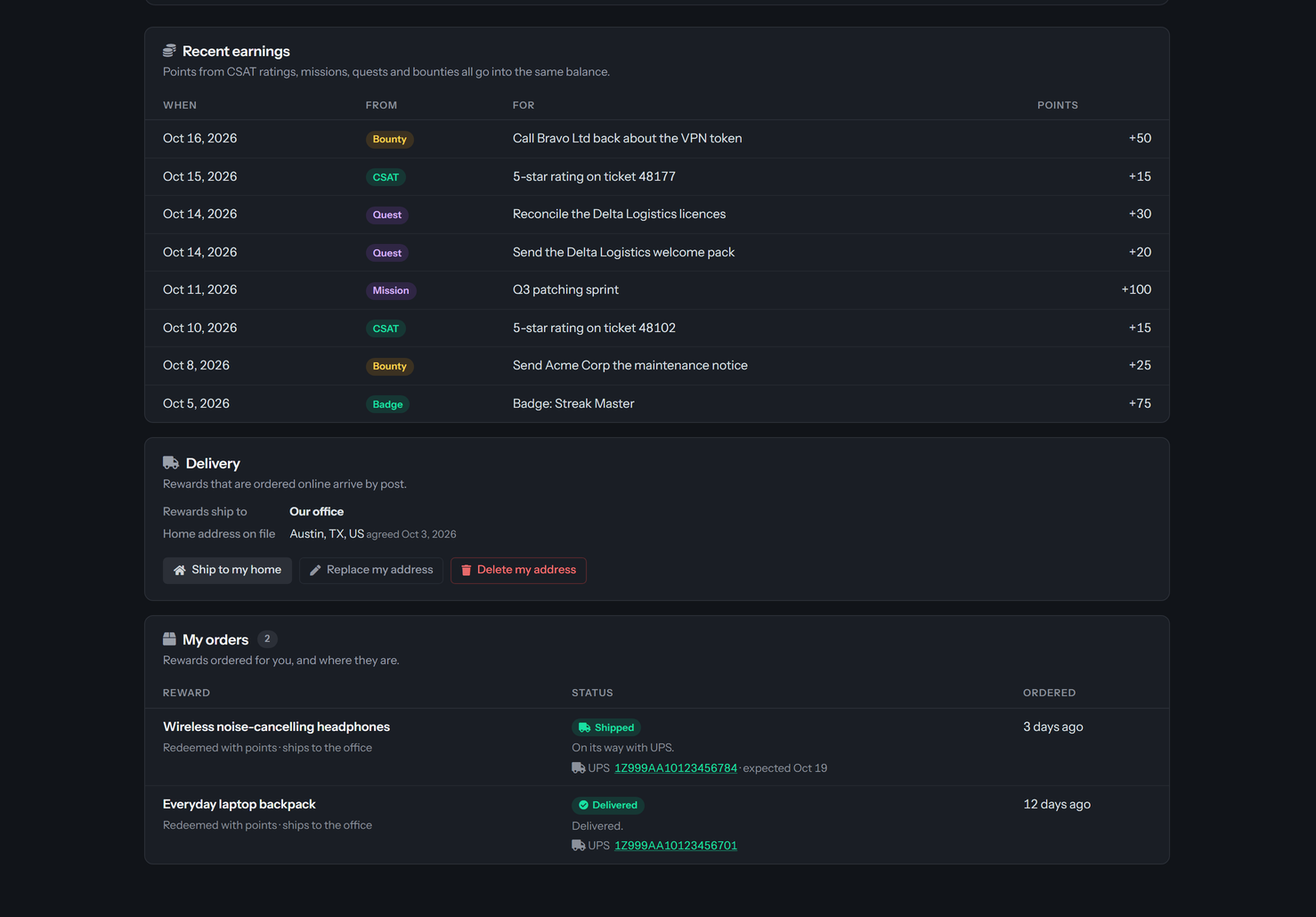
When the Q-Missions module is on, Recent earnings lists your last 15 earnings, newest first, in the columns When, From, For and Points. It leaves out what you spent and anything given back. From says where each came from:
An entry of any other kind carries its own label.
Before you have earned anything it says Nothing earned yet. Points arrive with CSAT ratings and when you complete missions, quests and bounties. See My missions for the work that pays points.
Redeem a reward
The Rewards Catalog lists what you can redeem. The buttons All, Physical, Digital and Experience filter it. Each card shows the points cost and, when the number is limited, how many remain. A reward you cannot afford yet shows how many more points you need on a disabled button. A reward that Zinc says cannot be bought shows Out of stock on its card and on a disabled button. A reward that comes in sizes or colors says what you will choose, for example Choose Color and Size. Otherwise the button reads Redeem.
There are two kinds of reward:
- Manual rewards are handed over by an administrator, for example a day off. Redeeming one takes the points at once and the request waits for an administrator. You follow it under Redemption History. Some need a manager's approval first.
- Rewards with a Ships by mail tag are physical products that your organization orders for you through Zinc.
To redeem, select Redeem, check the cost, Your Balance and the Balance After in the window, and select Confirm Redemption. A request that is refused stays open and says why.
Rewards that come in sizes or colors
A hoodie comes in sizes and colors, a lamp in finishes. When you select Redeem on such a reward, the window has one list for each thing to choose, for example Color and Size, and you choose before you can confirm.
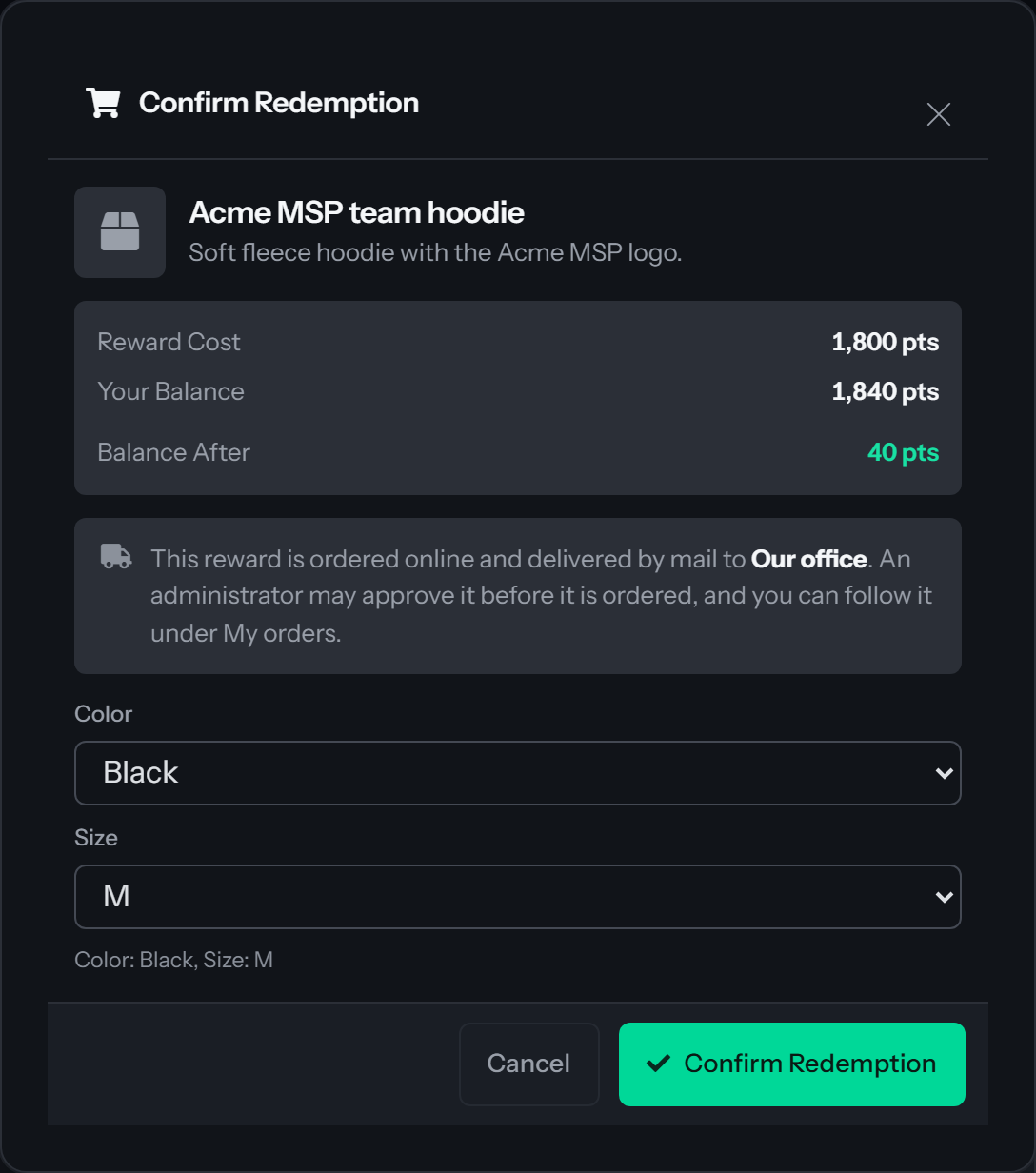
- The lists depend on each other. Choose a color and the size list shows only the sizes that exist in that color. If a color comes in one size only, that size is chosen for you. If a version has no size at all, such as a one-size item among sizes, the size list disappears once you choose it.
- When every list has a value, QuantumOps checks that version with the shop once and shows what it found under the lists. While it checks, the window says Checking this option... and Confirm Redemption stays off.
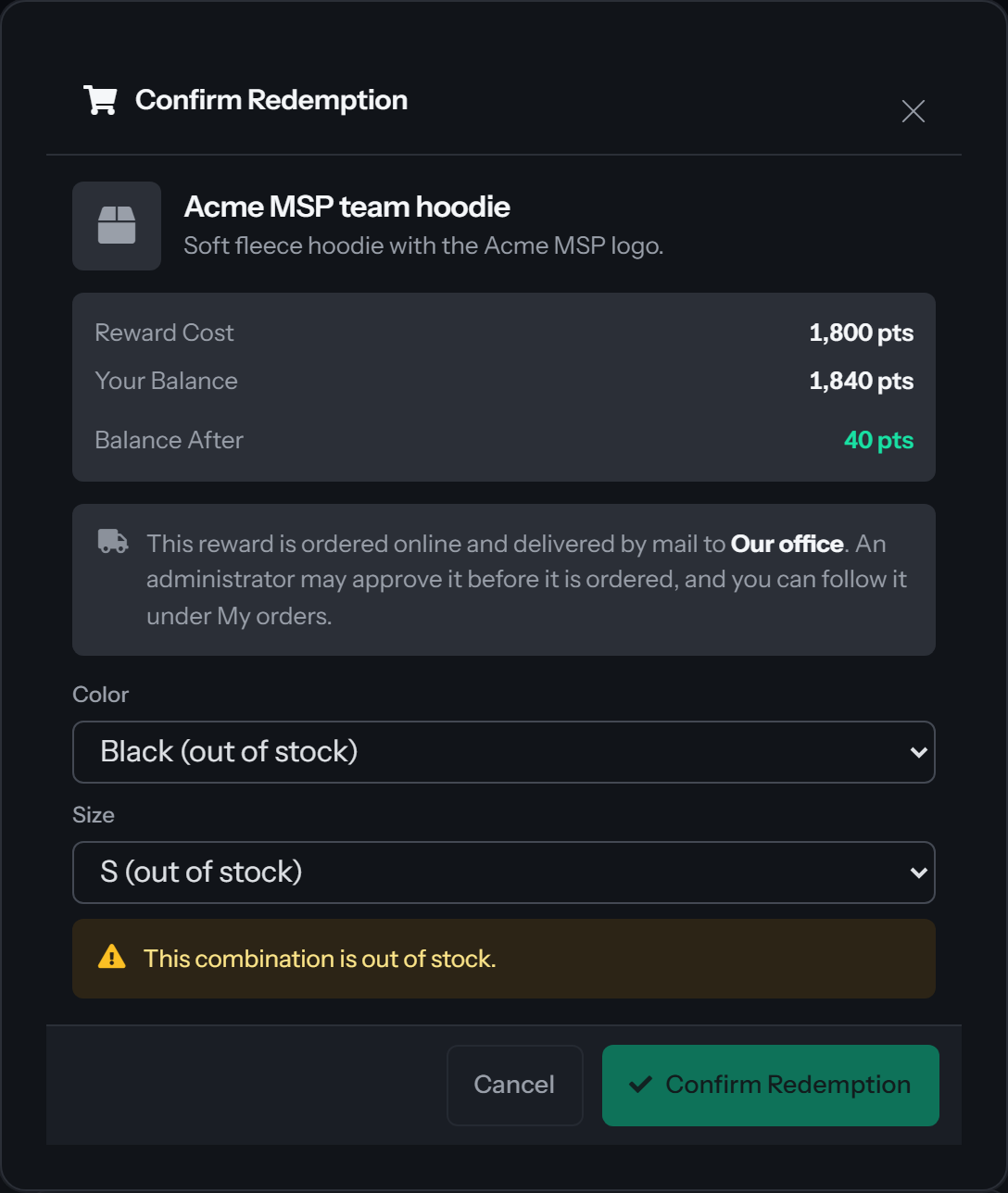
- If the version is out of stock, or costs more than the reward allows, the window says so next to your choice and Confirm Redemption stays off until you choose another: This size is out of stock., This color is out of stock., This combination is out of stock. or This option costs more than this reward allows. A value that is out of stock in every version behind it says (out of stock) in the list. An out-of-stock answer holds for an hour. After that the version is checked again when someone chooses it, so a size that is back can be chosen again.
- If the shop cannot be asked right now, the window claims nothing and lets you confirm. The version is checked again just before it is ordered, and if it cannot be bought the order fails and your points come back.
- When an administrator offers only one version of a reward, there is nothing to choose: the window shows which one you get.
After you confirm, the note says Redeemed, the reward's name and your choice in brackets, for example Redeemed Acme MSP team hoodie (Color: Navy, Size: M). The order is placed for exactly that version, and it is always a new item: a reward never arrives used or refurbished. Your choice shows under the reward in My orders.
What happens to your points
For a reward that ships by mail, the points come off your balance at once, together with the creation of the order. The window says the reward is ordered online and delivered by mail to your office or your home, and that an administrator may approve it first. After you confirm, a green note says Redeemed and the reward's name, how many points you have left and where the order stands.
If the order is rejected, canceled or fails, your points come back and the reward's stock goes back too. If a return is processed and Zinc credits it, your points come back as well. The order then shows in My orders, and your Redemption History shows the same redemption.
Zinc rewards appear only while your administrator has finished setting Zinc up. Until then they are hidden, and an attempt to redeem one says Zinc rewards are not open yet. Ask a Rewards Admin to finish the Zinc setup.
If a redemption is refused
Choose where rewards ship
The Delivery card says where the rewards that arrive by mail are sent. It reads Rewards that are ordered online arrive by mail. and Rewards ship to shows Our office or Your home address with your city, region and country. Rewards you earn from missions, quests and bounties go to the same place as rewards you redeem.
The office is the default
Unless you choose otherwise, every reward ships to your organization's office. You do nothing.
Send rewards to your home
Your administrator decides whether home delivery is allowed. When it is, select Deliver to my home instead. Zinc delivers to the United States, Germany and Italy.
- Fill in Name on the package, Phone, Address line 1, Address line 2 (optional), City, State / region, ZIP code and Country. The name needs a first and last name, and the phone number at least 7 digits and at most 20 characters in all, spaces and punctuation included. A United States address needs a state and a 5-digit ZIP code, optionally followed by a dash and 4 digits. The note under the form says the carrier may call the phone number about a delivery.
- Leave Ship my rewards to this address instead of the office checked to use it straight away, or clear it to keep the office for now.
- Check the agreement: I agree that this address and phone number are stored encrypted and used only to ship rewards I earn or redeem. I can delete them at any time. Without it QuantumOps says Check the box to agree before saving your address.
- Select Save my address. Cancel closes the form without saving.
The page then says Saved. Rewards you earn or redeem now ship to your home. or, when you cleared the box, Saved. Rewards still ship to the office until you choose home delivery. A field that is missing or in the wrong form is explained at the top of the card, and nothing is saved.
What QuantumOps keeps, and who sees it
- Your name, address lines, ZIP code, country and phone number are stored in one encrypted record. They are used only to send the rewards you earn or redeem. QuantumOps gives them to Zinc at the moment an order is sent, and does not keep a copy on the order.
- Only your city, region and country are shown back to you, next to the date you agreed. The street and the phone number are never shown again. To change them, select Replace my address and type the whole address afresh.
- Administrators cannot read your street address or phone number in QuantumOps. The Orders tab of Rewards admin says only whether an order ships to your home or to the office.
- You can delete it at any time with Delete my address. The page asks Delete your home address? and says your address, phone number and agreement are removed and rewards ship to the office. Select Delete it to confirm, or Keep it.
Switch between home and office
With an address saved, Ship to my home and Ship to the office instead switch between the two, and the page says Rewards now ship to your home. or Rewards now ship to the office. The choice is made when an order is sent to Zinc, so it applies to orders that have not been sent yet. An order Zinc has already placed does not change.
If your administrator turns home delivery off
The card says Home delivery is switched off for your organization, so every reward ships to the office. An address you saved is not used, and the only button left is Delete my address.
Follow your orders
My orders lists the rewards ordered for you, newest first, up to 50. Each row shows the reward, whether it was Redeemed with points or Earned as a reward, where it ships (the office or your home), its status and how long ago it was ordered. Once it ships, the row shows the carrier, a tracking link or number and, when the carrier gives one, the expected date. With nothing yet, the card says No orders yet. and explains that a redeemed reward or a reward paid out by a mission, quest or bounty will show up with its tracking.
For a reward you did not pay points for, such as a mission's prize, the sentences read An administrator declined it., Canceled. and It could not be ordered. An administrator is looking at it., and no points are involved.
The browser extension also tells you as an order moves, with Moments such as Your reward was approved, Your reward is on its way and Your reward was delivered. See Moments and alerts in the extension.
If an order says Waiting for options
A mission, quest or bounty paid you a reward that comes in sizes or colors, and nobody was there to choose. The order waits for you, and the extension tells you with the Moment Choose your reward's options.
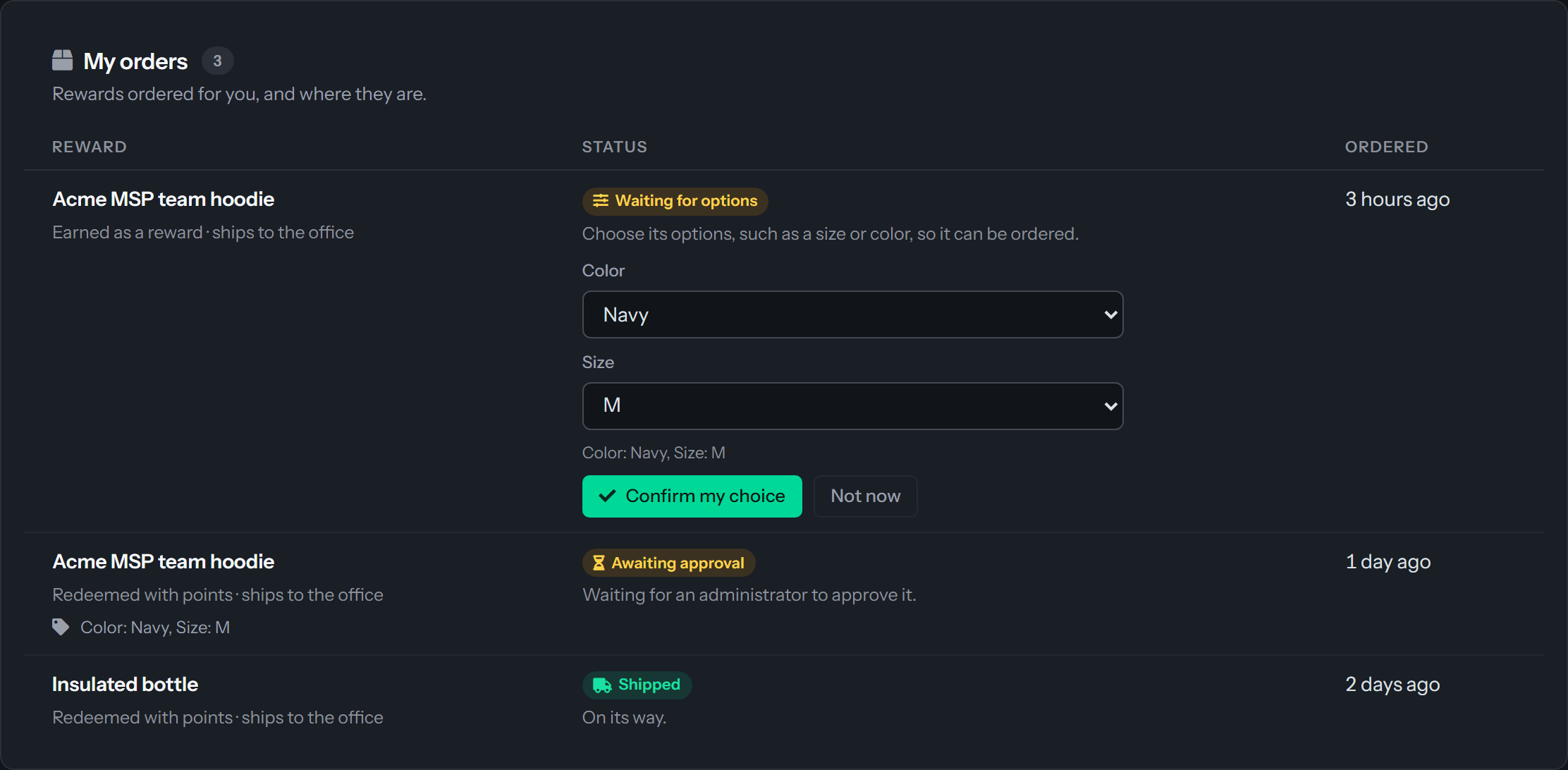
- In My orders, select Choose options on the row.
- Choose a value in each list, as in the redeem window. The window checks the version and says so if it is out of stock or too expensive.
- Select Confirm my choice. The page says Thanks, you chose the reward and your choice, and what happens next, for example Waiting for an administrator to approve it. Not now closes the lists and leaves the order waiting.
Only after you choose does QuantumOps decide where the order ships, whether an administrator must approve it and whether it fits the month's budget. An administrator can see that the order is waiting for you and can cancel it, but cannot choose for you.
If an order says Needs an address
The order is waiting because there is nowhere to send it. Usually your administrator has not saved the office address yet, or it needs a phone number. Administrators have been told, and the order moves on by itself within a minute of the address being fixed. You do not need to do anything. If you chose home delivery and the order still waits, your saved address may not be readable: use Replace my address to enter it again.
If an order says Failed
Zinc or the shop could not complete it. If you redeemed it, your points were given back and you can redeem again. Ask an administrator why it failed: the reason is on their Orders tab, for example that the product is no longer available. A failed order is not placed again.
Related pages
- Leaderboard: the ranking that all earned points feed.
- My missions: the work that earns points or a product.
- Badges, rewards and quotas: how administrators set up badges and the manual rewards.
- Rewards admin: how administrators set up Zinc rewards. For administrators.
Was this helpful?
Still need help? Ask the team