Setting up Zinc for rewards
Connect your own Zinc wallet step by step, save the office delivery address, set the monthly budget and approval rules, run a test order and go live.
Last updated 21 days ago
Physical rewards are bought and posted by Zinc, a service that orders products from shops such as Amazon and Walmart and ships them. Your organization uses its own Zinc account and its own prepaid wallet: you sign up, give QuantumOps the API key, and QuantumOps places the orders for the rewards that agents earn or redeem. This page takes a Rewards Admin from nothing to a working setup. The tab it describes is the Zinc tab of Rewards admin.
Before you start.
- You need the Rewards Admin role, or the Administrator role, which includes it.
- The Q-Missions module must be on for your organization. If it is off, Rewards admin says so and shows nothing else.
- You need a Zinc account that you can add funds to.
- Decide who should hear about problems. QuantumOps alerts Rewards Admins and Administrators through Moments in the browser extension, and only people whose sign-in is linked to a HaloPSA agent can receive them. See Alerts you receive.
What Zinc can and cannot do
- Zinc orders physical products only. Gift cards and digital goods cannot be ordered through it.
- A Zinc wallet delivers to the United States, Germany and Italy. QuantumOps refuses an address anywhere else.
- Each order is one product. You set the most it may cost (the maximum price) on the product, and Zinc refuses an order that would cost more.
- Each order costs the product price plus a fee of at least $1.00. The tab and the Orders banner quote that $1.00 as the least it can be. When Zinc reports a higher fee, QuantumOps uses it when it checks the wallet before placing an order, so the figure in the top-up alert can be higher than the one on screen.
- Each product lookup, when you add an Amazon or Walmart product or when its price is refreshed, costs $0.01 from the wallet.
- A test key places pretend orders that cost nothing. A live key spends real money from your wallet.
Open the Zinc tab
Open Rewards admin in the left menu and stay on the Zinc tab. Until a key is saved the tab shows one card, Zinc wallet, with the badge Not connected, three steps and a field for the key. The other cards appear once a key is saved: Office delivery address, Ordering rules, Run a test order (test keys only) and Zinc webhook.
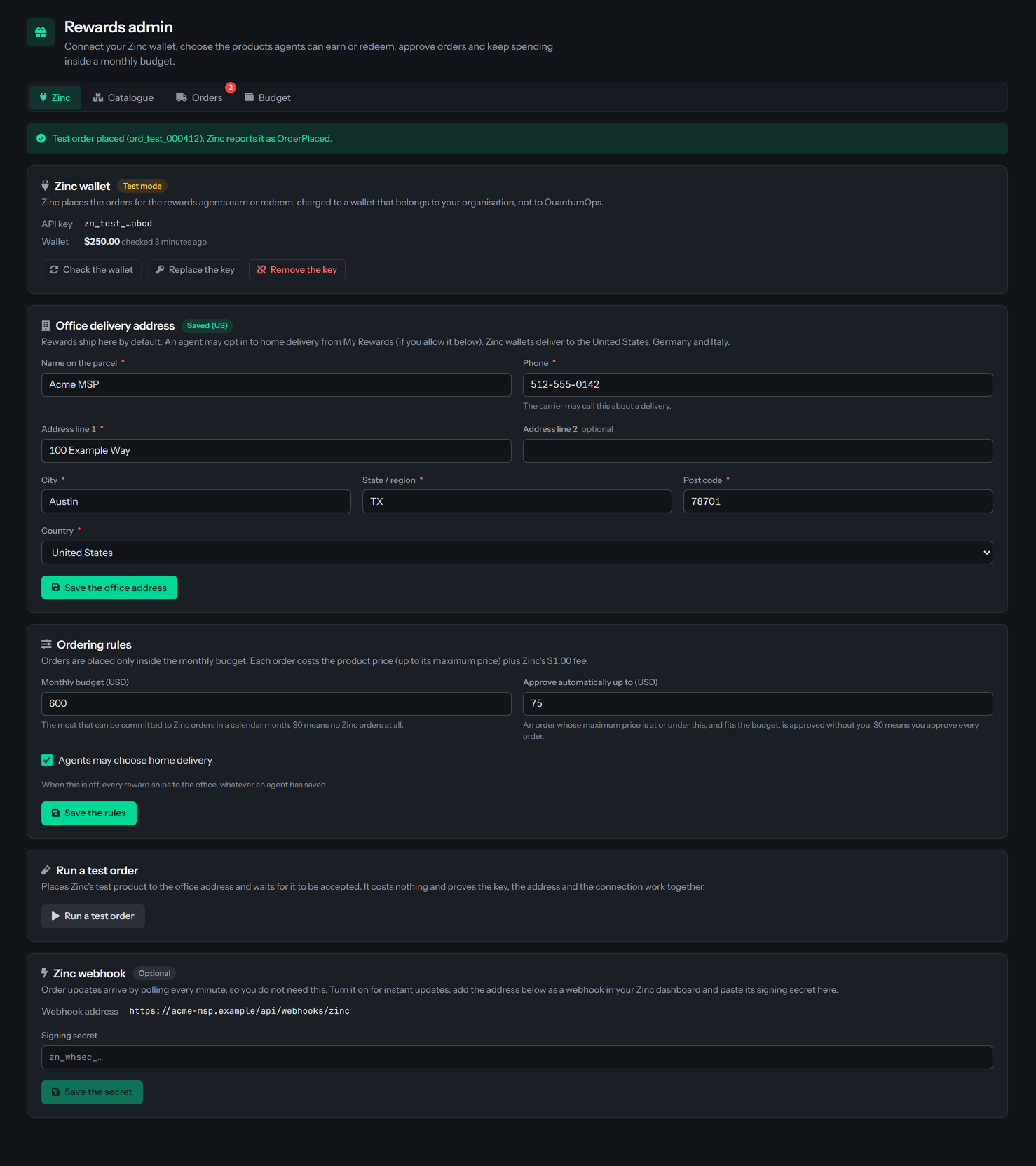
Work down the tab in that order. Each card has its own button, and a green note at the top of the tab confirms what a button did.
Connect your Zinc wallet
- Select Sign up for Zinc. It opens Zinc's site in a new tab. Create your account and add funds to the wallet. A test key places pretend orders that cost nothing, so you can start with one.
- In your Zinc dashboard, copy your API key. A test key starts with
zn_test_and a live key withzn_live_. - Paste it into Zinc API key and select Verify and save. The button stays off until the field has something in it.
Verification happens in two steps. QuantumOps first checks that the key has the right shape: it starts with zn_test_ or zn_live_, has no spaces and is not cut short. Then it asks Zinc for your wallet using the key. Only when Zinc accepts the key is it stored, encrypted, and the wallet balance recorded. A key that Zinc refuses is not saved.
When it works, the tab shows Connected to Zinc in test mode. The wallet holds and the balance (or in live mode), and the card changes:
- The badge reads Test mode or Live.
- API key shows the start of the key and its last four characters, for example
zn_live_…9999. The full key is never shown again. - Wallet shows the balance and how long ago it was checked, or Not checked yet.
If the key is refused
Nothing is saved. The red note at the top of the tab says why.
Test key or live key
A test key places pretend orders: nothing is charged and nothing is shipped. QuantumOps does not check the wallet balance before it places an order with a test key. A live key places real orders. Before each live order QuantumOps reads the wallet, and an order that the wallet cannot cover waits (see Wallet needs top-up).
To move from test to live, use Replace the key with your live key (described next). The Run a test order card disappears when the key is a live one.
Check the wallet, replace or remove the key
With a key saved, the Zinc wallet card offers three buttons.
- Check the wallet reads the balance again and says The Zinc wallet holds and the amount. QuantumOps also reads the wallet by itself before it places an order with a live key, and the tab shows the last balance it recorded.
- Replace the key shows the key field again. Paste the new key and select Verify and save. Cancel keeps the old key. The new key replaces the old one only after Zinc has accepted it.
- Remove the key asks Remove the Zinc key? and says no Zinc orders will be placed until you connect again. Select Remove the key to confirm, or Keep it.
Removing the key has these effects:
- The balance on the tab is cleared, and the cards below Zinc wallet disappear until you save a key again. Your office address and rules are kept.
- Agents stop seeing Zinc rewards on My Rewards, so nobody can redeem one.
- QuantumOps can no longer place orders or follow them. Orders that Zinc has already accepted stay with Zinc, but QuantumOps does not update them until a key is saved again. While orders wait for a key, QuantumOps alerts Rewards Admins once a day.
Set the office address
Rewards ship to the office unless an agent chooses home delivery. Under Office delivery address, fill in the form and select Save the office address. The badge reads Needed until an address is saved, then Saved with the country in brackets, for example Saved (US).
On success the tab says Office address saved. Rewards ship here unless an agent chooses home delivery. Orders that were waiting under Needs an address move on within a minute.
The address is stored encrypted. The form shows it back to Rewards Admins and Administrators who open this tab, and nowhere else. Agents see only Our office, and the Orders tab says only whether an order ships to the Office or to the Agent's home. QuantumOps gives the address and phone number to Zinc when it places an order, so that the package can be delivered. QuantumOps does not keep a copy on the order.
If the address is refused
Nothing is saved, and the red note names the first problem.
Set the ordering rules
Under Ordering rules, set how much can be spent and who approves it, then select Save the rules.
Both amounts can be anything from $0 to $1,000,000. A negative amount is refused with Enter a monthly budget of $0 or more. or Enter an auto-approve limit of $0 or more. On success the tab says what you set, for example Saved. Up to $500 a month; orders up to $25 are approved automatically.
What a budget of 0 does
With a monthly budget of $0, agents are not offered Zinc rewards and cannot redeem them. The Budget tab says that no Zinc orders are placed. An order that a mission, quest or bounty creates is still recorded: it waits under Awaiting approval, marked Over budget, until you approve it with an override. See Over budget.
How a new order is decided
When an order is created, QuantumOps decides what happens to it in this order:
- With no usable delivery address, it waits as Needs an address.
- If the auto-approve amount is above 0, the order's maximum price is at or under it and the month's budget has room for it, it is approved at once.
- Otherwise it waits as Awaiting approval, and as Over budget when the budget has no room.
Home delivery
Agents may choose home delivery controls the Delivery card on My Rewards. When you turn it off, that card tells agents their rewards ship to the office, an address they saved is not used, and they can still delete it. Turning it off changes orders that have not been sent to Zinc yet, because the address is chosen at the moment the order is sent.
Run a test order
The Run a test order card appears only while the key is a test key. It places Zinc's test product, with a ceiling of $10.00, to the office address and waits up to about half a minute for Zinc to accept it. It costs nothing and proves that the key, the address and the connection work together.
Save the office address first. Until you do, the button is off and the card says Save the office address first: the test order ships there.
When Zinc accepts the order, the tab says Test order placed with Zinc's order number, and Zinc reports it as followed by Zinc's status. Otherwise a red note says why, for example Zinc has not placed the test order yet; check again in a minute. or Zinc could not place the test order: followed by Zinc's reason. A test order is not a reward order, so it does not appear on the Orders tab. Look for it in your Zinc dashboard.
The webhook (optional)
You do not need a webhook. QuantumOps asks Zinc about every open order each minute. A webhook only makes the updates instant.
- Copy the Webhook address from the Zinc webhook card exactly as shown. On an instance that several organizations share, the address ends with your organization's identifier, so never type it from memory.
- In your Zinc dashboard, add a webhook that points at that address. Zinc then shows a signing secret that starts with
zn_whsec_. - Paste the secret into Signing secret and select Save the secret. The tab says Webhook secret saved. Zinc events are now accepted at the webhook address. and the card shows the badge On.
QuantumOps accepts a webhook call only when it is signed with this secret. Without a saved secret every call is refused, so saving the secret is what turns the webhook on. To change the secret, paste a new one over it. Remove it turns the webhook off at once, without asking, and the tab says Webhook secret removed. Order updates continue by polling.
A secret that is blank or does not start with zn_whsec_ is refused with Paste the signing secret from your Zinc webhook settings, or use Remove to turn the webhook off. or A Zinc webhook signing secret starts with zn_whsec_. Copy the whole value, without spaces.
Go-live checklist
- A live key is saved, the badge reads Live, and the wallet holds at least the largest maximum price you plan to set plus the fee.
- The office address is saved, the badge reads Saved, and the phone number is one a carrier can call.
- You ran a test order with a test key before you switched to the live key.
- The monthly budget is above $0 and the automatic-approval amount is the one you want. You selected Save the rules.
- The Catalog tab lists the products, each with a maximum price you are happy to pay. See Catalog, orders and budget.
- You decided whether agents may choose home delivery.
- At least one Rewards Admin or Administrator is linked to a HaloPSA agent, so someone receives the alerts.
- Agents know where to redeem: My Rewards.
Troubleshooting
Related pages
- Rewards admin: the overview of the four tabs.
- Catalog, orders and budget: the products, the order queue and the monthly budget.
- My Rewards: what agents see, including where their rewards ship.
Was this helpful?
Still need help? Ask the team