Catalog, orders and budget
Find or paste the Zinc products agents can earn or redeem, choose which sizes and colors to offer, approve, reject, cancel or return their orders, follow the monthly budget and know which alerts you will get.
Last updated 21 days ago
Once Zinc is connected (see Setting up Zinc for rewards), three tabs of Rewards admin run the day-to-day work. Catalog is where you choose the physical products agents can earn or redeem. Orders is the queue of every order: you approve, reject, cancel or return them there. Budget shows how much of this month's spending limit is committed. This page covers all three, and ends with the alerts QuantumOps sends you.
Before you start. You need the Rewards Admin role (or Administrator) and the Q-Missions module. Searching for a product and looking up an Amazon or Walmart product ask Zinc, so they need a saved Zinc key.
The Catalog tab
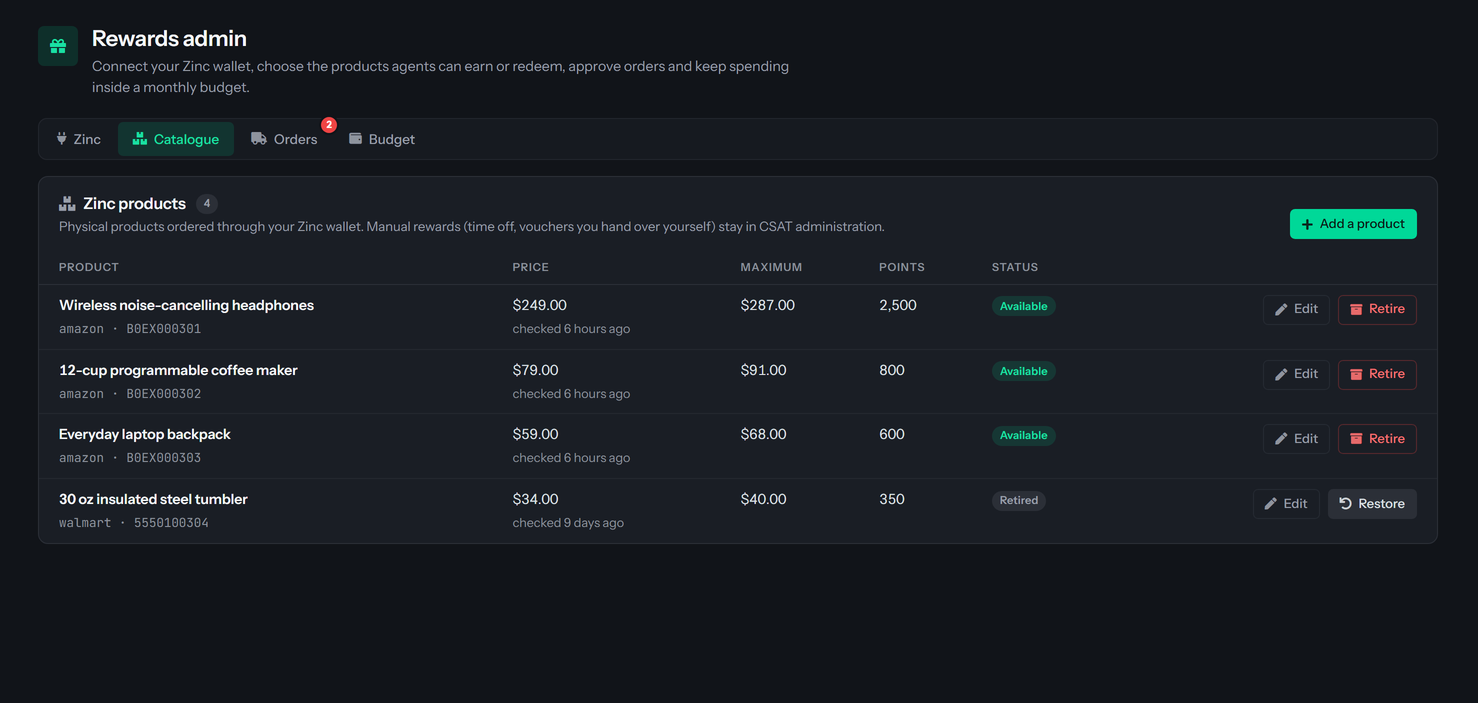
Zinc products lists the physical products that agents can earn (a mission, quest or bounty names one as its reward) or redeem with points. Manual rewards, such as time off or a voucher you hand over yourself, stay in CSAT Administration; see Badges, rewards and quotas. A Zinc product also appears there, with a Zinc tag.
Find a product
The quickest way to add a product is to search for it. Select Add a product. The panel Add a Zinc product opens with a search at the top, and below it the address box for pasting a link instead.
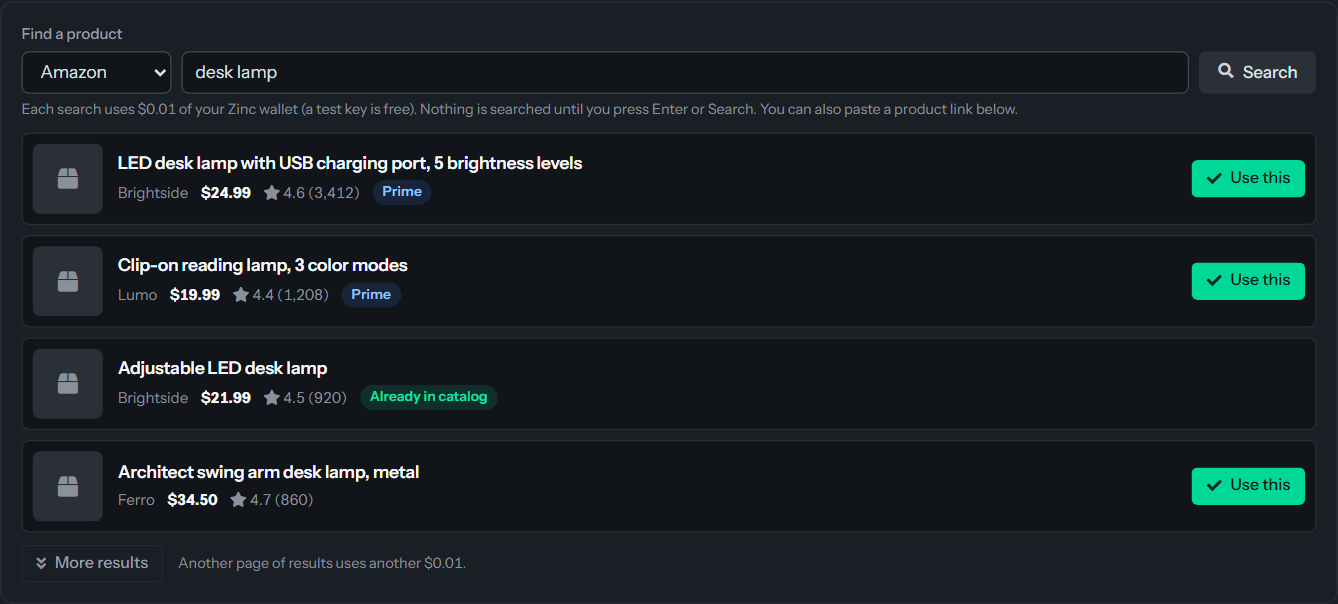
- Under Find a product, choose the shop, Amazon or Walmart, and type what you are looking for, for example desk lamp.
- Press Enter or select Search. Nothing is searched while you type, and the button stays off until there is something to search for.
- Each result shows an image, the name, the brand, the price, the stars with the number of reviews and, when it applies, Prime. Select More results for the next page.
- Select Use this on the product you want. QuantumOps puts the product's standard address in the form and runs Look up on it, exactly as if you had pasted the link. The result then shows In the form, and the note says Filled in from and the shop's name.
- Check the details, set the points cost and select Add to the catalog. Choose which sizes and colors to offer first if the product has them: see Sizes and colors.
What a search costs. Every search and every page of More results is a call to Zinc that uses $0.01 of your Zinc wallet. A test key is free. Zinc does not charge for a search that fails. QuantumOps never searches again on its own, except that it waits a moment and tries once more when Zinc says it is busy. Searching again for the same words in the same shop within ten minutes costs nothing: you see the same results again. Use this then runs Look up, which costs its usual $0.01.
Already in catalog. A result you already have shows Already in catalog and no Use this button. That covers a product in the catalog, one that is retired (the row says Retired: restore it from the list instead., so select Restore on it), and a product that is only another size or color of a reward you already have.
If the search does not work, the panel says why:
Paste a link instead
Use this when you already have the product's page open, or when the shop is not Amazon or Walmart.
- Select Add a product. The panel Add a Zinc product opens.
- Paste the address under Or paste the product page address. It must be a full address that starts with https://. A short link from the Amazon app or from a shared list (a.co or amzn.to) works too: see Short links below.
- For an Amazon or Walmart product, select Look up. Zinc fills in the name, the image, the price and a suggested Maximum price (USD), and a note says Filled in from and the shop's name. The address in the box becomes the product's standard address. Check the details.
- For any other shop, Look up does not read the page: the note says Zinc cannot read details from the shop's name. Type the Name and the Price (USD) yourself.
- Set the Points cost, which is what an agent pays in points to redeem it.
- Select Add to the catalog. The tab says Added and the product's name, and that agents can redeem it for that many points. Cancel closes the panel without saving.
The maximum price is a spending ceiling. If an order would cost more, Zinc refuses it and the order fails with The price is now above the maximum price you set.
If you paste a product that is already in the catalog and available, the tab says That product is already in the catalog. If it is there but retired, the tab says That product is already in the catalog but retired. Select Restore on it instead of adding it again. Select Restore on the retired row; you can change its point cost and maximum price afterwards.
A product that is only another size or color of a reward you already have is refused too: the tab says That product is already in the catalog as another size or color of and the reward's name. Restore or edit that reward instead.
Short links
The Amazon app and shared lists give short links that start with a.co or amzn.to. Paste one like any other address. Before it looks the product up, QuantumOps opens the short link on its own server and takes the full Amazon address it leads to, so you never have to open it in a browser first.
QuantumOps is careful about where a short link may lead. It follows at most three redirects, only over https, and only from a.co and amzn.to. It accepts the result only when it ends on an Amazon product page (amazon.com, smile.amazon.com or m.amazon.com). It sends no sign-in details and never opens the page it ends on. Anything else is refused, and the tab says why:
If Look up does not work
When you add a product, the form also checks that the name and price are present for a shop Zinc cannot read (This shop is not filled in automatically: enter the product name. and ...enter the product price.), that the points cost is at least 1 (Set a points cost of at least 1.) and that the maximum price is not below the price (The maximum price is below the product price, so Zinc would refuse every order. Raise it to at least the price.).
Sizes and colors
Many products come in versions: a hoodie in four sizes and three colors, a lamp in two finishes. Amazon and Walmart give every version its own product number, and Zinc reports them all when it reads the product. QuantumOps keeps them with the reward, so the people who redeem it choose their own version and the order is placed for exactly that one. You do not create the versions: a product that has none behaves exactly as before.
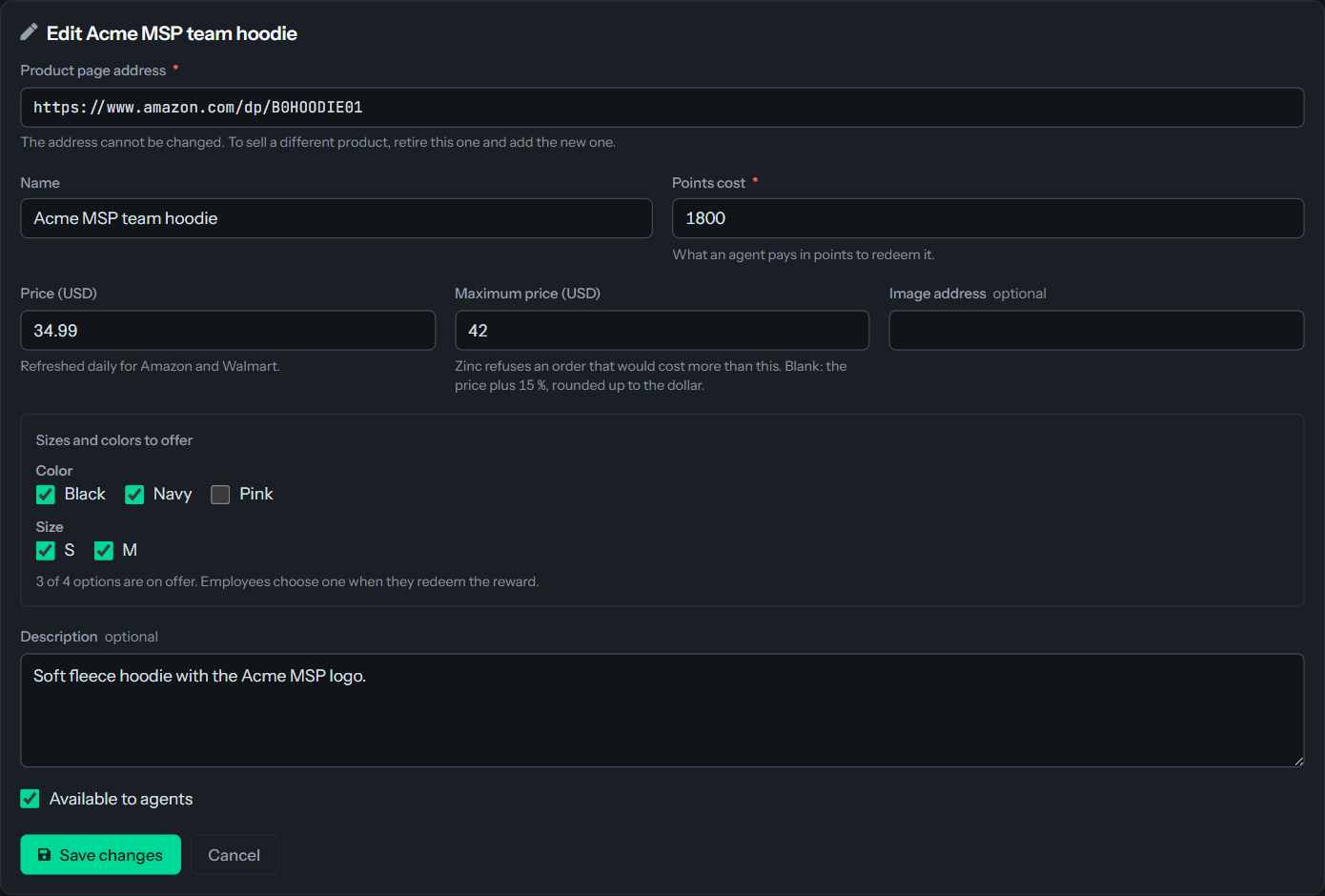
After Look up, and on Edit, the panel shows Sizes and colors to offer. It has one row of checkboxes for each way the product varies (Color, Size or anything else Zinc reports) and one box for each value. Every box starts checked.
- Leave everything checked and the person who redeems chooses any version.
- Clear a value to stop offering it. Clearing Pink removes every version that is pink, and clearing S removes the small size in every color. A line under the boxes says how many of the versions are still on offer.
- When exactly one version is left, nobody has anything to choose: that version is ordered every time. The line says so.
- You cannot clear everything. The panel then says Leave at least one size or color on offer. and the product is not saved until you check a value again.
QuantumOps remembers what you cleared by its value, not by the version. When Zinc later adds a size or drops a color, your decision still applies: a new pink version stays hidden if you had cleared pink.
How the person redeeming chooses. On My Rewards the reward's card says what is to be chosen, for example Choose Color and Size, and the redeem window has one list for each. The lists depend on each other: after choosing a color, the size list shows only the sizes that exist in that color. When every list has a value, QuantumOps checks that version once with Zinc, for $0.01, and keeps the answer for an hour for that version. An out-of-stock answer is remembered for that hour too; after it, the next person who chooses that version makes the check again, so a size or color that came back can be chosen again without anyone doing anything. If Zinc says it is out of stock, or that it costs more than the product's maximum price, the window says so next to the choice (This size is out of stock., This color is out of stock., This combination is out of stock. or This option costs more than this reward allows.) and Confirm Redemption stays off. The same checks run on the server whenever a redemption arrives, and a request without a choice for a product that needs one is refused before any points move, with a message that names what to choose.
What is ordered. The order is placed against the chosen version's own product page, with the choice (for example Color: Navy, Size: M) sent to Zinc, and always for a new item: a reward never arrives used or refurbished. Just before the order is placed QuantumOps checks the version once more. If it has gone out of stock or now costs more than the maximum price, the order fails in the usual way and a redemption's points come back, see When an order fails or stalls.
The choice shows wherever the order does: under the product in the Orders list, in the approval alert, in the agent's Moments, in the points history and in the audit log.
Rewards paid out by a mission, quest or bounty. The person who earned it did not stand at the redeem window, so a reward that needs a choice is not ordered at once. The order waits with the status Waiting for options, the person is told in a Moment (Choose your reward's options) and chooses on My Rewards. Only then does the order get its address, its approval and its place in the budget. You are not asked to approve it before that, and it is not counted as waiting for you. It appears in the Orders list so you can see it, and you can Cancel it if it is no longer wanted. If only one version is on offer, the order skips the waiting and is ordered with that version.
Stock
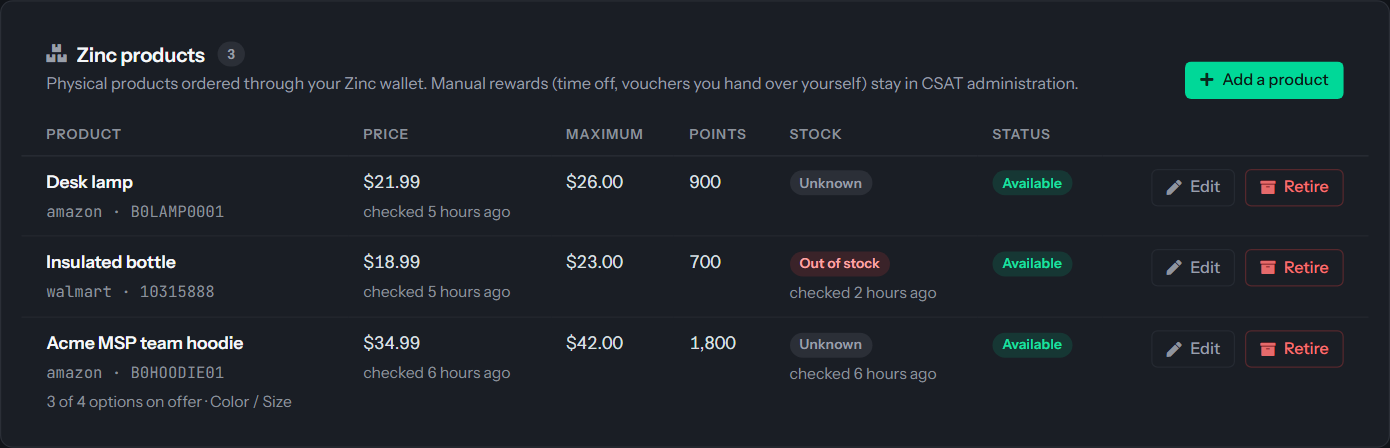
Stock follows the same single check as the price. Once a day (every six hours for a product last seen out of stock), the refresh reads the product's price, its sizes and colors and what Zinc says about stock in one call, so it costs nothing extra.
Zinc does not report stock for Amazon or Walmart products, so Unknown is the normal state and it blocks nothing. Out of stock appears when Zinc says a product cannot be bought. In stock is shown only for a product whose shop reports its availability, which Amazon and Walmart do not. A reward that is out of stock shows Out of stock on its card in My Rewards and cannot be redeemed, and a redemption that arrives anyway is refused with This reward is out of stock. before any points move. For a reward with sizes and colors, the whole reward is out of stock only when every version on offer is known to be. What is known about one version is trusted for an hour after the check that found it. After that hour the version is unknown again, so the reward goes back to normal on its card and in the list, and the next person who chooses that version makes the check again. A version that is still out of stock is noted again for another hour.
What the table shows
Edit, retire and restore
- Edit opens the panel with the product's details. You can change the name, description, image address, points cost and maximum price, and check or clear Available to agents. For a product with sizes and colors it also shows Sizes and colors to offer, where you change which values are offered. The product address cannot be changed, and neither can the price. To sell a different product, or to correct the price of a product from a shop other than Amazon or Walmart, retire the product and add the new one. Select Save changes; the tab says Saved.
- Retire asks Retire and the name, and says agents will no longer see the product. Missions, quests, bounties and orders that already use it are not changed, and you can restore it later. Select Retire it to confirm or Keep it.
- Restore brings a retired product back.
QuantumOps has no way to delete a Zinc product. A mission, quest or bounty can still pay it out, and past orders and redemptions refer to it, so a product is retired instead and keeps its history.
Agents see a product on My Rewards only while it is Available, a Zinc key is saved and the monthly budget is above $0.
How prices stay current
QuantumOps checks the price of each available Amazon or Walmart product about once a day, and the Price column says when it last did. The same check reads the product's sizes and colors and what Zinc says about its stock, so one check of $0.01 from your Zinc wallet covers all three. A product that has never been checked for them, such as one added before sizes, colors and stock were tracked, is checked at the next round whatever its price age. A round of checks stops early if Zinc rejects the key, asks QuantumOps to slow down or cannot be reached, or if the wallet cannot pay for lookups, and QuantumOps tries again later. Products from other shops are not checked.
If a price rises above the product's maximum price, every order would fail. QuantumOps therefore raises the maximum price to the price plus 15 %, rounded up to the next whole dollar, and sends you the alert A reward's max price was raised. A price that falls changes only the price; the maximum stays where it is.
The Orders tab
Every Zinc order is listed here, newest first, at most 100. The list says Rewards paid by missions, quests and bounties, and rewards agents redeemed with points.
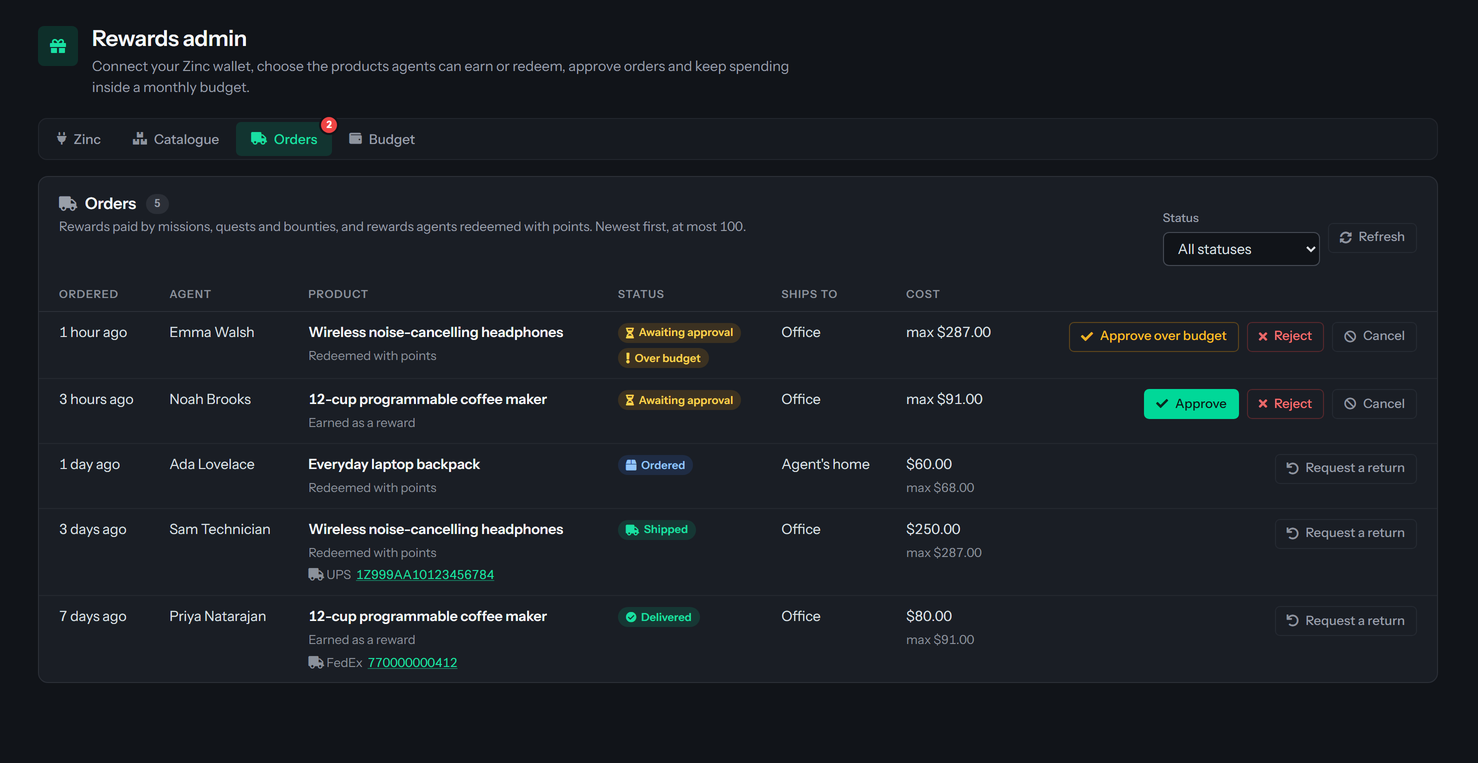
A red number on the Orders tab counts the orders waiting for you: those under Awaiting approval and those under Needs an address. It counts all of them, not only the 100 listed, and it is read again after every action in any tab.
Status filters the list. All statuses shows everything, and the other choices follow the order's journey: Awaiting approval, Needs an address, Waiting for options, Approved, Placing, Ordered, Shipped, Delivered, Failed, Rejected, Canceled, Return requested and Returned. Refresh reads the list again. With nothing to show, the tab says No Zinc orders yet. They appear here when an agent redeems a Zinc reward or a mission, quest or bounty pays one out. or, under a filter, No orders have this status.
Order statuses
Select a button and, except for Approve, a panel under the row asks you to confirm. Go back closes it without doing anything.
Approve
Approve sends the order on. The tab says Approved and the order's name, and that it will be ordered within a minute. The agent receives a Moment, Your reward was approved.
An order is approved without you when the automatic-approval amount is above 0, the order's maximum price is at or under it and the monthly budget has room. See How a new order is decided.
If the list was out of date, the tab may say This order is not waiting for approval anymore. Refresh the list. Select Refresh.
Over budget
An order is marked Over budget when approving it would take this month's committed total past the monthly budget, or when the budget is $0. Its Approve button reads Approve over budget. The panel says the order would take this month's Zinc spending over the budget you set, that approving it overrides the cap, and that the override is recorded in the audit log under your name. The app has no screen that lists those records. Select Approve over budget to confirm. The tab then says Approved and the order's name over the monthly budget. The override is recorded under your name.
If you select a plain Approve on an order whose budget room has since run out, QuantumOps refuses with Approving this order and the amount goes over the monthly Zinc budget, and says how much is already committed. Select Refresh: the button now reads Approve over budget.
Reject, cancel and return
- Reject is for an order under Awaiting approval. The panel asks you to confirm and has an optional Reason, up to 500 characters. For a redemption it says the agent is told it was declined and gets their points back. Select Reject the order. The reason you type is kept in the audit log, and it also appears in the Moment the agent receives. With no reason, the Moment says Rejected by a Rewards Admin.
- Cancel is for an order under Awaiting approval, Needs an address or Approved, before it is placed. Select Cancel the order. Zinc is not involved, and the agent receives a Moment saying the order was canceled.
- Request a return is for an order that has been placed: Ordered, Shipped or Delivered. The panel asks Ask Zinc to arrange a return of the product. Select Request the return. The tab says Zinc will arrange the pick-up, and the order moves to Return requested. When Zinc credits the return it becomes Returned. If Zinc denies the return, the order goes back to its earlier status and the row says Zinc denied the return request.
An order cannot be canceled once it has been placed, and a placed order shows no Cancel button. If the list was out of date and the order was placed since, the tab says Zinc has already placed this order, so it can no longer be canceled. Request a return instead. If it was placed in the same moment you pressed Cancel, the tab says The order changed while you were canceling it (it may just have been placed). Reload and try again. If Zinc will not take a return, the tab says Zinc will not take a return for this order: or Zinc could not start the return: followed by Zinc's reason.
When an agent's points come back
Only a redemption spent the agent's points. A reward paid out by a mission, quest or bounty spent none, so nothing is returned for it.
The reward's stock goes back with the points. The points come back at once. If the points ledger could not take them at that moment, the agent is told Your points will be returned shortly and QuantumOps tries again every minute until it works. The redemption in the agent's history shows as Canceled.
Wallet needs top-up
A banner at the top of the Orders tab, Wallet needs top-up., appears when approved orders are waiting for funds. It says how many orders wait, what the wallet holds and the least the largest order needs: its maximum price plus Zinc's fee, which is at least $1.00. When Zinc reports a higher fee, QuantumOps uses it when it checks the wallet, so the Zinc wallet needs a top-up alert can name a larger amount than the banner. It also appears when Zinc turned an order away for lack of funds. The banner has a button, Open the Zinc tab.
Add funds in your Zinc dashboard. QuantumOps places the waiting orders by itself within a minute. Select Refresh to clear the banner. The waiting orders stay Approved in the meantime, and their rows say The Zinc wallet does not hold enough to place this. Add funds in your Zinc dashboard.
The banner compares the largest waiting order with the last balance QuantumOps recorded. On the Zinc tab, Check the wallet records a fresh balance. With a test key QuantumOps does not check the wallet before it places an order. QuantumOps also alerts you once a day while orders wait, see Alerts you receive.
When an order fails or stalls
The line under the product says what went wrong. These are the messages the rows show.
A failed order is not placed again, and there is no button to retry it. A failed redemption returns the agent's points, so the agent can redeem again once the cause is fixed. A failed order for a reward paid out by a mission, quest or bounty is not re-ordered. When an order fails, QuantumOps tells the agent and sends you the alert A Zinc reward order failed.
The Budget tab
The Budget tab shows this calendar month in your organization's time zone. Its heading is the month's name. It reads Spending committed to Zinc orders against the monthly budget.
- The large figure is the amount committed, followed by of and the monthly budget. A bar shows the share, and Over budget appears when the committed total is above the budget.
- Remaining is what is left of the budget.
- Monthly budget and Approved automatically repeat your rules. The second reads orders up to an amount, or never: every order waits for you.
- Waiting for approval and Waiting for an address count the orders in those states. When there are any, Open the orders takes you to the Orders tab.
- Refresh reads the figures again.
Committed means the maximum prices of the orders approved this month that are Approved, Placing, Ordered, Shipped, Delivered or Return requested. It is what could be charged, not what has been, and it leaves out Zinc's fee. An order that was rejected, canceled, failed or returned no longer counts, and neither does one still waiting for approval.
With a monthly budget of $0 the tab shows No monthly budget is set, so no Zinc orders are placed. and a button, Open the Zinc tab, where you set one. See Set the ordering rules.
Alerts you receive
QuantumOps sends no e-mail and no chat message about rewards. It alerts Rewards Admins and Administrators with Moments, short notices in the browser extension (see Moments and alerts in the extension). Only people whose sign-in is linked to a HaloPSA agent can receive them. A Moment stays for two days.
Agents receive their own Moments as an order moves: approved, shipped, delivered, could not be completed, rejected or canceled, and return processed. See My Rewards.
Related pages
- Rewards admin: the overview of the four tabs.
- Setting up Zinc for rewards: the key, the office address, the rules and the test order.
- My Rewards: what agents see of their orders.
- Missions, quests and bounties: how a mission, quest or bounty comes to pay a Zinc product.
Was this helpful?
Still need help? Ask the team