Quests and missions
Give work to named agents or to a team with a quest, group quests into a mission, handle due dates and missed work, and see how the rewards are paid.
Last updated 21 days ago
A quest is a piece of work that a Mission Manager gives to named agents or to a team. A mission groups several quests toward one goal and can pay a completion reward when they are all done. A quest can also stand alone, outside any mission. This page shows how to create and run them, what happens at the due date, and how the rewards are paid. Mission Managers and administrators set quests and missions up; agents work on them.
Unlike a bounty, which any eligible agent may claim first-come, a quest is given to specific people.
Before you start.
- Creating and managing quests and missions needs the Mission Manager role. Administrators and Rewards Admins have it too. Attaching a Zinc product as a reward needs the Rewards Admin role.
- The Q-Missions module must be on for your organization.
- Quests go to HaloPSA agents and teams from QuantumOps's synced copy of your Halo agents and teams. An agent can be given a quest only while they are active, and not excluded from messaging mapping in Team Management. To see and finish quests, an agent's sign-in must be linked to their Halo agent.
- Quests that Halo checks need a ticket. See How Halo completes bounties and quests.
Where to work
Open the Missions page and choose the Missions and quests tab. It lists the missions that are Draft or Active, each with its quests, and below them the Stand-alone quests that are Open or Missed. Finished work moves to the History tab. This tab does not refresh itself; select Refresh to see what other people changed. Waiting confirmations are on the Live tab.
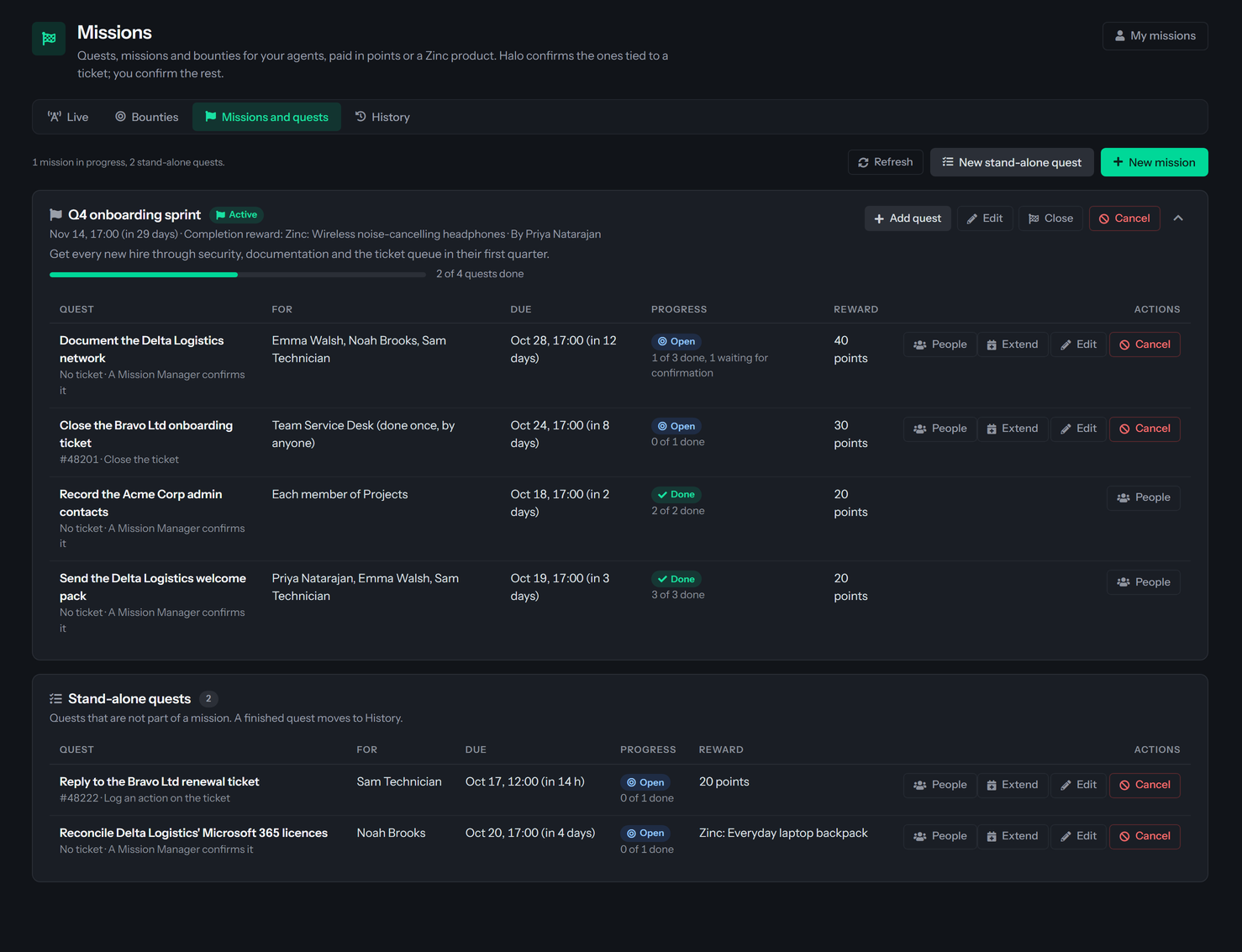
Each mission card shows its status, due date, completion reward, who created it and a progress bar of quests done out of all its quests. The buttons on a card are Activate (draft missions only), Add quest, Edit, Close (active missions only), Cancel, and a chevron that hides or shows its quests. Each quest row shows the ticket and rule, who it is for, the due date, a status with how many people are done, the reward, and the buttons People, Extend or Reopen, Edit and Cancel. The last three show only while the quest is open or missed.
Create a mission
- Select New mission.
- Fill in the dialog.
- Select Create mission. It starts as a Draft, which agents cannot see: "Mission created as a draft. Add quests, then activate it."
Times use your organization's Display Time Zone, set in Tenant settings; the label shows which one. You can edit a mission that is a draft or active with Edit: title, description, dates and completion reward. An edit can move a date but not clear one. A Mission Manager who is not a Rewards Admin sees a Zinc completion reward as read-only.
Add quests
Select Add quest on a mission, or New stand-alone quest above the missions. The dialog is titled Add a quest, New quest or Edit quest.
Select Create quest. A quest added to a draft mission waits. A stand-alone quest, or one added to an active mission, starts at once: the people are given it and told.
An edit with Edit changes only the title, description and reward. To move the due date use Extend.
Who a quest is for
A rule about the ticket's status, Move the ticket to a status or Close the ticket, is met once for everyone when the ticket changes, so it cannot be given to several people who each have to do it. The dialog says "A rule about the ticket's status (move it to a status, close it) is met once, for everyone, when the ticket changes, so it cannot be given to each member of a team or to several agents." and lists what to choose instead: give it to one agent or to a team that does it once, or pick Log an action on the ticket, Take the ticket or A Mission Manager confirms it.
A quest cannot be created for a team that has no active member, and a mission cannot be activated while one of its quests has nobody who can be given it. The message is "Nobody can be assigned the quest" followed by the quest's title.
Activate a mission
Select Activate on a draft mission. It needs at least one quest: otherwise QuantumOps says "Add at least one quest before activating the mission." Activating creates the assignments for every quest, tells the people with an alert "New quest:" and the title (with the mission, the due date and the reward), and says "Mission activated. The assignments are created and the people are told."
A quest counts from the later of the moment it was given to the person and the mission's Starts date. Work done before that never counts. Before the start date the Done button is not offered.
A quest cannot be added to a mission that has completed or been canceled.
Due dates, Missed, Extend and Reopen
A quest's due date is optional. When it passes, every assignment that is still open becomes Missed, and the quest becomes Missed when nothing in it is open anymore. A Missed quest pays nothing. QuantumOps checks due dates every 30 seconds. An assignment that is Waiting for confirmation is not missed, because a person is waiting for the manager. A quest with a ticket rule also stops looking at the ticket after its due date.
A Missed quest has no Done button. An agent who tries from a page that is out of date is told "The due date passed. Ask a Mission Manager to extend it."
On an open quest select Extend; on a missed quest the button reads Reopen. The dialog Extend the due date shows the current date and starts the New due date a day after the later of now and the current date. The new date has to be in the future. Select Extend to save. "Due date moved." confirms it. Every Missed assignment of the quest becomes open again, the quest becomes Open, and the automatic check reads the ticket again, so work already done in time can count. Reopening does not alert the agents.
What an agent sees
- An alert "New quest:" with the title when the quest is given out. The alert is kept for three days.
- On My missions, under My quests, grouped by mission with "X of Y done". Each stand-alone quest appears under its own Stand-alone quests heading. Each shows its ticket, rule, reward, team and due date. A finished quest stays on the list for two weeks, or for as long as its mission is active.
- The extension's Missions tab (Missions tab).
- A Done button only for a quest that a Mission Manager confirms. A quest that Halo checks finishes by itself.
When the agent selects Done they can add a note of up to 500 characters in the dialog Mark it as done, and the quest says Waiting for confirmation. A shared team quest is credited to the member who selected Done. On the hub's Live tab under Waiting for your confirmation:
- Confirm completes the assignment and pays the reward.
- Reject opens Reject this completion? with an optional reason the person sees. The assignment becomes open again, and the agent gets an alert "Sent back:" with your reason, or "A Mission Manager reopened this quest."
Rewards
- A quest's reward: it goes to the person who did it, when their assignment is done. A quest for named agents or for each member of a team pays each person who finishes their own. A quest for a team to do once pays the one person credited. The agent also gets an alert "Quest complete:".
- A mission's completion reward: it is paid once to each person who completed at least one quest in it, however many they did, when the last quest is done. Each of them gets an alert "Mission complete:".
- Points go into the shared points pool; a Zinc product becomes a reward order. If a payout fails, the completion stands and QuantumOps tries the payout again by itself for about two days.
- Points can be attached by any Mission Manager, from 1 to 100,000 per reward. A Zinc product can be attached or changed only by a Rewards Admin, and it has to be an active Zinc product in the catalog. A Mission Manager editing a quest or mission that has a Zinc reward sees it read-only: "A Zinc product reward can only be changed by a Rewards Admin."
Finish, close or cancel a mission
A mission becomes Completed by itself when every quest in it is Done. Then the completion reward is paid. A quest that is Missed or Canceled stops that: the mission stays Active until a Mission Manager deals with it.
- Reopen the missed quest if the people should still be able to finish it.
- Close the mission to end it by hand. It is marked Completed and no completion reward is paid. Quests that are done keep what they paid. Close is refused while any quest is still open: "N quest(s) are still open. Finish or cancel them first, or cancel the whole mission." Select Close mission to confirm. The confirmation reads "Close this mission?".
- Cancel the mission, in the dialog Cancel this mission?, to end it and cancel its unfinished quests, which are open or missed. Nothing is paid for them. Select Keep it to go back. A draft mission can be canceled too.
- Cancel a single quest in the dialog Cancel this quest?. It is canceled for everyone it was given to and nothing is paid. This also stops the mission completing by itself.
Statuses
Select People on a quest to list each assignment with its status. A shared team quest is listed under the team's name and, once done, shows who did it.
See also
- Q-Missions overview
- Missions, quests and bounties, the hub page by page
- My missions, the agent's side
Was this helpful?
Still need help? Ask the team