Bounties
Post a bounty, see how agents are told about it and claim it, and follow it to payment, release, lapse, cancellation or expiry.
Last updated 21 days ago
A bounty is a one-off job with a fixed number of slots. A Mission Manager posts it, eligible agents are told, the first agents to claim a slot get a time limit to finish, and each one who finishes is paid. This page follows a bounty from both sides: how to post it, how agents are told and claim it, and how it ends. Mission Managers and administrators post and manage bounties; agents claim and finish them.
Before you start.
- Posting needs the Mission Manager role. Administrators and Rewards Admins have it too. Paying a Zinc product instead of points needs the Rewards Admin role.
- The Q-Missions module must be on for your organization.
- An agent has to be linked to their HaloPSA agent to claim anything. Ask an administrator to link the login to the agent in Team Management.
- A bounty that Halo checks needs a ticket. See How Halo completes bounties and quests.
Post a bounty
On the Missions page, open the Bounties tab and select Post a bounty. The form has these fields.
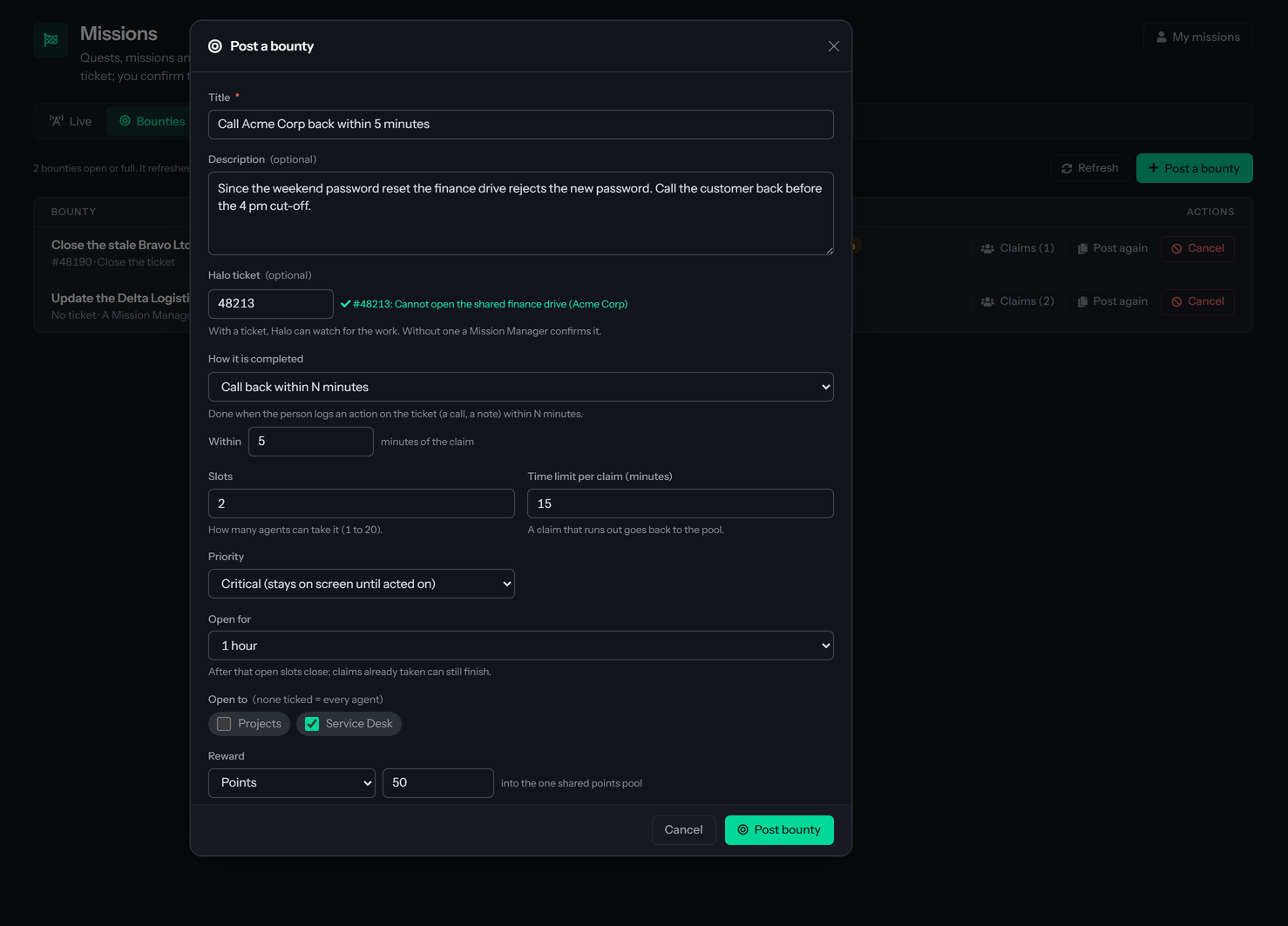
Times in the form use your organization's Display Time Zone, set in Tenant settings; the label shows which one.
How it is completed offers these choices. Everything except the last one needs a ticket.
- Call back within N minutes: done when the agent logs an action on the ticket within the minutes you enter.
- Log an action on the ticket: done when the agent logs an action, optionally of the Halo action types you check.
- Move the ticket to a status: done when the ticket is moved to the status you choose.
- Close the ticket: done when the ticket is closed.
- Take the ticket: done when the ticket is assigned to the agent.
- A Mission Manager confirms it: the agent selects Done and a Mission Manager confirms. This is the only choice without a ticket.
The exact meaning of each, and what counts as the agent's own work, is in How Halo completes bounties and quests.
When you select Post bounty, QuantumOps checks the form and lists any problem above it. It also refuses a team that has no active agent, a ticket id that is not a positive number, an expiry in the past, and more than 25 teams. A bounty cannot be edited after it is posted. To change one, select Post again on the Bounties tab: the form opens filled from the old bounty, with the expiry reset to 8 hours. Then cancel the old one if it is still open.
Post a bounty from the dispatch board
With extension version 0.21 and later, a Mission Manager can post a bounty on the ticket in front of them without leaving the dispatch board.
- Right-click a ticket on the board: a hexagon, or a row in the Queue or Tracked tab. See The ticket cockpit and assigning work.
- Choose Post a bounty on this ticket…. The item reads "points for whoever takes it". It appears only for people who hold the Administrator, Mission Manager or Rewards Admin role; nobody else sees it.
- A dialog titled "Post a bounty on #1234", with your ticket's number, opens. Fill in the fields below.
- Select Post bounty. The extension shows "Bounty posted on #1234. Eligible agents are being told now."
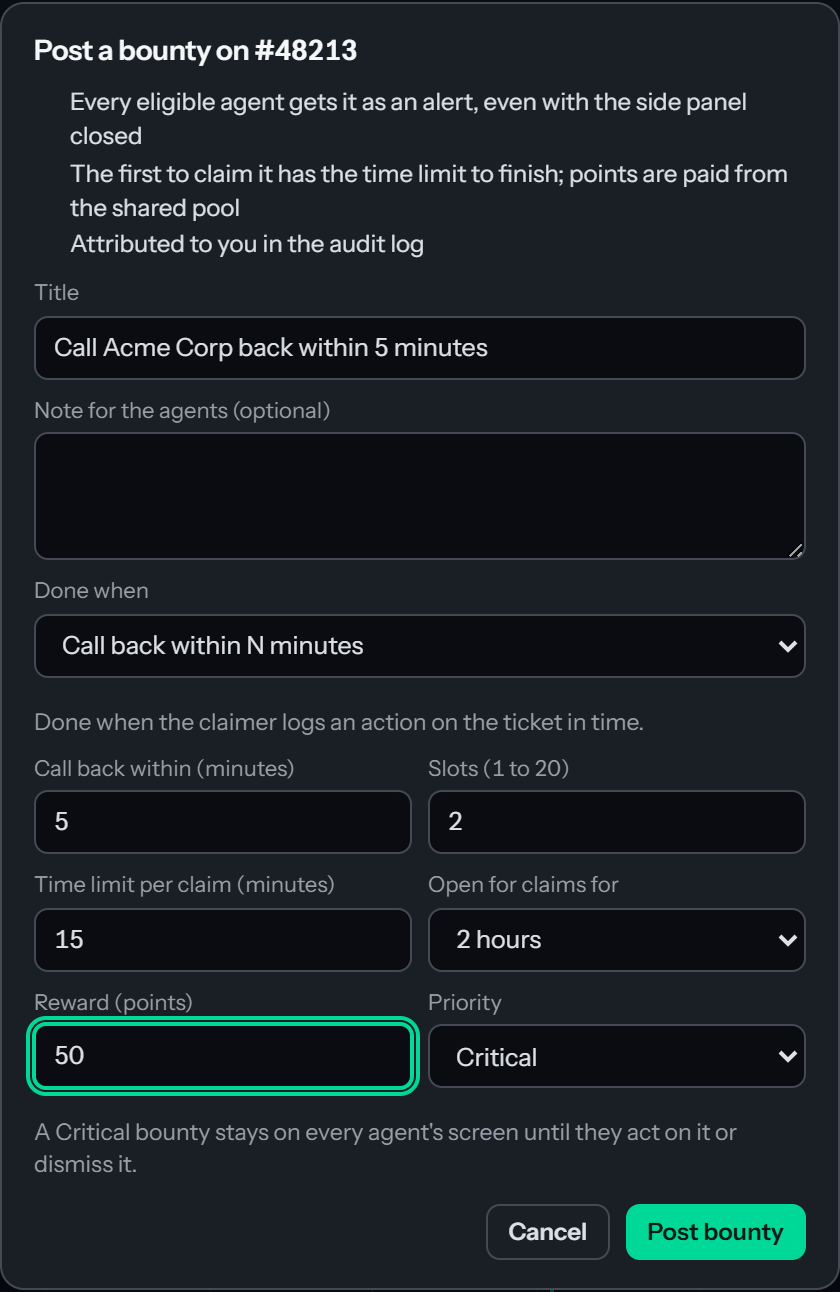
The dispatch board dialog is simpler than the portal form. It always posts on the ticket you clicked, pays points only, and is open to every agent. To restrict a bounty to teams, pay a Zinc product, pick a date for the expiry, or choose an action-type or status rule, post it from the portal. If the server refuses the post, for example because the role changed since you signed in, the dialog shows the server's reason and stays open.
How agents are told
When you post a bounty, QuantumOps tells every eligible agent. Eligible means an active HaloPSA agent, on one of the checked teams if you checked any. An agent whose Team Management record has Exclude from messaging mapping checked is left out, because that setting marks service accounts and bots.
- An alert in the extension: each eligible agent gets a card titled "New bounty:" and the bounty's title, with the reward, the number of slots and the time to finish, and buttons Claim, Details and, when the bounty has a ticket, Open ticket. The extension collects new alerts about every 30 seconds (once a minute on Firefox, and on Chrome and Edge before version 120) and sooner when the side panel is open. A Critical bounty stays on screen until the agent acts on it or dismisses it. The alert settings are in Moments and alerts in the extension.
- The ticket: an agent who opens the bounty's ticket sees "A bounty is open on this ticket" with Claim it and View, while a slot is free and the bounty is open. If the agent cannot claim it, for example because it is for another team, the card says so instead of offering Claim it.
- One chat message: QuantumOps also sends one direct message to an eligible agent who has a Slack or Teams identity on their agent record and whose extension has been silent for ten minutes. An agent whose extension has called QuantumOps in the last ten minutes is assumed to have seen the alert and gets no message. An agent with no linked sign-in counts as silent. The message reads "New bounty: Title. Reward: 25 points. Open the QuantumOps panel in your browser to claim it; you will have 30 minutes to finish." It has no link. It is sent through Slack when Slack is set up and the agent has a Slack identity, otherwise through Teams when the agent already has a personal conversation with the bot. If neither works the message is skipped without any error shown.
Only the first announcement sends the chat message. When a slot comes back later because a claim was released, lapsed or rejected, the agents who never held a claim on the bounty get a fresh alert and no message, and the cards still waiting from the earlier announcement are replaced. Agents who hold a claim, or ever held one, are not told again. When the last slot is taken, or the bounty is canceled or closes, the cards still waiting are withdrawn. Agents can also find every open bounty on My missions and in the extension's Missions tab (Missions tab).
Claim a bounty
An agent claims a slot with Claim on the alert, on My missions or in the extension. Claiming takes the slot and starts the clock: the agent has the Time limit per claim (minutes) to finish. My missions says "Claimed. You have 30 minutes." and the extension shows an alert "You claimed:" with the title and the time the claim ends, in UTC.
Each agent can take a bounty once. An agent who claimed it and then released it, let it lapse or was rejected cannot claim it again. If two agents claim the last slot together, one wins and the other is told the slots are taken.
When Claim is grayed out, the line under it gives the reason. The reasons are checked in this order and the first one that applies is shown.
My missions lists only open bounties that are for the agent's teams, so the reason an agent usually sees there is "You already have, or had, a claim on this bounty." The other sentences appear when Claim is used on an alert that is out of date and the claim is refused.
The countdown and the warning
The claim's countdown shows on My active claims, in the extension, and next to the agent's name on the hub's Live tab. On My missions and the hub it turns amber in the last minute, or in the last fifth of the claim's time limit when that is shorter.
About a minute before the deadline QuantumOps sends the agent one alert, "Time is almost up:" followed by the title, with the seconds left. For a claim with a limit of a few minutes or less, the warning is due at one fifth of the limit and may not arrive, because deadlines are checked every 30 seconds.
Release a claim early
An agent can give a slot back with Release on My missions or in the extension. They confirm in the dialog Release this bounty? and the slot returns to the pool for others. The agent cannot claim that bounty again. Once an agent has selected Done, Release is not offered: they wait for the manager's decision. A release attempted from a page that is out of date is refused with "You already marked this done; a Mission Manager has to confirm it."
When the time runs out
QuantumOps checks deadlines every 30 seconds. A claim that is past its deadline becomes Lapsed within about half a minute. Its slot returns to the pool, the agent gets the alert "Claim released:" with the reason "Your time ran out, so the slot went back to the pool.", and the agents who never held a claim are told that a slot is free. The agent cannot claim the bounty again.
A claim that is Waiting for confirmation does not lapse. It stays until the manager confirms or rejects it.
Finish a bounty
There are two ways, set by How it is completed.
If Halo checks the work, the agent does the work in Halo and nothing else. QuantumOps notices, completes the claim and pays. There is no Done button. How and how fast is in How Halo completes bounties and quests.
If a Mission Manager confirms the work, the agent selects Done on the claim, in the dialog Mark it as done. They can add a note of up to 500 characters and select Mark as done. The claim becomes Waiting for confirmation and the agent sees "You said it is done. A Mission Manager will check it and confirm." It appears on the hub's Live tab under Waiting for your confirmation, with the agent's name, the time and the note.
- Confirm completes the claim and pays the reward.
- Reject opens the dialog Reject this completion?. You can add a reason, which the agent sees. The claim becomes Rejected, the slot returns to the pool, and the agent gets the alert "Claim released:" with "Not accepted:" and your reason, or "A Mission Manager did not accept the completion." if you gave none. The agent cannot claim this bounty again.
Each completed claim adds one to the bounty's done count. When every slot has been completed, the bounty becomes Completed. Points are paid into the agent's points pool and a Zinc product becomes a reward order; the agent sees both under My rewards. If a payout fails, the completion stands and QuantumOps tries the payout again by itself for about two days.
Cancel a bounty
On the Bounties tab, select Cancel on the bounty, then Cancel bounty in the dialog Cancel this bounty?. Select Keep it to go back. Only a bounty that is Open or Full can be canceled.
- The open slots close and the bounty becomes Canceled.
- Every claim still running, and every claim waiting for confirmation, is released. Each agent gets the alert "Claim released:" with "The bounty was canceled."
- Nothing is paid, including for work already waiting for confirmation.
- The alerts still waiting for other agents are withdrawn.
When a bounty expires
The Open for time sets when the bounty stops taking new claims. From then on Claim is refused with "This bounty has expired.", even before QuantumOps has updated the status. Claims already taken keep their own deadlines and can still finish, so a claim made late can outlast the bounty's expiry.
The bounty stays on the Live tab while any claim is running or waiting for confirmation. Once none is left, within about half a minute, it closes: Expired if no slot was completed, Completed if at least one was, even when not every slot was.
Bounty and claim statuses
Follow a bounty
- Live tab: open bounties with who holds each slot, a countdown for each claim, and the work waiting for confirmation. It refreshes itself every 45 seconds.
- Bounties tab: each open or full bounty with its slots, reward, closing time and status. Select Claims to list every claim on it, including ended ones, with the agent's note. This tab also refreshes itself every 45 seconds.
- History tab: bounties that are Completed, Expired or Canceled, with how many slots were done, the reward and who posted them. It lists the 200 newest.
See Missions, quests and bounties for the whole page.
See also
- Q-Missions overview
- Quests and missions
- My missions, the agent's side of this page
Was this helpful?
Still need help? Ask the team