Pax8 Source Line Detail on a Halo Invoice
This screen is a read-only popup that shows you, in detail, all the Pax8 lines that were processed and grouped to make up a specific invoice or item within HaloPSA. Its title is "Items Pax8 in Halo Invoice" and it lets you audit the orig...
Last updated 21 days ago
This screen is a read-only popup that shows you, in detail, all the Pax8 lines that were processed and grouped to make up a specific invoice or item within HaloPSA. Its title is "Items Pax8 in Halo Invoice" and it lets you audit the origin of each charge before or after sending it to Halo, without needing to leave the invoicing screen.
When to use this screen
- When you want to verify which Pax8 products or subscriptions make up a Halo line or invoice.
- When you need to review source prices, costs, and quantities to confirm the billing is correct before approving it.
- When you are investigating a discrepancy or question about an invoice that was already sent and need to trace the Pax8 lines that originated it.
- When you want to export the detail of those lines to share or review outside the system.
It opens when you click the "View source details" icon available in the invoice grid on the billing screen (Display Invoice Halo).
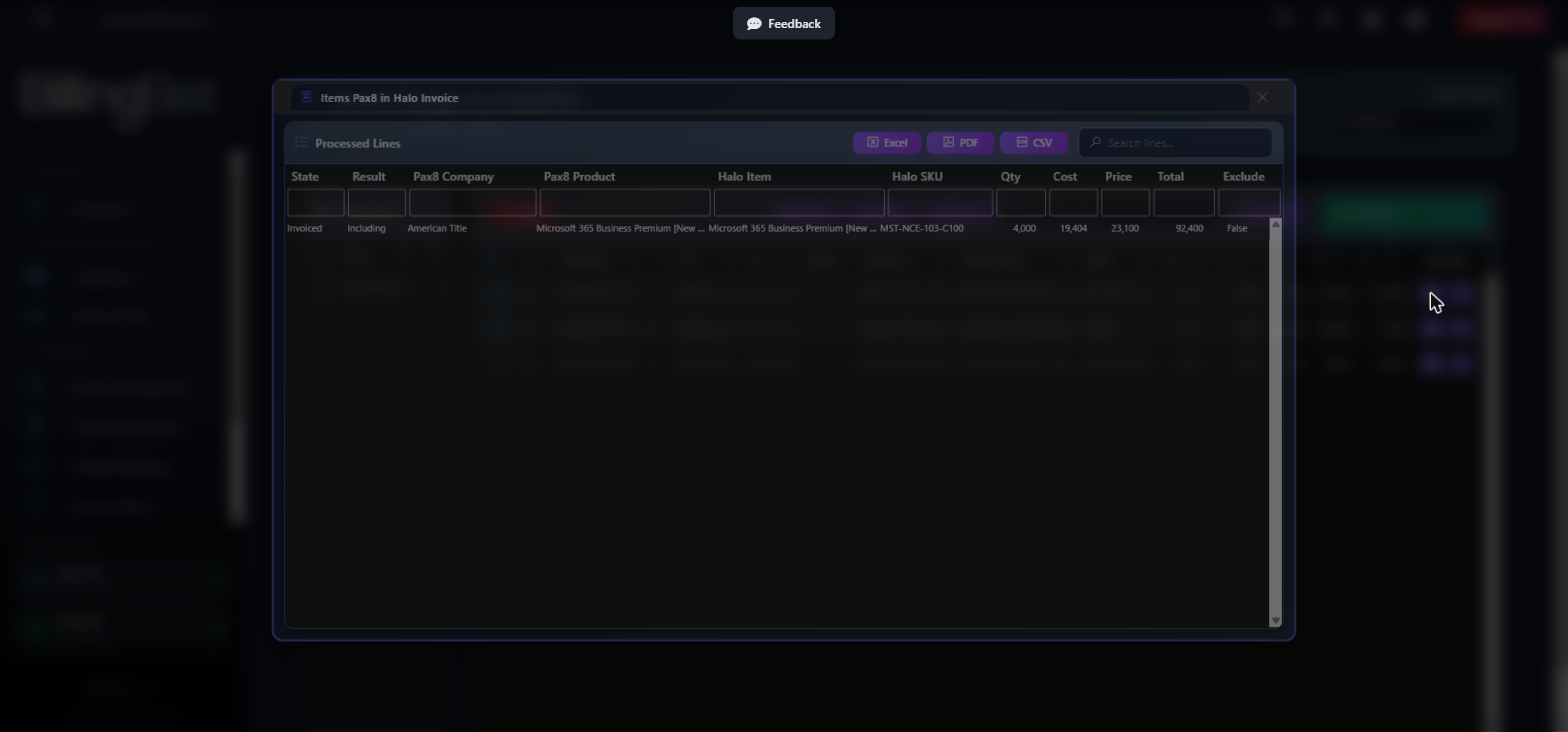
What it shows
The window presents a table called "Processed Lines" with the following columns:
Additionally, at the top of the table you'll find a toolbar with export buttons and a search box to filter the visible lines.
Available actions
- Excel: downloads the full content of the table as an Excel file.
- CSV: downloads the content of the table as a CSV file.
- Search box (Search lines...): type text and press Enter to filter the rows that contain that word in any of their columns.
- Column headers: you can click to sort the table, and use the filter row below the headers to narrow down results by column.
- Close (X icon): closes the window and returns you to the billing screen. This action does not modify any data; it is only for closing.
This screen is read-only: it does not allow you to edit, delete, or send information to Halo or Pax8 from here. There are no irreversible actions.
Step-by-step flow
- From the billing screen (Display Invoice Halo), locate the invoice or line you want to review.
- Click the "View source details" icon for that row.
- This window opens with the list of all Pax8 lines associated with that invoice.
- If you need to find a specific line, type a keyword in the search box and press Enter, or use the column filters.
- If you need to keep this information outside the system, click Excel or CSV depending on the format you prefer.
- When you're done reviewing, click the close icon (X) to return to the previous screen.
Common errors and how to resolve them
This window does not execute any actions of its own against the server (it does not save or send data), so it does not generate its own error messages. If the information doesn't load or appears empty, the error occurred on the previous screen, at the moment the detail was requested:
- If you see an error message when clicking "View source details" before this window opens, it means the system could not retrieve the processed lines for that invoice. Try again; if the problem persists, contact support and indicate the affected invoice.
Related screens
Was this helpful?
Still need help? Ask the team