Reassign Charges to Another Company
This popup window lets you move one or more charges (billing lines) from the source company to a different target company, without having to edit each line manually. It's used when a given Pax8 customer actually needs to be billed to a d...
Last updated 24 days ago
This popup window lets you move one or more charges (billing lines) from the source company to a different target company, without having to edit each line manually. It's used when a given Pax8 customer actually needs to be billed to a different company in Halo (or AutoTask), or when you want certain charges to permanently "jump" from one company to another for upcoming billing cycles.
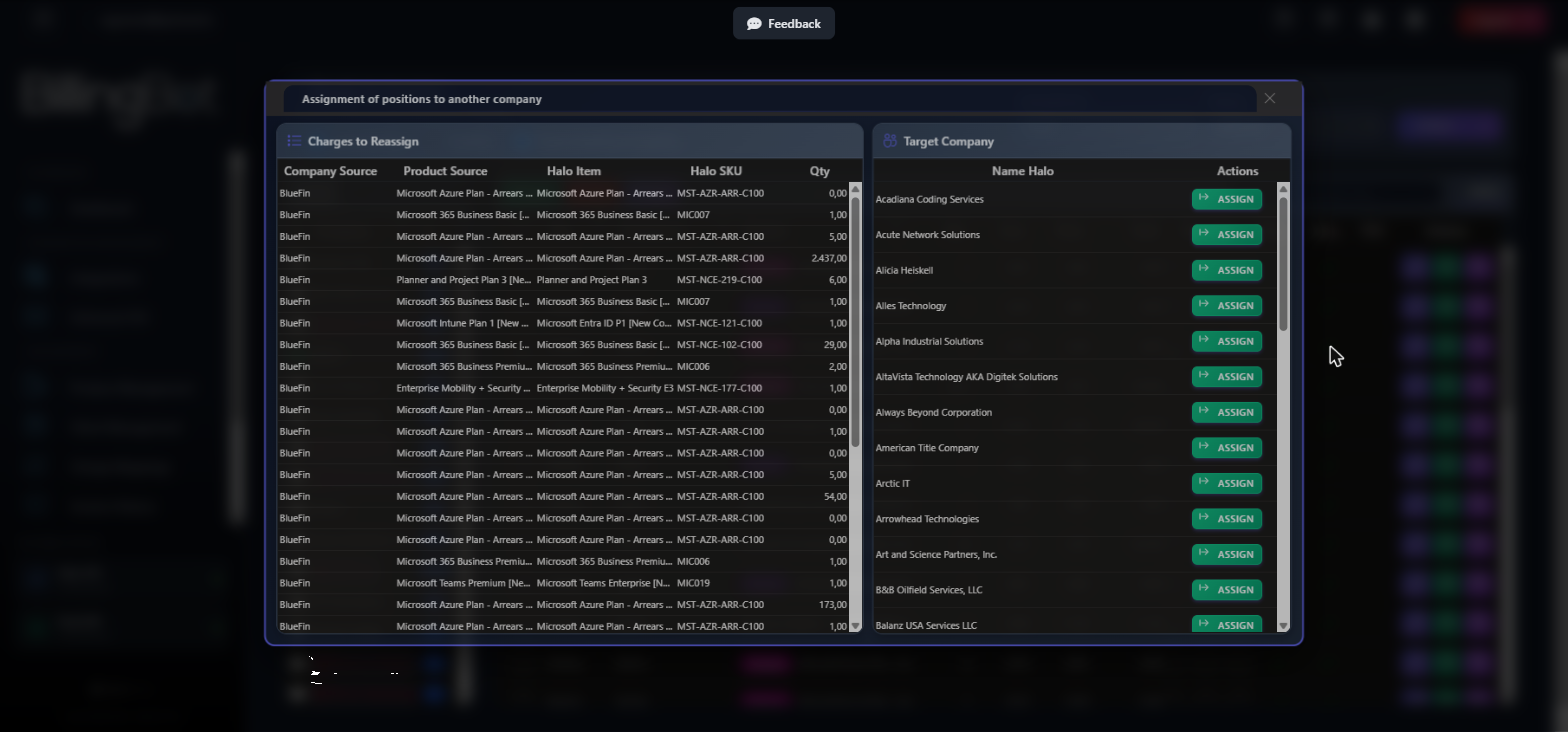
The title you'll see at the top of the window is "Assignment of positions to another company".
When to use this screen
This window opens from the "Cross-Map Product" option in the actions menu on the main billing screen (Ready to Invoice). It reassigns only the product lines you manually selected in the charges grid, regardless of which source company they come from. Use it when it's a specific product — not the whole account — that needs to be billed to another company.
You must first select the corresponding lines on the main screen before this dialog opens.
"Cross-Map Company" has been withdrawn. It moved a whole distributor company's charges to another company, and to do so it overwrote the source company on every charge, so the record of which distributor account really delivered them was lost.
It is no longer needed: a PSA client can now hold several client records, one per distributor company. Assign each company to the PSA client from Client Management (Assign Company → Add another company) or from Map Halo Company, and give the records the same recurring invoice if you want both companies billed on one invoice, or different ones to keep them apart. Each charge keeps the name of the company it came from.
What it shows
The dialog is divided into two side-by-side panels:
Left panel: "Charges to Reassign"
Lists the charges that will be reassigned. The columns vary depending on the configured target system (Halo or AutoTask):
Right panel: "Target Company"
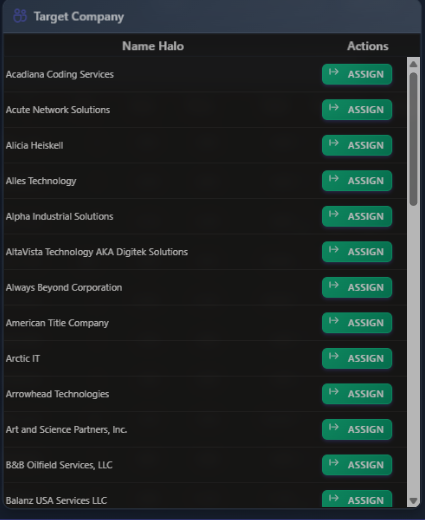
Lists the companies available as a reassignment target:
You can sort both grids by clicking the column headers, and in the target company grid you can also filter using the filter bar.
Available actions
- Assign button (on a row in the right-hand grid): reassigns all charges listed in the left panel to the company on that row. ⚠️ This action immediately updates the billing lines and records the reassignment as a permanent rule for that company or product; there is no "undo" button within this dialog. Once confirmed, the window closes automatically and the main screen refreshes, showing the charges now moved to the new company. The charges are moved first: if moving them fails, an error message appears, the window stays open and no rule is saved, so the next months are not moved either.
- Close icon (X) in the top corner of the dialog: closes the window without applying any changes. The charges remain with their original company.
There is no additional "Cancel" button within the dialog's content; the only way to exit without applying changes is to close the window with the X.
Step-by-step flow
- On the main billing screen, select the charges or the company you want to reassign.
- Open the actions menu and choose "Cross-Map Product".
- The "Assignment of positions to another company" dialog opens, showing the charges to be moved in the left panel.
- In the right panel, search or sort the list until you find the correct target company.
- Click "Assign" on that company's row.
- The system updates the affected lines and saves the reassignment rule. The window closes on its own and the main grid refreshes, showing the charges now associated with the new company.
Excluding or bundling a charge after moving it
Each moved charge keeps a record of the distributor company it really came from. If you later use Exclude/Include Line, Set Lines Track Cost Only or Edit Invoice Line on a moved charge, that client-level rule is stored for the original distributor company, not for the client you moved it to. So the rule keeps working next month, when the charge is moved again, and it does not change the destination client's own charges of the same product.
Common errors and how to resolve them
- "No records selected": appears on the main screen, before this dialog opens, if you try to use "Cross-Map Product" without first selecting any row or company. Solution: select at least one record in the main screen's grid and try again.
- If an error message appears in the corner of the screen after clicking "Assign" and the window stays open, the charges could not be moved. Nothing was changed and no rule was saved. Close the window, reload Ready to Invoice and try again with the charges that are still pending.
- If an error message appears and the window closes, the charges were moved but the rule for the next months could not be saved, so next month's charges will arrive with their original company. Review the message shown and check Charge Mappings next month; if the problem persists, contact support with the source and target company you were trying to reassign.
Related screens
Was this helpful?
Still need help? Ask the team