Bulk Mapping of Recurring Invoices
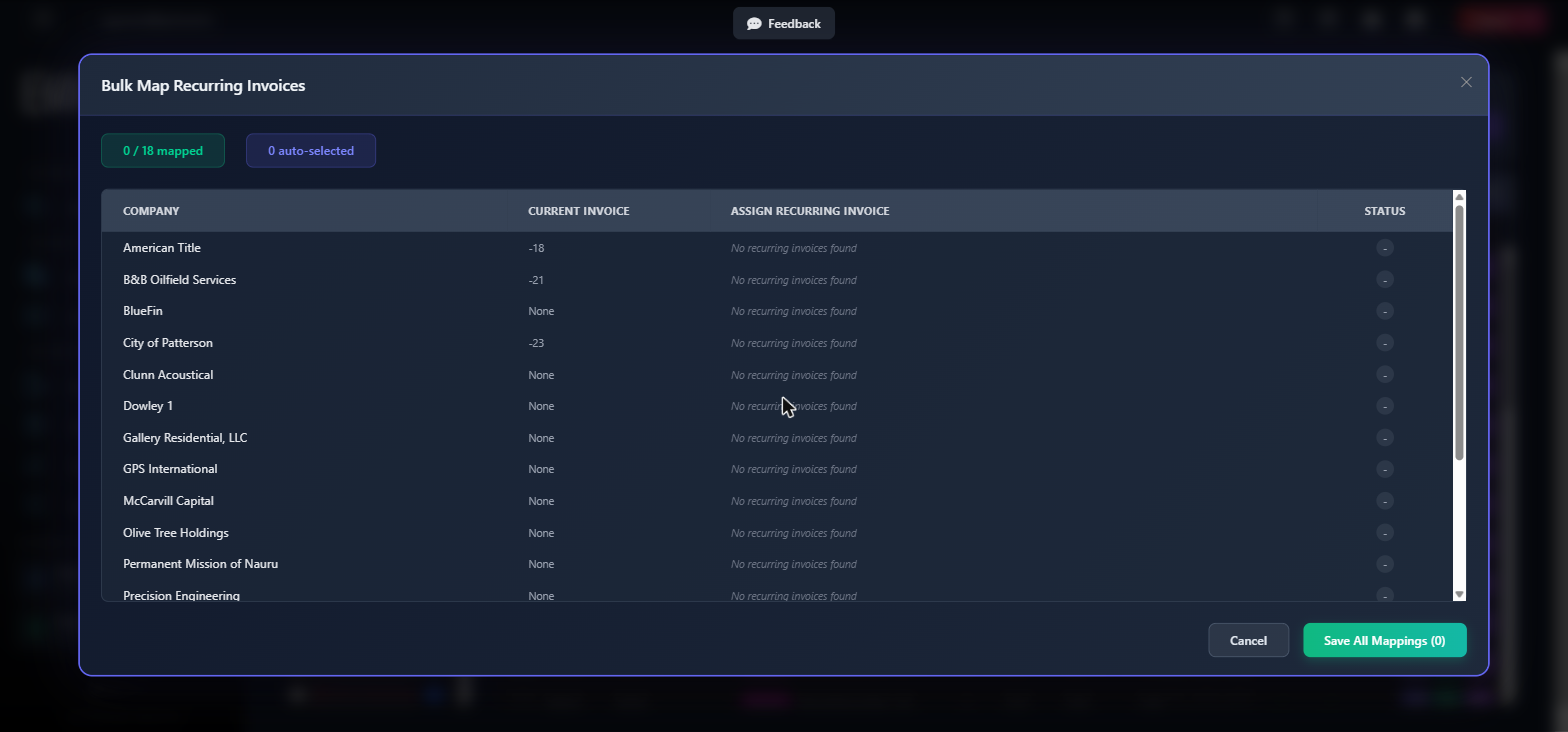
This screen is a dialog that lets you assign, in a single step, the corresponding HaloPSA recurring invoice for many companies at once. Instead of opening each company individually to indicate which recurring invoice applies, here you se...
Last updated 24 days ago
This screen is a dialog that lets you assign, in a single step, the corresponding HaloPSA recurring invoice for many companies at once. Instead of opening each company individually to indicate which recurring invoice applies, here you see a table with all pending companies and choose the recurring invoice for each one from a single list.
When to use this screen
Use it when you have several companies in your billing list that have not yet been assigned a Halo recurring invoice, and you want to resolve them all at once instead of doing it individually from the normal invoice assignment. It is especially useful at the start of the monthly billing cycle, when there are many new or unmapped companies.
What it shows
When you open the dialog, the application automatically looks up the recurring invoices available in Halo for each company. While this happens, you will see the message "Loading invoices..." and, inside the table, the text "Loading recurring invoices for all companies...".
At the top, two summary indicators are shown:
The main table has these columns:
Possible statuses in the Status column:
Only companies that have a linked Halo company and that are not marked to be excluded from Halo appear in the list.
Available actions
- Select recurring invoice... dropdown: in each row, this lets you manually choose which Halo recurring invoice corresponds to that company. When you select an option, the status indicator for that row changes to Set and the counters at the top are updated.
- Cancel button: closes the dialog without saving any changes. It discards all selections made on the screen; the next time you open the bulk mapping, the data will be loaded again from scratch.
- Save All Mappings (N) button: saves, all at once, the recurring invoice selected for each company that has an option marked (the number N indicates how many will be saved). ⚠️ This action directly updates the record of each affected company with the chosen recurring invoice; there is no additional confirmation before saving, so review your selections before clicking. While it is processing, the button shows a loading icon and the text "Saving..." and is disabled to prevent duplicate clicks.
Step-by-step flow
- Open the bulk mapping dialog from the Ready to Invoice screen.
- Wait for the automatic loading of Halo recurring invoices for each company to finish (you will see "Loading invoices..." in the meantime).
- Review the table: companies that only had one recurring invoice available in Halo will already appear marked as Auto. Those that already had an invoice previously assigned, and that same option is still available, are preselected as Set.
- For companies left at – or that you want to change, click the row's dropdown menu and choose the correct recurring invoice.
- Check the "X / Y mapped" counter at the top to confirm how many companies will end up with an invoice assigned.
- Click Save All Mappings (N) to save all the selected assignments. ⚠️ This action cannot be undone from this same screen; if you need to correct an assignment afterward, you will have to do it from that company's individual invoice assignment.
- The dialog closes automatically and you will then see a result message indicating how many companies were mapped successfully.
Common errors and how to resolve them
- "Error loading recurring invoices: ...": a problem occurred while querying the recurring invoices in Halo for the set of companies. Close the dialog, check your connection, and reopen it to retry the load.
- "No mappings to save. Please select at least one invoice.": you tried to save without having selected any recurring invoice in any row. Choose at least one option from the dropdown menu before clicking "Save All Mappings".
- "Mapped ... companies. ... failed.": some companies were saved successfully but others could not be updated (for example, because the company's full information could not be retrieved at that moment). Reopen the bulk mapping or use the individual invoice assignment to complete the companies that failed.
- "Error saving mappings: ...": an unexpected error occurred during the overall saving process. Try saving again; if the problem persists, report it to support with the message detail.
- No recurring invoices found on a row: this means Halo has no recurring invoice registered for that company. In that case you won't be able to map it from this screen; you must first create the corresponding recurring invoice in Halo.
Related screens
Was this helpful?
Still need help? Ask the team