Change the target recurring invoice in Halo
This window ("Change Target Invoice") lets you reassign one or more of a client's billing lines to another recurring invoice that already exists in Halo, instead of the one they were originally assigned to. It is used when you need certa...
Last updated 24 days ago
This window ("Change Target Invoice") lets you reassign one or more of a client's billing lines to another recurring invoice that already exists in Halo, instead of the one they were originally assigned to. It is used when you need certain Pax8 charges to appear on a different contract or recurring invoice within Halo.
When to use this screen
- When a client has several recurring invoices in Halo (for example, for different contracts or departments) and you need to move charges from one to another.
- When you notice that certain billing lines ended up linked to the wrong recurring invoice and you want to correct it before sending them to Halo.
- It opens from the invoice detail screen (Send Charges to HaloPSA), after selecting one or more lines and choosing the "Change Target Invoice" option from the actions menu.
What it shows
Grid columns:
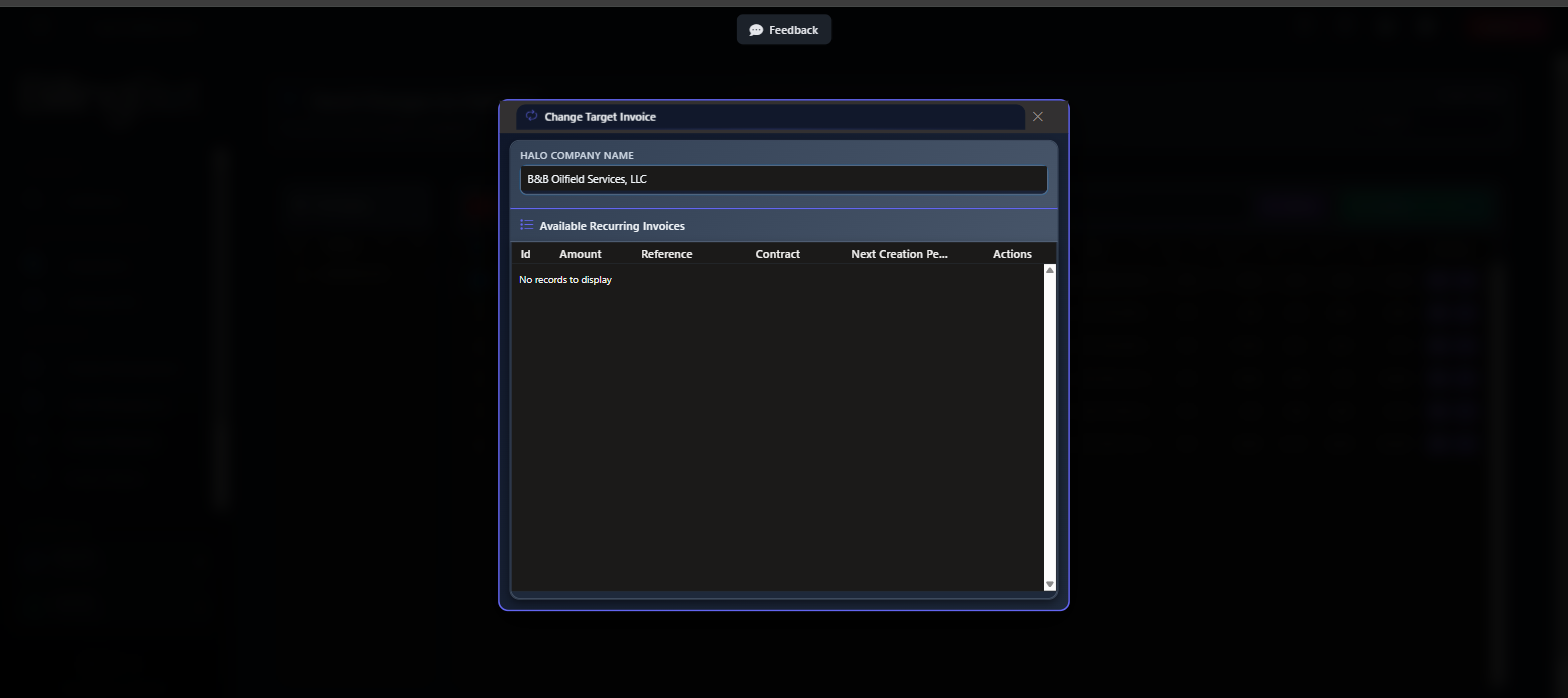
Available actions
- Assign (button in the "Actions" column of each row): assigns all the lines you previously selected to that recurring invoice. ⚠️ This action replaces the billing target of the lines: the lines are linked to the new recurring invoice and the change is saved immediately. If the invoice you pick is not the client's own recurring invoice (the one set on the client record), BillingBot first asks for confirmation (see below); for the client's own invoice there is no extra confirmation step. Only lines that are still queued change (their charges follow them to the new invoice). Lines already sent to HaloPSA are never moved — their line is already on the old invoice — and the message tells you how many were left as they were.
- Close icon (in the top corner): closes the dialog without applying any changes; the lines keep their original recurring invoice.
Sending to another recurring invoice is for this month only
When the target is not the client's own recurring invoice, the "Another recurring invoice" confirmation explains what happens next: next month the client's charges go back to its own invoice, and the lines left on the other invoice are not removed by that send. They keep billing every month until you remove them (Review Recurring Invoices lists them the next month, and after a send BillingBot also warns about recurring invoices that may still hold them). If you want this client billed on the other invoice every month, change the recurring invoice on the client record instead. Choose Cancel to leave the lines as they are.
After a failed send
If an earlier send of the selected lines failed, BillingBot checks in HaloPSA whether Halo stored them anyway before moving them. If Halo already holds any of them, the move is refused: send the package again instead (it recognises those lines and does not write them twice), because moving them to another invoice would bill them a second time.
Step-by-step flow
- On the invoice detail screen, select one or more lines you want to reassign (all must belong to the same client).
- Choose the "Change Target Invoice" option from the actions menu.
- This window opens, showing the client's name and the list of their recurring invoices in Halo.
- Locate the recurring invoice you want to move the lines to (you can use the column filters to search by reference, contract, etc.).
- Click Assign on that recurring invoice's row.
- If it is not the client's own recurring invoice, read the confirmation and choose whether to continue.
- The system links the selected lines to the new recurring invoice and closes the window automatically.
Common errors and how to resolve them
- No recurring invoices appear in the list, or an error message is shown when opening the window: this may be due to a communication issue with Halo when querying the client's recurring invoices. Close the window and try again; if the problem persists, contact support with the client's name.
- "... line(s) were not changed because they are no longer queued (already sent to HaloPSA or removed). Reload the screen.": some selected lines had been sent (or removed) after the screen was loaded. They keep their invoice. Reload the screen to see their current state.
- "A send to HaloPSA is already running for this account. Wait for it to finish, then reload ...": the change is refused while a send is running. Wait for it to finish, reload and try again.
- "Not moved: HaloPSA already holds ... of these line(s) (...).": an earlier send of these lines failed, but Halo stored them anyway (the message names the invoices). Do not move them: close the window and send the package again from the invoice detail screen.
- "Not moved: an earlier send of these lines failed, and HaloPSA could not be checked ...": BillingBot could not read HaloPSA to know whether the failed send was stored. Nothing changed; try again in a few minutes.
- Error message when clicking Assign: the reassignment did not complete (for example, due to a problem querying or recording the relationship between the charge and the Halo invoice). The lines keep their previous assignment; review the message shown and try again. If the error persists, contact support.
- Generic error referencing an error log: if an unexpected problem occurs, the system saves an internal error log and asks you to contact support with the detail shown on screen.
Related screens
Was this helpful?
Still need help? Ask the team