Direct Q-Notify: a quick message to one agent
Send one agent a short message from the dispatch board, see their Acknowledge, Busy or written reply, and know what happens when they do not see it.
Last updated 21 days ago
A direct Q-Notify is a short message from a dispatcher to one agent: "Please call me", "A customer is waiting on #12345". It pops up on the agent's screen with three ways to answer, and the answer comes back to you on the dispatch board. Dispatchers, service desk managers, customer success staff and administrators send them. Any agent who has signed in to the extension can receive one.
A Q-Notify is not a Q-Notice. A Q-Notice is a note that stays on a ticket, client, user, agent or your whole organization until it expires, and every technician who opens that record sees it. A Q-Notify is addressed to one person, says one thing and expects one answer. Post a Q-Notice when the information should stay attached to a record. Send a Q-Notify when you need one person to look up now.
Before you start. To send, you need the Administrator, Service Desk Manager, Dispatcher or Customer Success role, and the dispatch board has to be available to you (see The dispatch board at a glance). Sending needs no more than that: your login does not have to be linked to a HaloPSA agent. Without a link, though, a reply reaches you on the board only, not as an alert of its own. To receive one, an agent needs no particular role, but they must have signed in to the extension at least once. Both sides need extension version 0.21 or later. Direct Q-Notify has no setting of its own to turn on.
Send a Q-Notify from the board
- On the dispatch board, right-click the agent's card. If a ticket is open in the cockpit, the message can be about it.
- Choose Q-Notify followed by the agent's name and an ellipsis. On your own card the item is grayed out and says that is you: you cannot send one to yourself.
- In Message, choose what to say.
- Optionally, type a ticket number in About ticket (optional). It starts filled in with the ticket open in the cockpit.
- Optionally, add your own words in Add a few words (optional).
- Read the line that starts They will read:. It shows the message exactly as the agent will see it.
- Select Send.
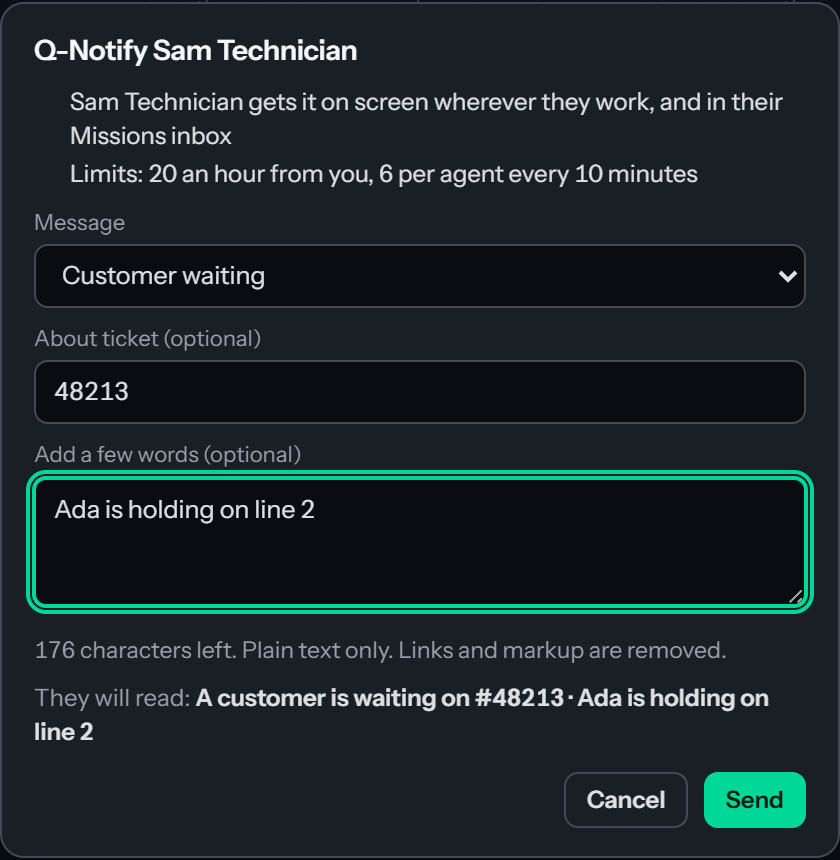
The dialog is titled Q-Notify followed by the agent's name. Under the title it reminds you that the agent gets the message on screen and in their Missions inbox, and what the limits are. After you select Send, the dialog changes to Q-Notify sent to and the agent's name, shows the message as sent and waits for the answer. Select Done to close it.
The five messages
You choose from five fixed messages. You cannot change their wording; use your own words to add detail.
Customer waiting names a ticket, so it needs one. With no ticket number in the dialog the choice is grayed out and says (needs a ticket). If you choose it and then clear the ticket, Send is refused with "Customer waiting" names a ticket. Select a ticket on the board first, or pick another message. A ticket number you add to any other message goes with it, and the agent sees it as a Ticket # chip in their inbox.
Your own words
The text box takes up to 200 characters and counts down under it: characters left. Plain text only. Links and markup are removed. It is added after the message, separated by a dot: Please call me · I am in the car park.
QuantumOps cleans your words before it stores or sends them, because the agent's screen and the Slack or Teams message show plain text only:
- Control and invisible formatting characters are removed. Tabs and line breaks become spaces, so the note is one line.
- Anything that looks like markup is removed: a web tag such as
<b>, and a Slack or Teams mention or link written between angle brackets. A stray angle bracket becomes a space, and so are the backtick, asterisk, tilde and backslash characters. - Every link is replaced with [link removed]: an address that starts with a scheme such as
https://ormailto:, one that starts withwww., and a bare address on a common ending such asexample.com/page. - Runs of spaces become one space, and spaces at the ends are cut.
If nothing is left after cleaning, the message goes without your words. A link counts for 14 characters once it is replaced, so a note made of many short links can pass the 200-character box and still be refused with Keep the note to 200 characters (it is and a number once links and formatting are removed).
Limits
To keep Q-Notify from turning into noise, each person is limited to 20 Q-Notify messages an hour, and each agent can receive 6 in any ten minutes, from everyone together. The dialog says so: Limits: 20 an hour from you, 6 per agent every 10 minutes. A message over either limit is not sent and the dialog says You are sending too fast. Try again in a number of seconds. The wait is the real time until the oldest message that counts leaves the window, so it can be long when you hit the hourly limit. Messages that were refused do not count.
When a send is refused
A refusal shows its reason in the dialog with only Close under it. Close it and open the agent's menu again to retry.
An agent who has not signed in to the extension cannot be reached at all. Ask them to sign in, or contact them another way.
What the agent sees
The message arrives as an alert on the HaloPSA or QuantumOps page the agent is working on, whether or not the side panel is open. The extension calls these alerts Moments, and Moments and alerts explains how they behave and how to switch them on. The alert shows the message as its title and From your name, followed by your words, as its text. Customer waiting and Pick up your phone are shown as warnings. The alert has three buttons:
- Acknowledge answers at once: you have seen it.
- Busy answers at once: you cannot deal with it now.
- Reply opens the side panel on the Missions tab, where the message waits. Select Reply on it there to type your answer.
The same message is in the Q-Notify section of the Missions tab, newest first, with the last 50 kept. Messages you have not read are counted in the Missions badge, and opening the tab marks them as read. Missions tab describes the tab.
To answer with words, the agent selects Reply on the message, types in Your reply (up to 200 characters, plain text, cleaned the same way as yours) and selects Send reply. The agent sees Reply sent. and the message then shows what they said. Once a message is answered, its buttons go. The alert is only offered for 30 minutes after you send it; the message stays in the inbox after that.
Because the Missions tab and the alerts belong to Q-Missions, an organization that has switched the Q-Missions module off cannot show agents the alert or the inbox. Their Q-Notify messages reach them only through Slack or Teams, as described next.
When the agent does not see it
If the agent's browser has not picked up the alert within about 60 seconds, and the agent has not opened or answered the message, QuantumOps sends them a direct message in Slack, or in Teams when they have no Slack. It reads Q-Notify from your name, then the message and your words, then Open the QuantumOps side panel to acknowledge or reply., with a link to the extension page when your instance has one.
- It happens once, only for a message sent in the last 15 minutes, and only when Slack or Teams is connected for your organization and QuantumOps knows the agent's Slack account or the agent has a personal chat with the QuantumOps bot in Teams. See Slack app setup and Teams bot setup.
- When neither is available, nothing is sent and you are not told. The message stays in the agent's inbox for when they next open the extension.
- A message the agent has read or answered in the meantime is never sent to chat.
How the answer reaches you
While the sent dialog is open it says Waiting for the agent's name to reply. You can close this: the answer shows up here as a notification. You can close it and carry on working. The answer reaches you as a notification on the board, and fills the dialog if it is still open. It reads:
You are told only about answers to messages you sent. An answer to a colleague's message does not reach your board. The board has to be open to show the notification. When your login is linked to a HaloPSA agent, you also get an alert of your own, titled with the agent's name and acknowledged, is busy or replied, with their words, or Re: and the message when they sent none. When you attached a ticket, the alert has a button that opens it. This alert stays on offer for two hours.
There is no list of the messages you have sent. When you need to be sure someone saw yours, wait for their answer.
For administrators
- Who can send: the Administrator, Service Desk Manager, Dispatcher and Customer Success roles, the same roles that can use the dispatch board. Technicians and other roles cannot send, but they can receive.
- What it rides on: the dispatch board's switch, not the Q-Missions one. When the board is switched off for an instance, direct Q-Notify is off for sending and receiving. The on-screen alert and the Missions inbox also need the Q-Missions module to be on; see Module management.
- Who can be reached: active agents who have signed in to the extension. There is nothing to configure per agent.
- What is recorded: QuantumOps records each send and each reply for audit. The record names the people and the message type and does not hold the text you wrote.
Related pages
- The dispatch board at a glance names the parts of the board.
- The ticket cockpit and assigning work lists the board's right-click menus.
- Moments and alerts explains the alerts an agent receives.
- Missions tab is where the agent's inbox lives.
- Q-Notice is the note that stays on a record.
Was this helpful?
Still need help? Ask the team