Call a customer from the side panel
The Call button on the Ticket and User tabs lists every phone number HaloPSA holds for a person, and hands the one you choose to your phone application.
Last updated 21 days ago
The Call button puts a person's phone numbers one tap from your phone. It sits next to the end user's name on the Ticket tab and in the header of the User tab, and lists every number HaloPSA holds for that person. You choose a number, and your browser hands it to the phone application on your computer. QuantumOps does not place the call itself. Technicians, dispatchers and service desk managers use it to call a customer without copying a number out of HaloPSA.
Before you start. Install the browser extension (version 0.21 or later) and sign in to it. The button appears for every signed-in user while calls are switched on for your organization. It follows the same switch as the Call tab but not its roles: the tab is for the Administrator, Service Desk Manager, Dispatcher and Technician roles, and the button also shows for a role outside them, such as Customer Success. If calls are off, there is no Call button. You also need an application on your computer that opens phone links, such as a softphone or your phone system's desktop app. QuantumOps does not provide one.
Call someone
- Open a ticket in HaloPSA and stay on the Ticket tab, or open a user in HaloPSA and go to the User tab.
- Select Call. On the Ticket tab it is next to the end user's name, among the people listed under the summary. On the User tab it is in the header, beside the person's risk and VIP chips.
- Wait for the list. It says Looking up numbers… while QuantumOps reads the person's current details from HaloPSA.
- Select a number. Your browser opens it as a phone link and passes it to your phone application. The list then closes.
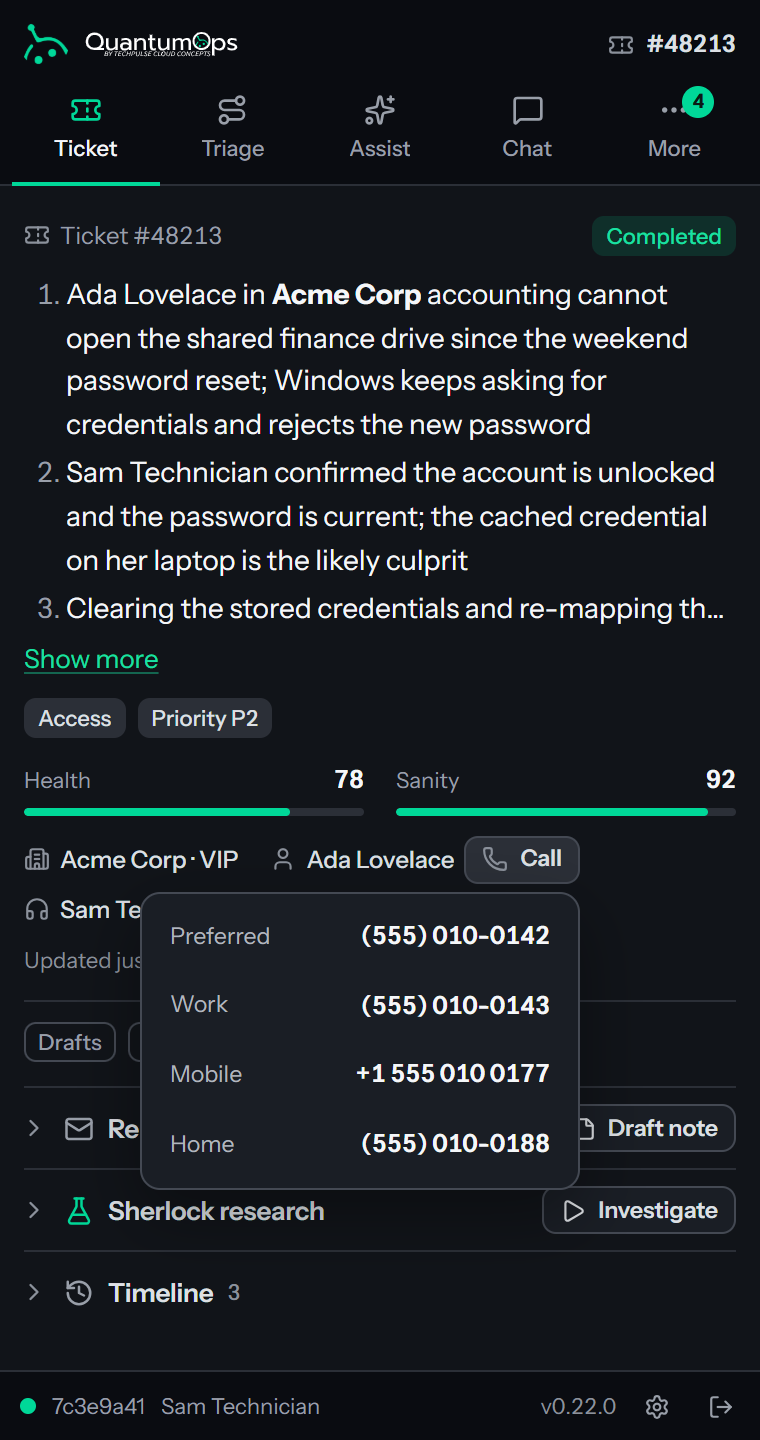
Nothing is read from HaloPSA until you first select Call on a record, and the numbers come from HaloPSA itself, not from a copy kept by QuantumOps. The list is read when you first open it on a record. While you stay on the same ticket or user, opening it again shows the same list. A failed lookup, or a move to another ticket or user, is read again. Select Call again, press Esc or click anywhere outside the list to close it. What happens after you select a number is decided by your browser and your computer, not by QuantumOps. If nothing happens, your computer has no application set up for phone links. Set one up in your browser or system settings, or ask your administrator.
The button shows on the Ticket tab only once QuantumOps has loaded the ticket and knows the end user. It is not on the Client or Agent tab.
What the list shows
Each row has a label and the number as it is written in HaloPSA. The rows come in a fixed order, and only the numbers that exist are listed.
A field with no digits in it, such as n/a or a blank, is left out. A number that HaloPSA holds under two labels is listed under both. The Organization number is the client's own number, so every user of the client shares it. QuantumOps keeps the client numbers for up to 30 minutes, so a change you made to a client's number in HaloPSA can take that long to show. If HaloPSA is slow to answer, the Organization row can be missing for a moment while the rest of the list still shows.
Hover a row to see what it will dial: Dials and the number your phone application will receive.
What your phone application receives
The row shows the number as written in HaloPSA. The phone link carries a cleaned-up version of it, so a displayed number and its dial string can differ:
- A trailing extension is cut off. 555-0100 x204 dials 5550100, because the extension's digits stuck on the end would reach a different number. Dial the extension yourself once the call connects.
- Spaces, dashes, brackets and dots are removed, and a plus sign at the start is kept.
- If your administrator has set a dial prefix, such as a digit for an outside line, it goes in front. A number that starts with a plus loses the plus when a prefix is added.
Which prefix applies, and the rules in full, are in Dial prefixes for click-to-call. For a ticket from a white-label partner the partner's prefix applies. On the User tab there is no ticket, so the prefix of the user's own partner applies when they have one.
When the list does not appear
An error appears next to the button, with Try again beside it. A failed lookup is read again each time you select Call.
What is stored
Nothing. QuantumOps reads the numbers from HaloPSA when you first open the list on a record (the panel reuses that list while you stay on the same ticket or user, and reads again after a failed lookup or when you move to another record), does not keep them beyond the short client-number cache described above, and does not record which number you chose. The call itself happens between your browser and your phone application. If your phone system logs calls, that record is made there, not in QuantumOps.
Related pages
- Ticket tab is where the button sits next to the ticket's user.
- Client, User and Agent tabs describes the User tab.
- Call tab is for taking a call you receive.
- Dial prefixes for click-to-call is for the administrator who sets prefixes.
- Finding your way around the side panel explains the panel.
Was this helpful?
Still need help? Ask the team