Missions tab
The Missions tab of the browser extension's side panel lets you claim bounties, finish or release the one you hold, follow your quests, answer Q-Notify messages and check your points.
Last updated 19 days ago
The Missions tab puts your Q-Missions work in the side panel, next to the HaloPSA ticket you are working on. You can claim a bounty and watch its clock, mark a job done, follow your quests, answer a dispatcher's Q-Notify message and see your points, without opening the QuantumOps web app. It is for every agent whose organization uses Q-Missions.
Before you start. Install the extension and sign in; see Setting up the extension. The Q-Missions module must be on for your organization. The tab is in the More menu, after Approvals, and any signed-in person sees it, whatever their role. To claim, earn or receive anything your login must be linked to your HaloPSA agent; without the link the tab only explains that (see If your login is not linked). The Q-Notify section also needs the dispatch board to be switched on for your instance; see What each part of the extension needs. The tab has no manager controls: Mission Managers post, confirm and cancel work in the Missions hub, and can also post a bounty from the dispatch board.
Open the tab
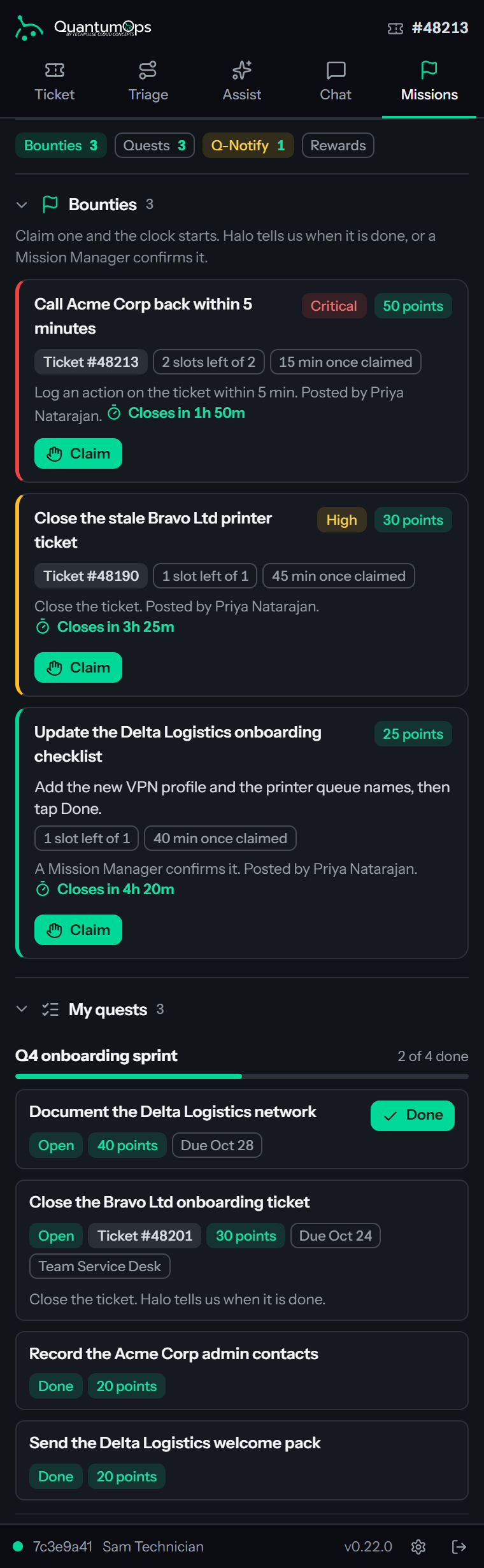
Select More, then Missions. While the tab is open, the More tab takes the name Missions. If the tab is not in the menu, your organization does not have Q-Missions switched on, or your instance has Missions switched off; Troubleshooting the extension lists the checks.
From top to bottom the tab shows:
- Waiting for you, only when something is waiting.
- A row of jump buttons: Bounties, Quests, Q-Notify and Rewards. Selecting one opens that section if it was closed and scrolls to it. Bounties and Quests show how many items are open, and Q-Notify shows the number of unread messages, in amber while it is above 0. The Q-Notify button is missing when that section is.
- The sections Bounties, My quests, Q-Notify and Rewards. Select a section's heading to close or reopen it; the panel remembers which ones you closed.
Each section loads on its own, so one that fails never hides the others. While the tab first loads, it shows gray placeholder lines. It reads again when QuantumOps queues something new for you or a Q-Notify message is answered, when you come back to the panel, every five minutes, and straight away after anything you do on it.
Alerts waiting for you
The Waiting for you section at the top lists the cards that no page could show you and that were not sent as a desktop alert, for example a bounty posted while you were working in another application. Each shows its title, how long ago it arrived, its text and the buttons it came with, such as Claim, plus Dismiss. When you press a button the action runs as you and the item leaves the list; if it fails, a message says why. The section disappears when nothing is waiting. Moments and alerts explains where the cards come from.
Claim a bounty
A bounty is a job with a number of slots. The Bounties section says Claim one and the clock starts. Halo tells us when it is done, or a Mission Manager confirms it. Open bounties are listed with the most urgent first, and only the bounties open to your team appear. Each one shows:
- the title and, when set, its description;
- a High or Critical mark when it is not ordinary, and the reward, for example 150 points or the name of the reward item;
- the HaloPSA ticket it is about, when it has one, as Ticket # and the number;
- how many slots are free, for example 2 slots left of 3, and the time limit, for example 30 min once claimed;
- how it is judged done: Log an action on the ticket within 15 min, Move the ticket to the right status, Close the ticket, Take the ticket or A Mission Manager confirms it;
- who posted it and a clock, Closes in, showing how long the bounty stays open.
Select Claim to take a slot. The panel says Claimed. The clock is running. and the bounty moves to the top of the section as your claim. If the claim is refused, the panel shows the reason in a message and reads the list again. For example, someone may have taken the last slot while you were deciding, or the bounty may have just closed.
When Claim is grayed out
Claim is off when QuantumOps says you cannot take that bounty, and the card then states why, in a line under its details:
- You already have, or had, a claim on this bounty. You can hold a bounty once, even if you released it or ran out of time. This is the reason you will meet most often.
- Every slot is taken right now. If someone lets go you will be told.
Claim is also off for a moment while another action of yours is still being sent.
Work on the bounty you hold
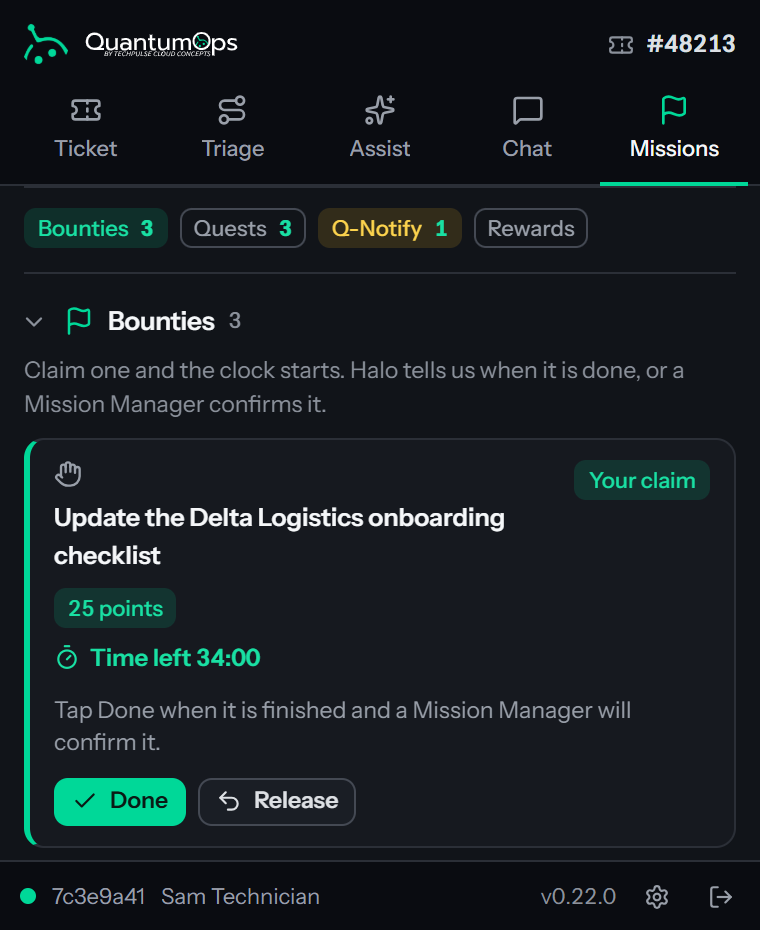
Your claim sits above the open bounties, marked Your claim. It shows the ticket and reward and a Time left clock that counts down. The clock reads 12:05 under an hour, 1h 05m under a day and 2d 3h beyond that, and turns amber in the last minute.
The panel follows HaloPSA, so opening a ticket, client, user or agent page moves it to the matching tab, away from Missions; only Call and Clock stay where they are. Select More, then Missions to see the clock again. It keeps running whichever tab is open.
What you do depends on how the bounty is judged done:
- Halo checks it. The card says how, for example Close the ticket. Halo tells us when it is done, so there is nothing to tap. Do the work in HaloPSA, and QuantumOps notices and pays you.
- A Mission Manager confirms it. The card says Tap Done when it is finished and a Mission Manager will confirm it. Select Done, add an optional note under Note for the Mission Manager (optional) (up to 500 characters), and select Mark done. The dialog is titled Mark this bounty done? and says a Mission Manager confirms it before any points are paid. The panel says Marked done. A Mission Manager will confirm it. and the card reads Waiting for a Mission Manager to confirm.
To give a bounty back, select Release. The dialog Release this bounty? warns that the slot goes back to the pool for someone else and that you cannot claim this bounty again. Select Release to confirm; the panel says Released. The slot went back to the pool. If it fails, the dialog stays open with the reason and a Close button.
When the clock reaches zero the card reads Time is up and the tab reads again. QuantumOps lapses an unfinished claim shortly after its deadline, so Time is up can show next to Release for up to about 45 seconds, after which the tab reads again and the claim has gone back to the pool. About a minute before the deadline you also get a Time is almost up card; see Moments and alerts.
Follow your quests
The My quests section groups your quests by mission. A quest that belongs to no mission sits in a group called Quests. Each group shows a progress bar and a count, for example 1 of 3 done. Each quest shows:
- its title and a status mark: Open, Waiting for a manager, Done, Missed or Canceled;
- the ticket, the reward, the due date and the team, when it has them;
- its description, and for an open quest that Halo checks, Halo tells us when it is done. after how it is judged done.
For a quest that a Mission Manager confirms, an open row has a Done button. It opens Mark this quest done? with the same optional note; Mark done sends it, and the row changes to Waiting for a manager until the Mission Manager confirms it or sends it back. A quest in a mission that has not started yet has no Done button until the mission starts. A finished quest stays on the list for two weeks, or for as long as its mission is running.
The line under the groups says how many quests are still open. With none, the section says No quests assigned to you. When a Mission Manager sends you one, it shows up here with its progress.
Answer Q-Notify messages
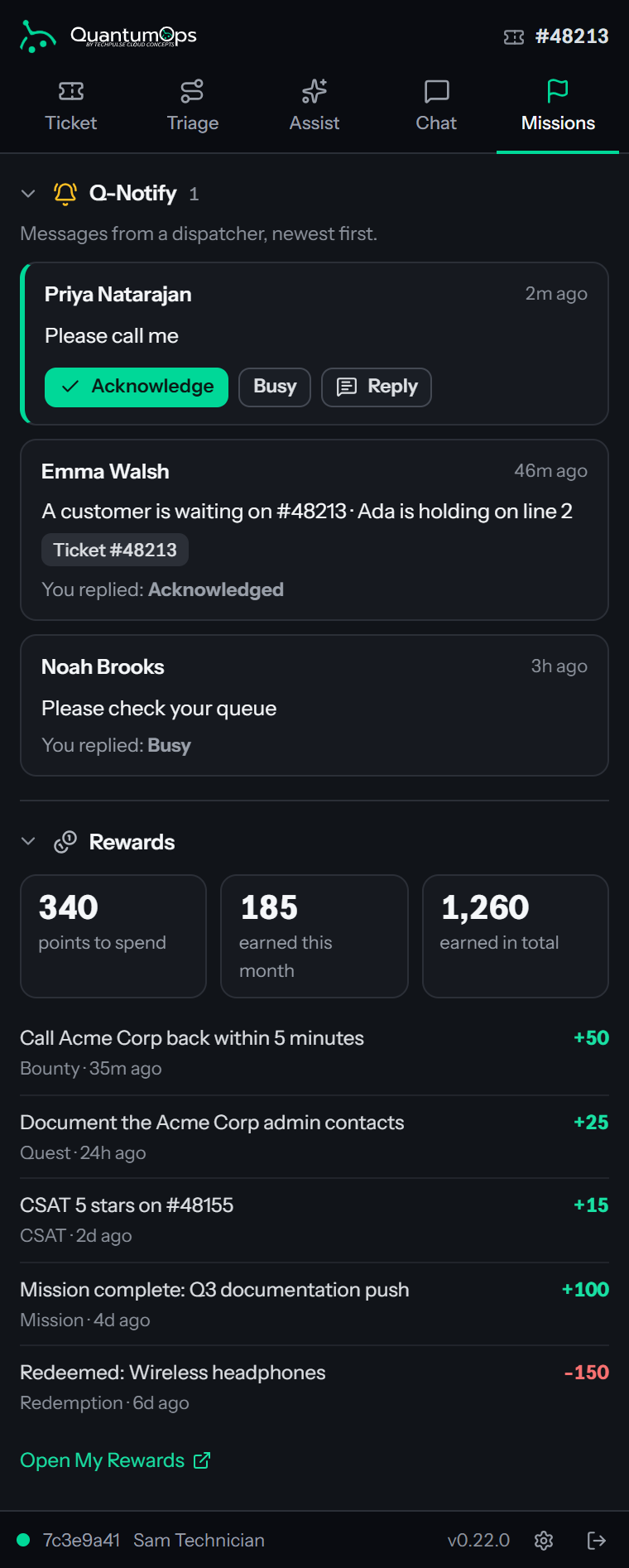
A Q-Notify message is a quick ping from a dispatcher. The Q-Notify section (Messages from a dispatcher, newest first.) lists the messages sent to you, newest first, showing the newest 8; Show older with a count reveals the rest, up to your last 50 messages. Each message shows who sent it, how long ago, the message, any note the dispatcher added and the ticket, when there is one.
Answer in one of three ways:
- Acknowledge says you have seen it.
- Busy says you cannot take it now.
- Reply opens a box, Your reply, for up to 200 characters of plain text, with a count of the characters left. Send reply sends it; Cancel closes the box.
The panel says Reply sent. and the message then reads You replied: followed by Acknowledged, Busy or your own words. A message answered this way no longer offers the buttons. If sending fails, the panel shows the reason in a message.
The sender sees your answer straight away. On the dispatch board it appears as a notice that starts with your name: acknowledged your Q-Notify., is busy right now. or replied: followed by your words in quotation marks. If the sender is an agent, they also get a card. Opening the Missions tab counts the messages in this list as read, so they stop adding to the badge. Direct Q-Notify messages explains sending them.
With no messages, the section says No Q-Notify messages. When a dispatcher pings you, it lands here and on screen.
See the calls dispatch sent you
Where your organization uses call routing, the tab has a Call offers section between Q-Notify and Rewards, closed until you open it, with its own jump button. It lists your last 20 call offers, newest first: who sent each one, the client with a VIP mark, what they needed, how it ended (Accepted, Declined with the reason you gave, No answer, Did not reach you, Taken back by dispatch), how long you took to answer, and note owed while a note is still due. It is read-only. Call offers from dispatch explains the card these come from.
Check your rewards
The Rewards section shows your points in one pool, whether they came from customer feedback, quests, bounties or missions:
- points to spend, your balance;
- earned this month;
- earned in total.
Under them are your five most recent earnings: the reason, its source (CSAT, Quest, Bounty, Mission, Badge, Bonus, Manual, Refund, Redemption or Expired), how long ago, and the points, with a minus sign when points were taken away. With none, it says Nothing earned yet. Bounties, quests and happy customers add points here.
The panel only shows your points. To spend them, select Open My Rewards, which opens the QuantumOps web app in a new browser tab; see My rewards.
The badge on the tab
A number on the More tab, and next to Missions inside the menu, counts the open bounties you could claim right now plus your unread Q-Notify messages from the last seven days. It does not count quests, and it leaves out a bounty you hold or held before. Q-Notify messages count only when your instance has the dispatch board switched on. The number on the More tab gives way to the count of pending approvals and to the dot for a call in progress, and it is not shown while the Missions tab is open. With nothing to count, there is no number; see Finding your way around the side panel.
If your login is not linked
If your QuantumOps login is not linked to a HaloPSA agent, the tab shows one message instead of the sections: Your QuantumOps account is not linked to a Halo agent, so missions, bounties and Q-Notify cannot reach you. Ask a QuantumOps administrator to link it. Select Check again after the administrator has linked you in Team Management. Without the link you get no queued Moment cards: QuantumOps refuses the extension's check for new ones, and the extension then stops asking for 30 minutes. A card worked out for the ticket you open, such as an open bounty, can still appear until that pause starts, but not during it.
When something does not load
- While a section has no data yet and its read fails, it shows the reason with a Retry button.
- If it already has data, the old data stays and a note says what could not be refreshed, for example Bounties could not be refreshed. followed by the reason.
- If every section fails, the tab shows one message with Retry.
- Missions are not turned on for your organization. means the module is off for your organization or your instance is too old to offer it.
- You are sending too fast. followed by a number of seconds means QuantumOps is limiting how fast you can send; wait that long and try again.
- You do not have permission to do that. and Something went wrong. Try again. are the general answers when QuantumOps gives no better reason.
Related pages
- My missions: the same work in the QuantumOps web app.
- Bounties and Quests and missions: how Mission Managers set the work up.
- Direct Q-Notify messages: sending a message from the dispatch board.
- Moments and alerts: the cards and desktop alerts that announce this work.
- Finding your way around the side panel: the tabs, the More menu and the status bar.
Was this helpful?
Still need help? Ask the team