Client Management (Companies)
This screen is the central point where BillingBot connects your clients from HaloPSA (or AutoTask) with the clients that exist in your distributor (Pax8, Ingram, ITCloud, etc.). Here you decide which PSA client corresponds to each distri...
Last updated 21 days ago
This screen is the central point where BillingBot connects your clients from HaloPSA (or AutoTask) with the clients that exist in your distributor (Pax8, Ingram, ITCloud, etc.). Here you decide which PSA client corresponds to each distributor account, how it will be billed, and which contract or recurring invoice should receive the charges.
How the link works
Each row in this table is a client record: one distributor company linked to one PSA client, with its own invoice settings. Two rules govern them:
- A distributor company belongs to exactly one client record. If its charges could go to two places, BillingBot would have no way to tell which one is right.
- A PSA client can hold several client records, one per distributor company.
That second rule is what lets you bill more than one distributor company to the same PSA client. Each record keeps its own recurring invoice, so you choose the outcome:
- Separate invoices: give each record a different recurring invoice.
- One combined invoice: give both records the same recurring invoice, and their charges are billed together.
Whichever you choose, each charge keeps the name of the distributor company it really came from, so you can always tell where it originated.
When to use this screen
- When you connect a new integration (distributor) and need to match its client accounts with your HaloPSA or AutoTask clients.
- When a new client appears in the distributor and is not yet linked to any client in your PSA.
- When you need to adjust how a particular client is billed (for example, excluding it from billing or changing the destination of its charges).
- When a PSA client has to be billed for more than one distributor company, whether on separate invoices or together on one.
- When you want to assign or change the AutoTask contract or the Halo recurring invoice that a client's charges are sent to.
- When you need to update the client list by pulling the most recent data from Halo or AutoTask.
What it shows
The screen presents a table with all the clients from your PSA (Halo or AutoTask, depending on your configuration) and their relationship with the selected integration:
- Halo Id and Halo Client (or AutoTask Id and AutoTask Client), according to the destination configured in your account.
- Distributor client (column "Distributor Client"): the name of the corresponding account in Pax8, Ingram, or another distributor, if it is already linked.
- Records: a badge such as "2 records" when that PSA client holds more than one client record. Its rows appear next to each other, one per distributor company. A client with a single company shows nothing here.
- If your PSA is AutoTask: the assigned contract and the client's tax region.
- If your PSA is Halo: under # Invoice, the number of the latest job invoice (Last) and of the recurring invoice (Recurring), plus three verification columns under Assign Invoice (New, Last, Recurring) indicating whether charges are being assigned as a new invoice, to the latest invoice, or to the recurring invoice.
- Exclude: indicates whether the client is excluded from automatic billing.
- An Integration selector at the top to choose which distributor you are mapping (if you have more than one active integration).
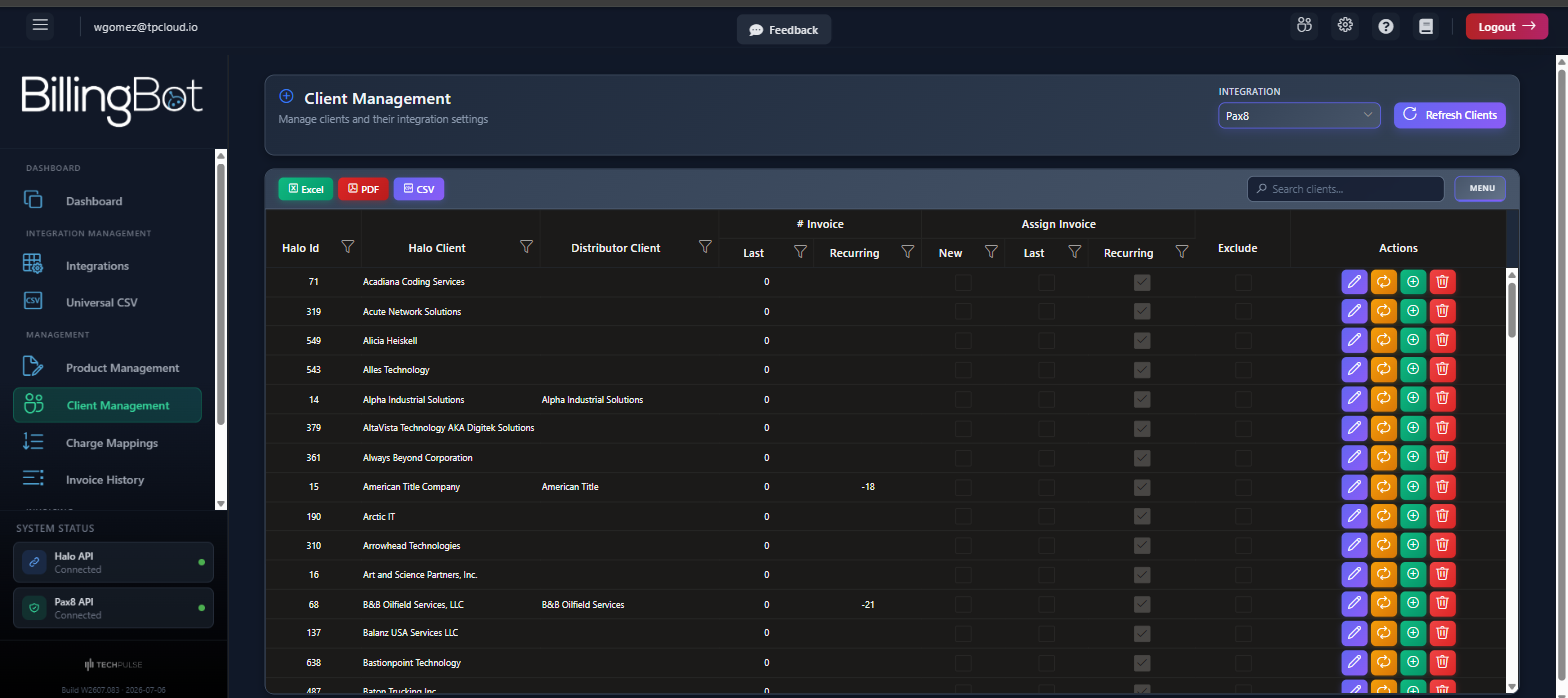
Available actions
At the top:
- Integration (dropdown menu): choose the distributor whose accounts you want to map against your PSA clients. If you only have one integration configured, it is selected automatically.
- Refresh Clients: pulls the client list from Halo or AutoTask again, updating names and data. Useful if you created a new client in your PSA and it does not appear here yet.
- With Pax8, Refresh Clients also links clients to Pax8 companies by name, but it only fills gaps: it looks for a Pax8 company only for clients that have none yet. A client that already has a Pax8 company keeps it, even if the client was renamed in Halo — the link is never replaced or cleared — and a Pax8 company that another client record already holds is never taken. The new Halo name is shown on all of that client's records.
- Because of that, Refresh Clients never corrects a wrong link. If a client is linked to the wrong Pax8 company, fix it by hand with Assign Company → Replace, or with Delete Assignment.
- Excel / CSV: exports the visible table in the chosen format.
- All / Mapped / Unmapped: narrows the table to every record, only those that already have a distributor company, or only those that do not. Each button shows how many rows it matches. Most accounts hold far more PSA clients than distributor companies, so this is usually the fastest way to find what you are looking for. It combines with the search box.
- Search clients...: filters the table by client name, contract number, tax region, or invoice number, depending on your PSA.
In each row, in the "Actions" column:
Edit (pencil): opens the client edit window, where you can enable billing rules (see Edit Client).
Assign Invoice / Assign Contract (repeat icon): if you use Halo, opens the window to choose how that client's charges are billed (new invoice, latest invoice, or recurring invoice). If you use AutoTask, opens the window to choose the contract that charges are assigned to.
Assign Company (plus icon): links your PSA client with a distributor account. If the row already has one, BillingBot first asks which of two things you mean:
- Add another company — a new client record is created. The existing company stays as it is and the new one gets its own invoice. This is how you bill two distributor companies to the same PSA client.
- Replace — the current company stops being billed to this client and becomes available again. Its pending charges of the period you are working in are released and show as unassigned in Prepare Billing (charges sent there on purpose with Cross-Map stay). Charges already queued or sent to the PSA are not affected.
Whichever you choose, only the company's pending charges of the period you are working in are linked to the record; queued or sent ones are left alone. A message tells you how many were linked, left, or released. See Assign Distributor Account for details.
Delete Assignment (trash icon): ⚠️ removes the link between your PSA client and the distributor account. What happens next depends on the row:
- If it is the client's only record, the company is cleared and the row stays, keeping the client's invoice settings.
- If the client has several records, the row exists only to bill that company, so after you confirm it is removed completely — unless that record has already billed lines in HaloPSA or still has charges to bill. In that case BillingBot keeps it and explains why: removing it and linking the client again would make BillingBot stop recognising its lines on the recurring invoice and bill them twice. A kept record bills nothing once no new charges arrive for it.
In both cases the distributor account returns to the available list so it can be linked elsewhere, and charges already sent to the PSA are not affected.
Step-by-step flow
- Go to Client Management from the menu and, if you have more than one integration, select the corresponding Integration at the top.
- Review the table: clients without an account in the "Distributor Client" column are not yet linked.
- To link a client, click the Assign Company button on its row, choose the correct distributor account from the list, and confirm with Assign.
- If the client needs special billing rules (excluding it, removing Azure lines, etc.), click Edit, adjust the options, and save with Save Company.
- Define where that client's charges go: click Assign Invoice (Halo) or Assign Contract (AutoTask), choose the desired option or contract, and confirm.
- If you need to bring in new clients or update names from your PSA, use Refresh Clients.
- Repeat the process for each client until all of them are correctly linked and configured before generating invoices.
Billing a second distributor company to the same PSA client
- Find the PSA client that already has a company assigned and click Assign Company on its row.
- Choose Add another company.
- Pick the distributor company from the list and confirm with Assign. A new row appears for the same PSA client, and both now show the "2 records" badge.
- Click Assign Invoice on the new row and choose its recurring invoice:
- a different invoice if the two companies must be billed separately;
- the same invoice as the other row if they must be billed together.
Common errors and how to resolve them
- "This company does not have an AutoTask Company assigned. Please assign a company first.": you tried to assign a contract before linking the client with an AutoTask account. Use Assign Company first, then Assign Contract.
- "'...' is already assigned to '...'. A distributor company can only belong to one client record.": the distributor company you picked is already linked to another PSA client. Free it there with Delete Assignment first, or pick a different company. In the selection window that company appears greyed out with the client currently holding it, so you can see where it went.
- Error saving or updating the client (message shown exactly as the system sends it): occurs if communication with the server fails while saving edit changes, account, contract, or invoice assignment. Try again; if it persists, contact support with the exact message shown.
- Error loading the list of integrations or clients: if an error message appears instead of the table when you enter the screen, check your connection and reload the page. If it continues, contact support.
- Error loading Halo invoices or AutoTask contracts: this can appear when using Assign Invoice or Assign Contract if the PSA does not respond. Close the window and try again.
- Generic error message with technical detail: when an unexpected problem occurs, the screen shows an error message along with more detail. Save that text and share it with support to speed up the resolution.
Related screens
Was this helpful?
Still need help? Ask the team