Edit a customer's billing properties
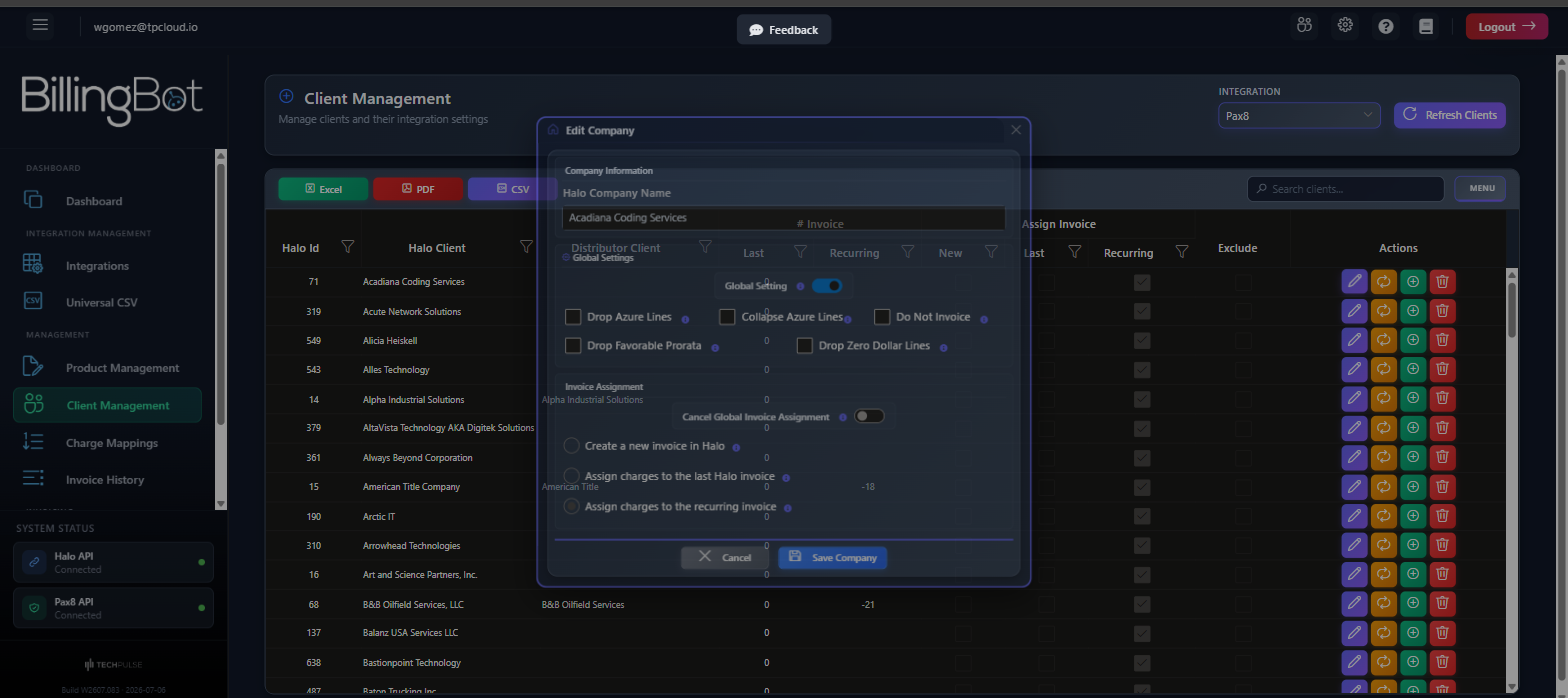
The Edit Company window lets you adjust how BillingBot invoices a specific customer: which Azure lines to include or remove, whether to exclude the customer from billing entirely, and which HaloPSA invoice their charges should go to. It...
Last updated 24 days ago
The Edit Company window lets you adjust how BillingBot invoices a specific customer: which Azure lines to include or remove, whether to exclude the customer from billing entirely, and which HaloPSA invoice their charges should go to. It opens as a popup dialog from several modules, without needing to navigate to another screen.
These settings belong to one client record, not to the PSA client. A PSA client can hold several client records, one per distributor company (see Client Management). Everything on this dialog applies to the record whose row you opened — its distributor company only. If a client holds two records and you want the same treatment on both, set it on both rows.
When to use this screen
Use this screen when you need to:
- Exclude a customer from automatic billing (for example, internal accounts).
- Simplify or clean up the Azure lines on a customer's invoices.
- Remove credits or $0.00 lines before sending the invoice to HaloPSA.
- Decide whether this customer's charges go to a new invoice, to the most recent existing invoice, or to their recurring invoice in HaloPSA.
You typically access it from the "Edit" button in the Companies grid, and the same dialog can be opened from other modules such as Ready to Invoice when you need to review a customer's configuration before invoicing.
What it shows
- Company Information: the customer's name as registered in HaloPSA (or in AutoTask, if your organization uses that integration). This field is read-only and cannot be edited here.
- Global Settings (only visible if your distributor integration is Pax8): a master toggle and four checkboxes to control how Azure lines and other invoice adjustments are processed.
- Contract Assignment (if you use AutoTask): shows the AutoTask contract ID assigned to this customer, or a notice that no contract is assigned.
- Invoice Assignment (if you use HaloPSA): a toggle to override the global invoice assignment, and three options to decide which Halo invoice this customer's charges go to.
Available actions
- Global Setting (toggle): turns the global billing setting for this customer on or off.
- Drop Azure Lines (checkbox): when enabled, all Azure consumption and reservation lines are removed entirely from this customer's invoices. Useful if you invoice Azure separately.
- Collapse Azure Lines (checkbox): when enabled, all Azure lines are grouped into a single line with the total Azure spend, simplifying the invoice without stopping the charge.
- Do Not Invoice (checkbox): when enabled, this client record is completely excluded from the billing process; none of its distributor company's charges are sent to HaloPSA. ⚠️ While enabled, that company will not be invoiced. If the PSA client holds another record, that other record keeps being billed — this does not silence the client as a whole.
- Drop Favorable Prorata (checkbox): when enabled, credit lines or negative amounts are removed from the invoice (for example, refunds for mid-cycle cancellations or promotional credits). ⚠️ The customer will not see those credits reflected on their invoice.
- Drop Zero Dollar Lines (checkbox): when enabled, lines with a $0.00 value are removed (trial licenses, included services, etc.).
- Cancel Global Invoice Assignment (toggle, HaloPSA only): enable it to override the global invoice assignment setting and choose a specific option for this customer.
- Create a new invoice in Halo (option): BillingBot creates a new invoice in HaloPSA for this customer on each billing cycle.
- Assign charges to the last Halo invoice (option): BillingBot finds this customer's most recent invoice in HaloPSA and adds the new charges there.
- Assign charges to the recurring invoice (option): BillingBot routes the charges to the customer's recurring invoice in HaloPSA, ideal if you use that Halo feature.
- Assign Contract (AutoTask only, handled from the grid button, not from this dialog): assigns or changes the AutoTask contract that this customer's charges are sent to.
- Save Company: saves all changes made and closes the window.
- Cancel: closes the window without saving any changes.
Step-by-step flow
- In the Companies grid (or in the module you accessed it from), locate the customer and click "Edit".
- Review the customer's name in Company Information to confirm it is correct.
- If you use Pax8, adjust the Global Setting toggle and the checkboxes in the Global Settings section according to how you want Azure lines and credits to be processed.
- If you use AutoTask, review the contract assigned in Contract Assignment. If you need to change it, close this window and use the "Assign Contract" button in the grid.
- If you use HaloPSA, decide whether you need to override the global assignment by enabling Cancel Global Invoice Assignment, then choose one of the three invoice assignment options.
- Click Save Company to save the changes, or Cancel to discard them.
Common errors and how to resolve them
- Error message when saving: if BillingBot cannot save the changes, an error message appears with the detail returned by the server. Check your connection and try saving again; if the problem persists, contact support.
- Unexpected error while updating: if an unexpected technical error occurs during saving, an internal log entry is generated and a message is shown indicating that a problem occurred, along with the error detail. Note the message and share it with support if it happens again.
Related screens
Was this helpful?
Still need help? Ask the team