Leaderboard
The Leaderboard ranks your agents by the points they earn from customer satisfaction ratings, missions, quests and bounties, with a podium, a full ranking, team totals and the badges on offer.
Last updated 21 days ago
The Leaderboard ranks agents by the points they earn. Most points come from customer ratings, which makes good service visible: they come from what customers say, not from how many tickets an agent closes. Points from missions, quests and bounties go into the same pool and count here too. The page answers at /leaderboard, and the older /csat-leaderboard address still works.
Before you start:
- Any signed-in user can open it. No special role is needed, so everyone with a QuantumOps sign-in sees the ranking, and the ranking names agents.
- The Leaderboard link is under Dashboards in the left menu. It shows when the CSAT & Surveys module is on for your organization.
- The board is empty until someone earns points. Until then it shows No Data Yet and Nobody has earned points in this period yet. Points come from CSAT ratings, missions, quests and bounties. The list of badges stays below it. Surveys are set up by an administrator in CSAT Administration.
Where points come from
Every point an agent earns goes into one pool. It is the same balance the agent spends on My Rewards. The board ranks the points earned, so spending points on a reward does not lower anyone's place.
How ratings, streaks and badges earn points is explained in Badges, rewards and quotas. Missions, quests and bounties are set up in the Missions hub; an agent's view is My missions.
Choose which points count
The row Points from filters the board by where the points came from.
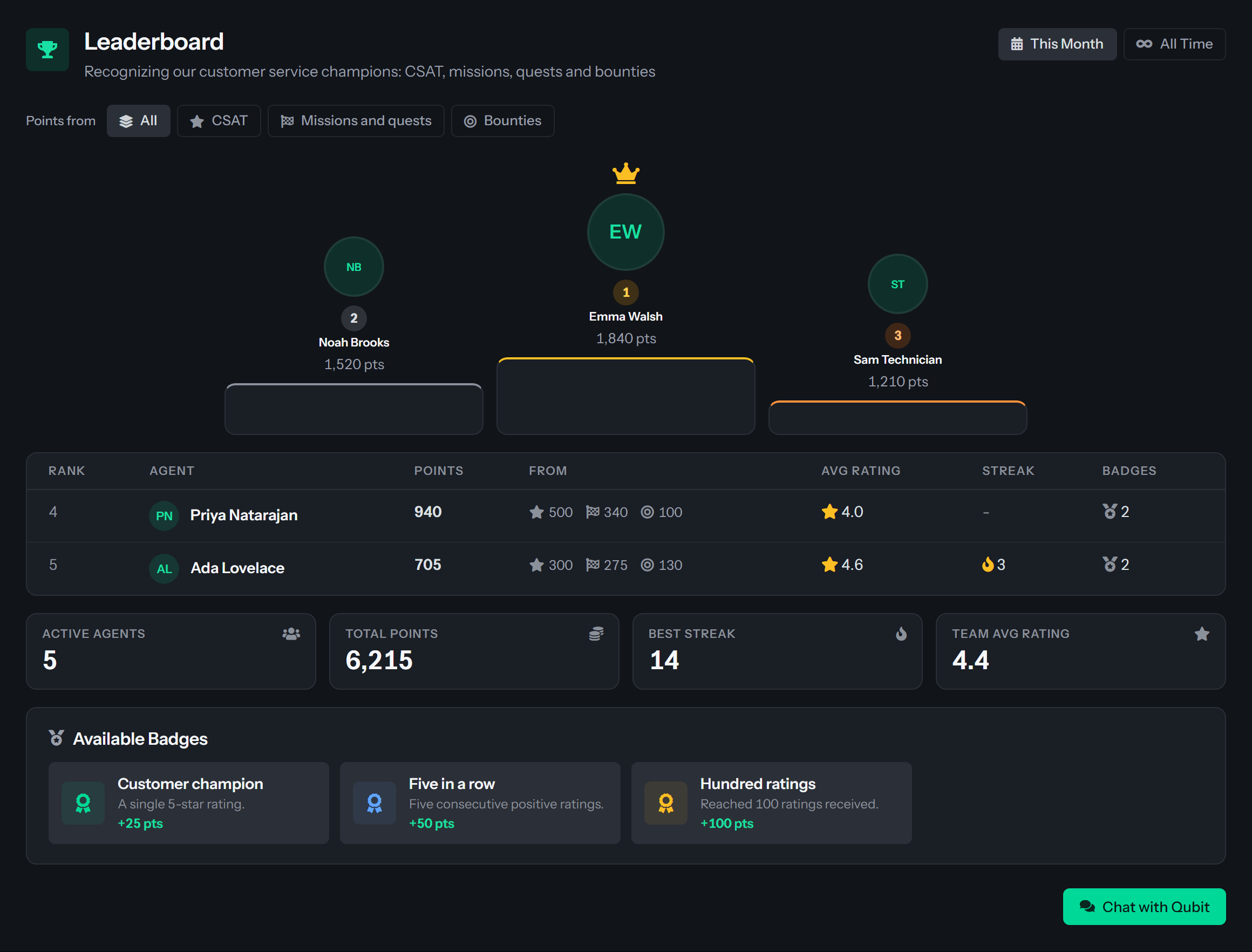
- All counts every point an agent earned, including positive manual adjustments.
- CSAT counts points from customer ratings, badges and bonuses (streak, milestone and other bonus points added to the balance). It does not count manual adjustments.
- Missions and quests counts points from completed quests and missions.
- Bounties counts points from completed bounties.
With a single source chosen, the Points column is named for it, for example Bounty points, and an empty board says that nobody has earned points from that source in the period yet. Under All the table has a From column, described below. A link ending in ?source=bounties (or csat, missions, all) opens the board with that filter on.
Choose a time range
Two buttons at the top right switch the board.
- This Month is the default. It ranks agents by the points they have earned in the current calendar month (months follow UTC), so a newer agent has a fair chance to place.
- All Time ranks agents by every point they have earned.
Only agents who earned at least one point in the range you chose are listed. Someone who earned nothing this month is not on the This Month board, and an agent whose ratings this month were all low earned nothing from them. Only the points change between the two views: Avg Rating, Streak and Badges are running figures for each agent and read the same in both.
Read the podium and the ranking
The podium shows the top three agents: first place in the center with a crown, second and third on either side. Each shows the agent's initials or photo with their name and points.
When more than three agents are on the board, a table lists the rest from fourth place down. The board shows up to 20 agents.
The podium shows points only. The From column belongs to the table.
Read the team totals
Four cards sum up the agents on the board for the range and source you chose.
See the badges you can earn
Available Badges, at the bottom of the page, lists every active badge with its image when it has one, its name, its description and its point value, for example +50 pts. It shows even when the board is empty. Your administrators choose the badge set and the images. See Badges, rewards and quotas.
Spend your points
Your own points, badges and the rewards you can redeem are on My Rewards, below Leaderboard in the left menu. The small Monthly Leaderboard there is a separate view that lists only agents who have received at least one customer rating, so it can differ from this page.
Related pages
- My Rewards: your balance, the rewards you can redeem, delivery and your orders.
- Badges, rewards and quotas: how administrators set up badges, rewards and monthly point targets.
- CSAT on a wall screen or your website: show the ranking on an office monitor.
- CSAT Administration: where the surveys behind the ratings are set up.
Was this helpful?
Still need help? Ask the team