CSAT on a wall screen or your website
Show customer satisfaction outside QuantumOps, on an office monitor with the Big Screen or on your website with an embeddable widget.
Last updated About 1 month ago
There are two ways to show customer satisfaction outside the QuantumOps screens. The Big Screen is a wall display for an office monitor. The website widget is a small panel with your score that you embed in a page of your own website. An administrator sets up and opens both from CSAT Administration.
Before you start:
- You need the Administrator role, and the CSAT & Surveys module must be on for your organization.
- Open Configuration → CSAT Administration. The Big Screen button at the top right opens the Big Screen in a new browser tab. The Widgets tab holds the widget settings and the Big Screen's addresses.
- Both show figures from answered surveys. See CSAT Administration for how surveys reach customers.
- Neither needs anyone to sign in. The Big Screen opens only with your organization's display key in its address. The website widget has its own key, the widget key, and its options are signed into its address. Only an Administrator can see, copy or rotate either key. See The display key.
Before you share it
Decide who will see each one.
- A website widget is public by design. Anyone who visits the page that carries it sees what it shows, and the widget key is part of the embed code in that page. Because of that, the widget never opens with a key alone: what it shows (its type and every option) is signed into the address, and an address that was edited, or that has no signature, shows only the plain score badge. Show only what you want customers to see, and leave Show Top Agent and Show Recent Feedback off unless you mean to publish an agent's name and customers' comments. A testimonial never shows a rating below 4 stars, and a customer's company name appears only if you check Show Company Name.
- The Big Screen lists named agents and shows customers' comments, including unhappy ones, as they arrive. Its address opens without signing in, so the monitor needs no QuantumOps account, and anyone who has the full address, key included, sees the screen. Treat the address like a password: share it as you would an internal link, and place the screen where only your staff see it. It is easier to agree on this with your team before the screen goes up than after.
The Big Screen
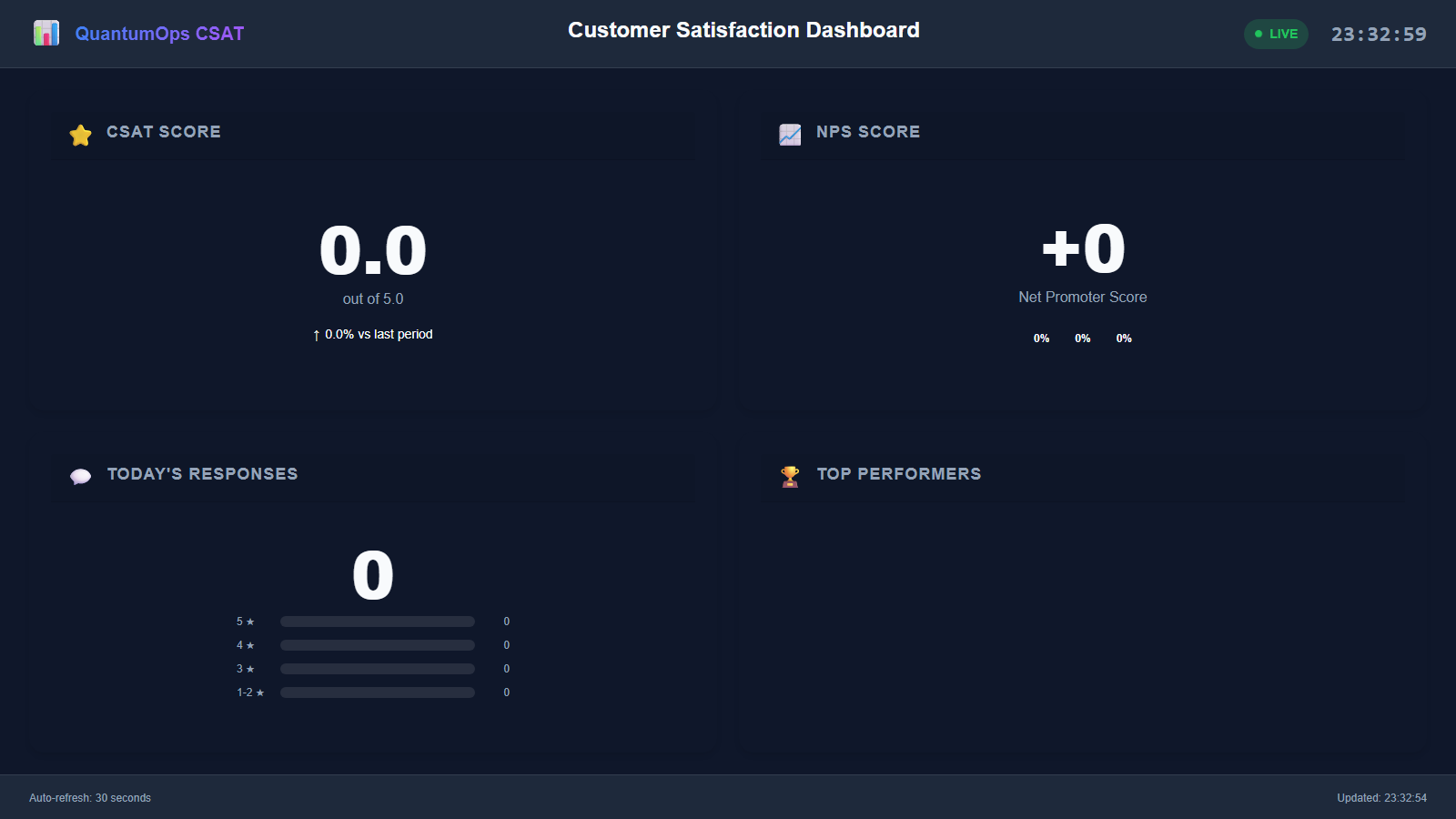
The Big Screen is a full-screen page with no QuantumOps menu. It opens without signing in, but only with the display key in its address. It is built to stay open on a monitor and needs nobody to touch it. It carries a LIVE marker and a clock.
What it shows
Left alone, the screen moves to the next of three views every 15 seconds. Three dots in the footer show which view is up.
Today starts at midnight UTC. The NPS panel draws on your NPS campaigns and reads +0 until responses exist. The rankings list the agents who have received a rating, with every point they earned this month, including points from missions, quests and bounties. See the Leaderboard.
The footer carries two readings that tell you the display is alive. Auto-refresh: shows how often the figures reload, which is every 30 seconds. Updated: shows when they last loaded. A screen that has stopped updating looks like a quiet afternoon, and the Updated: time is what tells the two apart. The clock in the header and the Updated: time follow the server's time zone, which may differ from yours.
Open it on a monitor
The Big Screen address opens without signing in, so the monitor's browser needs no QuantumOps account. Every address ends in ?key= followed by your display key, and a monitor shows nothing without it.
- In CSAT Administration, select Big Screen, or open the Widgets tab and find the Big Screen Dashboard section.
- In that section, the buttons Auto-Rotate, Fixed and Open each open the Big Screen in a new tab, with the display key already in the address.
- To put it on a monitor, copy an address from Direct URLs, which lists Auto-Rotate:, Overview:, Leaderboard: and Live Feed:, and open it in that monitor's browser. The list shows bullets in place of the key until you select Show under Display key; the copy button beside each address copies the full address either way.
The address /csat-bigscreen is the one that moves through all three views. Adding a display mode to the address, for example /csat-bigscreen/overview, /csat-bigscreen/leaderboard or /csat-bigscreen/feed, keeps the screen on that view and stops the rotation, and the footer dots disappear. The key follows the display mode, as in /csat-bigscreen/leaderboard?key= and then the key. An address with a display mode that QuantumOps does not know rotates like /csat-bigscreen. The Overview:, Leaderboard: and Live Feed: addresses, and the Fixed and Open buttons, each open their own view. The leaderboard shows each agent's number of responses beside their rating.
The website widget
The widget is a small panel with your CSAT score. You build it on the Widgets tab and paste an embed code into your website.
Build a widget
- Open the Widgets tab. The Widget Configuration section is at the top.
- Under WIDGET TYPE, choose Score Badge, Full Dashboard, Testimonial Carousel or Rating Distribution.
- Under Display Options, choose a Theme (Light or Dark) and a Time Period (Today, Last 7 Days, Last 30 Days, Last 3 Months or Last 12 Months). Select Compact Mode for a small widget.
- Choose what the widget shows. With Score Badge selected, the checkboxes are Show CSAT Score, Show Rating Distribution, Show Top Agent and Show Recent Feedback. The first two start on and the last two start off.
- Look at the Widget key (embeds) section. It holds the key that lets a widget open. It is the same key for every widget, it is not the Big Screen's display key, and you cannot type one of your own. Select Show under Display key (big screen) to reveal both keys, Copy key to copy it or Rotate to replace it. See The display key.
- Select Update Preview. Changing the widget type refreshes the preview and the Embed Code box by itself. Every other change shows only after you select Update Preview.
- Check the preview. It stays hidden while the keys are hidden, because its address carries the widget key: select Show under Display key (big screen) to load it. Open in New Tab opens the widget on its own page.
- Select Copy Embed Code, or Copy in the Embed Code box, and paste the code into the page of your website where the widget should appear. The box shows bullets in place of the key while the key is hidden, but both copy buttons copy the full code. The code is a frame sized for the type you chose, and you can change its width and height.
Nothing is saved on this tab. The settings live in the address inside the embed code, and a signature (sig=) made with a secret that never leaves QuantumOps covers all of them, so keep the code you paste. To change a widget later, set the options again here, copy the new code and replace the old one. The widget key is part of the address, and it is what lets the widget open: without the current key the frame shows only a notice that the display link is not valid. An embed made before the widget had its own key (an address with the old display key) no longer opens: copy a new embed code from this tab.
What the widget shows
The embedded widget draws the type you chose. Every type uses the Theme and the Time Period (the last 30 days unless you chose another).
Score Badge
With Compact Mode on, the widget shows only the score.
Full Dashboard shows the score with the share of satisfied customers, and then the parts you checked: Show Trend Chart (a line of the daily average), Show Distribution, Show Agent Leaderboard (the leading agents) and Show Live Feed (the latest responses with their stars and comments). It reloads itself every 60 seconds, or every Refresh Interval (seconds) you set.
Testimonial Carousel shows one customer comment at a time with its stars, and moves to the next every Auto-rotate Interval (seconds). It uses ratings that have a comment and are at or above Minimum Rating to Display, up to Max Testimonials of them. Show Client Avatar and Show Company Name switch the line under the quote on or off.
Rating Distribution shows a bar for each rating from 5 down to 1, with Show Percentages, Show Response Counts and Show Average Score switched on or off, and Animated Bars.
Change a widget by hand
The address in the embed code starts with /csat-widget/ and your widget key, which you must leave as it is. It carries the options after a question mark, joined by &, and ends with the signature sig=. Apart from type=, options at their default are left out. The table below explains what each option does, but you cannot change them by hand: editing, adding or removing any option makes the signature wrong, and an address with a wrong signature shows only the plain score badge. To change an option, change it on the Widgets tab and copy the new embed code. An option that does not belong to the widget's type is ignored.
Ask AI to refine the code
AI Refine asks the AI to improve the embed code for the type and settings you chose. It gives a short summary and a list of suggestions under AI Suggestions, and it can replace the code in the Embed Code box with a revised version. Read the revised code before you paste it, and check that it still opens your widget address. The AI is never shown your widget key or the signature in the address. If its suggested code drops the widget address, the code in the Embed Code box is left as it was and the summary says so. The preview does not change. Copy Embed Code copies whichever version is in the Embed Code box. Select Update Preview to return to the code your settings generate.
The display key
A wall display or a website has nobody signed in, so the address itself is the key. Your organization has two keys. The display key is part of every Big Screen address (?key=). The widget key is part of every widget address (/csat-widget/ followed by the key); it is a different key, so a key seen on a website's page source never opens the Big Screen, and the Big Screen's key never opens a widget. Without the current key a page shows only This display link is not valid. Ask your administrator for a new link., with no figures, no names and no comments. A missing, wrong or replaced key all look the same.
Only an Administrator can see the keys. They are under CSAT Administration → Widgets → Display key (big screen) and Widget key (embeds), which are created the first time an Administrator opens the tab. Anyone else sees "Only administrators can see the display key." in their place. The keys are hidden by default; use these buttons:
- Show and Hide (on the display key) reveal or conceal both keys. The preview and the key inside the addresses stay hidden with them.
- Copy key copies the key itself.
- Rotate on the display key makes a new key after you confirm Rotate the display key?. Every existing Big Screen link stops at once, including a screen that is already open, because each one checks the key again every 30 seconds or so. Put the new addresses on each monitor afterwards. Embedded widgets are not affected.
- Rotate on the widget key makes a new key after you confirm Rotate the widget key?. Every embedded widget stops at once, and every signature made with the old key is void. Copy the new embed code onto each website afterwards. The Big Screen is not affected.
Three things to remember:
- Rotate it to cut off old links. Do it when someone who had a link no longer should, or when a link has been shared too widely.
- After an upgrade, replace the links you had on wall displays and websites: an old address without the key no longer shows anything, and an embed that carries the display key (made before widgets had their own key) no longer opens. Copy a new embed code from the Widgets tab.
- Treat the link like a password. Anyone who has it sees the display.
Related pages
- Leaderboard: the in-app ranking behind the Big Screen's leaderboard.
- Badges, rewards and quotas: how the points and badges are set up.
- CSAT Administration: where surveys are configured and where these screens are opened.
Was this helpful?
Still need help? Ask the team