Autopilot settings
Autopilot settings is where an Administrator turns Autopilot on, sets modes and limits, chooses approvers and tool rules, connects Autopilot to StackJack for unattended runs, chooses the Halo agent it acts as, sets how sure it must be to decide on its own and picks the tickets that are planned ahead of time.
Last updated 20 days ago
On the Autopilot settings page an Administrator decides how far Ticket Autopilot may go, who approves what it may not do alone, and how it signs in. Open it from Autopilot in the sidebar, then choose Settings. Changes in the form sections apply when you choose Save settings. While something is unsaved the title shows Unsaved changes, and Discard changes puts the form back as it was. Modes, tool rules, the connection and the Halo agent save as soon as you choose their own button. New to Autopilot? Read How Ticket Autopilot works first.
New organizations are asked for the mode, the approvers, the tickets that are planned ahead of time and, optionally, a StackJack key and the Halo agent in the Ticket Autopilot step of the setup wizard; the step can be skipped and every answer changed here.
Turn Autopilot on or off
In General, Autopilot is on switches the whole feature. When it is off, no plan is built, no routine matches, nothing runs and the learning from closed tickets stops; plans that already exist stay readable. Allow routines to run without a person lets routines in Auto-run mode run on their own; leave it off until you have watched a routine in shadow. See Autopilot routines.
When an agent runs a plan, QuantumOps uses that agent's own StackJack connection, never the API connection set up further down this page. The API connection is only for routines that run without a person. See Connect Autopilot to StackJack.
Choose modes and limits
Under Modes and limits, Everyone sets the default mode; choose Save on that row to store it:
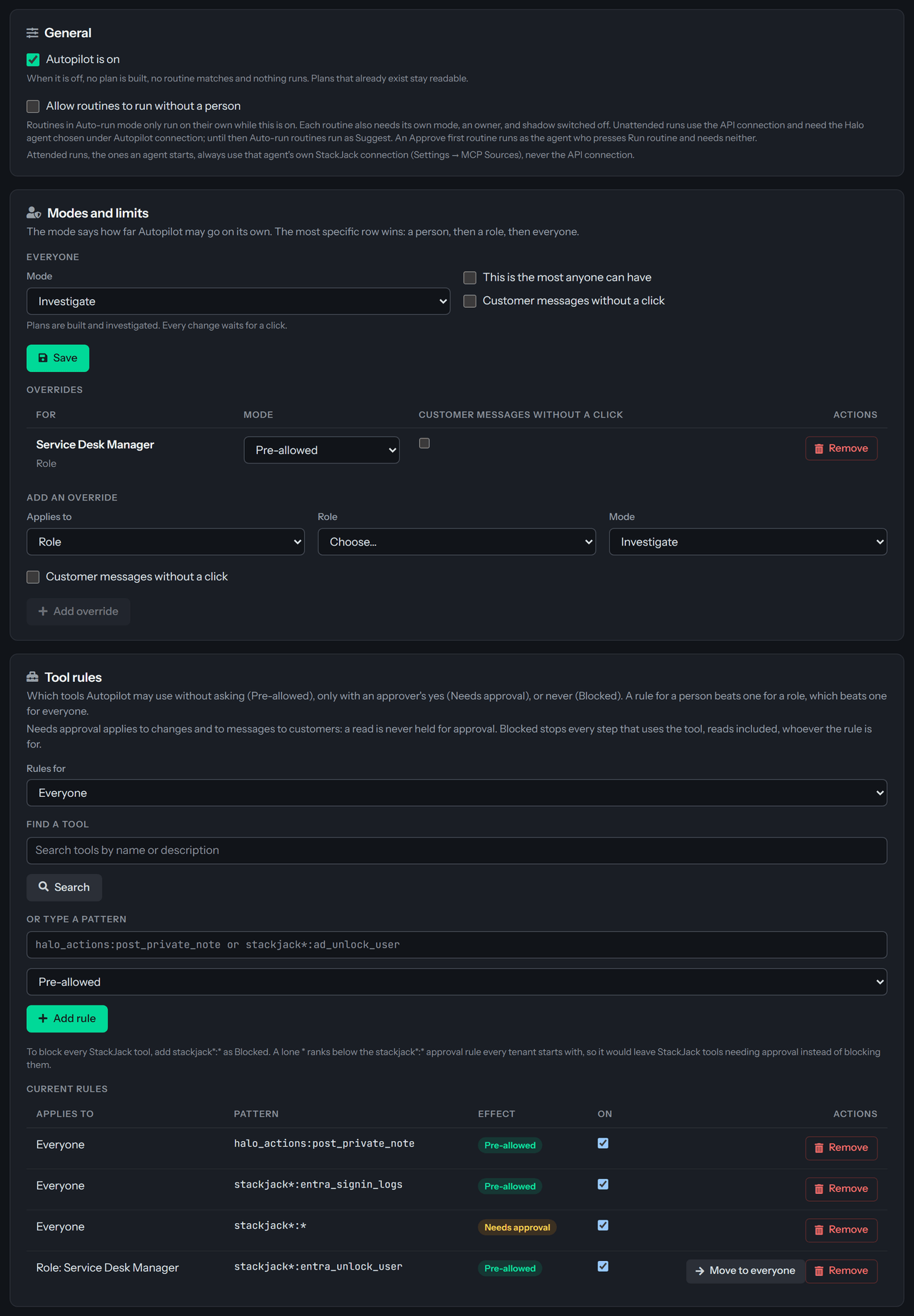
Check This is the most anyone can have to make that mode a limit. A role or a person can then be set lower, never higher. If you try to set someone above the limit, the page refuses and says which mode the limit is. It also refuses customer messages without a click for someone when the limit does not allow them. To raise someone, raise the limit first. If you set or lower the limit while a role or a person already has a higher mode, the change is saved and a warning names them: they are held to the limit when Autopilot runs. The limit caps routines too; see Autopilot routines.
Check Customer messages without a click only when you want messages to customers to go out without a person confirming them. On Autotask and ConnectWise PSA a customer message is a customer-visible note that your PSA e-mails; see Customer e-mail on Autotask and ConnectWise. It only has an effect in Full auto: in the other modes a message to a customer always waits for a click. A destructive tool always needs a click, whatever the mode.
To give a role or a person their own mode, use Add an override, choose Add override, and use Remove to return them to the default. Changing the mode or the customer-message box on an existing override saves at once. The most specific row wins: a person, then a role, then everyone. A person who has several roles with their own rows gets the strictest of them, and may send customer messages without a click only if every one of those rows allows it.
Decide which tools are allowed
Under Tool rules, pick who the rules are for (Rules for), search for a tool with Search, and choose Pre-allowed, Needs approval or Blocked next to it. You can also type a pattern written as the source, a colon and the tool, such as halo_actions:post_private_note or stackjack*:ad_unlock_user, and choose Add rule. A rule that pre-allows every tool is not accepted. To block every StackJack tool, add stackjack*:* as Blocked: a lone * ranks below the stackjack*:* approval rule every tenant starts with, so it would leave StackJack tools needing approval instead of blocking them. One rule exists per person, role or everyone and pattern: adding the opposite effect replaces the old rule. To change who a rule applies to, choose the new audience under Rules for and use the Move button on the rule. Each rule under Current rules has an On box to switch it off without deleting it, and Remove deletes it. StackJack lists its connector tools on demand, so search does not show them: to rule on one, type its name as a pattern, such as stackjack*:ad_unlock_user. Tools you have not ruled on follow the mode: reads are allowed, and a change waits for a click unless the mode is Full auto. Autopilot also adds a few starting rules of its own the first time it needs them, which you can see under Current rules: QuantumOps's own read tools are allowed and StackJack tools need approval.
The search lists QuantumOps's built-in steps too, marked HaloPSA (built in) and QuantumOps (built in). Two of them are made for playbooks: quantumops:escalate_to_dispatch, which sets the top priority, writes a private note of findings, raises a Critical notice and messages the dispatchers, and halo_actions:update_priority, which changes the ticket's priority. Both are changes, so the mode decides whether they wait for a click, and a rule can pre-allow, hold or block them like any other tool. See Built-in steps for playbooks.
Needs approval applies to changes and to messages to customers: a read is never held for approval. Blocked on a rule for everyone stops every step that uses the tool, reads included, and no role or person rule can lift it. Blocked on a rule for a role or a person does not stop the step outright: it goes to an approver instead, whether it reads or changes.
Each tool in the search results shows how Autopilot treats it: Read, Change or Customer message. A tool with send, email, reply, notify, sms or message in its name is treated as a customer message, so it waits for a click even if it only reads, such as list_email_templates. For a tool that does not message a customer, check It does not message a customer when you add the rule, or choose Not a customer message on the rule afterwards. Choose Use the tool name to go back to deciding by the name. The reply to a customer in HaloPSA is always a customer message.
Choose approvers
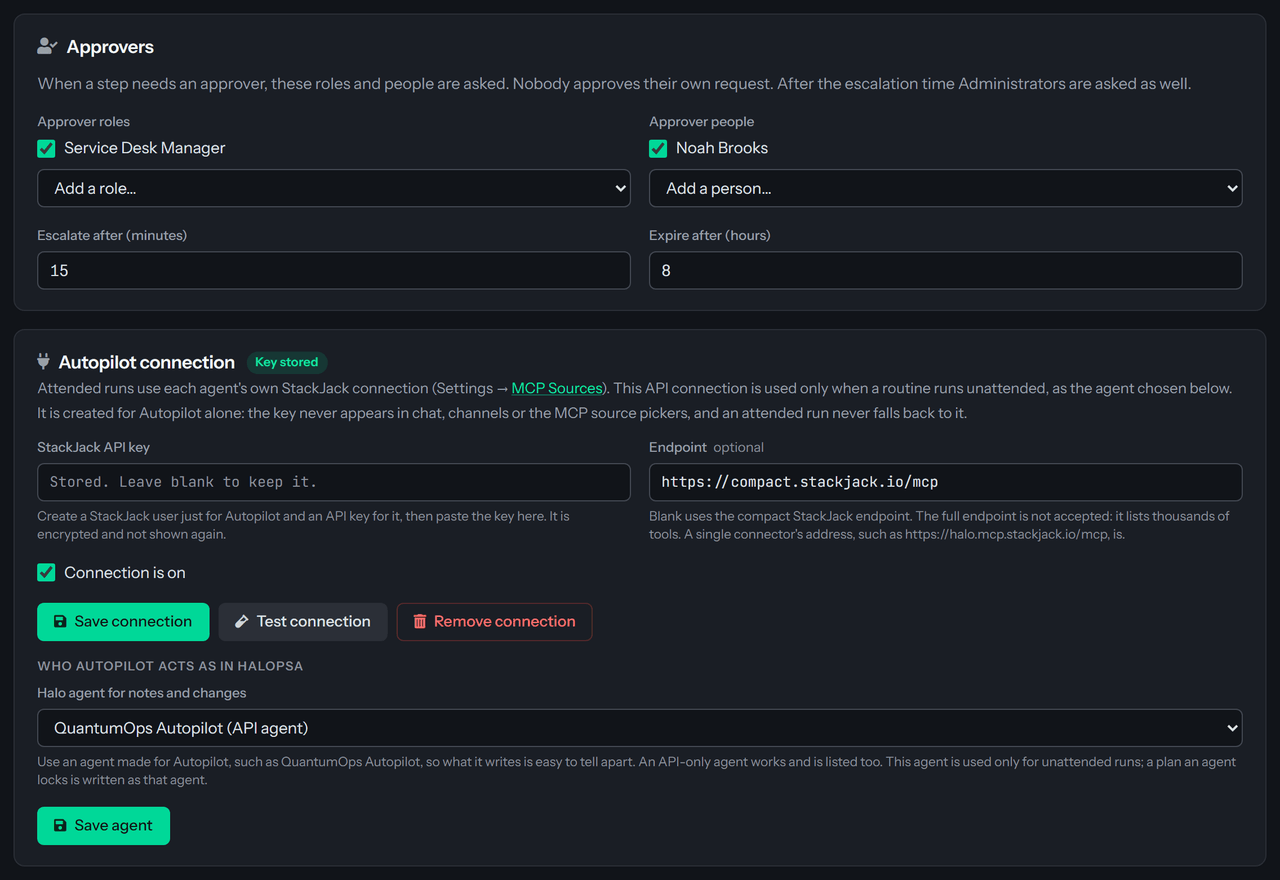
Under Approvers, choose Approver roles and Approver people. Each picker lists what is chosen as checked boxes (uncheck one to remove it), with a drop-down below to add another. A new organization starts with the Service Desk Manager role, escalation after 15 minutes and expiry after 8 hours. Escalate after (minutes) is how long a request waits before Administrators are asked as well. Expire after (hours) is how long it waits before it expires and the plan waits for the agent. Escalation must come before expiry. Nobody can approve their own request, and an Administrator who is not an approver can decide only after the request has escalated.
Approvers can also choose the outcome of a playbook's decision on a plan locked by someone else; see Playbook decisions.
Connect Autopilot to StackJack
Autopilot reaches StackJack in two ways, depending on who runs the plan:
- An agent runs the plan. A plan an agent locks, a routine in Suggest mode and a routine in Approve first mode all run as that agent. Each StackJack step then uses the agent's own StackJack connection, which they make under MCP Sources (My connections, then Connect on the StackJack row; see StackJack). StackJack applies that person's permissions and the audit shows them. Autopilot never falls back to the API connection for such a run. If the agent has not connected, the extension says so before they lock the plan; see How Ticket Autopilot works.
- A routine runs without a person. An Auto-run routine has nobody to sign in, so it calls StackJack as one dedicated user. That is the API connection described next.
For the API connection, create a user for Autopilot in StackJack and an API key for it. Then, under Autopilot connection, paste the key into StackJack API key, leave Endpoint blank for the compact StackJack endpoint (the full endpoint lists every tool StackJack offers and is not accepted; the address of a single StackJack connector is), and choose Save connection. Connection is on switches the connection off without removing it. The key must start with sjk_. It is encrypted, not shown again, and used by Autopilot and, once an Administrator turns stages on for it on MCP Sources, by the ticket pipeline (see Pipeline sources): the connection does not appear in chat, channels or the MCP source pickers. The pipeline only reads with it and never reads passwords, credentials or one-time passwords, and an Autopilot step that names a password tool is denied even when it is approved. Leave the field blank when you edit the connection to keep the stored key.
Choose Test connection to see how many tools the key can use. Remove connection deletes it; unattended runs then use only the built-in read tools.
Choose who Autopilot acts as
Under Who Autopilot acts as in HaloPSA, pick Halo agent for notes and changes and choose Save agent. Notes and changes that Autopilot writes on its own are recorded as that agent. Use an agent made for Autopilot, such as one named QuantumOps Autopilot, so that what it writes is easy to tell apart from a person's work.
- The list is read from HaloPSA each time the page opens. It holds every agent that is not disabled, and an agent that exists only for the API, which is how Autopilot's own agent is usually set up, is in it and marked (API agent). You do not have to import the agent into QuantumOps first.
- If the agent you saved is no longer in HaloPSA's list, it stays in the drop-down as, for example, Agent #123 (not found in Halo), so a saved choice never silently reads None chosen.
- If HaloPSA does not answer, the list falls back to the agents imported into QuantumOps, a warning says so, and API-only agents are not in it. Reload the page once HaloPSA is back.
- The agent is used only for unattended runs. A plan an agent locks is written as that agent.
Until an agent is chosen, an unattended run that would change something waits, and routines set to Auto-run run as Suggest. A routine set to Approve first runs as the agent who presses Run routine, so it does not need this.
Pick the tickets that are planned ahead of time
Precompute filters names the tickets that get a plan as soon as they are analyzed: Ticket types, Teams, Priorities and Clients. A ticket must match every filter you fill in, and any one of the values inside a filter. Leave all four empty and a ticket is planned the first time someone opens it. The exception is an organization whose guides need a plan at once: when Enable Interactive Guide is on and either Enable Halo Posting or Auto-Generate Guides is on, every ticket is planned as soon as it is analyzed, whatever these filters say. See Q-Director: guides and the guide simulator.
Set how sure Autopilot must be to decide on its own
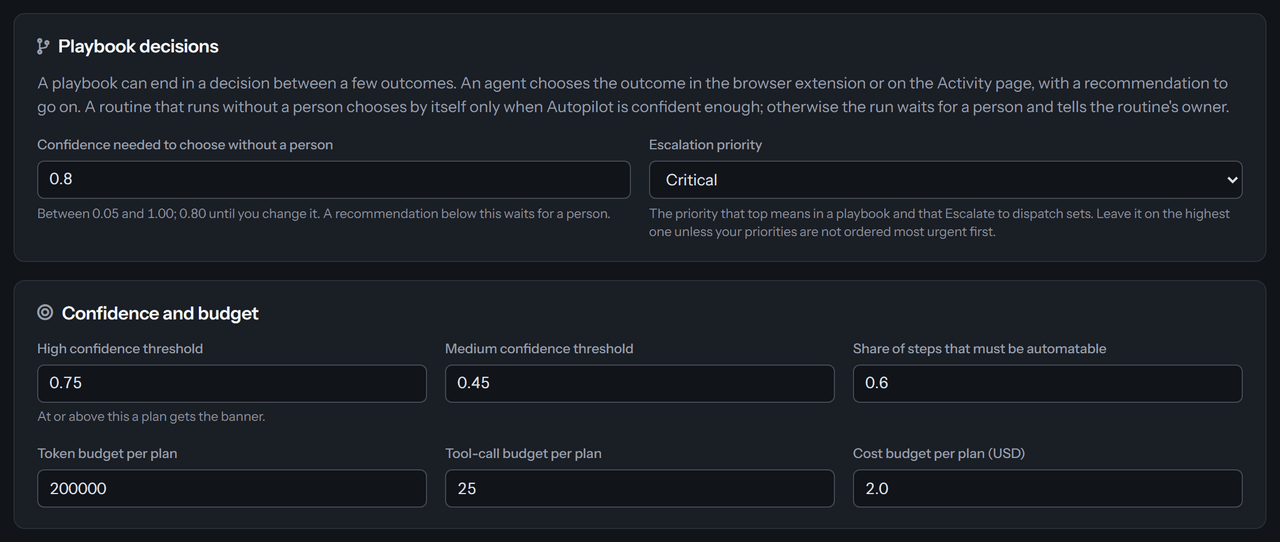
A playbook can end in a decision between a few outcomes. Under Playbook decisions:
- Confidence needed to choose without a person is how sure Autopilot has to be before a routine that runs without a person picks the outcome itself. It takes a value from 0.05 to 1.00 and is 0.80 until you change it. A recommendation below it waits for a person, and the routine's owner is told. An agent's own plan is never decided without the agent: the outcome is theirs to choose, with the recommendation ready. See End a routine with a decision.
- Escalation priority is the HaloPSA priority that top means in a playbook and that the escalate step sets. It starts as The highest priority in Halo. Leave it there unless your priorities are not ordered with the most urgent first; then choose the right one.
Both are form settings: they apply when you choose Save settings.
Tune confidence and budget
Under Confidence and budget, High confidence threshold is the score at which a plan gets the banner. A plan also needs at least one similar ticket that was fixed and stayed fixed, or a routine with a proven record, so a lower threshold never gives the banner to a plan with no evidence behind it. Medium confidence threshold separates a quiet suggestion from a weak one. Share of steps that must be automatable decides when a plan counts as mostly automatic. Token budget per plan, Tool-call budget per plan and Cost budget per plan (USD) cap what one plan may spend; a plan that reaches a cap waits. The defaults are 0.75 for High confidence threshold, 0.45 for Medium confidence threshold and 0.6 for Share of steps that must be automatable, with 200,000 tokens, 25 tool calls and $2.00 per plan. If the confidence weights stored for your account add up to more than 1, a warning appears here: a plan could then reach High confidence on little evidence.
See what Autopilot did
Open Autopilot activity to see plans, approvals and the audit of each plan.
Was this helpful?
Still need help? Ask the team