Autopilot activity
The Autopilot activity page lists the plans QuantumOps built and ran, the plans waiting for a person, the approvals asked for and decided, and an audit of every plan.
Last updated 25 days ago
The Autopilot activity page shows what Ticket Autopilot has done on your service desk. Open it from Autopilot in the sidebar. Administrators and Service Desk Managers can open it. Only Administrators can stop a plan. Refresh at the top reloads the page. The plans and the approvals are read when the page opens and again when you select Refresh or change the filter; they do not update by themselves.
Find a plan
The Plans table lists the current plan of every ticket, most recently changed first, up to 100. Use the filter above it to narrow the list:
Each row shows the ticket, the plan's title, its version, where it came from and its confidence, the status, how many steps are done, who locked it and when it last changed. A plan that a routine started shows the routine's name instead. Under the status, a waiting plan says in plain words what it waits for, followed by the details:
A plan that was stopped shows Stopped followed by the reason, and a plan that a newer version replaced shows Replaced by a newer version.
Read the audit of a plan
- On the plan's row, choose Audit. The audit opens above the table.
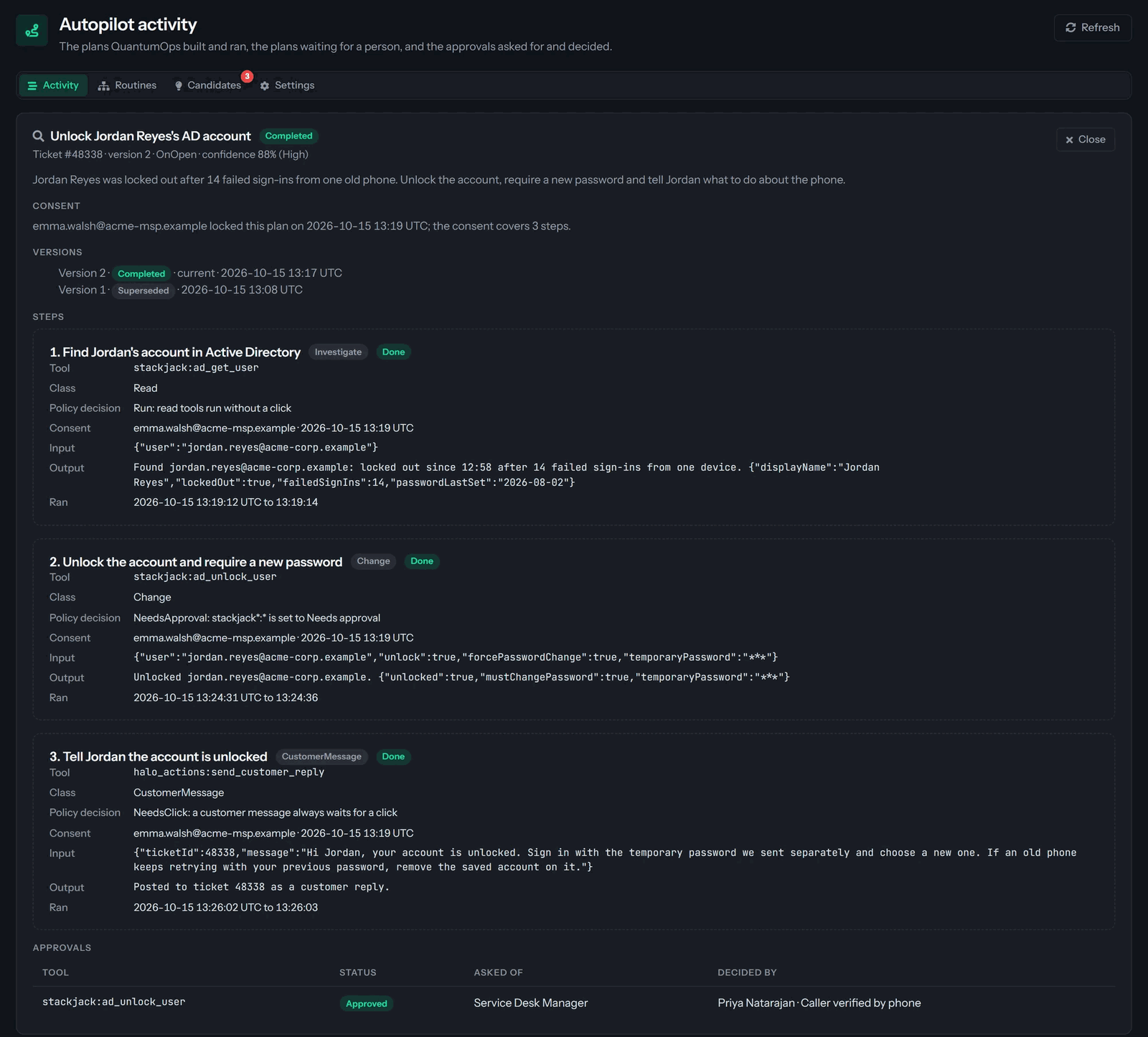
- Read the notes at the top, if there are any: why a plan failed or was stopped, or what a waiting plan waits for. Then read the consent line to see who locked the plan and how many steps their consent covers.
- Read Versions to see every version of the plan for that ticket and which one is current.
- Under Steps, each step shows its kind and status, with Destructive and Irreversible marks where they apply, then the tool, the class of action, the policy decision that applied, who consented, the input and output, any error and when it ran. Passwords, tokens and API keys in the input or output are hidden. A decision step also shows its question, the recommendation and, once someone chose, who chose which outcome; see Choose an outcome at a decision.
- Under Approvals, see who was asked to approve a step and who decided. Close closes the audit.
Choose an outcome at a decision
A plan that comes from a playbook can stop at a decision: a question about what the earlier steps found, with a few outcomes that each have steps of their own. Its row says Waiting for you and Step 3 needs your decision, followed by the question, and it has a Choose outcome button next to Audit. A routine that runs without a person stops here too, when its recommendation was not confident enough for Autopilot to choose; its row then says Step 3 needs a person to decide instead.
- Choose Choose outcome. The audit opens with the decision step.
- Read what the earlier steps found. The decision shows the question and Recommended with the outcome QuantumOps suggests, how confident it is and why. When there is no recommendation, a line says There is no recommendation for this decision. Choose from what the earlier steps found.
- Type a Note if you want to say why. It is optional and is saved with the choice.
- Choose the button of the outcome you pick, for example Choose False alarm. The page says The outcome was chosen. The plan carries on. and shows the audit again.
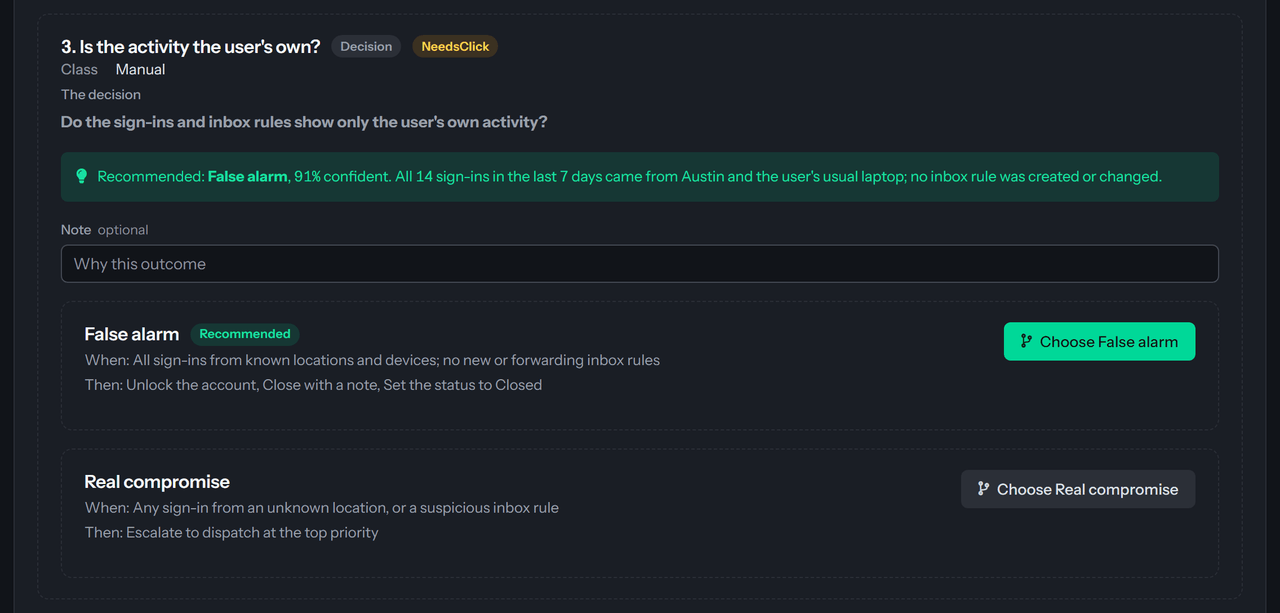
Each outcome card says When it applies and Then which steps follow, and carries Recommended or Chosen where that is true. Once an outcome is chosen, the step shows Chosen with who chose it and when, in words like Priya Natarajan chose False alarm on 2026-10-17 14:02 UTC: Caller confirmed by phone. When Autopilot took a confident recommendation by itself, the line starts QuantumOps Autopilot chose. The steps of the chosen outcome then appear in the audit after the decision and run under the usual rules.
Only the person who locked the plan, an approver or an Administrator can choose. For anyone else the buttons are replaced by a line such as Sam Technician has locked this plan. Only they, an approver or an administrator can choose an outcome. Only one choice counts: if someone else chose first, the page says so and the audit is read again, so it shows who chose and what stands. The extension offers the same choice, see Choose an outcome at a decision, and an Administrator sets how confident Autopilot must be before it chooses for a routine in Autopilot settings.
Stop a plan
Administrators see Stop plan on a plan that is locked, running or waiting.
- Choose Stop plan.
- Read the warning. Steps that already ran are not undone.
- Choose Stop plan again to confirm.
Approvals
The Approvals table lists the latest 50 approvals Autopilot asked for, with the ticket, the tool, whether each is pending, approved, denied or expired, escalated when it moved on to the Administrators, who it was asked of, who decided and any note, and when it was asked. Approvers decide in the browser extension or in a Teams or Slack message. See Approving Autopilot steps. To change who is asked, an Administrator opens Autopilot settings.
Was this helpful?
Still need help? Ask the team