How Ticket Autopilot works
Ticket Autopilot has a plan ready when you open a ticket; you review it, lock it, and QuantumOps runs it step by step, asking before it changes anything or writes to a customer.
Last updated 20 days ago
When you open a ticket in HaloPSA, the QuantumOps browser extension can already have a plan for it. A plan is a short list of steps. QuantumOps builds it from the ticket and its analysis, from similar tickets that were fixed before and what was done on them, from your documentation and memory, and from the tools you are allowed to use. You review the plan, change it if you want to, and lock it. QuantumOps then runs it step by step under the rules your administrator set, and asks before it changes anything or writes to a customer. This page is for the agents who work with plans. For how an administrator sets the rules, see Autopilot settings.
Before you start. Install the browser extension and sign in to it; Finding your way around the side panel explains the panel. To lock a plan, your QuantumOps login must be linked to your HaloPSA agent, because what Autopilot does on the ticket is recorded under that agent. Without the link, QuantumOps refuses with Your sign-in is not linked to a Halo agent, so Autopilot cannot attribute changes to you. Ask an administrator to link your account to your Halo agent. An Administrator can switch Autopilot off for the whole organization; it is on at the start. A plan exists only for a ticket that QuantumOps has analyzed.
Know when a plan is ready
QuantumOps builds a plan ahead of time for the tickets your administrator picked (by ticket type, team, priority or client), and for every other ticket the first time someone opens it. The Ticket tab of the side panel shows where the plan is. The card sits at the top of the tab.
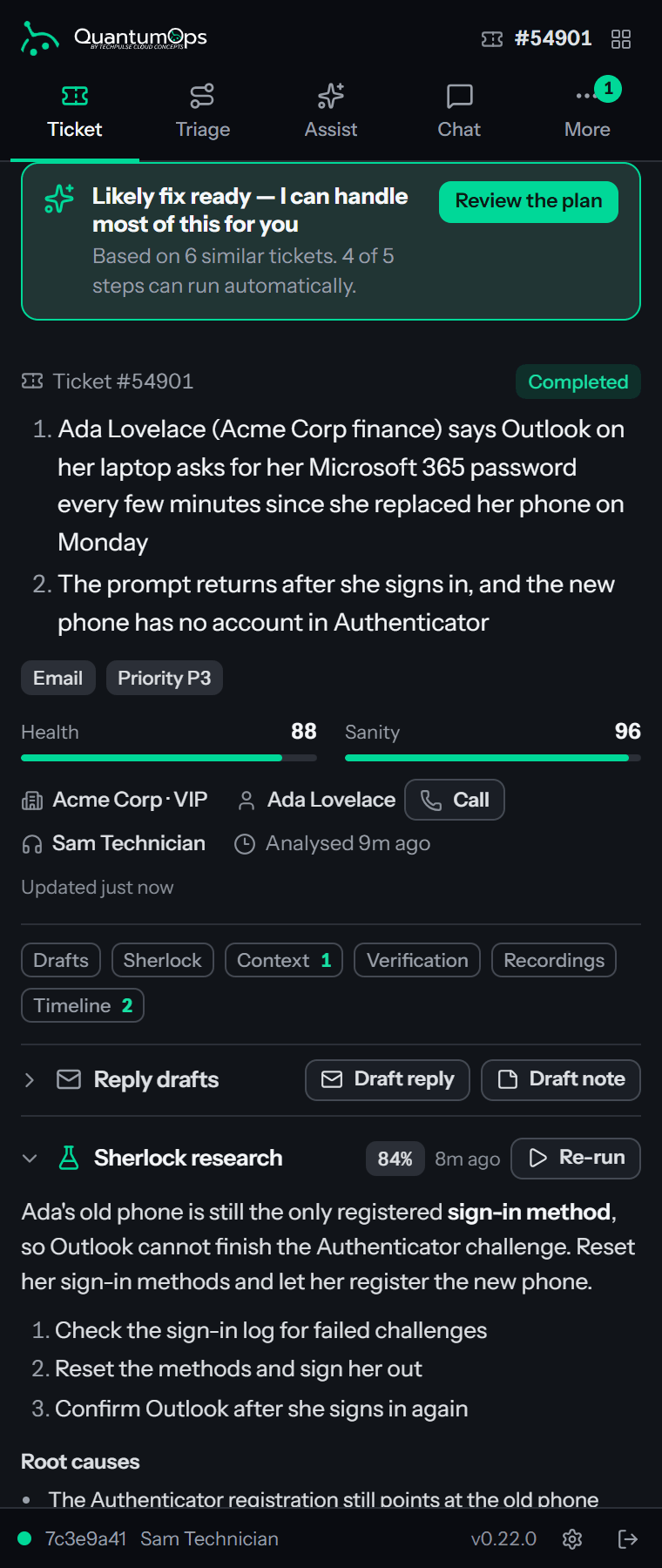
A plan that comes from a routine also shows the routine's name, and Waiting for you to run it when the routine waits for your go-ahead. Updating, the ticket changed means the ticket changed after the plan was built and a new version is on its way.
The extension icon in the toolbar shows a green FIX badge while the ticket you are looking at has a plan that is ready, has a high chance of working and is mostly automatic. The badge belongs to the browser tab you are looking at, so it goes when you open another ticket.
In the Ticket Dashboard in HaloPSA the same plan is shown read-only; see The resolution plan and reply drafts. You review and run it in the extension.
Review and change the plan
Select Review the plan to open the plan in the Assist tab. Assist tab describes every control. In short:
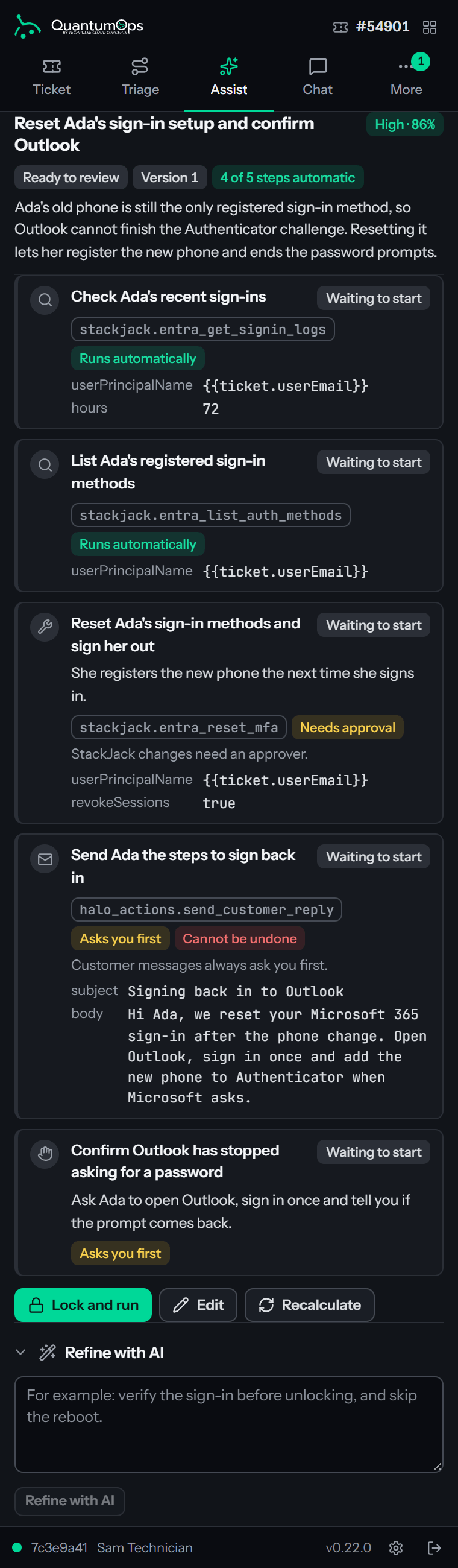
- Each step shows what kind it is (investigate, change, customer message or manual step), the tool it calls and the arguments it will use. A chip says what your organization's rules decide for the step: Runs automatically, Asks you first, Needs approval or Blocked by policy. Destructive and Cannot be undone mark steps that change things for good. When a step has run, its result appears under it.
- Why this plan shows the reason for the confidence and links to the similar tickets, the documents and the related records from your pipeline sources that the plan is based on. A related record appears as a Related record chip that opens the record in the system it comes from.
- Edit lets you move steps, remove a step, change a step's arguments or add a step from the tool catalog. Refine with AI takes an instruction and builds the next version. Recalculate builds a fresh plan. Plan from my instructions builds a plan from what you write. Other paths lists alternatives, and Use this path makes one the plan.
Every save, refine or recalculation makes a new version of the plan. You lock the newest one.
A plan that comes from a playbook can end in a Decision step: a question about what the earlier steps found, and a few outcomes that each have steps of their own. You do not change those outcomes in the editor, only move or remove the step. See Choose an outcome at a decision.
Lock the plan
When you are happy, select Lock and run. A dialog titled Lock and run this plan? lists, in plain words:
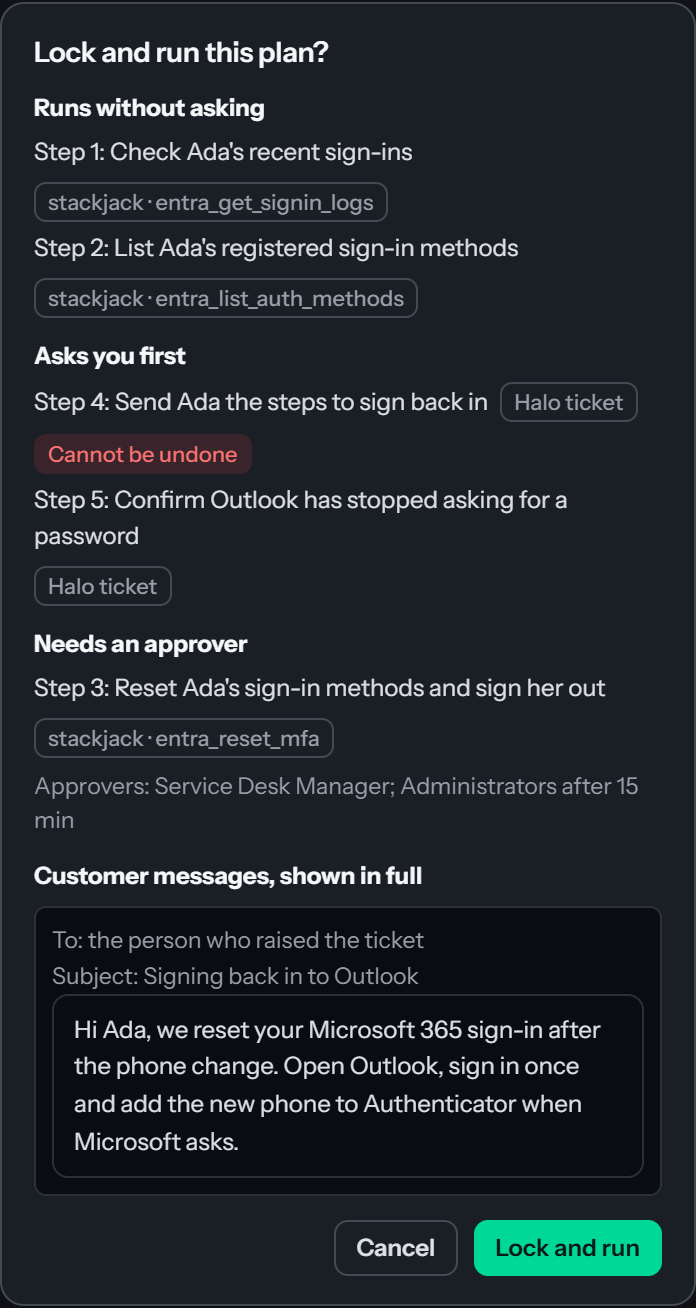
- Runs without asking: the steps that run on their own, and where.
- Asks you first: the steps that wait for your click.
- Needs an approver: the steps that wait for an approver, with who may decide.
- Blocked by policy, will not run: the steps your rules do not allow.
- Customer messages, shown in full: every message to the customer, exactly as it will go: its paragraphs, lists, bold text, indents and links as the customer will see them.
Steps that cannot be undone carry a Cannot be undone chip. Select Lock and run again to confirm. Locking records your consent against each step as you saw it, meaning its tool and its arguments. If you change a step afterwards, that step asks for your consent again.
A decision appears in the list as one step with all of its outcomes, in words like (you choose: False alarm, which runs Unlock the account [change] then Close with a note [change]; or Real compromise, which runs Escalate to dispatch at the top priority [change]; the steps of the one you choose run next). Each step of an outcome says how it counts, as a read, a change or a customer message, and irreversible when it cannot be undone, so you consent to writes you have seen. Choosing an outcome later does not skip the rules: each of its steps still runs, asks you or goes to an approver as the chips say.
Only a plan that is ready can be locked, and only one plan can run on a ticket at a time. If the plan changed while you read the summary, the lock is refused and the current version stays on screen so that you can review it and lock it again.
Connect StackJack before you lock
A plan you lock runs as you. A step that uses StackJack therefore runs with your own StackJack connection, so StackJack applies your permissions and shows your name in its audit. QuantumOps never swaps in a shared key for a plan you lock.
When the plan has such a step and you have not connected yet, Lock and run is not offered. In its place the panel shows a notice and a link:
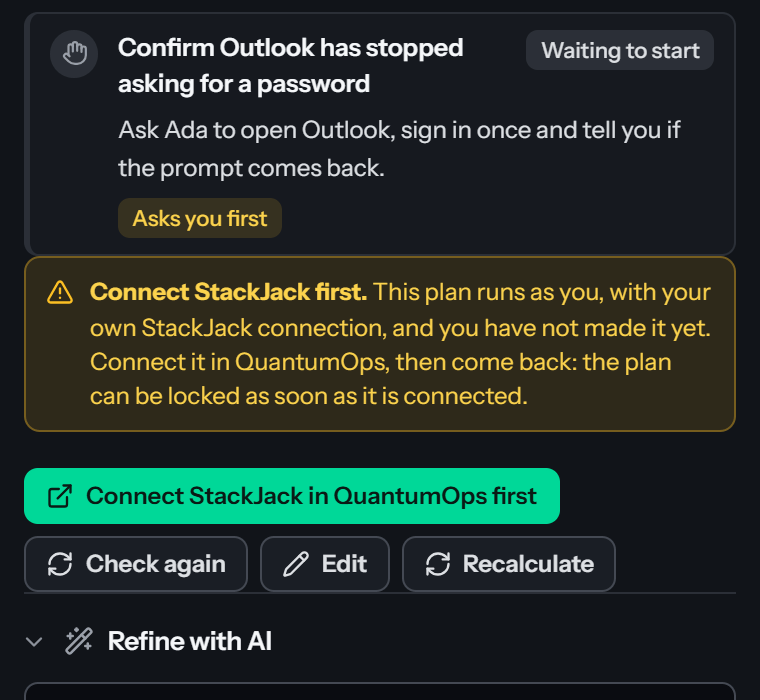
- A notice that reads Connect StackJack first. This plan runs as you, with your own StackJack connection, and you have not made it yet. Connect it in QuantumOps, then come back: the plan can be locked as soon as it is connected.
- Connect StackJack in QuantumOps first opens the MCP Sources page of QuantumOps in a new browser tab. Under My connections, press Connect on the StackJack row and sign in with your own StackJack account; StackJack has the steps.
- Back in the panel, select Check again. The panel also looks again when you return to it. As soon as the connection is there, Lock and run appears.
If you open the lock dialog and the connection is missing, it shows the same notice and link with Close instead of a confirm button. A plan that ends in a decision counts the steps of every outcome, because the one you pick later has to run too. Run routine is hidden until the connection is made. Routines that run by themselves use the Autopilot connection that an Administrator set up, so they never ask you to connect; see Autopilot settings.
What runs on its own
Your administrator chooses how far Autopilot may go. Steps that only read, such as looking something up, run in every mode unless a rule blocks them.
- In Investigate mode every change waits for your click.
- In Pre-allowed mode a change runs by itself only when your administrator pre-allowed that tool. Other changes wait for your click.
- In Full auto mode changes run by themselves, unless a rule sends them to an approver or blocks them.
Some things never happen silently, whatever the mode:
- A message to the customer waits for your click, unless the mode is Full auto and your administrator allowed messages without a click. A message is also checked against your communication policy; a message that breaks it is not sent.
- A destructive action always waits for your click.
- A step that names a tool which reads or sets a password, credential, secret or one-time password never runs, even when it is approved. See Tool Governance.
- A step that you do yourself, a manual step, waits until you mark it done.
- A step that a rule marks as needing approval goes to an approver. See Approving Autopilot steps. A step that your rules block for everyone does not run; one that is blocked only for you or your role goes to an approver.
While a plan runs
QuantumOps runs the plan inside QuantumOps, so it carries on when you close the panel or the ticket. The Ticket tab and the Assist tab show each step as it finishes.
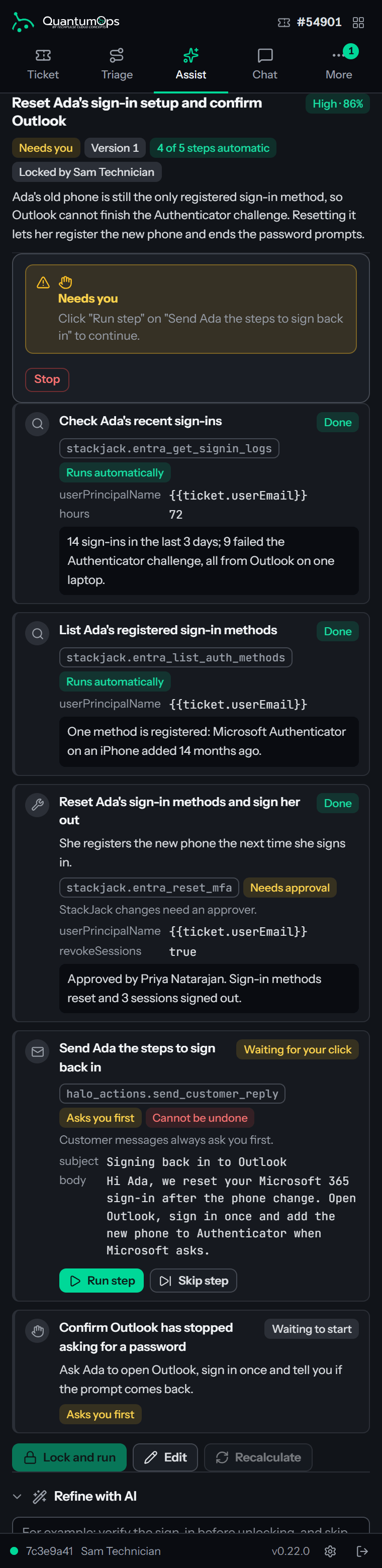
- After a step that investigates or changes something, Autopilot checks the result against what the plan expected. It can carry on, adjust the plan or stop and tell you why. When it adjusts the plan, the new version waits for you. Only the steps that changed ask for your consent again, and you lock the plan again.
- Before every change, Autopilot checks whether someone else has acted on the ticket since the previous step. If they have, the plan waits for you. If the ticket was closed in the meantime, the plan stops.
- A plan that costs more than your administrator's limit for one plan waits. If AI processing is paused, a running plan waits and carries on when processing resumes.
- When the plan needs you, a note pops up in the panel, for example Autopilot needs you on ticket #4821, and the plan shows Needs you.
- At the end, QuantumOps adds one private note to the ticket. It starts QuantumOps Autopilot and lists each step, how it ended, who confirmed or approved it and its result.
Once a plan is locked, running or waiting, only the person who locked it, an approver or an Administrator can change, stop or continue it. Everyone else sees the plan read-only and a line such as This plan is being run by Sam Technician; ask them or an approver.
When the plan needs you
The plan says what it is waiting for. Open it and use the button on the step.
Select Stop and then Stop the plan to end a plan. Steps that already ran stay done, because Autopilot cannot undo them, and nothing more runs until you lock a plan again.
Choose an outcome at a decision
Some plans, usually those that come from a playbook, end in a decision. The steps before it gather evidence, such as a user's sign-in logs and mailbox rules. The decision then picks one of a few outcomes, and each outcome has steps of its own. Those steps are not part of the plan until an outcome is chosen, and the steps of the outcomes nobody chose never run.
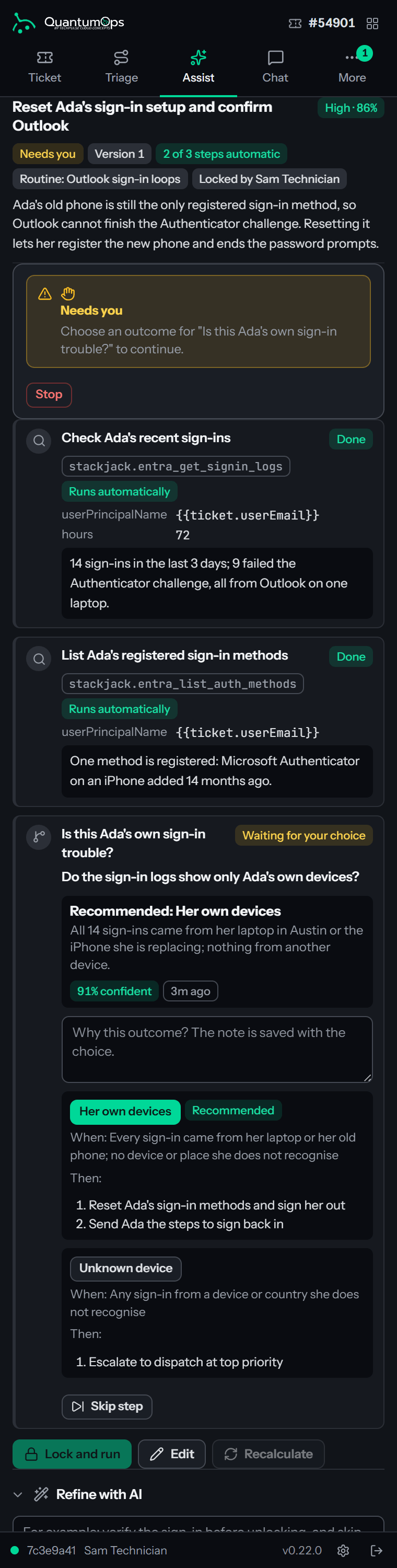
When the plan reaches the decision it stops with a Needs you notice, Choose an outcome for "…" to continue., and the step reads Waiting for your choice. The step shows:
- The question the evidence has to answer.
- Recommended: the outcome QuantumOps suggests, how sure it is, for example 91% confident, how long ago it worked it out, and its reason. The chip is green from 80 percent, amber from 50 percent and gray below.
- A note box, Note (optional), saved with your choice.
- A button for each outcome. The recommended one is green and tagged Recommended. Under each button, When: says what evidence points to that outcome and Then: lists the steps that run if you choose it.
Read what the earlier steps found, then select the button of the outcome you pick. It does not have to be the recommended one. QuantumOps adds that outcome's steps after the decision and the plan carries on. Each of those steps runs as its chip says: by itself, after your click, after an approver, or not at all when your rules block it.
Afterwards the step reads Chosen: and the outcome, with who chose it and when, why that outcome applies, your note, and what QuantumOps had recommended. When Autopilot chose by itself for a routine, because its recommendation was confident enough, the step also says Automatic. An Administrator sets how confident that is; see Autopilot settings.
Some things to know:
- Only the person who locked the plan, an approver or an Administrator can choose. For everyone else the step reads Waiting for a choice and has no buttons. The same people can choose from Autopilot activity, where a plan that waits at a decision has a Choose outcome button.
- Only one choice counts. If someone else chose first, or Autopilot did, the panel says who, for example Priya Natarajan already chose "False alarm" for this decision. If the plan changed while you were deciding it says The plan changed while you were deciding. Check the decision and try again.
- Skip step on a decision asks first, because skipping takes no outcome: Skipping takes no outcome: none of the outcome steps will run. Choose Skip decision to confirm.
- A decision step is never marked done on its own, and Mark done is not offered for it.
Escalating to dispatch
A playbook's outcome can end with a step called Escalate to dispatch. It is a change, so your rules decide whether it runs by itself, asks you first or needs an approver. When it runs it sets the ticket to the top priority, posts the findings from the earlier steps and the decision as one private note, raises a Critical notice on the ticket and sends a direct message to the dispatchers on shift, or to every dispatcher when none is on shift. The customer is never contacted. The note names who escalated: the agent whose plan it is, or QuantumOps Autopilot for a routine that ran without a person. See Q-Notice and Q-Notify, and Built-in steps for playbooks for the details an Administrator sets.
Your administrator can see everything
Administrators and Service Desk Managers can see every plan, its consent and each step's input and output on Autopilot activity. Passwords, tokens and API keys in them are hidden.
Was this helpful?
Still need help? Ask the team