Autopilot routines
Autopilot routines solve tickets that match a pattern on their own, under limits an Administrator sets; this page covers creating and editing a routine, ending it in a decision, the built-in escalate and priority steps, shadow mode and run history.
Last updated 21 days ago
A routine handles tickets that match a pattern. Depending on its mode it suggests a plan, waits for one click or runs by itself. Administrators create and manage routines on the Autopilot routines page: open Autopilot in the sidebar, then choose Routines. Routines follow the tool rules and approvers set in Autopilot settings, except that a routine's own Allowed tools list can pre-allow tools for that routine alone. The quickest way to a good routine is a playbook that Autopilot wrote from your closed tickets. See also How Ticket Autopilot works.
Create a routine
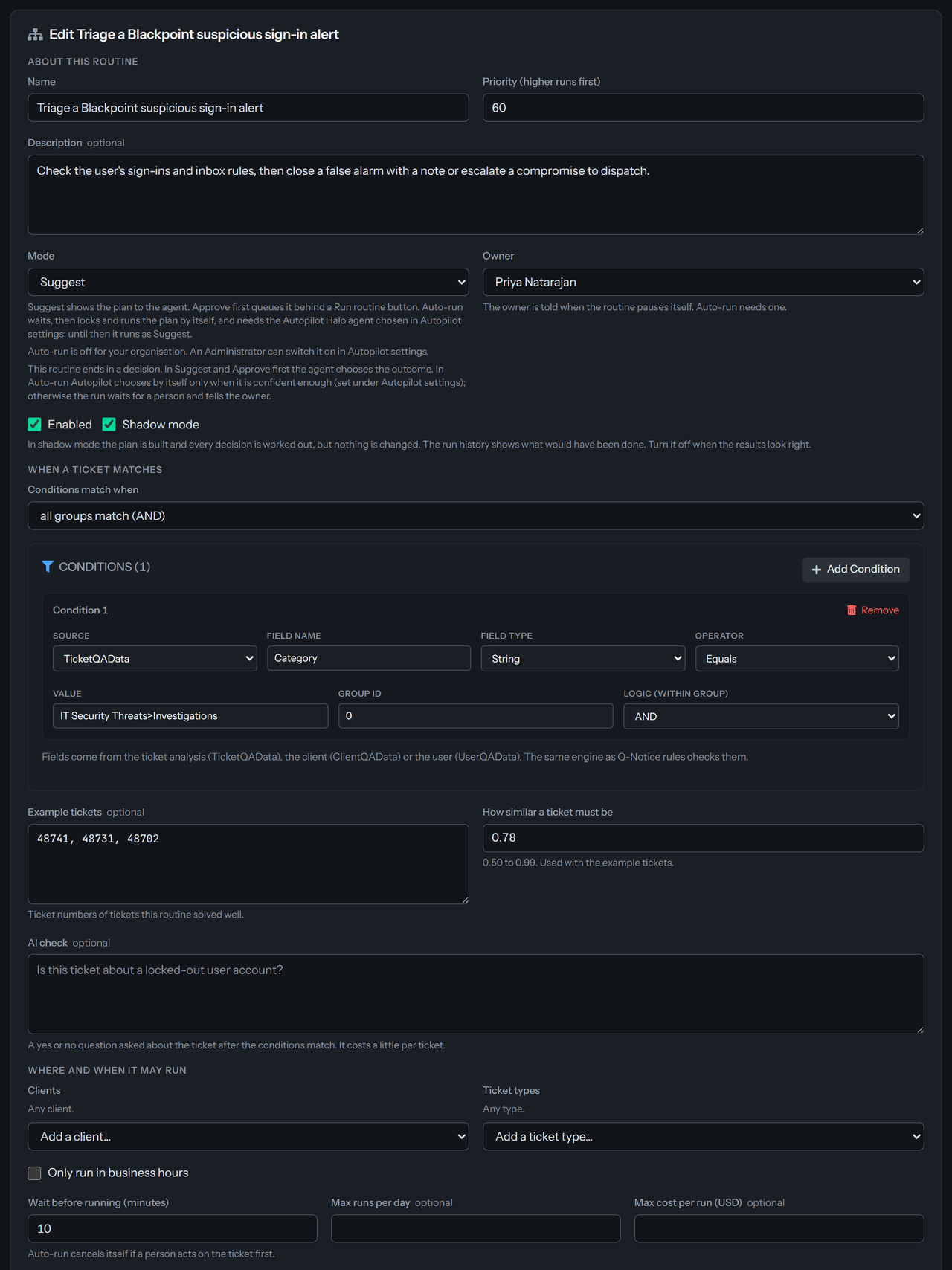
- Choose New routine, or choose Create routine on a playbook. The editor opens, filled in from the playbook when you came from one.
- Under About this routine, enter a Name, a Priority (higher runs first) and a Mode. When several routines fit the same ticket, only the one with the highest priority is used.
- Under When a ticket matches, add conditions, Example tickets, or both. A routine with neither is not saved, because it would run on every ticket; an AI check alone does not count. The conditions use the same editor and engine as Q-Notice rules, and Conditions match when chooses whether all groups or any group must match. Example tickets are ticket numbers separated by commas and need How similar a ticket must be, from 0.50 to 0.99. AI check asks a yes or no question about the ticket after the conditions and the examples match.
- Under What it does, choose Add step for each step: a Kind (Investigate, Change, Customer message or Manual), a Title, a Tool source and Tool and its Arguments (JSON), or a Message to send for a customer message. A Change or Investigate step needs a tool; a Manual step has none and keeps its Detail as an instruction for the agent. Check Cannot be undone on a step that cannot be reversed: it then always waits for a click, even in Auto-run. A routine can have up to ten steps, a decision included. A slot is a value that differs from ticket to ticket. Add it with Add slot, give it a name, and write
{{slot.name}}in a title, a detail or the arguments, using the slot's own name afterslot.. Filled from is eitherextract, where Autopilot reads the value from the ticket with a small AI call, orticket.followed by a ticket field, such asticket.userEmail. If a slot cannot be filled for a ticket, the routine only suggests its plan. - To branch on what the steps find, choose Add a decision (see the next section).
- Choose Save routine. If the page lists problems, fix them and save again.
End a routine with a decision
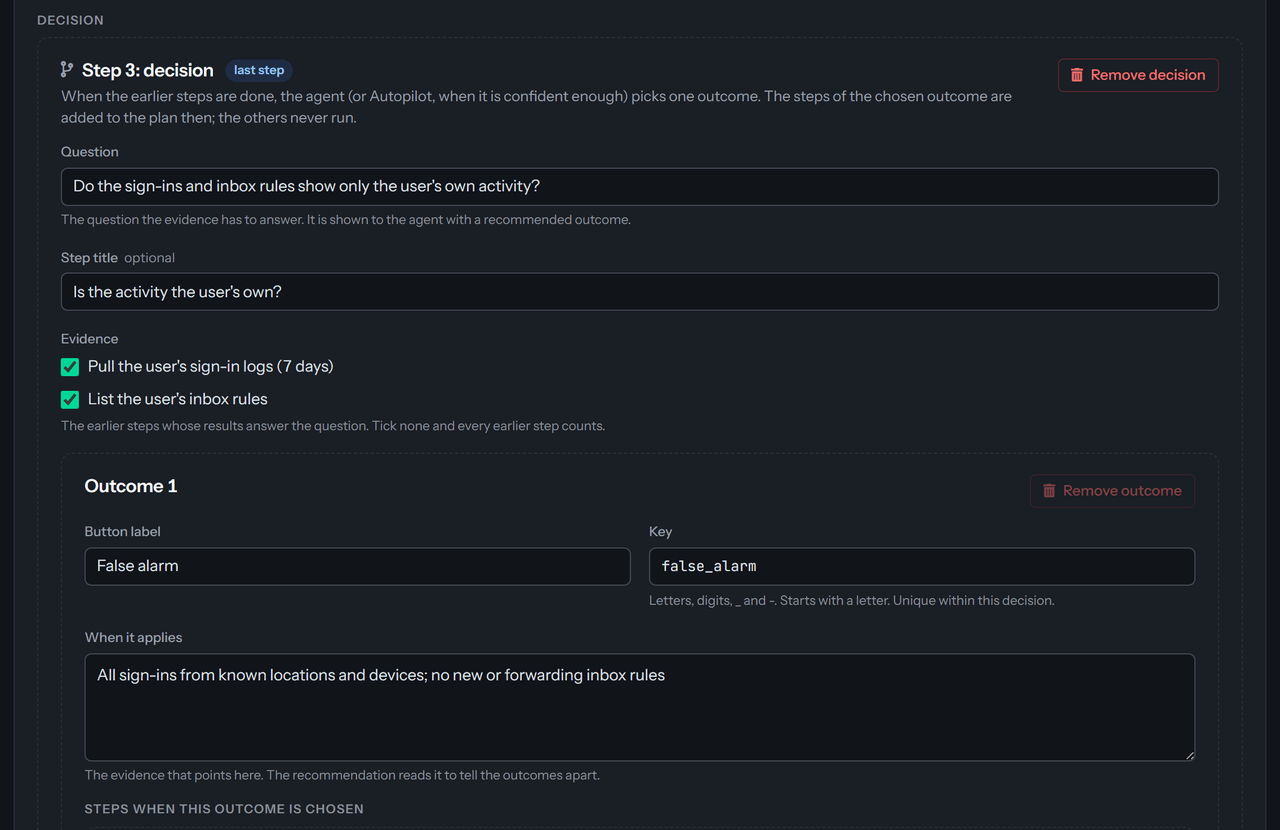
Some tickets need a judgment before the last steps: is this alert a false alarm or a real compromise? A routine can end in one decision that picks one of two to four outcomes, and each outcome has its own steps. A routine has one decision at most, it is always the last step, and a step you add later goes in before it. There are no decisions inside an outcome.
Choose Add a decision under the steps. It starts with an empty question and two outcomes to fill in:
- Question is what the evidence has to answer, for example Is the activity the user's own? The agent sees it with the recommended outcome. Step title is optional.
- Evidence selects the earlier steps whose results answer the question. Select none and every earlier step counts.
- Each outcome has a Button label, a Key (letters, digits,
_and-, starting with a letter and different for each outcome of the decision) and When it applies. Write When it applies carefully: it is how the recommendation tells the outcomes apart, for example All sign-ins from known locations and devices; no new or forwarding inbox rules. - Under Steps when this outcome is chosen, choose Add step to this outcome for up to eight steps. An outcome with no steps ends the plan when it is chosen. Add outcome adds a third or fourth way, Remove outcome takes one out (a decision keeps at least two), and Remove decision takes the whole decision out.
The steps of an outcome are not part of the plan until someone chooses that outcome. The steps of the outcomes nobody chose never run. An outcome's StackJack steps count when an agent locks the plan: the extension asks for the agent's own StackJack connection before the lock, because the outcome picked later has to run too.
What happens at the decision
When a plan reaches the decision, QuantumOps recommends one outcome from the question, the When it applies text of each outcome and what the evidence steps found, including any note an agent left on a manual step. The recommendation comes with a confidence and a reason. After that, the mode of the routine decides who chooses:
When an Auto-run routine waits for a person, the owner gets the notice Autopilot routine "name" needs a person to decide on ticket #number followed by the question, as long as Failures is checked under Tell the owner. An unattended plan has no person who locked it, so an approver or an Administrator chooses. The run then carries on.
Choosing an outcome does not skip any rule. Each step of the chosen outcome goes through the modes, the tool rules and the approvers like any other step, and a customer message still waits for a click unless the routine and the settings allow otherwise. Autopilot only ever takes the outcome it recommended, and only at or above the threshold; it cannot pick another one. A later adjustment of the plan cannot swap a chosen outcome for another outcome's steps.
A routine written before decisions existed still works as it is: a plain list of steps.
Built-in steps for playbooks
Two steps are built in, so a playbook can act without a connected tool. Enter them in the Tool source and Tool fields of a Change step as shown.
Escalate to dispatch
The source is quantumops and the tool is escalate_to_dispatch. It does four things in this order:
- Sets the ticket to the top priority.
- Posts the findings as one private note: what each earlier step found, the decision and the reason for it, and any extra text from the optional
findingsargument. The note is posted as the agent whose plan it is, or, for a run without a person, as the Halo agent chosen under Autopilot connection in Autopilot settings. Its text names who escalated: that agent, or QuantumOps Autopilot for a run without a person. - Raises a Critical Q-Notice on the ticket, which also shows in the extension as described in Moments and alerts.
- Sends a direct Q-Notify message to each dispatcher on shift, or to every dispatcher when none is on shift. A dispatcher is an active agent whose Role is
Dispatchin Team Management.
The customer is never contacted. The optional headline argument (up to 120 characters) titles the notice and the message. The four effects are independent: if one is refused, the others still happen, and the step's result names what was not done. The step fails only when nothing at all could be done.
Change priority
The source is halo_actions and the tool is update_priority. Its priorityId is a HaloPSA priority id, or top. top means the Escalation priority on Autopilot settings. When none is set, QuantumOps uses the priority HaloPSA lists with the name Critical, then P1, Emergency or Urgent, and failing that the one with the lowest number. A tenant whose priorities do not say which is the top one should set Escalation priority.
Both are changes, never customer messages. The mode, the tool rules and the approvers decide whether each waits for a click or an approval, and you can write rules for them as quantumops:escalate_to_dispatch and halo_actions:update_priority. See Decide which tools are allowed.
Choose a mode
A routine's plan gets the Likely fix ready banner in the extension only when the routine has a proven record: at least 90 percent of its finished runs in the last 90 days stayed fixed (it needs five of them), or, until then, at least 90 percent of the tickets behind the playbook it came from. Any other plan, including one from a routine you wrote by hand that has no record yet, shows as a suggested approach with Medium or Low confidence.
Auto-run needs Allow routines to run without a person in Autopilot settings and an Owner. The option is grayed out until the setting is on. Auto-run also needs the Halo agent chosen under Autopilot connection in Autopilot settings; until it is, it runs as Suggest, and saving the routine says so. Approve first runs as the agent who presses Run routine, so it needs neither the agent nor that setting. A routine's StackJack steps run on the Autopilot connection only when it runs without a person; when an agent runs the plan, the steps use that agent's own StackJack connection. See Connect Autopilot to StackJack.
Use shadow mode first
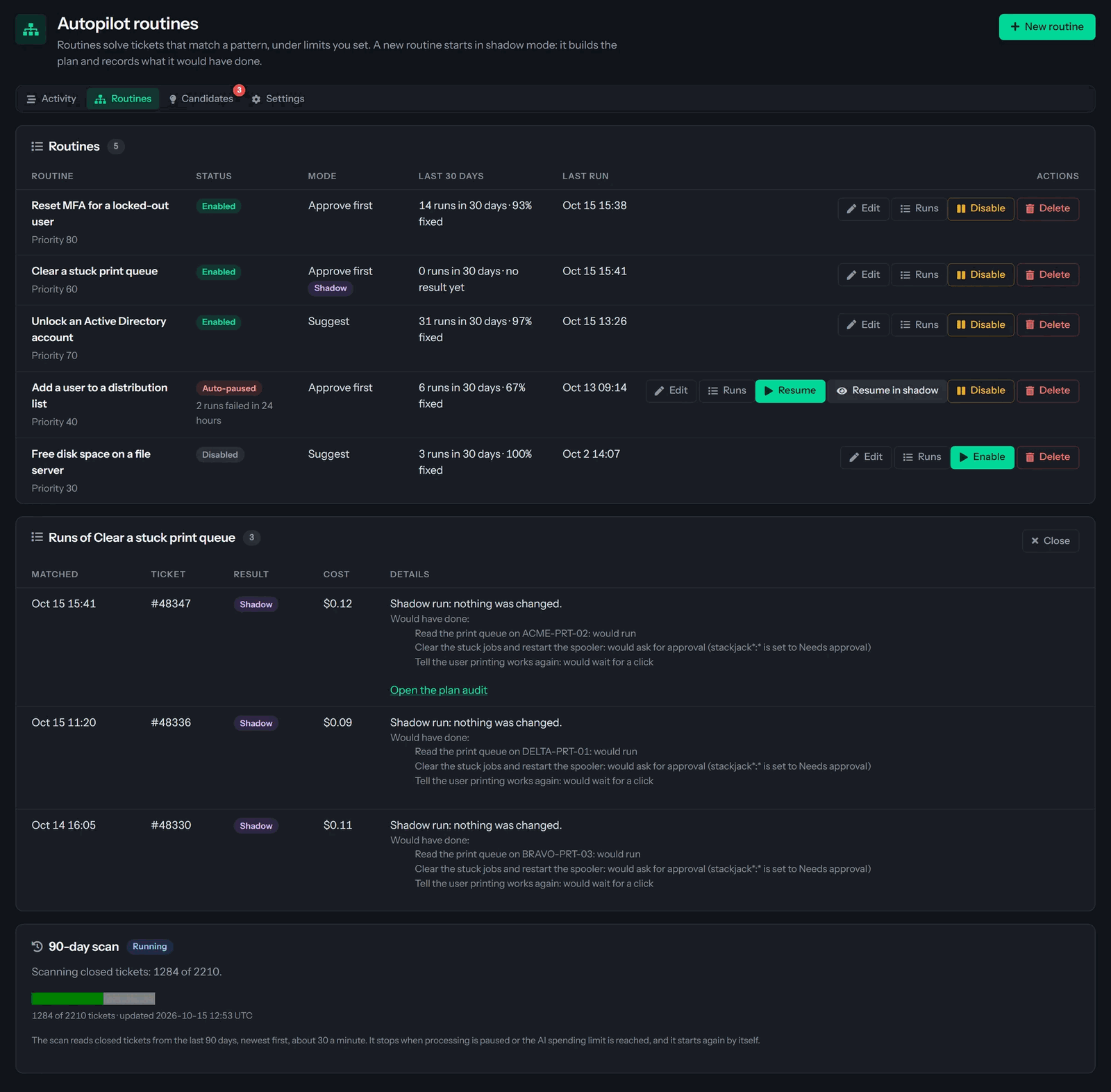
A new routine starts with Shadow mode on. The plan is worked out and every policy decision is made, but nothing is saved to the ticket or changed. Choose Runs on the routine to see each run. A shadow run lists what it Would have done, step by step: it would run, wait for a click, ask for approval or be blocked. A run that made a real plan carries an Open the plan audit link. A shadow run never chooses a decision's outcome, so the steps of the outcomes are not in its list. Turn shadow mode off when the results look right.
Set limits
Under Where and when it may run, restrict a routine to Clients and Ticket types, to business hours (Only run in business hours, Time zone, which is optional and defaults to your organization's schedule time zone, Start, End and the days of the week, Monday to Friday by default), and cap it with Max runs per day and Max cost per run (USD). A ticket that is analyzed outside the business hours, or after the daily limit is reached, is not matched by the routine.
Allowed tools is a list of tools this routine may run without anyone approving them, one pattern per line and written source:tool, up to 50 of them. A pattern that matches every tool is refused. When the list is filled in, a change or a customer message that uses a tool on the list runs on its own, even where a Needs approval rule would otherwise hold it for an approver, and one that is not on the list waits for an approver. Reads are not affected. A Blocked rule always wins: for everyone it blocks the step, and for a role or a person it sends that person's step to an approver. Left blank, the routine follows the tool rules in Autopilot settings.
A routine also stays under the limit on Modes and limits in Autopilot settings: with the limit at Investigate, for example, every change a routine makes still waits for a click. A routine writes to customers without a click only when you select This routine may send customer messages without a click, the limit (if you set one) allows customer messages without a click, and, when Allowed tools is filled in, halo_actions:send_customer_reply is on the list. Keep shadow mode on until the drafts look right.
Read the routines list
The Routines list shows each routine's status (Enabled, Disabled or Auto-paused) and its mode, with a Shadow badge when shadow mode is on. The Last 30 days column counts live runs only and shows the share that stayed fixed, or no result yet until the routine has five finished runs in those 30 days. Shadow runs are not counted there; they appear under Runs.
Pause, resume and delete
A routine pauses itself when two of its runs that had started fail within 24 hours, or when more than one in five of its last ten finished runs was reopened within 14 days of the run (it needs at least five finished runs to judge). It shows Auto-paused with the reason. Under Tell the owner in the editor you choose which events send a notice: Shadow results, Failures, When it pauses itself and Every completed run. Failures and When it pauses itself are on for a new routine. A notice is shown in the app and e-mailed to your organization's primary e-mail address. Choose Resume to let it run again, or Resume in shadow to watch it first. Disable and Enable switch a routine off and on; enabling a routine that is still auto-paused does not resume it.
Delete asks you to confirm with Delete routine, then removes the routine and its run history. A routine with a run in progress cannot be deleted: Autopilot disables it so no new run starts and asks you to let the runs finish or stop their plans on Autopilot activity.
Follow the 90-day scan
The 90-day scan card, shown on this page and on the Candidates tab, shows how far Autopilot has read through closed tickets from the last 90 days, newest first, about 30 a minute. It is what the playbooks are written from, and it re-reads the window by itself when playbooks are introduced. See Autopilot playbooks.
Was this helpful?
Still need help? Ask the team