Autopilot playbooks
Autopilot reads your closed tickets and writes down how your agents resolve each kind of ticket, as a playbook with the checks they make, the decision they take and what they do next; this page covers reading a playbook, the time it saves and turning it into a routine.
Last updated 21 days ago
A playbook is how your agents resolve one kind of ticket, written down from your closed tickets. It lists the checks they make, the decision they take and what they do next, whether or not they used a tool. Take a Blackpoint alert about a suspicious sign-in. Agents pull the user's sign-in logs and look at the mailbox rules, then decide whether the activity is the user's own. A false alarm is unlocked and closed with a note. A real compromise is escalated to dispatch. Autopilot finds playbooks like that for you, and you turn the good ones into routines.
Playbooks are on the Candidates tab of Autopilot, which only an Administrator can open: choose Autopilot in the sidebar, then Candidates. For how plans and routines use a playbook once it exists, see How Ticket Autopilot works and Autopilot routines.
How Autopilot finds a playbook
- First it reads your closed tickets. The 90-day scan goes through the tickets closed in the last 90 days, newest first, and writes down what was checked, decided, done and said on each. A ticket that was closed without any real work, such as a duplicate or spam, teaches nothing and is left out. Notes that QuantumOps wrote itself (Q-Director triage, Qubit, Autopilot) are context, not work an agent did.
- Then it groups tickets by the kind of issue. The group is the category together with what the ticket is about. It is never the sequence of actions in HaloPSA, which is mostly triage noise: a group of forty tickets about one shared-mailbox request is one playbook, however the agents clicked through them.
- It keeps the groups that qualify. A kind of ticket becomes a playbook when at least Minimum matching tickets closed tickets within Look back (days) were resolved the same way and at least Minimum success rate (%) of them stayed fixed. A ticket that is reopened within 14 days counts as not fixed. A ticket closed less than 14 days ago counts toward the success rate only once it has been reopened.
- Last it writes the playbook. The steps are written from a sample of the group's tickets, using only the tools your organization can actually use. Where no common way of resolving the tickets exists, no playbook is written for the group, and it is looked at again at the next run.
The scan starts by itself after the release, stops while Autopilot is switched off, processing is paused or the AI spending limit is reached, and carries on by itself afterwards. Autopilot looks for playbooks when the scan has finished and again every night. A playbook is written again when more than half of its group's tickets have changed; otherwise its numbers are refreshed.
If you used candidates before. Candidates found before playbooks were grouped by the actions taken in HaloPSA, and some read like Repeated fix: agent.action:change_priority. On the first run they are hidden. Candidates you dismissed stay dismissed, and the ones you already turned into routines are untouched. The scan reads the last 90 days again into the new format; nobody has to start it.
Read a playbook
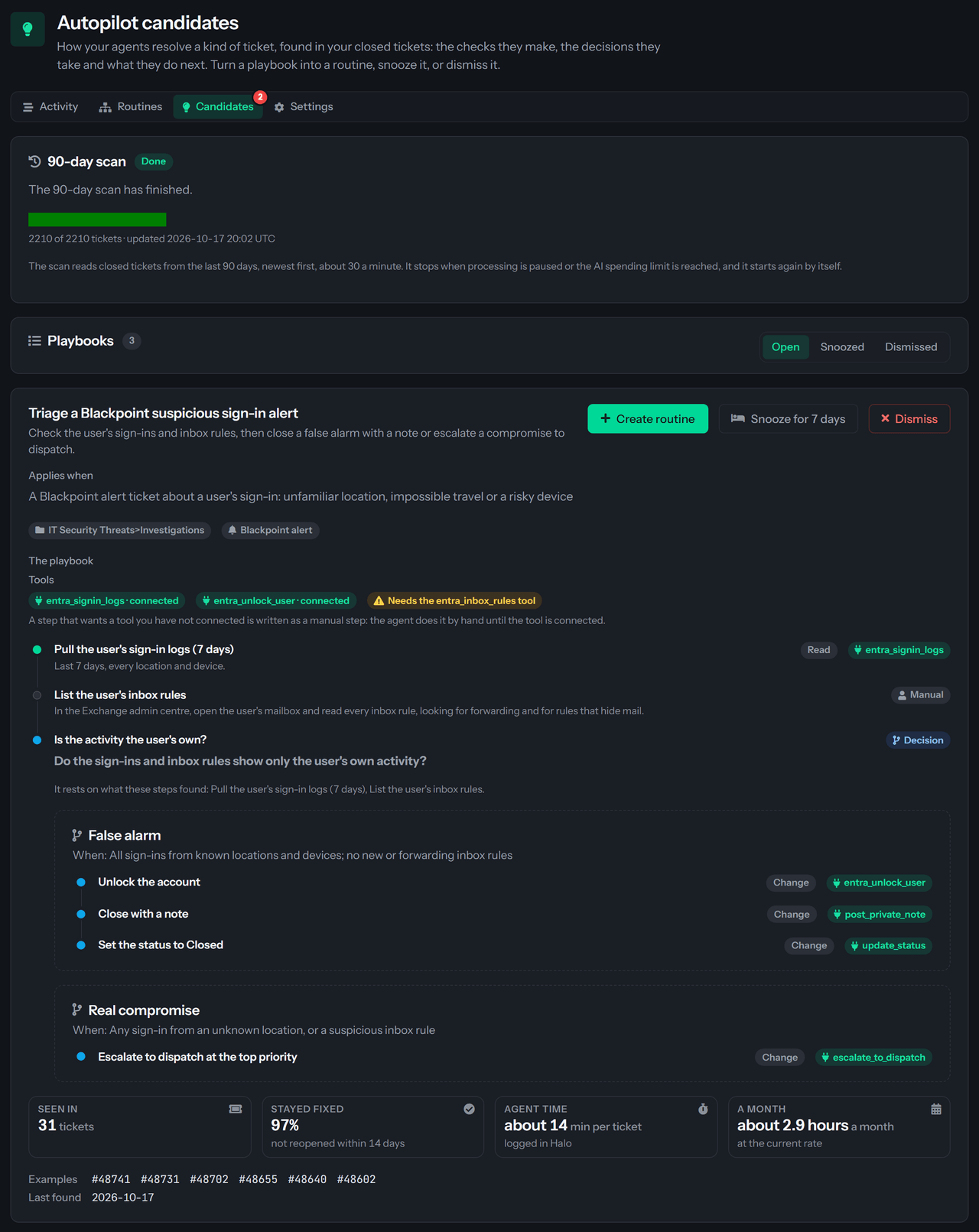
Each card is one playbook. From the top:
- The name and a one-line description, with Create routine, Snooze for 7 days and Dismiss on the right.
- Applies when says what a ticket looks like when the playbook fits, with the category and the alert source (such as Blackpoint) as small tags.
- The playbook lists Tools first, then the steps in order. A step's tag says what kind it is: Read for a check, Change for something it changes, Customer message for a message to the customer, or Manual for a person's instruction. A step that uses a tool shows the tool's name.
- A playbook can end in a Decision. It shows the question, the steps whose results answer it, and each outcome with When it applies and the steps that follow it. In the example, a false alarm unlocks the account and closes the ticket with a note, and a real compromise escalates to dispatch at the top priority.
- The numbers at the bottom, explained below, then Examples (ticket numbers that open the ticket in HaloPSA in a new tab, up to eight) and Last found.
Tools you have and tools you need
Each tool the playbook uses is tagged connected, which means your organization can run it, or Needs the tool name tool, which means the playbook would use a tool that is not connected here. A step that wants a tool you have not connected is written as a manual step that keeps its instruction, so an agent can still follow the playbook by hand. Connect the tool, for example through StackJack or MCP sources, and the playbook uses it the next time it is written again.
The numbers
Agent time is the time your agents logged in HaloPSA on these tickets, the median for one ticket, and the card says logged in Halo. It is used when at least half of the tickets have logged time. Time logged on QuantumOps's own notes is not counted. When fewer than half of the tickets log time, the card shows an estimate worked out from the steps along the path most tickets took, and says estimated. The estimate is 5 minutes for a check, 3 for a change, 3 for a customer message, 5 for a manual step and 2 for the decision.
When a playbook could not be written
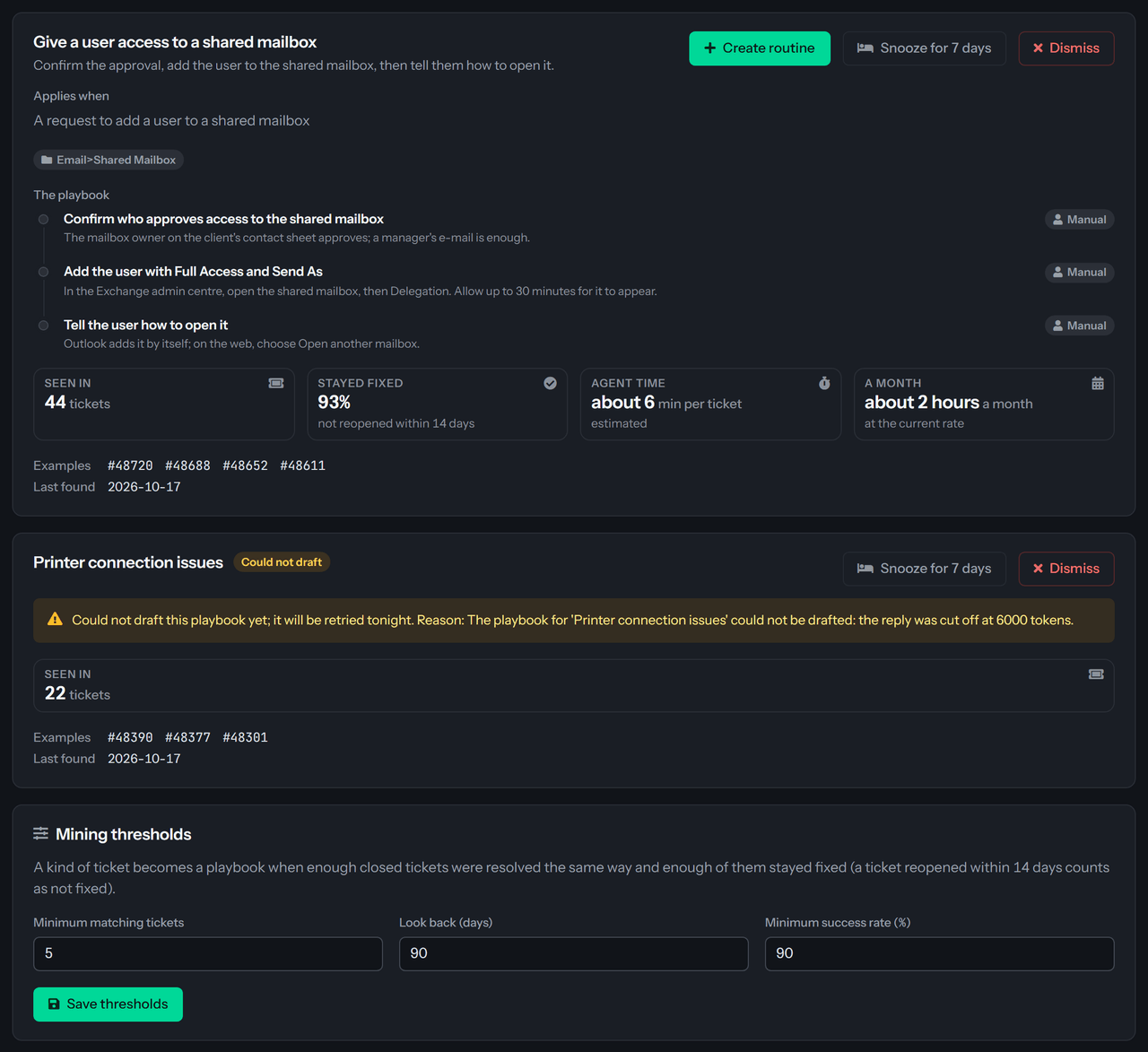
When the playbook for a group could not be written, for example because the model's reply was cut off, the card says Could not draft and Could not draft this playbook yet; it will be retried tonight, followed by the reason. It has no Create routine button and no steps, because Autopilot never shows made-up steps. The next run tries again.
Turn a playbook into a routine, or put it aside
- Create routine opens the routine editor filled in from the playbook: its name and description, its steps and its decision, the example tickets and the words these tickets had in common. The routine starts in Suggest mode with Shadow mode on, and Allowed tools stays empty, so it follows the tool rules until you fill it in.
- Snooze for 7 days hides the playbook for a week. It comes back by itself, and Snoozed lists the ones that are waiting.
- Dismiss removes it from the Open list. Choose Dismissed to see dismissed playbooks; they are shown for reference and cannot be brought back.
A playbook that already became a routine no longer appears. If you delete that routine, the playbook becomes available again. Playbooks are listed with the biggest time saving first, and the ones that could not be written last.
Change what qualifies
Under Mining thresholds, set Minimum matching tickets (2 to 100), Look back (days) (7 to 365) and Minimum success rate (%) (50 to 100), then choose Save thresholds. The defaults are 5 tickets, 90 days and 90 percent. A higher bar gives fewer, better-proven playbooks; a lower one finds more of them.
The 90-day scan card at the top shows how far the scan has read and whether it is running, paused or done. The same card is on the Routines tab.
Related pages
- Autopilot routines covers the routine editor, decisions in routines, shadow mode and run history.
- How Ticket Autopilot works shows what an agent sees when a plan reaches a decision.
- Autopilot settings sets how sure Autopilot must be to choose an outcome without a person.
Was this helpful?
Still need help? Ask the team