Approving Autopilot steps
When an Autopilot step needs an approver, the people your administrator chose get the request in the browser extension and in Teams or Slack; the first decision wins.
Last updated 21 days ago
Some Autopilot steps need a yes from someone other than the agent who locked the plan: a tool that a rule marks as needing approval, for example. This page is for the approvers. Your administrator chooses who may give that yes on Autopilot settings, as approver roles and named people. A new organization starts with the Service Desk Manager role.
Before you start. To decide in the browser extension, install it and sign in; the Approvals tab opens for anyone chosen as an approver, whatever their role. To decide in Teams or Slack, your QuantumOps account must be linked to your chat account (see Linking Slack and Teams), the assistant must be switched on for that app, and in Teams you must already have a one-to-one chat with the bot.
Receive a request
A request reaches every approver at once, except the agent who asked. It is never sent to the person who asked.
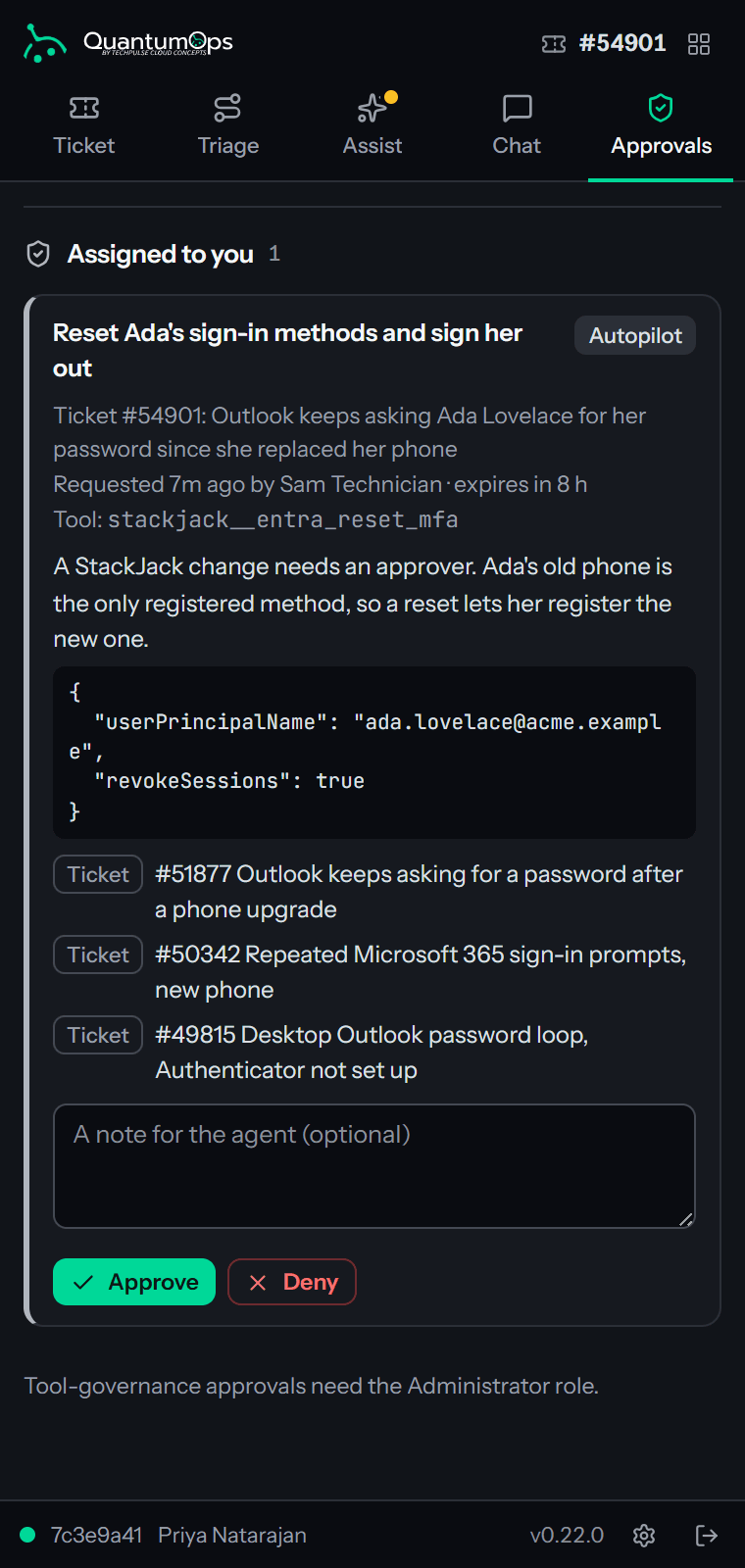
- In the extension. The Approvals tab lists it under Assigned to you, and the number on the More tab counts the requests waiting for you. Approvals tab describes the tab.
- In Teams or Slack. If your account is linked and the app is on, you also get a direct message with Approve and Deny buttons. You get one card, on the app you used most recently. Without a link, a chat account that is switched off or no personal chat with the bot, you get the request in the extension only.
The extension card shows the ticket with its summary, who asked and when, the tool, the reason and what the plan was based on, and the arguments the step will run with. The arguments are shown as they will run, with passwords, keys and signed links hidden. The chat card is shorter: it is headed Approval needed, or Escalated: approval needed once the request has moved on to the Administrators, and it says who wants to run which tool on which ticket. It shows the arguments masked and cut short, gives the reason and says when the request expires. A line on the card says the full arguments are in the extension.
Decide
- Read the arguments. They are what will run.
- Select Approve or Deny. In the extension you can first type a note for the agent in the box marked A note for the agent (optional); the chat card has no note box.
- The first decision wins. Whoever answers later is told who decided, for example Already decided by … in the extension or That request has already been decided by … in chat.
After Approve, the plan carries on and the step runs. After Deny, the step is skipped, the plan waits for the agent, and the agent is told, with your note, that the step was denied. The agent can then carry on without that step or change the plan. An approver cannot change the arguments: deny it with a note, and the agent edits the step and asks again.
Nobody can approve their own request. If the agent who asked is the only approver, the request goes to the Administrators straight away. If there is nobody else who could approve it, the agent is told so and is asked to get an approver added in Autopilot settings or to do the step themselves.
If the plan is edited after the request was sent, the request is withdrawn. The extension says The plan was edited, so this request was withdrawn. and the card goes. A chat card says That plan was edited, so this request was canceled. Open the ticket in the extension for the new plan. If you are not allowed to decide a request, the extension says You are not allowed to decide this request., and the chat card says You are not one of the approvers for this request. When your chat account is not linked, the card says Link your QuantumOps account first (send link to Qubit) so I know who is approving.
If nobody answers
After the escalation time your administrator set, 15 minutes at the start, the Administrators are asked as well and everyone is told again. An Administrator who is not one of the named approvers can decide only once the request has been escalated. After the expiry time, 8 hours at the start, the request expires, the plan waits and the agent is told. The agent can select Resume to ask again. See the times under approvers on Autopilot settings.
Where decisions are recorded
Every request and decision, with the note, appears on Autopilot activity, and on the plan's audit.
Choosing the outcome of a decision
A plan from a playbook can stop at a decision, where one of a few outcomes has to be chosen. That is not an approval request and it does not appear under Assigned to you, but being an approver matters: the person who locked the plan, an approver and an Administrator can choose the outcome, in the extension or on Autopilot activity. See Choose an outcome at a decision. Each step of the outcome that is chosen still goes through the rules, so a step that needs approval comes to you as a request.
Was this helpful?
Still need help? Ask the team