AI Access
On this screen you turn on BillingBot's AI — either the assistant inside the application, or your own AI connected from outside — and decide who pays for it.
Last updated 9 days ago
On this screen you turn on BillingBot's AI — either the assistant inside the application, or your own AI connected from outside — and decide who pays for it.
The two ways of using AI
There are two, and they are independent. You can use one, the other, or both.
1. The assistant inside BillingBot. A panel you open from the robot button at the bottom right of any screen. You ask in your own words — "compare November against what reached HaloPSA", "what is blocking this month?" — and it answers using your billing data. Nothing to install. This is the one most people will use.
2. Your own AI, connected from outside. You generate a key on this screen and paste it into the AI you already work with — Claude, ChatGPT, an automation in n8n, or an agent your team built. From then on, that assistant can read your billing data when you ask it to. This is for people who already live inside their own AI tool and want it to know about their billing too.
Both read exactly the same data, and both are read-only. Neither can change a charge, send an invoice, fix a mapping or write anything into your PSA. That is enforced on the server, not by the assistant's good behaviour.
Who pays for the AI
This only applies to the assistant inside BillingBot. (Your own AI runs on your own account, so there is nothing to decide.)
You have two options, in Who pays for it:
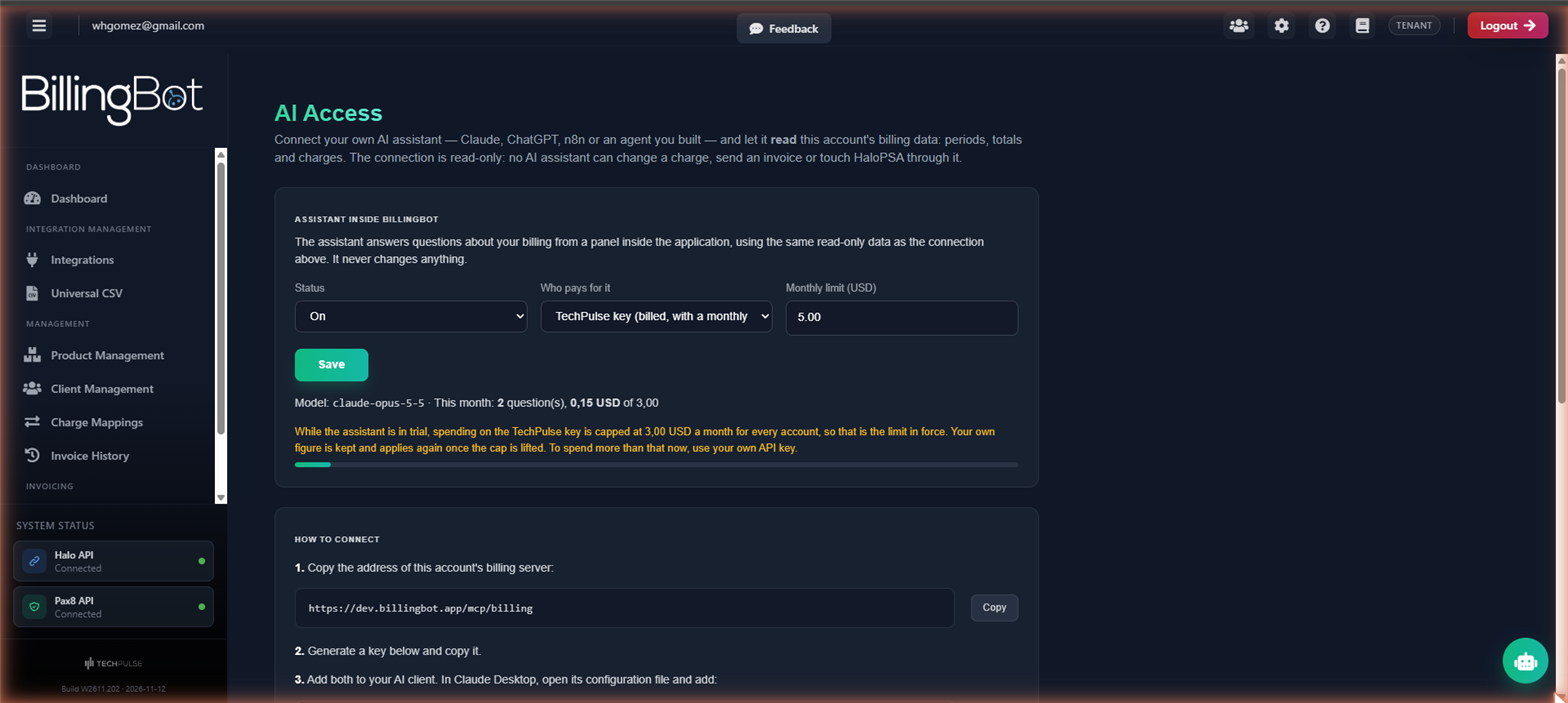
- TechPulse key (billed, with a monthly limit): you use TechPulse's AI account, with a monthly spending limit. Nothing to set up — switch it on and ask.
- My own key: you paste your own Anthropic API key, and the questions are billed to your own AI account. BillingBot stores it encrypted and never shows it again. There is no limit from our side.
While the assistant is in trial, spending on the TechPulse key is capped at 3.00 USD a month for every account, whatever figure you type in the limit. That is roughly forty questions — enough to judge whether the assistant is worth it. The figure you typed is kept and applies again once the cap is lifted. To spend more than that now, use your own key.
What it shows
The screen has these sections:
- Assistant inside BillingBot: where you switch the assistant on and decide who pays.
- How to connect: the address of your account's billing server, and a ready-to-paste configuration for your AI client.
- Generate a key: where you create a new key for an outside AI.
- Keys: every key ever issued for your account.
Assistant inside BillingBot
- Status: whether the assistant answers for your account at all. It starts off.
- Who pays for it: the TechPulse key or your own, as described above.
- Monthly limit (USD): only when you use the TechPulse key. When the month's spending reaches it, the assistant stops answering until the next month or until the limit is raised.
- Your API key: only when you use your own. Leaving the box empty keeps the one already stored.
- Save: applies the changes.
Below the form you see which model answers, and how many questions and how much money this month has used so far. On the TechPulse key a bar shows how much of the limit is gone: it turns amber past 80% and red when the limit is reached, and a line above it warns you before the assistant stops answering.
Keys
For each key in the list you see:
- Its Name, the description you typed when you created it (or a dash if you left it empty).
- Its Key: only the first characters, enough to tell two keys apart. The rest is never shown again.
- When it was Created, and by whom.
- When it was Last used. If it says "Never", the key has not yet been used by any client — which usually means it was never pasted correctly.
- Its Status: Active or Revoked.
What the AI can and cannot do
Both ways can read:
- Your billing periods and their totals, and the charges of a period.
- The lines that were queued or sent, and the invoices they landed on.
- The comparison between what the distributor sent and what reached your PSA.
- The products that have no PSA product assigned, and how a product is mapped.
- Your clients and how they are linked, the state of your integrations, the health summary and the recent errors.
Neither can change a charge, send an invoice, write to your PSA, or reach any of your integrations. Neither can see another customer's data: a key belongs to one account and only reads that account.
Reading an answer
Under each answer the panel shows two things that are worth looking at.
What it looked up. The names of the lookups it ran to produce that answer. Every figure in the answer comes from one of them — the assistant is instructed never to calculate or remember an amount — so this is how you check an answer instead of believing it.
What the question cost, when the TechPulse key paid for it. Watch this number for the first few days: it tells you what a month will actually cost before anyone commits to it.
A number that looks alarming usually is not. A difference between what the distributor sent and what reached your PSA is not automatically lost money — charges that are still pending are not missing, they simply have not been sent yet, and the answer says so. Read the note on the row before acting.
Available actions
- Save: applies the assistant's settings.
- Copy: copies the address, the configuration, or a newly generated key to the clipboard.
- Generate key: issues a new key for an outside AI. The key is shown once, right after it is created. BillingBot stores it encrypted and cannot show it again — if you lose it, revoke it and generate another one.
- Revoke: cancels a key. Any AI client using it stops being able to read immediately. The screen asks you to confirm before it does it. ⚠️
Revoked keys stay in the list on purpose: they are the record of what was issued and when it was cancelled.
Step-by-step: the assistant inside BillingBot
- Go to Settings and press Open AI Access.
- In Assistant inside BillingBot, set Status to On.
- Leave Who pays for it on the TechPulse key, or choose My own key and paste yours.
- Press Save.
- Open the robot button at the bottom right of any screen and ask a question about your billing.
Step-by-step: connecting your own AI
- In How to connect, press Copy next to the address.
- In Generate a key, optionally type what the key is for (for example, the person and the computer that will use it) and press Generate key.
- Copy the key immediately, while Your new key is on screen.
- Open your AI client's configuration, paste the address and the key, and save. The configuration block shown on the screen is ready to paste into Claude Desktop; any other client needs the same address, with the key sent in the
X-Api-Keyheader. - Ask your assistant a question about your billing to confirm the connection works. Come back to this screen: the key's Last used should no longer say "Never".
Common messages
- "The assistant is not enabled for this account." Status is off. Switch it on and save.
- "This month's limit has been reached." Spending on the TechPulse key has used up the month's limit. Raise the limit (up to the trial cap), wait for next month, or switch to your own key.
- "The AI key was rejected." The API key in use is not valid. If it is your own, check it on this screen; if it is TechPulse's, tell us.
- "The AI account has no credit left." The AI account behind the key has run out of credit — that is a matter for whoever owns the key, not a BillingBot problem.
- "Too many questions at once." Wait a moment and ask again.
- "The answer was too long to finish." Ask for less at a time: one client, or one month.
- "The assistant looked things up but did not produce an answer." Rephrase the question. This usually means it spent its allowance looking things up and never got to writing.
Good practice
- One key per person or per tool, named so you can tell them apart. A shared key cannot be revoked for one user only.
- Treat a key like a password: anyone holding it can read this account's billing data.
- Revoke keys you are no longer using. There is no cost to having an extra key, but there is no reason to keep a live one that nobody uses either.
- Check the answers against the screens for the first few days. The assistant reads the same data you do, but you are the one who knows what the month is supposed to look like.
Related screens
- Settings — where you open this screen from.
- Ready to Invoice — the screen most questions end up being about.
- Invoice History — what was already sent to your PSA.
Was this helpful?
Still need help? Ask the team